• Skip to main content
  • Skip to primary sidebar
  • Home
  • About
  • Recommended Readings
    • 2022 Book Reading
    • 2023 Recommended Readings
    • Book Reading 2024
    • Book Reading 2025
    • Book Reading 2026
  • Supply Chain Management Guide
  • PKM
  • Microsoft Excel
  • Microsoft Copilot in Office 365
  • Public Wiki Page

Ali Raza Zaidi

A practitioner’s musings on Dynamics 365 Finance and Operations

Tips and tricks

“Wrong field ID in the key data container in entity key” Dynamics Ax 2012 AIF

September 17, 2014 by alirazazaidi

I got following Error when I called the Read method of Dynamics Ax AIF service.

“Wrong field ID in the key data container in entity key”


My code snippet is as follow and I did not found anything wrong with it.

StudentInfoRef.KeyField keyField = new StudentInfoRef.KeyField() { Field = "FirstName", Value = "Ali2" };

// Create an entity key instance and put in the key field data

StudentInfoRef.EntityKey entityKey = new   StudentInfoRef.EntityKey();

entityKey.KeyData   = new   StudentInfoRef.KeyField[1] { keyField };

// Create an array of entity keys and put in the previously


StudentInfoRef.EntityKey[] entityKeys = new StudentInfoRef.EntityKey[1] { entityKey };

StudentInfoRef.StudentInfoServiceClient _Client = new StudentInfoRef.StudentInfoServiceClient();

StudentInfoRef.CallContext _callContext = new StudentInfoRef.CallContext();

_callContext.Company = "USSI";

StudentInfoRef.AxdStudentInfo _StudentInfo = _Client.read(_callContext, entityKeys);

StudentInfoRef.AxdEntity_StudentInfoTable _StudentInfoTable = _StudentInfo.StudentInfoTable[0];


After trouble shooting I found that I was trying to read on field which have same value in multiple rows. For example I am trying to read from filed FirstName and value “Ali” exists more than one row.


It is recommend that read method will applied on column or field which have unique index.

I was working on testing data, so I delete the all records which have “Ali” value in “FirstName” field. Only one record left for value “Ali”. This time Read method works perfectly right.

It is recommended that if you have repeated values in different rows, you Find method of dynamics Ax 2012.
Creating and consuming Custom Document Service in Dynamics Ax 2012 R3

September 15, 2014 by alirazazaidi

For one of Presentation on AIF, I build a custom Document Service based on custom table. To avoid any validation constraints I made a very simple custom table “StudentInfoTable”.

FieldName dataType
Roll Number string
FistName string
LastName string
Address string
DateOfBirth date.


Create a Unique Index on FirstName field, so Read and find method of custom Document service works fine.


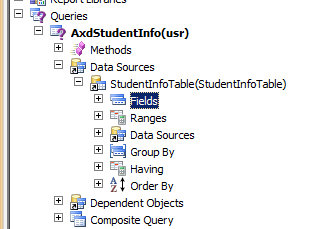
In AOT under Query Node with Name AxdStudentInfo, create a new DataSource and add StudentInfoTable. Right click on field and set Dynamic Property to Yes


Query


Now right click on “StudentInfoTable” Node and set its Update properties to true, so Update methods will created against this query object


UpdateQuery


Now in Development environment from top menu click on AIF frame and then select on Create Document Service and click on it. For this result in running a Wizard

Menu


Select following options from Wizard, select the query which we create above mentioned drop down. Name the Document Name


9-14-2014 10-04-05 AM

Press Next button, from the next button check all the checkbox as per following screen shot.

9-14-2014 10-05-12 AM

Press on Next Button

9-14-2014 10-08-52 AM

Press on Generate button.

9-14-2014 10-12-39 AM

Press On Finished button.

There is possibility of errors in generated code, You can find complete code generated with wizard in private project in Dynamics Ax.

Private Project for Document Services

Right click on AxdStudentInfo and compile again.

You have delete two methods  cacheObject and cacheRecordRecord in AxStudentInfoTable and compile the whole project.


Now right click on StudentInfoService and set namespace

http://schemas.Student.com/ServiceContracts

Service reference

Now create a right on Service group Node and create a new service group.


Service Group

Drag and drop service node under Student InfoService group. So  Student Service will be available for in side service group.


Now generate Inc CIL or right click on StudentInfoServicegroup and click deploy


Deploy Service Group


After successful deployment you may find following info box


Service InfoBox


Now open a new work space and go at System Administration module and open in bound port under Application integration framework

In Bound Port


And Open Application Inbound framework


Address

Copy WSDL URL In my case it is


http://WIN-IKPOSIU2SGD:8101/DynamicsAx/Services/StudentInfoServiceGroup


now open Visual studio Project and create a new Console project I am more comfortable with C#.

Console


From Solution explore right click and add Service reference

ServiceReference2


Now we can use following code to create, Read, Update and delete methods


Create method


  StudentInfoRef.AxdEntity_StudentInfoTable _StudentInfo = new StudentInfoRef.AxdEntity_StudentInfoTable();

StudentInfoRef.AxdStudentInfo _Student = new StudentInfoRef.AxdStudentInfo();

_Student.StudentInfoTable = new StudentInfoRef.AxdEntity_StudentInfoTable[1] { _StudentInfo };


_StudentInfo.FirstName = "Ali";

_StudentInfo.LastName = " Raza";

_StudentInfo.Address = " Lahore";

_StudentInfo.DateOfBirth = new DateTime(1979, 4, 6);

StudentInfoRef.StudentInfoServiceClient _Client = new StudentInfoRef.StudentInfoServiceClient();

StudentInfoRef.CallContext _callContext = new StudentInfoRef.CallContext();

_callContext.Company = "USSI";

StudentInfoRef.EntityKey[] entityKeys = _Client.create(_callContext, _Student);

You can see create function works fine.
TableExploreCreate
In above mentioned code, Create method take two parameter, first is Call context, In Call context variable we can define legal entity where data will be inserted.


Read Method


Read method use EntityKey for searching criteria for example we want to search Student with First Name Ali following code will works for Us.

Read method works on keyField value. It is recommend that you will search records on the bases of Unique indexed based field.


StudentInfoRef.KeyField keyField = new StudentInfoRef.KeyField() { Field = "FirstName", Value = "Ali2" };


// Create an entity key instance and put in the key field data

StudentInfoRef.EntityKey entityKey = new   StudentInfoRef.EntityKey();


entityKey.KeyData   = new   StudentInfoRef.KeyField[1] { keyField };

// Create an array of entity keys and put in the previously


StudentInfoRef.EntityKey[] entityKeys = new StudentInfoRef.EntityKey[1] { entityKey };


StudentInfoRef.StudentInfoServiceClient _Client = new StudentInfoRef.StudentInfoServiceClient();

StudentInfoRef.CallContext _callContext = new StudentInfoRef.CallContext();

_callContext.Company = "USSI";


StudentInfoRef.AxdStudentInfo _StudentInfo = _Client.read(_callContext, entityKeys);


StudentInfoRef.AxdEntity_StudentInfoTable _StudentInfoTable = _StudentInfo.StudentInfoTable[0];


Console.WriteLine("First Name :" + _StudentInfoTable.FirstName);

Console.WriteLine("Last Name :" + _StudentInfoTable.LastName);

Console.WriteLine("Address :" + _StudentInfoTable.Address);


Console.ReadLine();


Update Method

Update in Document is two step process, first step to read the record based on field and second step to update the record which is return as result.


For example I want to update Address and Last Name of student. Following code works for me.


StudentInfoRef.KeyField keyField = new StudentInfoRef.KeyField() { Field = "FirstName", Value = "Ali2" };


// Create an entity key instance and put in the key field data

StudentInfoRef.EntityKey entityKey = new StudentInfoRef.EntityKey();


entityKey.KeyData = new StudentInfoRef.KeyField[1] { keyField };

// Create an array of entity keys and put in the previously


StudentInfoRef.EntityKey[] entityKeys = new StudentInfoRef.EntityKey[1] { entityKey };


StudentInfoRef.StudentInfoServiceClient _Client = new StudentInfoRef.StudentInfoServiceClient();

StudentInfoRef.CallContext _callContext = new StudentInfoRef.CallContext();

_callContext.Company = "USSI";


StudentInfoRef.AxdStudentInfo _StudentInfo = _Client.read(_callContext, entityKeys);


StudentInfoRef.AxdEntity_StudentInfoTable _StudentInfoTable = _StudentInfo.StudentInfoTable.First();


_StudentInfoTable.Address = "Lahore";

_StudentInfoTable.LastName = "Zaidi";

_StudentInfoTable.action = StudentInfoRef.AxdEnum_AxdEntityAction.update;

_StudentInfoTable.actionSpecified = true;

_Client.update(_callContext, entityKeys, _StudentInfo);


Delete Method


Delete Method works for same way, Send entity keys and call for Delete method.


StudentInfoRef.KeyField keyField = new StudentInfoRef.KeyField() { Field = "FirstName", Value = "Ali2" };


// Create an entity key instance and put in the key field data

StudentInfoRef.EntityKey entityKey = new StudentInfoRef.EntityKey();


entityKey.KeyData = new StudentInfoRef.KeyField[1] { keyField };

// Create an array of entity keys and put in the previously


StudentInfoRef.EntityKey[] entityKeys = new StudentInfoRef.EntityKey[1] { entityKey };


StudentInfoRef.StudentInfoServiceClient _Client = new StudentInfoRef.StudentInfoServiceClient();

StudentInfoRef.CallContext _callContext = new StudentInfoRef.CallContext();

_callContext.Company = "USSI";

_Client.delete(_callContext, entityKeys);


ENUM values missing in SRSANALYSISENUMS Table

September 12, 2014 by alirazazaidi

During one of assignment, I have to get some data directly from Dynamics Ax table in SQL Server.

All enum based column in table shown their numeric values in Sql Server. For Analysis services Or OLAP services Dynamics Ax holds a table with name “SRSANALYSISENUMS”. This table contains the all enum which are used inside the Cube ETL process.

Analysis services was not install on my machine, for this reason “SRSAnalysisENums” table was empty.

This table is populate with static method “populateSRSAnalysisEnums” of class “BIGenerator”. We can directly run this method to populate the require table so we can join it in SQL server to get enum display/Name in query result instead of their numeric values.

If you have custom table which has one or more tables are based on Enum data type. Or your required enum values are not present in “SRSANALYSISENUMS”.  You have to perform following steps.

  • Create a new prospective.
  • Drag required table in Table node of new prospect.

9-12-2014 6-06-17 PM

  • Save the prospect.
  • Open a new job inside the Dynamics Ax AOT node.


  • Run a static method populateSRSAnalysisEnums() of class BIGenerator as follow

static void Job4(Args _args)
{
//BIGenerator _Bi= new BIGenerator();
BIGenerator::populateSRSAnalysisEnums();
}

  • You will find that SRSAnalysisENums” will be populated and your required Enum will be present there.

SRSANALYSISENUMS

How to get data from those AX tables which are not appear in SQL server

September 9, 2014 by alirazazaidi

During customization in Dynamics we usually check that what data store in Tables. For this I am more found of using SQL server then using table explore in AOT.  When we upgrade code from Dynamics Ax 2012 to R2, We found that many tables did not appear in SQL Server. Examples are EcoResProduct , BankLCImport and BankLCImportLine table.

It is not recommended by Microsoft to bypass Dynamics Ax 2012 and direct query on tables in Sql server. But sometimes it is requirement to get data direct form Sql Server. We finally found that if we build view in Dynamics on those tables either by creating Queries or by directly on table. These views are available in SQL Server. We can use that custom View in our query instead of tables in Sql server.

How to Use AX Form As lookup in Dynamics Ax 2012

August 27, 2014 by alirazazaidi

Consider a scenario where, I required a StringEditControl and Clicking on Control a lookup is open where the list of Customer of selected Legal Entity are available. And After Selecting required Customer, Customer Id Or AccountNum is return form Lookup form.


For This purpose we have to create form, which will used as look Up.


Create a New form. Name It  “FormCustomerLookUp”

New Form

In Data Source Create and New dataSource Name It CustomerTable and Point to CustTable.


Customer Table As DataSource

Expand the Design node  and Right Click on It and Add Grid, Now from CustomerTable Data Source, Drag and drop “AccountNum” and “Party” on Grid. It will create two String Edit Control on Grid bound with CustomerTable.


CustomerFields

Now Select on “StringEdit:CustomerTable_AccountNum” select Properties. Form Properties window Set Its Auto declaration  property to True.


LookUpFieldAutoProperties

Now expend the Methods Node form and Right click and override the Init method from there and add following line of code there.


    element.selectMode(CustomerTable_AccountNum);


LookUpFormInitialization


Now right click on Design Node and Update following properties.

Width=360

Style=LookUP.

StyleToLookUp


Now Create a form where this lookup will use. For this Article I have to create very simple form with only on stringEdit textbox.

On its Design Right click and create StringEditButton with Name “LookUpTest” and from Its property window Auto Declare Property is set to Yes and lookupButton property to “Always”.


TargetFieldProperties


LookUpFields


Now Add two method, One used to Register control with Lookup, and Second method will use to call lookup form and gets its value.

protected void configureCustomerLookUp(FormStringControl stringControl)

{

if (stringControl)

{


stringControl.visible(true);

stringControl.registerOverrideMethod(

methodStr(FormStringControl, lookup),

identifierStr(CustomerLookUp), this);


}

}

LookupRegisteration


Second method will be called on lookup button click


private void CustomerLookUp(FormStringControl stringControl)

{

Args args = new Args(identifierStr(FormCustomerLookUp));

FormRun lookupFormRun;


args.parm(“”);

args.caller(this);


lookupFormRun = ClassFactory::formRunClassOnClient(args);

lookupFormRun.init();


stringControl.performFormLookup(lookupFormRun);

lookupFormRun.wait();


}

LookUpMethods

If you have already some knowledge above code is easily Understanable, where  Ax form Name set in args and instance of from is created at runtime and then attached the form to string controls performLookUp method.


Now run the form. And click on lookup button on textbox.

TargetButtonForm


Click on LookUp Button


LookUpClick

Selected Value will show on text box when you click on lookup grid


SelectedValueInTarget


Nice Experiments, Now you can use This functionality as you want,


How to clear inactive sessions from Dynamics Ax 2012

August 19, 2014 by alirazazaidi

If you check the online user in Administrator Module, You may be found some session with inactive and block status. These inactive and block session are due to crashing of AX clients. These sessions are not create any problem, but possible issues with limited number of active users under Dynamics Ax license. Best approach to clear these inactive and block session form Dynamics Ax to avoid any future conflict with Licensing. All these session information is stored in “SysClientSessions.” Table.

Second Problem we usually face that when we start AOS service, it take too much time change status from Starting to started. One of many reason for this phenomena that AX try to query and located any Active session in SysClientSessions.  To reduce the time is to remove all session inactive from SysClientSessions table or possible remove the inactive and block session form Database. In “SysClientSessions” Status with status 0 (Inactive), Status 2 (Ending Waiting for AOS), 3 (Ending –Block).


Perform following steps.

  1. Stop AOS service.
  2. Open SQL Server Management Studio
  3. Open any new query on Dynamics Ax Database.
  4. Run the following Query where sessions with status 0 (Inactive), Status 2 (Ending Waiting for AOS), 3 (Ending –Block).

delete from SysClientSessions where status in(0,2,3)

  1. Restart AOS.

Hopes this will works to start AOS service faster than previously.

How to get Standard SQL out from Query Object in AOT?

August 15, 2014 by alirazazaidi

We can get standard sql from AOT Query object through X++ code.

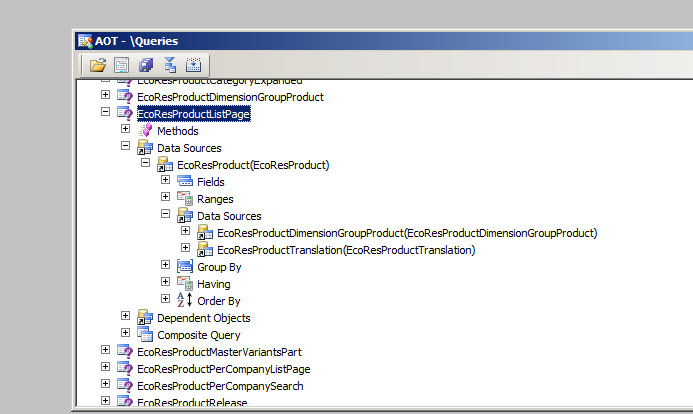
Following X++ Code used to get Standard Sql out of EcoResProductListPage


EcoResProductListPage

static void Job2(Args _args)

{

Query query;

query = new Query(queryStr(EcoResProductListPage));

info(query.dataSourceNo(1).toString());

}

QueryInfo


Clear the Cache on all clients Dynamics Ax 2012

August 10, 2014 by alirazazaidi

Last week I post a solution to problem of old code on Dynamics Ax 2012 Client, That work for single client and it is not possible to clear cache on manually on every client. Later I found better solution to reset the client cache at AOS. Reference is

Reset program cache file for all clients


According to that reference we have to reset the GUID, so all Clients have to reset its cache, this method required AOS restart.

static void ResetAUC(Args _args)
{
#AiF
SysSQMSettings _Settings;
;
ttsbegin;
update_recordset _Settings setting GlobalGUID = str2Guid(#EmptyGuidString);
ttscommit;
info("Now we have to Restart the AOS Service to use a new GlobalGUID.");
}

Its works for me.

Dynamics Ax 2012 Error Code 90, Unable to connect to database

August 5, 2014 by alirazazaidi

My friend Bashir Ahmad Malik got following error during start up dynamics Ax service.


“The Microsoft Dynamics AX Object Server 6.2$01-MicrosoftDynamicsAX service terminated with service-specific error Code 90.
Suspect state of SQL Server database is a state when you are unable to connect to the database. “


During trouble shooting we find following root causes.


  • database is corrupted
  • database files are being “opened” or held by some process (operating system, other program(s)…)
  • not enough disk space for SQL Server
  • insufficient memory (RAM) for SQL Server
  • unexpected SQL Server shutdown caused by power failure


we solve this problem by following Sql Script.

  1. Connect database server with Microsoft SQL Server Management Studio.
  2. Execute the following SQL script in given order:

NOTE: replace [DatabaseName] with your database name

-- This query will rollback any transaction which is running on that database

-- and bring SQL Server database in a "single user" mode

ALTERDATABASEMicrosoftDynamicsAX SETSINGLE_USER WITHROLLBACKIMMEDIATE


-- Marking database READ_ONLY, disable logging,

-- and limiting access only to members of the sysadmin fixed server role

ALTERDATABASEMicrosoftDynamicsAX SETEMERGENCY


-- Checks the logical and physical integrity of all the objects in the specified database

DBCC checkdb(MicrosoftDynamicsAX)


-- In case of simple failure then we can use allow data loss option to recover Database


--  DBCC CheckDB (MicrosoftDynamicsAX, REPAIR_ALLOW_DATA_LOSS)


-- Set database accessibility to it's original state, allowing all logins

ALTERDATABASE MicrosoftDynamicsAX SETMULTI_USER

EXEC sp_resetstatus MicrosoftDynamicsAX


reference : http://social.technet.microsoft.com/wiki/contents/articles/25820.repair-a-suspect-database-in-sql-server.aspx

Dynamics Ax 2012 Client cache problem

August 3, 2014 by alirazazaidi

A few days ago, I was working on Dynamics Ax 2012 customization. When I shifted code to QA server, Compile, Generate CIL, but no changes display on client. I was shocked, latest code working fine on my machine but why it is not working on QA server. AOT shows the latest code. During troubleshooting I found that it is due to Client Cache.  For this I have to delete cache files form cache folder. AX cache files have “auc” extension.


I found auc files from following folder

C:\Users\aliraza.zaidi\AppData\Local\


I perform following steps.

  1. Close Client on machine.
  2. Stop AOS service.
  3. Delete all auc files from local cache folder.
  4. Restart AOS.
  5. Open client.


I found latest code working fine on QA server.

« Previous Page
Next Page »

Primary Sidebar

About

I am Dynamics AX/365 Finance and Operations consultant with years of implementation experience. I has helped several businesses implement and succeed with Dynamics AX/365 Finance and Operations. The goal of this website is to share insights, tips, and tricks to help end users and IT professionals.

Legal

Content published on this website are opinions, insights, tips, and tricks we have gained from years of Dynamics consulting and may not represent the opinions or views of any current or past employer. Any changes to an ERP system should be thoroughly tested before implementation.

Categories

  • Accounts Payable (2)
  • Advance Warehouse (2)
  • AI (3)
  • Asset Management (3)
  • Azure Functions (1)
  • Books (6)
  • Certification Guide (3)
  • ChatGPT (3)
  • Claude (1)
  • Customization Tips for D365 for Finance and Operations (64)
  • D365OF (60)
  • Data Management (1)
  • database restore (1)
  • Dynamics 365 (59)
  • Dynamics 365 for finance and operations (139)
  • Dynamics 365 for Operations (175)
  • Dynamics AX (AX 7) (134)
  • Dynamics AX 2012 (274)
  • Dynamics Ax 2012 Forms (13)
  • Dynamics Ax 2012 functional side (16)
  • Dynamics Ax 2012 Reporting SSRS Reports. (31)
  • Dynamics Ax 2012 Technical Side (52)
  • Dynamics Ax 7 (65)
  • Exam MB-330: Microsoft Dynamics 365 Supply Chain Management (7)
  • Excel Addin (1)
  • Favorites (12)
  • Financial Modules (6)
  • Functional (8)
  • General Journal (1)
  • Implementations (1)
  • Ledger (1)
  • Lifecycle Services (1)
  • Logseq (4)
  • Management Reporter (1)
  • Microsoft Excel (4)
  • MS Dynamics Ax 7 (64)
  • MVP summit (1)
  • MVP summit 2016 (1)
  • New Dynamics Ax (19)
  • Non Defined (9)
  • Note taking Apps (2)
  • Obsidian (4)
  • Personal Knowledge Management (3)
  • PKM (16)
  • Power Platform (6)
  • Procurement (5)
  • procurement and sourcing (6)
  • Product Information Management (4)
  • Product Management (6)
  • Production Control D365 for Finance and Operations (10)
  • Sale Order Process (10)
  • Sale Order Processing (10)
  • Sales and Distribution (5)
  • Soft Skill (1)
  • Supply Chain Management D365 F&O (5)
  • Tips and tricks (278)
  • Uncategorized (165)
  • Upgrade (1)
  • Web Cast (7)
  • White papers (4)
  • X++ (10)

Wiki

  • SCM

Copyright © 2026 · Magazine Pro On Genesis Framework · WordPress · Log in