Dynamics AX 2012
Service Item with Stocked Item Model

I conducted an experiment to see what happens when we create a service item but select the item group as stocked.
To test this, I created an item called “Service 101” using the FIFO model, which is typically used for stocked items.

Next, I purchased it as a normal item.

When I checked the inventory transactions, I noticed that transactions were recorded—this happened because the FIFO item model treats it as a stocked item.

Inventory transactions

Why would we need such an item?
If we define an item as a service and assign it to a non-stocked item group, it means we can use it as a service charge—either as a service received or provided to a customer. In this case, no inventory transactions would be recorded.
However, in production orders, when defining the Bill of Materials (BOM), there are certain non-physical costs (such as floor charges) that need to be accounted for. The problem is that BOM does not support service items.
To work around this, we need to create a service item using a stocked item model, ensuring that it can be included in BOM calculations while still serving its intended purpose as a service-related charge.
How to convert utcdate time to ISO 8601 Formats D365 Finance and Operations
Hi friends, recently I got chance to write a code to convert Utc date time to iso 8601. I wrote following code snippet you can modify as per your need
public static str GetEPochTime(utcdatetime _DateTimeValue)
{
    utcDateTime utcDateTimeValue;
    str formattedDateTime;

    date datepart;
    int milliseconds;
    TimeOfDay _time;
    // _DateTimeValue = DateTimeUtil::applyTimeZoneOffset(_DateTimeValue, Timezone::GMTPLUS0300KUWAIT_RIYADH); // Adjust for specific timezone if needed
    int _year= DateTimeUtil::year(_DateTimeValue);
    int _day = DateTimeUtil::day(_DateTimeValue);
    int _Month = DateTimeUtil::month(_DateTimeValue);
    int _Hour = DateTimeUtil::hour(_DateTimeValue);
    int _second = DateTimeUtil::second(_DateTimeValue);
    int _minute = DateTimeUtil::minute(_DateTimeValue);
    int _timetomilliSecond = 0;
    var localTime =  new System.DateTime(_year, _Month, _day, _Hour, _minute, _second,_timetomilliSecond, System.DateTimeKind::Utc);
    localTime =System.TimeZoneInfo::ConvertTime(localTime,System.TimeZoneInfo::FindSystemTimeZoneById("Arabic Standard Time"));
    // Example UTC DateTime
    // utcDateTimeValue = _DateTimeValue;
    formattedDateTime = localTime.ToString("o");
    // formattedDateTime =DateTimeUtil::toStr(_DateTimeValue);
    formattedDateTime =strReplace(formattedDateTime,".0000000",".00+03:00");
    return formattedDateTime;
Finalize the Purchase Order- D365 Finance and Operations
- Hello friends, Today we explore the finailzed option on purchased order.
- I usually confirm the purchased order but never use this functionality.
- We can use this option only when we call lines in purchase order are cancelled or invoiced.
- I tried it and found following error message on purchase order with Received status.
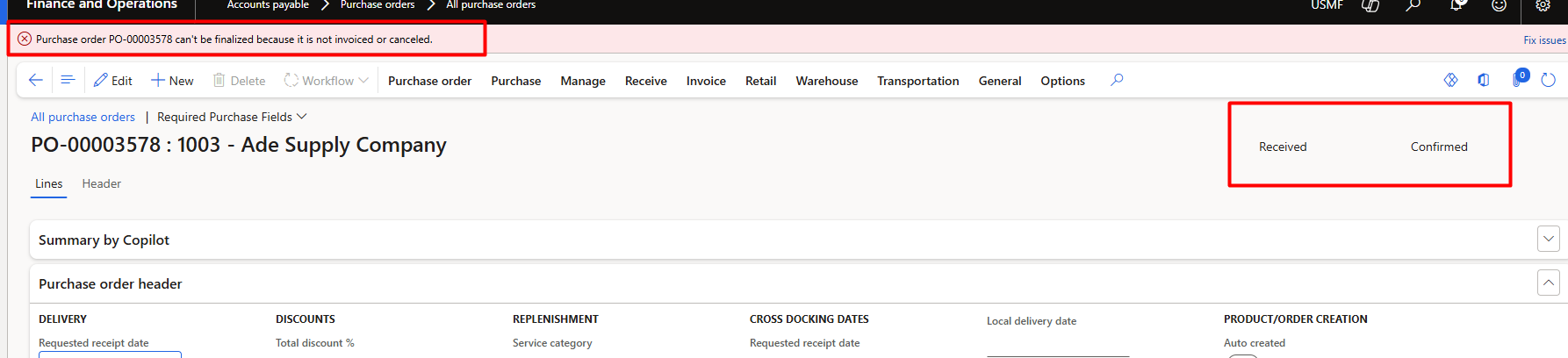
- One thing is sure, after finalization of purchase order we can not change in purchase order.
- After posting Invoice I tried

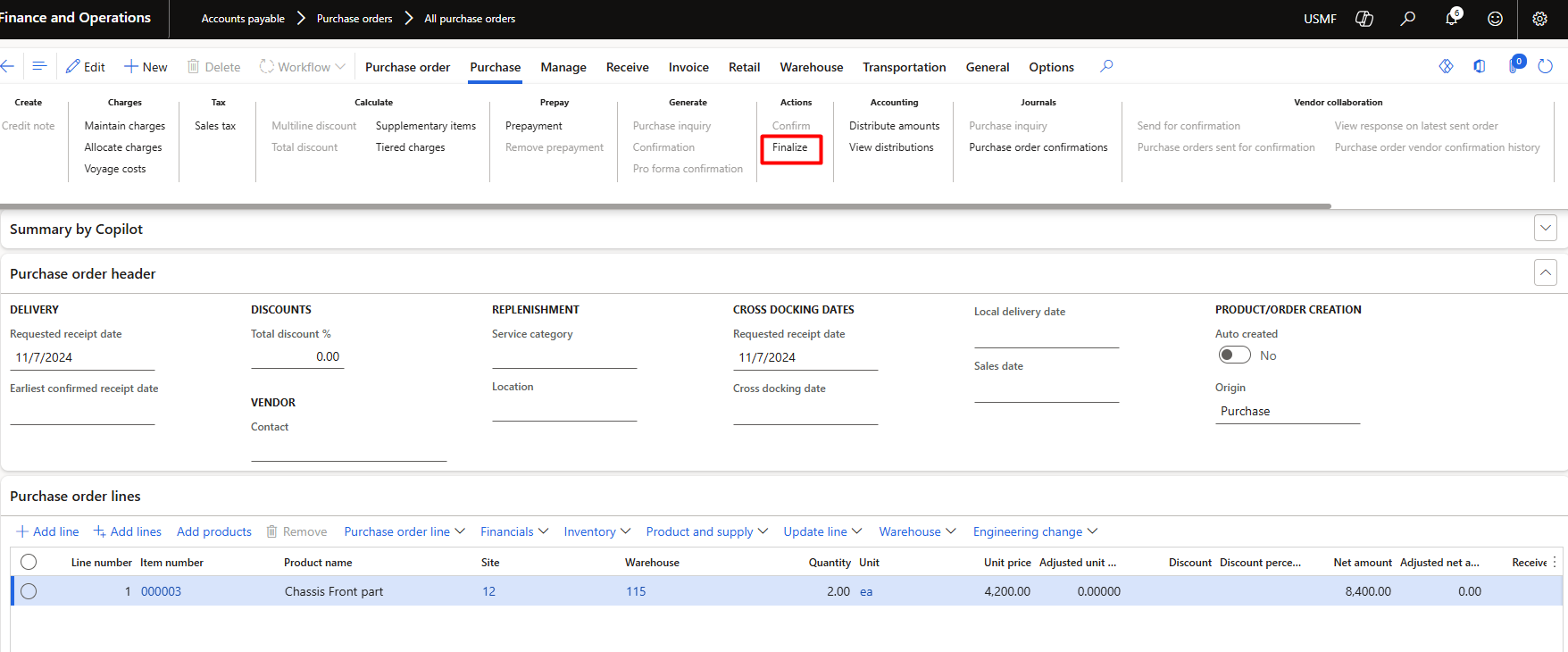
- We can finalize purchase order by two ways, one is from purchase top menu.
- Or we can use use the following navigation
- Procurement and Sourcing > Periodic Tasks> Finalize Purchase Orders.
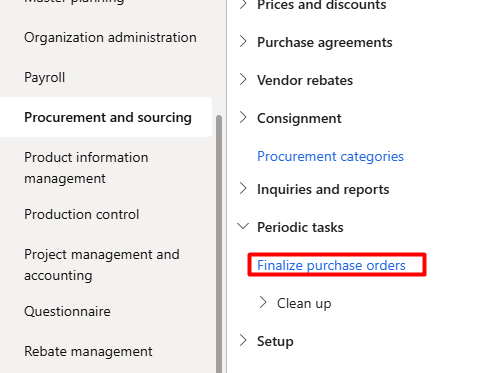
- we tried from purchase order on action pane. and let see what happen
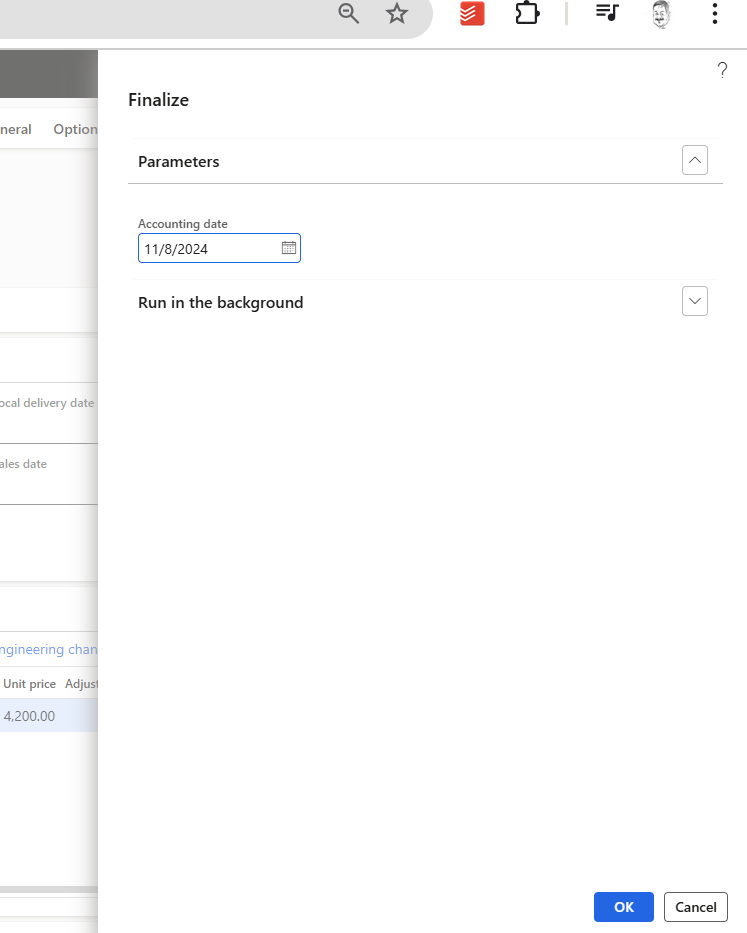
- After click on Ok, the status of purchase order is final.
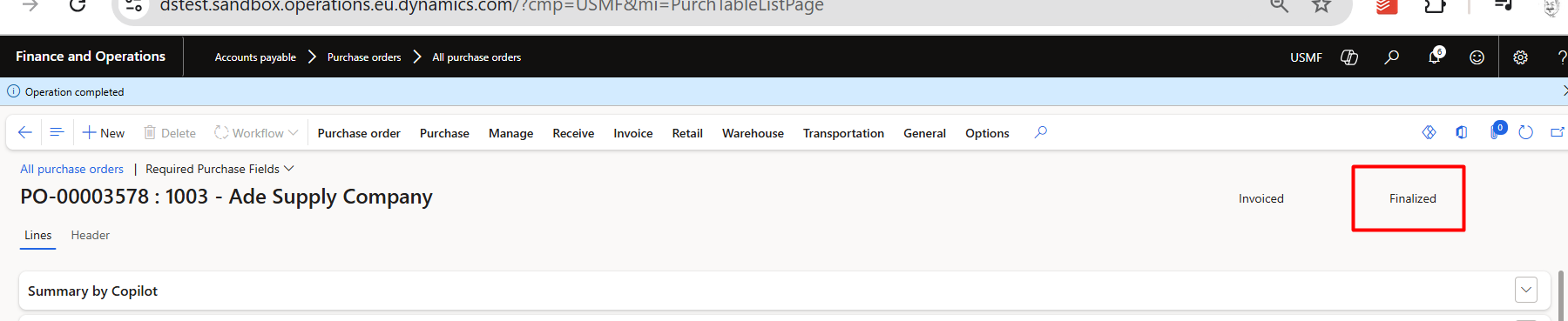
- let me try to add a new line.
- The add new line option is gray out, we can not add or edit line
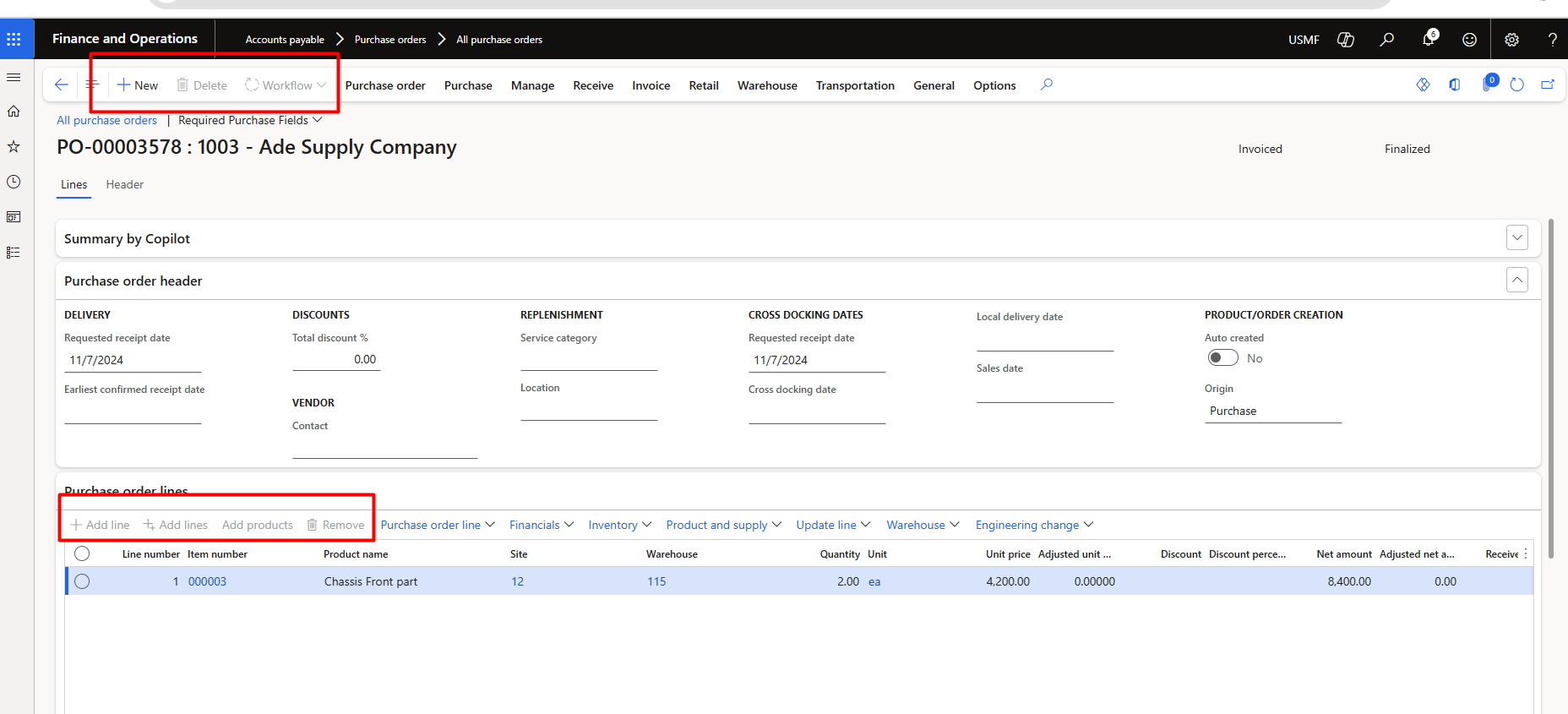
- When a [[Purchase Order]] or Purchase Order Line is “Finalized”, the system does 2 things:
- 1) It did not allow to any changes or add new line in purchase order.
- 2) If you enable the budgeting module in d365 F&O and buget is reserved against purchase order, Finalization of purchase
I used Roam Research app for writing this blog post.
How to create resuable product template in D365 finance and operations
Hi friends, in this video I shared how to create a product template and reuse them in to d365 finance and operations
Sales Order Return In D365 Finance and Operations
In this video, I shared complete process for sales order return.
How to create Item Batch manually in D365 F&O
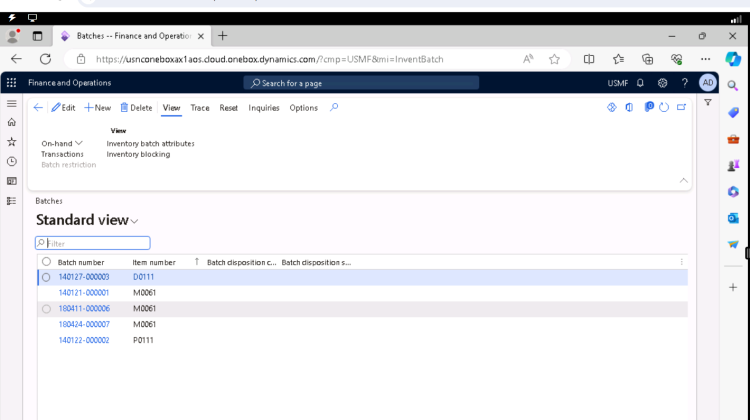
I love D365 F&O because every day I have to learn something new. At the same time, D365 F&O was so big that I started to forget things very fast. What I did a year ago is just a vivid memory. Yesterday, an interesting thing happened. During testing for one customisation, I had to deal with batch-enabled items. I have to raise stock on more than 20 items. So I can test sale order scenarios. So instead of creating a purchase order, I decided to make inventory adjustments. And when I post the inventory adjustment journal, it gives me an error message for each batch for each item required. Hmm, what to do now? I have to create batches manually and then associate them with items. And these batches I have to copy into inventory adjustment lines. Go to Inventory Management> Inquiries and Reports > Tracking Dimensions > Batches. This is a wonderful page. Here, I can reset the expiration dates of the selected batch. Shelf life. It reminds me of a common requirement. The system should not receive or ship the product, which has more than 60 percent shelf life. There should be special approval for products that have a 60 percent shelf life. I am not giving a solution here. But whatever solution you provide, its origin lies here.
Go to Inventory Management> Inquiries and reports > Tracking dimensions > Batches.

Before creating a new batch, I got attention to reset button.

On that tab, I found three options, It works for selected row on grid. above screenshot I took when I click on Reset shelf Life dates.
I am not interested in Dates because these are too sweet. Arab called dates as “Timmer”
Timmerun Halwa jinduun
التمر حلو جدًا
Its same Hawla, that happen in Ichra Lahore Pakistan.
Pakistani like Halwah too much
You can reset dates from here.
Let it.
I have to create new batch, that I can use in Inventory Journal. so I clicked on New button. Detail page opens where I have to add multiple things.
Like Item, batch code, Disposition code and things related to shelf life.

Hope you like this article, why I do blog because I forget things very fast.
Product Attribute Data Management D365 Finance and Operations
We are senior, or senior citizen. Most of the time, young champs do things. And we as senior, just control the situation or communicate.
We can not do everything. We need to delegate things. Today I got chance to work with a young champ to import the product attribute in a system.
I used following Data Entities
Product attribute enumeration types v3
Product attribute integer enumeration types
Attribute group
Product attributes – Specification of attribute types and attribute name
Product category attributes – combination of category and attribute on a product
Product attribute values – for attribute values assignment per product
Product entity attribute value entity – for attribute values assignment per product
Category hierarchies & product category hierarchy – for Procurement category
Internal organization product attribute values
Product category category attribute group assignments – attribute assignment on category
Product category product attribute group assignments
Purchase Order Receiving Dynamics 365 Advanced Warehouse
I walk through the setup and procedure for the Dynamics 365 Advanced Warehouse Purchase order receiving in today’s session. I demonstrate two procedures: a one-step procedure for receiving an item from a pallet directly to a shelf, and a two-step procedure for receiving an item from a pallet to a receiving point before moving it to a shelf.
Vendor 101 Essential fields for Setup D365 Finance and Operations

Yesterday I started to make hand written notes. Basically I want to note down, essential fields for setup in D365 Finance and Operations.
For Vendor it is as follow.
