• Skip to main content
  • Skip to primary sidebar
  • Home
  • About
  • Recommended Readings
    • 2022 Book Reading
    • 2023 Recommended Readings
    • Book Reading 2024
    • Book Reading 2025
    • Book Reading 2026
  • Supply Chain Management Guide
  • PKM
  • Microsoft Excel
  • Microsoft Copilot in Office 365
  • Public Wiki Page

Ali Raza Zaidi

A practitioner’s musings on Dynamics 365 Finance and Operations

Tips and tricks

Dynamics Ax Excel Add-Ins not visible in Excel

November 23, 2014 by alirazazaidi

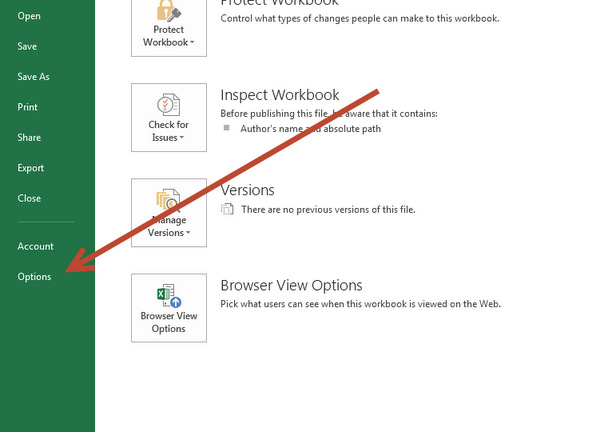
Some times after successful  installation of Dynamics Ax office Add ins, Add-in does not appear in Excel. To Enable Dynamics Ax Excel Add-ins. Click on Options in Excel.

Excel addin

Open it and select Ad-ins.


11-23-2014 10-08-35 PM

Now from down manage and select com Add-ins and click on go


11-23-2014 10-20-11 PM


Select check the “Microsoft Dynamics Ax Add-in for Microsoft Excel “click on Excel ok

11-23-2014 10-22-35 PM

Click on ok

11-23-2014 10-26-45 PM

Setup data source for excel add ins Dynamics Ax 2012

November 23, 2014 by alirazazaidi

For accessing AIF service and custom Query, We have to set up the data source in AX, Later these data sources are available in Excel add in.


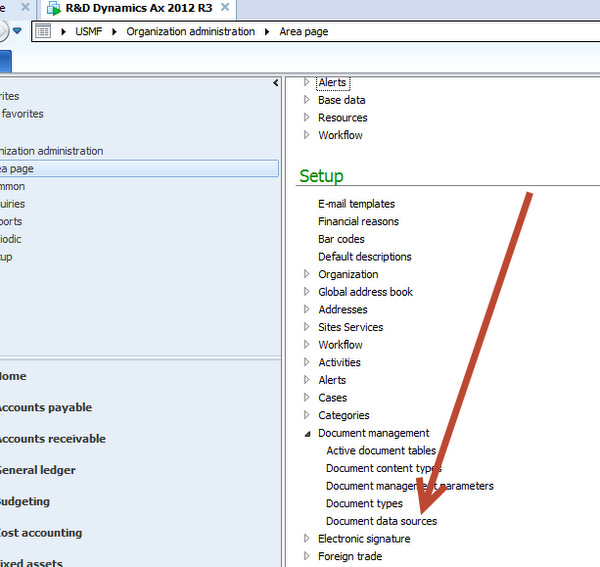
From Organization Setup Area page. Then setup, Document management and Document Data Sources setup.

ddddeeeee


Select module for example “Account Payable”, from data source Type “Service” and from Data source Name “VendVendGroup” Check button activated and click activated.

sswww

Dynamics ax 2012: excel add-in publish data button disabled

November 23, 2014 by alirazazaidi

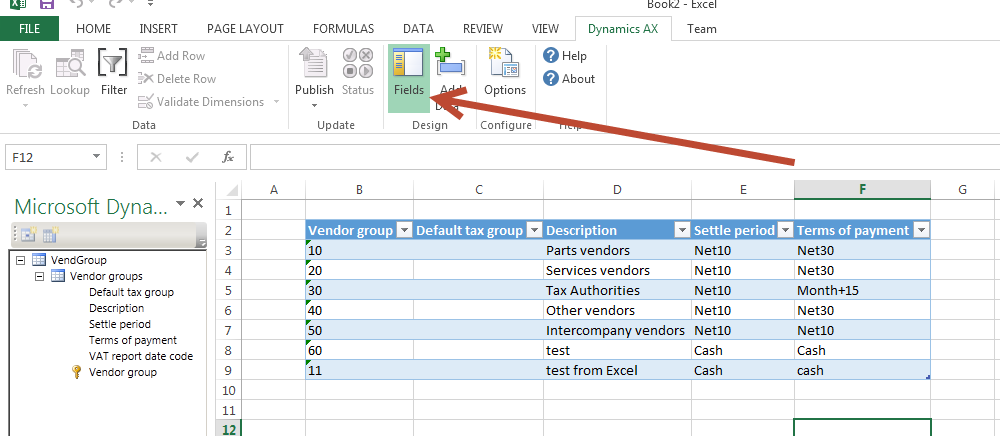
Currently working with Excel add-in importing data into Dynamics Ax, I found that publish data is disabled,

Field Option


Latter I found that push, status, add Row, delete row and other button remains disabled until you closed the field selection by re click on field’s button.


Enabled

How to download Latest Updates from Microsoft Life cycle services for Dynamics Ax 2012

November 20, 2014 by alirazazaidi


Login to https://lcs.dynamics.com/ with your CustomerSource or PartnerSource credentials.


11-20-2014 12-45-016

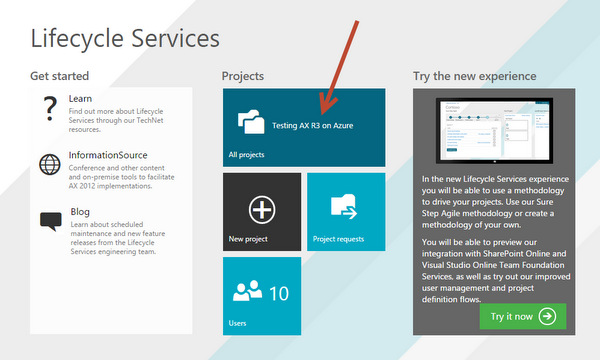
Open the existing project, if you have no project then created a new project.  For example I have Project. Click on it and open it.


From next screen. At button you find updates.

Updates-001

Next window you will find latest updates listed. For Example yesterday Dynamics Ax 2013 R3 Cu8 is released. Its updates appear at top. You can download it.

updateList

Invalid attempt to call DocuActionArchive.Add running in CIL on the client. Dynamics Ax 2012

November 18, 2014 by alirazazaidi


A few day ago I shared a code about to document attachment.

http://tech.alirazazaidi.com/document-attachment-through-x-code-dynamics-ax-2012-r3/

This code  works fine at client side, but in runbatchjob (batch process) run at server side It threw following error.


“Invalid attempt to call DocuActionArchive.Add running in CIL on the client.”

This is because in Add method winapi is used. This winapi written for running at client side.

I solve this problem by following steps.

  1. Duplicate the DocuActionArchive and rename the new classes as clsDocuActionArchieve
  2. Change the class run at client to run at server.
  3. Inside add method replace winapi to WinAPIServer. There are three places where you have to replace winapi to wimapiserver.
  • Comment the wimapi::getOpenFileName it did not exists in winserverapi.
  • Wimapi::fileSize to winserverapi::fileSize
  • Wimapi::copyFile to winserverapi::copyfile.


Compile the code and use the new class instead of DocuActionArchive. The code will work at server side.


My Custom Batch class in not appear in task list ?

November 13, 2014 by alirazazaidi


If you consider my last post about creating, deploy and debug the custom batch job In Dynamics Ax 2012.

http://tech.alirazazaidi.com/exploring-the-batch-job-process-in-dynamics-ax-2012-r3/


I used X++ job to deploy the batch class as batch process.  But if we have to provide functionality that any person can schedule the class as batch from Dynamics Ax front end. We have to overwrite the canGoBatchJournal() in Class code. The default implementation comes with false return value so Job did not appear in Task List.


The complete code of class should be appear something like


class ProcessTableIncrement extends RunBaseBatch


{


}


public container pack()


{


return conNull();


}


public void run()


{


// The purpose of your job.


TblBatchHit _hit;


_hit.HitBy ="BatchJob";


_hit.hitTime= DateTimeUtil ::utcNow();


_hit.insert();


}


public boolean unpack(container packedClass)


{


return true;


}


boolean canGoBatchJournal()
{

return true;
}


Now Generate Increment CIL. Close clients on Dynamics and reopen client Dynamics Ax.


fffed

Exploring the Batch Job process in Dynamics Ax 2012 R3

November 13, 2014 by alirazazaidi


There are many scenario where we have to schedule the tasks, so they execute in background. Real world scenarios are

  • Sales order with certain criteria will update status to Invoiced.
  • Scheduled job check the file location to find comma delimited files and after finding create sales order or purchased orders in Ax.
  • Schedule job clear the data in database logging after certain time.
  • Schedule job execute mid night to extract all sales order/ Purchase order and integrated it other system.


In dynamics Ax we can schedule the with help of RunBaseBatch framework.


For current example, I just wrote the batch job which just put its execution time in custom table.

First step for batch process is to enable the Dynamics Ax 2012 as Batch server.

Link


Enable Server

Consider a custom table with only two fields. These fields just dummy text and the time when batch process execute.


Table Structure


Now just create a class, set it run at server.


Class attributes

Extends the class with run batch base class.  The class logic should be same


class ProcessTableIncrement extends RunBaseBatch

{


}


public container pack()

{

return conNull();

}


public void run()

{


// The purpose of your job.

TblBatchHit _hit;


_hit.HitBy ="BatchJob";

_hit.hitTime= DateTimeUtil ::utcNow();

_hit.insert();

}


public boolean unpack(container packedClass)

{

return true;

}


Now compile the code and Generate Increment CIL. Incremental CIL generation is required to setup every time you update the code.


Now create ax job which deploy above class as batch Process job.


static void TestBatchHit(Args _args)

{

BatchHeader header;

SysRecurrenceData sysRecurrenceData;

Batch batch;

BatchJob batchJob;

ProcessTableIncrement _ProcessIncrement;

BatchInfo processBatchInfo;

BatchRetries noOfRetriesOnFailure = 4;

;


// Create the tutorial_RunBaseBatch job, only if one does not exist

select batch where batch.ClassNumber == classnum(ProcessTableIncrement);

if(!batch)

{

// Setup the tutorial_RunBaseBatch Job

header = BatchHeader::construct();

_ProcessIncrement = new ProcessTableIncrement();

processBatchInfo = _ProcessIncrement.batchInfo();

processBatchInfo.parmRetriesOnFailure(noOfRetriesOnFailure);

processBatchInfo.parmCaption("Table Increment");


header.addTask(_ProcessIncrement);


// Set the recurrence data

sysRecurrenceData = SysRecurrence::defaultRecurrence();

SysRecurrence::setRecurrenceStartDateTime(sysRecurrenceData, DateTimeUtil::addSeconds(DateTimeUtil::utcNow(), 20));

SysRecurrence::setRecurrenceNoEnd(sysRecurrenceData);

SysRecurrence::setRecurrenceUnit(sysRecurrenceData, SysRecurrenceUnit::Minute);

header.parmRecurrenceData(sysRecurrenceData);

// Set the batch alert configurations

header.parmAlerts(NoYes::No, NoYes::Yes, NoYes::No, NoYes::Yes, NoYes::Yes);

header.save();


// Update the frequency to run the job to every two minutes

ttsbegin;

select forupdate batchJob

join batch

where batchJob.RecId == batch.BatchJobId

&& batch.ClassNumber == classnum(ProcessTableIncrement);


sysRecurrenceData = batchJob.RecurrenceData;

sysRecurrenceData = conpoke(sysRecurrenceData, 8, [3]);

batchJob.RecurrenceData = sysRecurrenceData;

batchJob.update();

ttscommit;

}

}


When you execute the X++ job, you will find a new batch job created and waiting state at following link with caption Table Increment


Job Link


From top menu you can check the job execution history.


Batch Job


Job History


If any error occur or you put some info logs, these can be seen from Log from top menu.

For example in some other batch job I used many info boxes at different locations to trace.

11-12-2014 12-58-09 AM


Remove / Delete the batched job.

Delete the existing job is two-step process if job is in waiting step. First we have to convert it into withhold state and then delete it.

Select the required batch job for example if I want to delete Job with caption “Table Increment”. From top menu to select change state to with hold


select


withhold


Now again go in Functions top menu and select


delete

Now from dialog set status to withhold and click on ok

ddd

This will remove the Batch Job


Debug the Batch Process Job

Now question is how we can debug batch job, for that purpose we have to go in visual studio.


For debugging at AOS server following check box must be check form AOS server configuration.

“Enable breakpoints to debug x++ code running on this server on this machine”

X++


If Client and AOT are in same machine then open the Application explore and locate the file and attach debug there.

Visual studio debug


If files are at AOS is another machine go at XPPIL folder in visual studio and add break point.


From debug menu click on attached process

Attached process

From  Attach to select the manage code.

From top click on select button and select the Managed(v4.0) code

ttss

Check the two check boxes below “Show Processes from All Users and show processes in all sessions and click on refresh.

After refresh select Ax32Serv.exe and click on attach button.


When the job execute after certain time link appear on break point.

sss

Document Attachment through X++ code Dynamics Ax 2012 R3.

November 7, 2014 by alirazazaidi

During development there is requirement to import attached form physical location and shown in attachment to Dynamics AX.


I found X++ snippet from following links

http://theaxapta.blogspot.com/2013/04/x-code-for-document-attachment.html

http://microsoftdax.blogspot.com/2012/06/x-code-for-document-attachement-in-ax.html


In Dynamics Ax 2012 there is one table and one class which are responsible for holding and load document from file location and copied it to specific location.


  • DocuRef table
  • DocuActionArchive class


But there is one more thing, here we required two more reference, one is record recId and table where this rec Id exists. For example if we have to attached document with customer than we required the Recid of customer and table number for customer table.


Following code is attaching file form c drive and attached to Customer with account num “US-004” In demo data


static void Job3(Args _args)

{

DocuRef docuRef;

DocuActionArchive archive;

CustTable _custtable;

str _name;

;


_name=@"c:\\ddddd.docx";

select RecId from _custtable where _custtable.AccountNum =="us-004";


if (_custtable!=null)

{

ttsBegin;

docuRef.clear();

docuRef.RefRecId = _custtable.RecId;

docuRef.RefTableId = tableNum("custtable");

docuRef.RefCompanyId = curext();

docuRef.Name = _name;

docuRef.TypeId = 'File';

docuRef.insert();

archive = new DocuActionArchive();

archive.add(docuRef, _name);

ttsCommit;

}


}


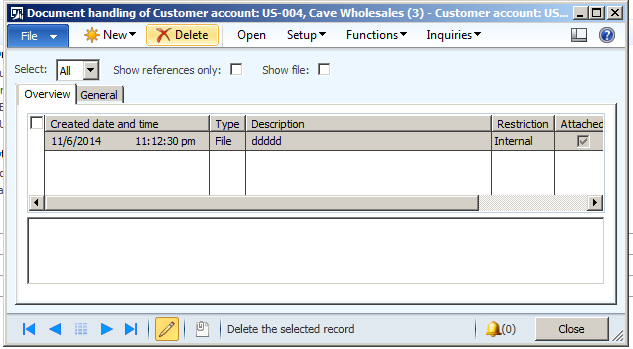
When I run this X++ test job I found document is attached as follow


FileDD

Custom fields shows as un retrievable on Dynamics Ax 2012 Forms.

November 6, 2014 by alirazazaidi

Today I was facing the same Issued, I added a few custom fields in AX table. After update data source and dropped custom field at required Place on form. When I run the form, I found that field showed as un-editable and unretrievable written there.


I found that it is cache problem. It solved by click on Refresh element cache. You can found the menu From Tool Menu, Caches and sub menu element Cache,


Cache refresh


If problem not solved by this way then restart the Dynamics Ax 2012 service from services.

Dynamics AX Client freezes and goes to Non Responding State

September 22, 2014 by alirazazaidi

On my local R&D environment, Usually Dynamics Ax client goes on freeze state, especially on first run of Ax client after restart of VM. Finally I found there is issue with ax cache file. I delete the all files with extension “.auc” files from C:\users\userName\appdata\local. After I run the Client, it load in much less time.

« Previous Page
Next Page »

Primary Sidebar

About

I am Dynamics AX/365 Finance and Operations consultant with years of implementation experience. I has helped several businesses implement and succeed with Dynamics AX/365 Finance and Operations. The goal of this website is to share insights, tips, and tricks to help end users and IT professionals.

Legal

Content published on this website are opinions, insights, tips, and tricks we have gained from years of Dynamics consulting and may not represent the opinions or views of any current or past employer. Any changes to an ERP system should be thoroughly tested before implementation.

Categories

  • Accounts Payable (2)
  • Advance Warehouse (2)
  • AI (3)
  • Asset Management (3)
  • Azure Functions (1)
  • Books (6)
  • Certification Guide (3)
  • ChatGPT (3)
  • Claude (1)
  • Customization Tips for D365 for Finance and Operations (64)
  • D365OF (60)
  • Data Management (1)
  • database restore (1)
  • Dynamics 365 (59)
  • Dynamics 365 for finance and operations (139)
  • Dynamics 365 for Operations (175)
  • Dynamics AX (AX 7) (134)
  • Dynamics AX 2012 (274)
  • Dynamics Ax 2012 Forms (13)
  • Dynamics Ax 2012 functional side (16)
  • Dynamics Ax 2012 Reporting SSRS Reports. (31)
  • Dynamics Ax 2012 Technical Side (52)
  • Dynamics Ax 7 (65)
  • Exam MB-330: Microsoft Dynamics 365 Supply Chain Management (7)
  • Excel Addin (1)
  • Favorites (12)
  • Financial Modules (6)
  • Functional (8)
  • General Journal (1)
  • Implementations (1)
  • Ledger (1)
  • Lifecycle Services (1)
  • Logseq (4)
  • Management Reporter (1)
  • Microsoft Excel (4)
  • MS Dynamics Ax 7 (64)
  • MVP summit (1)
  • MVP summit 2016 (1)
  • New Dynamics Ax (19)
  • Non Defined (9)
  • Note taking Apps (2)
  • Obsidian (4)
  • Personal Knowledge Management (3)
  • PKM (16)
  • Power Platform (6)
  • Procurement (5)
  • procurement and sourcing (6)
  • Product Information Management (4)
  • Product Management (6)
  • Production Control D365 for Finance and Operations (10)
  • Sale Order Process (10)
  • Sale Order Processing (10)
  • Sales and Distribution (5)
  • Soft Skill (1)
  • Supply Chain Management D365 F&O (5)
  • Tips and tricks (278)
  • Uncategorized (165)
  • Upgrade (1)
  • Web Cast (7)
  • White papers (4)
  • X++ (10)

Wiki

  • SCM

Copyright © 2026 · Magazine Pro On Genesis Framework · WordPress · Log in