• Skip to main content
  • Skip to primary sidebar
  • Home
  • About
  • Recommended Readings
    • 2022 Book Reading
    • 2023 Recommended Readings
    • Book Reading 2024
    • Book Reading 2025
  • Supply Chain Management Guide
  • PKM
  • Microsoft Excel
  • Microsoft Copilot in Office 365
  • Public Wiki Page

Ali Raza Zaidi

A practitioner’s musings on Dynamics 365 Finance and Operations

PKM

My first course on Udemy is launched

September 26, 2025 by alirazazaidi

Hi, I have over 20 years of experience in note-taking and knowledge organization, which has led me to reflect deeply on how different knowledge management systems work. I’ve decided to turn these reflections into a course. My goal is to complete my first course, as I strongly believe in finishing and sharing work, rather than leaving it unfinished in the pursuit of perfection.

https://www.udemy.com/course/master-obsidian-and-build-a-second-brain-youll-never-forget

Ah, Obsidian Bases are finally here!

August 20, 2025 by alirazazaidi

Yesterday, the Obsidian team released this new core plugin in the latest update.

It’s not quite like Notion databases. Instead, it works more like a list of all your notes—yes, all notes.

There’s no folder-level organization built in, so if you want to narrow things down, you’ll need to use filters.

The views themselves aren’t reusable. To focus on a folder, you create a new view, apply a folder filter, then duplicate that Base and move it into the desired folder. Since I rely more on folder structure than tags, I wanted a “list page” in each folder. That’s what I ended up creating.

Properties play a big role here. Obsidian uses these properties to generate tables. I haven’t used the Dataview plugin before, so I can’t compare them directly. But if you’re thinking of something like a content calendar, you could make Status a property of type Category. One limitation, though: you can’t restrict property values. The only convenience is that once you enter a value, it will show up as a suggestion the next time you type in that column.

My solution was to create one Base per folder so I can access them easily. The workflow is simple: create a new view, apply the folder filter,

then duplicate

move it to the folder where I need it

And that works well enough for me.

How to create task from google sheet to google tasks app

July 4, 2025 by alirazazaidi

Different people use different productivity systems. Some prefer Notion with its integrated calendar, while others use Todoist, which offers a powerful calendar feature—especially in the paid version. Based on my experience, if you want to implement a proper task management system or follow the Getting Things Done (GTD) methodology, Todoist is one of the best options available for just $5/month. However, it’s important to note that calendar integration is only available in the paid version.

One common limitation with both Notion and Todoist is that they rely on Google Calendar as a reference point. Whatever events you mark on Google Calendar will appear in Notion or Todoist. But when you open Google Calendar itself, it’s often blank—since these tools don’t actually write back to the calendar, they just display it. So the only real advantage is that tasks you manually add to Google Calendar will show up across these apps.

Recently, I’ve been working with the Saudi calendar setup, which uses Google Workspace—Google Meet, Sheets, Chat, and Group Chat. I’m becoming more comfortable using Google Workspace overall. At work, we track tasks and issues using Google Sheets as a tracker. Even for personal use, Google Sheets and Google Tasks are great because they’re free.

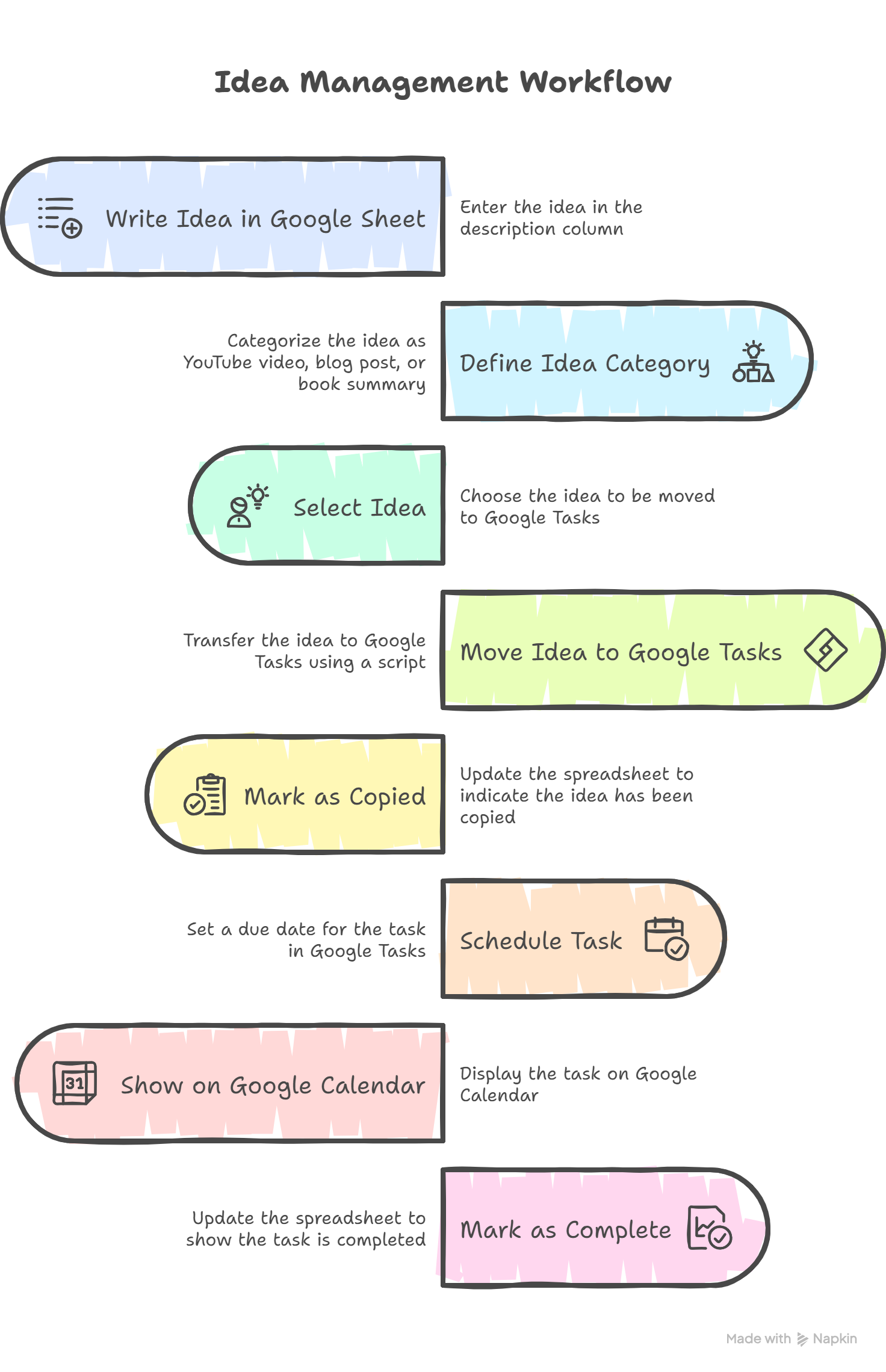
My actual goal was to have assigned tasks appear on Google Calendar. So, I decided to use Google Sheets as an idea tracker, Google Tasks for task management, and rely on deadlines in Google Tasks to display on Google Calendar.

The challenge is that while you can easily create tasks in Google Tasks from Gmail, there’s no native way to create them directly from Google Sheets. That’s why I’m working on a workflow to bridge this gap—using Google Sheets for planning and Google Tasks for execution, with deadlines syncing to the calendar.

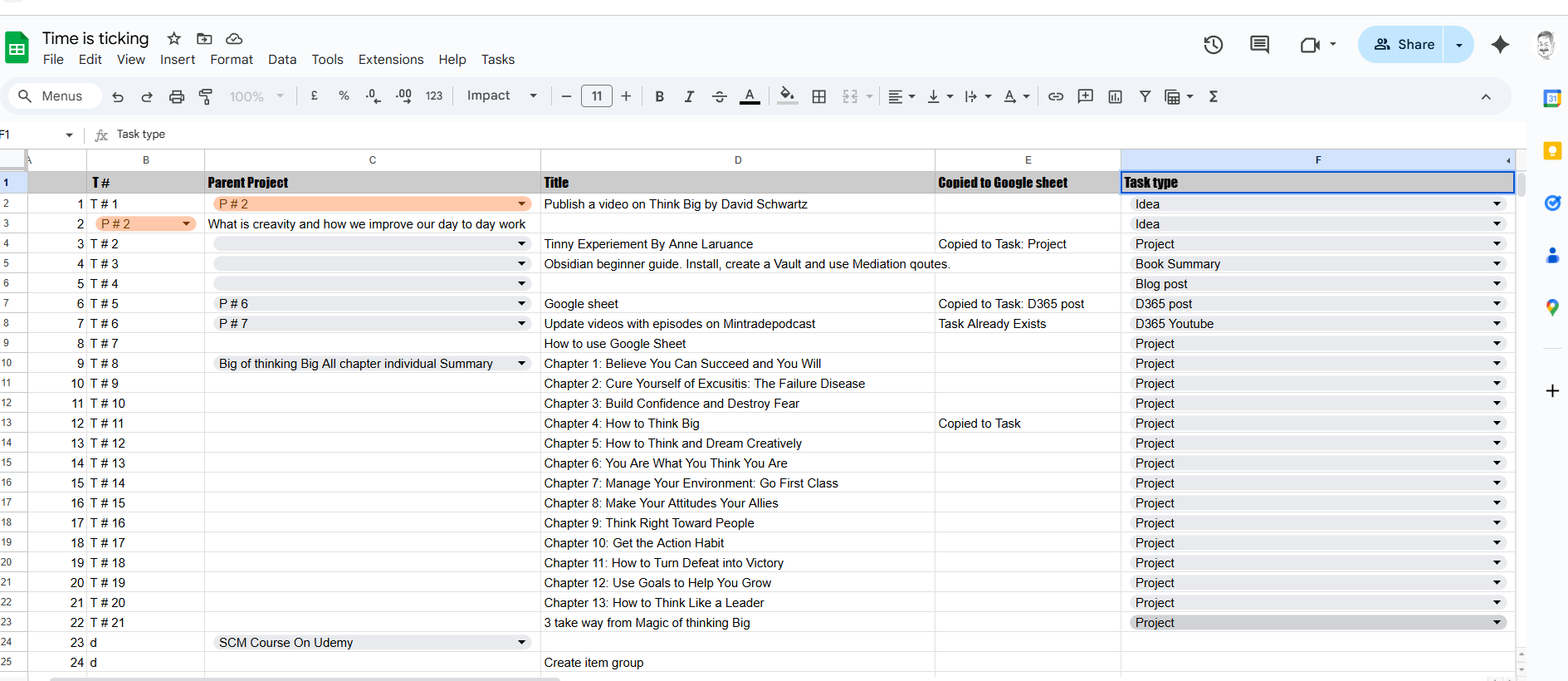
So, I created specific columns in Google Sheets to build my own active content planner.

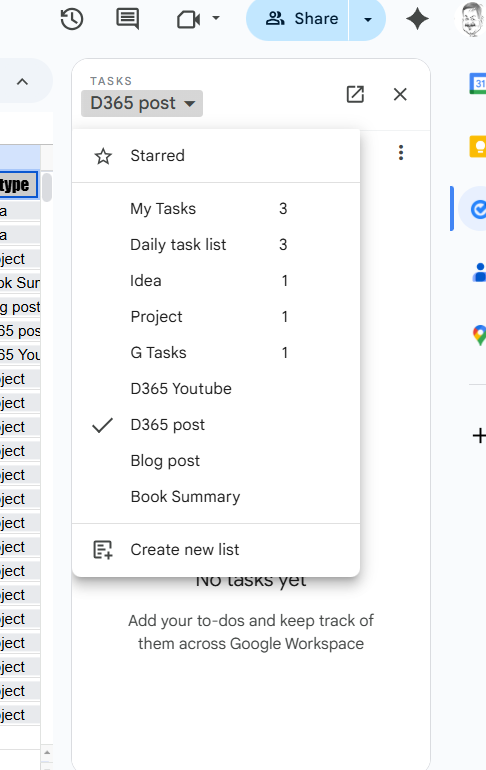
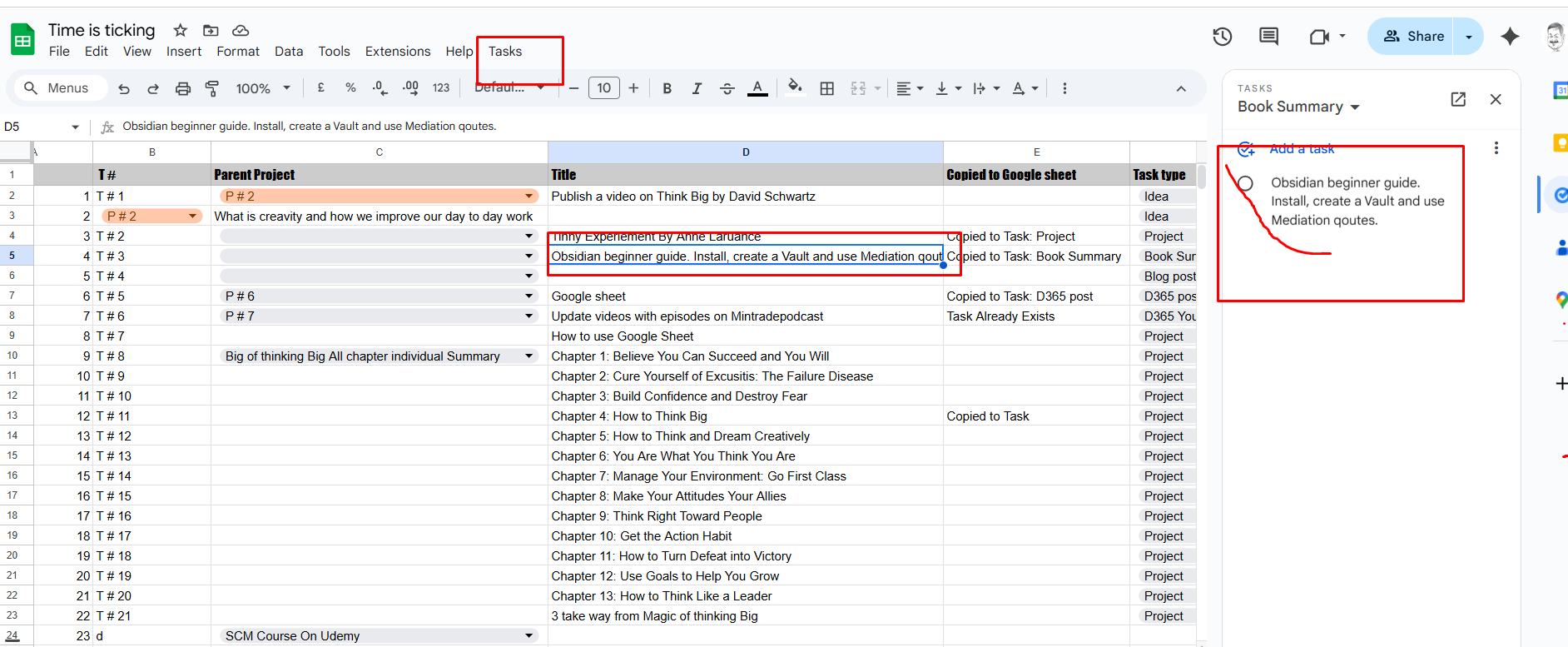
My goal is that when I click on a task title, it should automatically be added to Google Tasks under a specific task list. In the 5th column, I define the task type—such as “Idea,” “Blog Post,” or “YouTube Video”—and I’ve created matching task lists in Google Tasks to keep everything organized.

This is only possible automation. Google provide the Javascript based script writing. It is not much difficult.

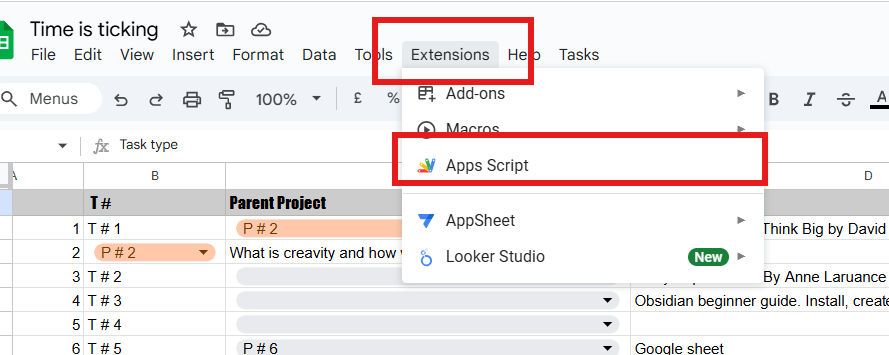
You can add them by click on top

For simple and helpful guide for google script use following Blog link
https://www.benlcollins.com/apps-script/google-apps-script-beginner-guide/

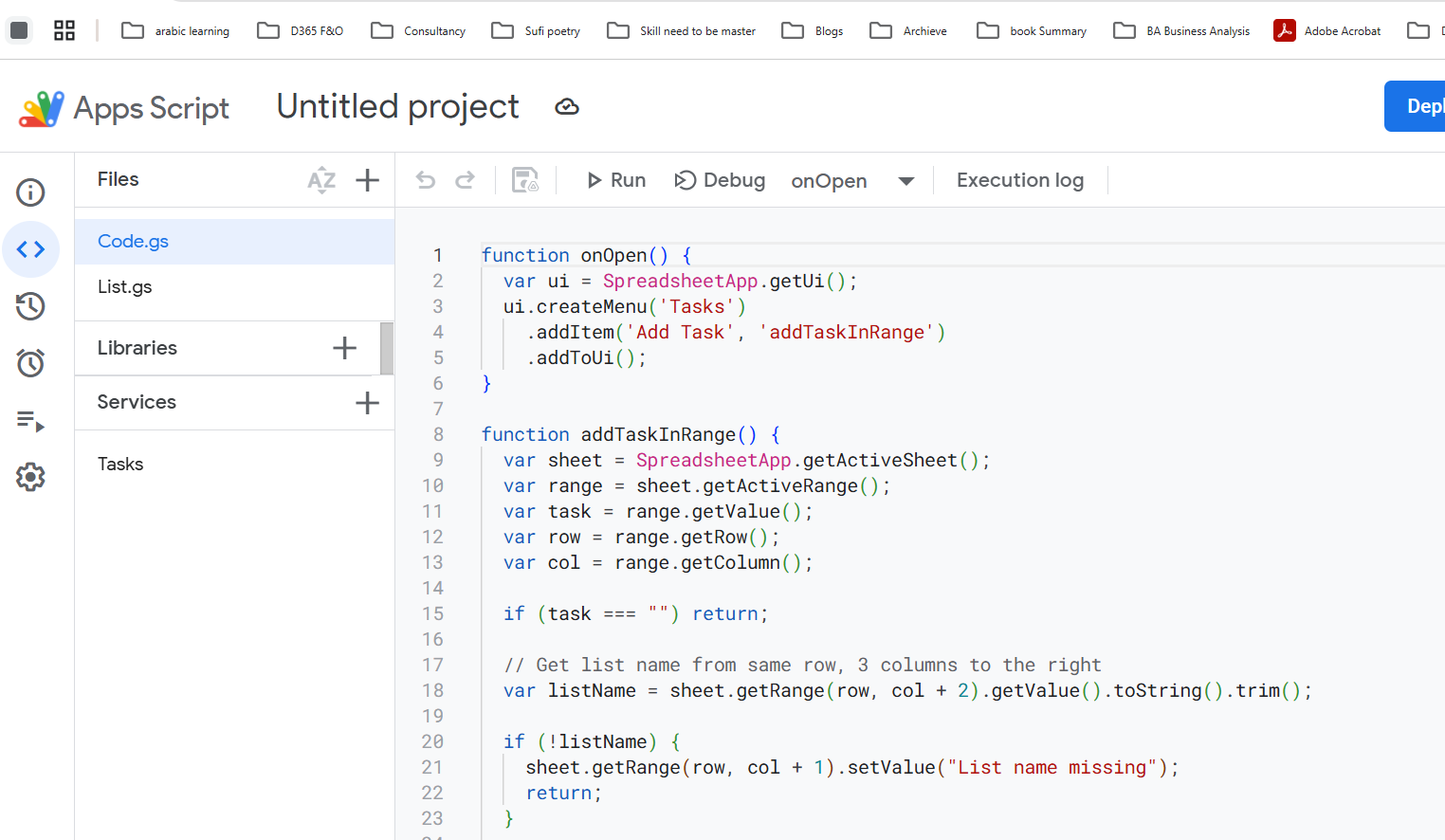
So from google script I used following script to create button and when you click on button. Task will copied to task management and from next column, in google sheet it add the message.
The list name it will get from column where I mentioned list name as task type or category

function onOpen() {

  var ui = SpreadsheetApp.getUi();

  ui.createMenu('Tasks')

    .addItem('Add Task', 'addTaskInRange')

    .addToUi();

}


function addTaskInRange() {

  var sheet = SpreadsheetApp.getActiveSheet();

  var range = sheet.getActiveRange();

  var task = range.getValue();

  var row = range.getRow();

  var col = range.getColumn();


  if (task === "") return;


  // Get list name from same row, 3 columns to the right

  var listName = sheet.getRange(row, col + 2).getValue().toString().trim();


  if (!listName) {

    sheet.getRange(row, col + 1).setValue("List name missing");

    return;

  }


  // Fetch all available task lists

  var taskLists = Tasks.Tasklists.list().items;

  if (!taskLists || taskLists.length === 0) {

    sheet.getRange(row, col + 1).setValue("No task lists found");

    return;

  }


  // Find task list by title

  var matchedList = taskLists.find(list => list.title.toLowerCase() === listName.toLowerCase());


  if (!matchedList) {

    sheet.getRange(row, col + 1).setValue("List not found: " + listName);

    return;

  }


  var taskListId = matchedList.id;


  // Check if task already exists in the matched list

  var taskExists = checkIfTaskExistsInList(task, taskListId);


  if (!taskExists) {

    var taskToAdd = { title: task };

    Tasks.Tasks.insert(taskToAdd, taskListId);

    sheet.getRange(row, col + 1).setValue("Copied to Task: " + listName);

  } else {

    sheet.getRange(row, col + 1).setValue("Task Already Exists in " + listName);

  }

}


function checkIfTaskExistsInList(taskTitle, taskListId) {

  var tasks = Tasks.Tasks.list(taskListId);


  if (!tasks.items) return false;


  for (var i = 0; i < tasks.items.length; i++) {

    if (tasks.items[i].title === taskTitle) {

      return true;

    }

  }

  return false;

}

This partial script as per my workflow. But you can extend

I used the basic code snippet to Add task to google task from google sheet.
I feel it is more good that I can modify it.

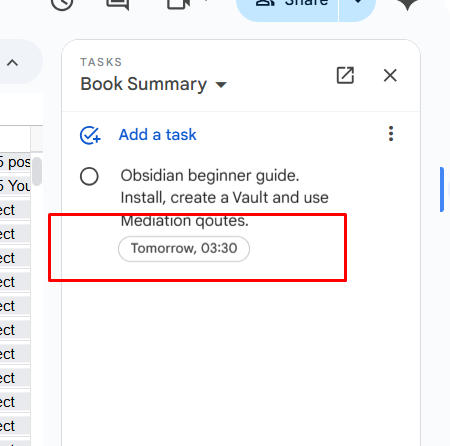
When I add deadline I see it in

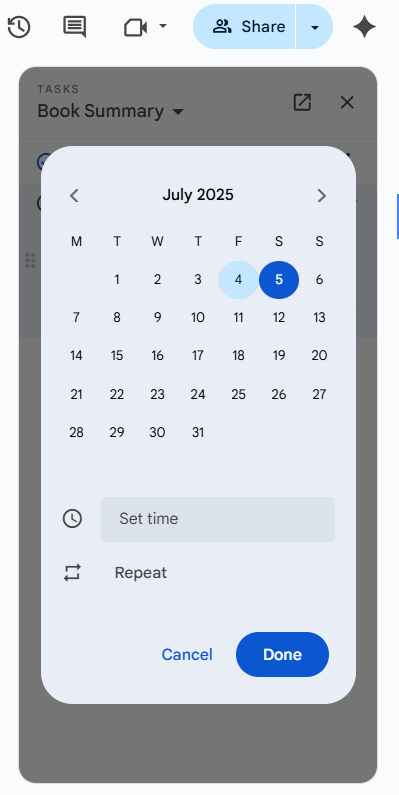
after setting date and time,

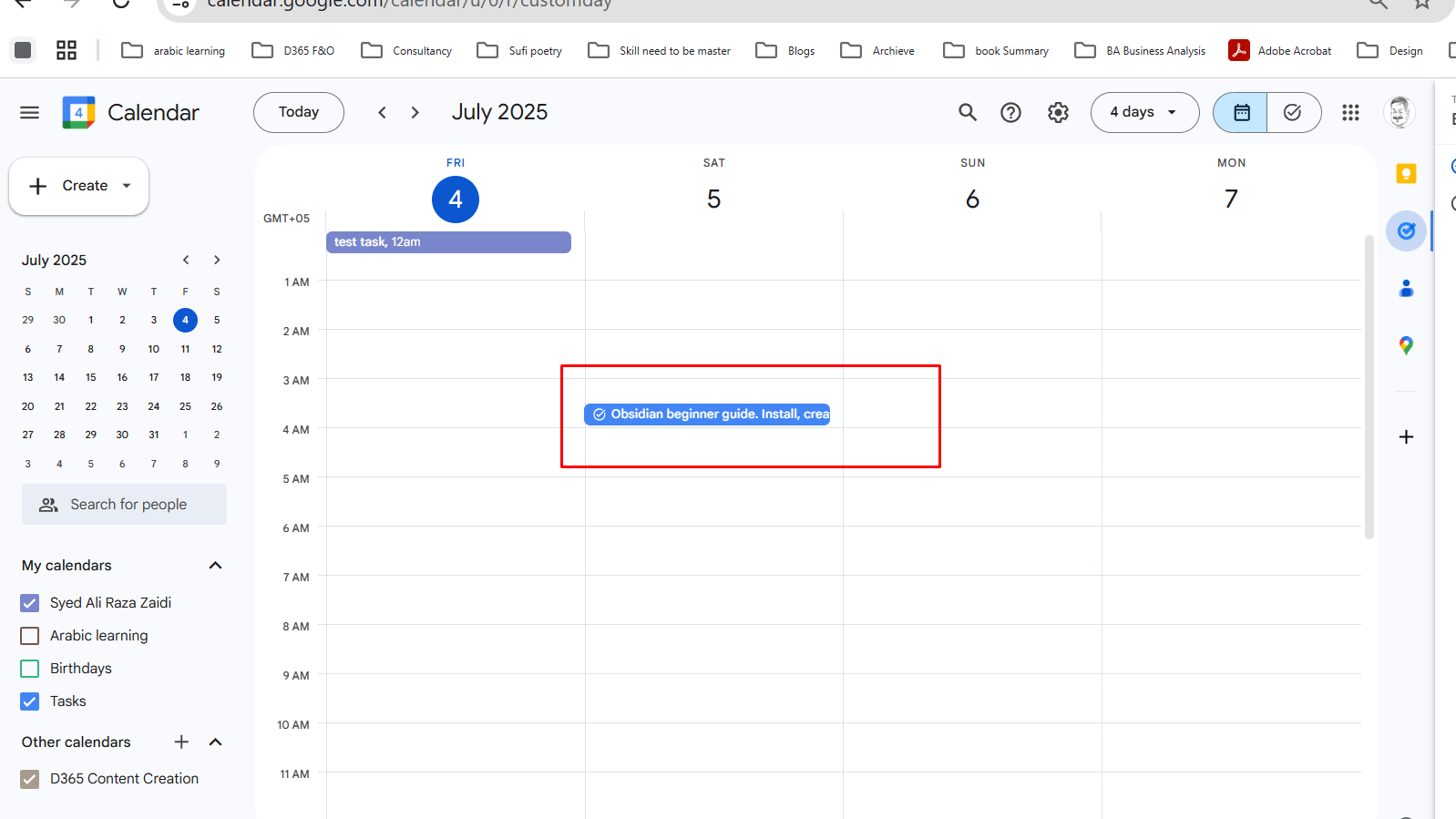
This task will start to appear in my google calendar

How you like this workflow. And if you want your own, you can use script as sample and make your own.

How to implement Tiny Experiment in Logseq

April 18, 2025 by alirazazaidi

Hello friends,

Recently, I came across a new technique for goal-setting and its implementation — and it’s been a game-changer for me.

I discovered the concept of Tiny Experiments, and it helped me shift from a linear mindset to an experimental mindset. The core of this approach is curiosity — the genuine desire to see what happens if I try something new. It’s no longer about “achieving a goal” but rather asking, what can I learn from this experiment?

This idea may have existed before, but I recently discovered it through Anne-Laure Cunff’s book Tiny Experiments. (Disclaimer: I haven’t read the full book yet, but I picked up the essence from her podcast and various blog posts.)

Here are a few key insights I gathered:

  • Long-term goals are often linear — we set a vision, but over time, we lose interest or life takes us in different directions.
  • Instead of big, rigid goals, Anne suggests setting short-term, curiosity-driven experiments.
  • The magic lies in small iterations and consistent reflection — this helps us either continue with what works or pivot to something new.

Her core formula:

“I will do this action for X number of iterations.”

She herself wrote 100 articles in 100 days, using this method — not to go viral, but to learn what worked and what didn’t.

Here’s the simple yet powerful workflow:

Observation → Question → Hypothesis → Pact → Reflect (Repeat)

Or in even simpler terms: Do and Learn — or as we say in Urdu, “کر کے دیکھو” (Kar ke dekho).


Let’s break it down:

1. Observation

Look at any area of your life: personal finance, health, relationships, career, etc.
Ask yourself: What’s going on?
This is a form of reflection — remember, we don’t learn from experience, we learn by reflecting on experience.


2. Question

Ask yourself:

  • What needs to change?
  • What’s not working right now?
  • What’s possible if I approach this differently?

3. Hypothesis

Make an assumption: If I take a specific action, what result do I expect?
It’s not about being right or wrong — it’s about testing and learning.


4. Pact

Define the experiment:

  • What action will I take?
  • For how long? (e.g., 10 days, 30 iterations, etc.)

5. Reflect

After your experiment, reflect on:

  • What worked?
  • What didn’t?
  • What should I try next?

Example: Health & Fitness

Let’s say you want to feel healthier and look more fit.

Observation

I feel overweight and not in good shape.

Questions

  • Do I need to change my lifestyle?
  • Should I join a gym or just walk daily?
  • Should I change my diet?

Hypothesis

If I walk daily and reduce my food intake, I’ll lose 20 kg in 2 months.

Pact

  • Walk 40 minutes daily for 30 days.
  • Reduce roti intake to 1 per meal or 1 thali of rice, no refills, for the next 30 days.

Reflect (after 30 days)

What worked:

  • I feel better
  • My energy levels have increased
  • I feel more active

What didn’t:

  • My shape hasn’t changed much
  • Weight hasn’t reduced significantly

So now, you can design a new tiny experiment based on this reflection — and repeat the cycle.


Hope you found this helpful!
Try it out with an open mind. Start small, stay curious, and remember:

Don’t chase goals. Run experiments.

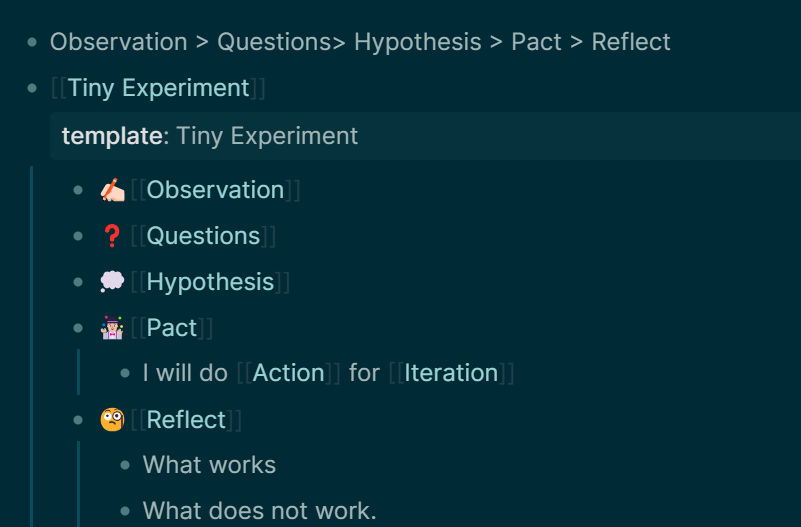
You can use logseq tempate and implement this in following ways.

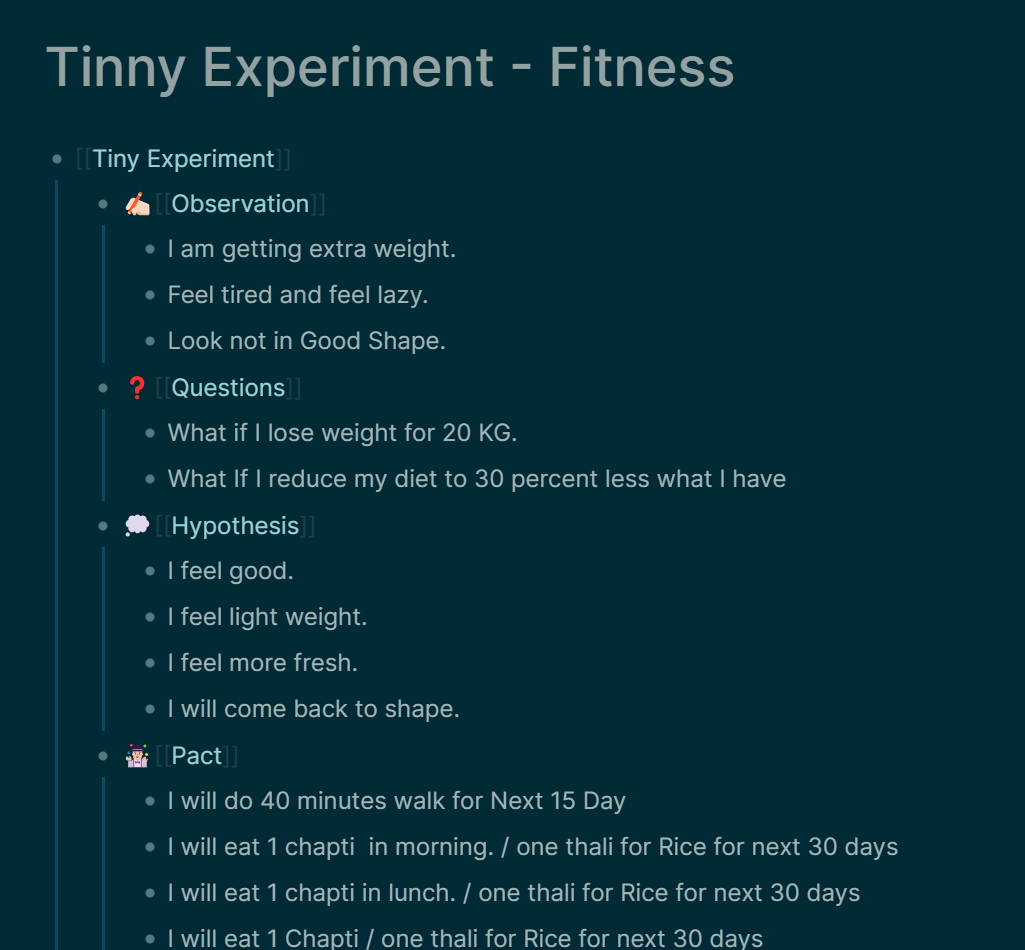
And How we use this template something similar

How to make better linked notes – PKM

April 15, 2025 by alirazazaidi

I was facing an issue where many notes were just empty linked pages—basically serving only as references or bridges between other notes.

So, I created a separate folder called [[Linked Pages]] to store these.

For fleeting notes, I made a new folder named [[In Box]].

  • After reviewing and modifying them, I move them to specific folders as permanent notes.

For my daily journal, I created a separate folder called [[Jots]], which is linked to the calendar.

How to add templates and Use in Obsidian- PKM-Personal Knowledge Management

March 24, 2025 by alirazazaidi

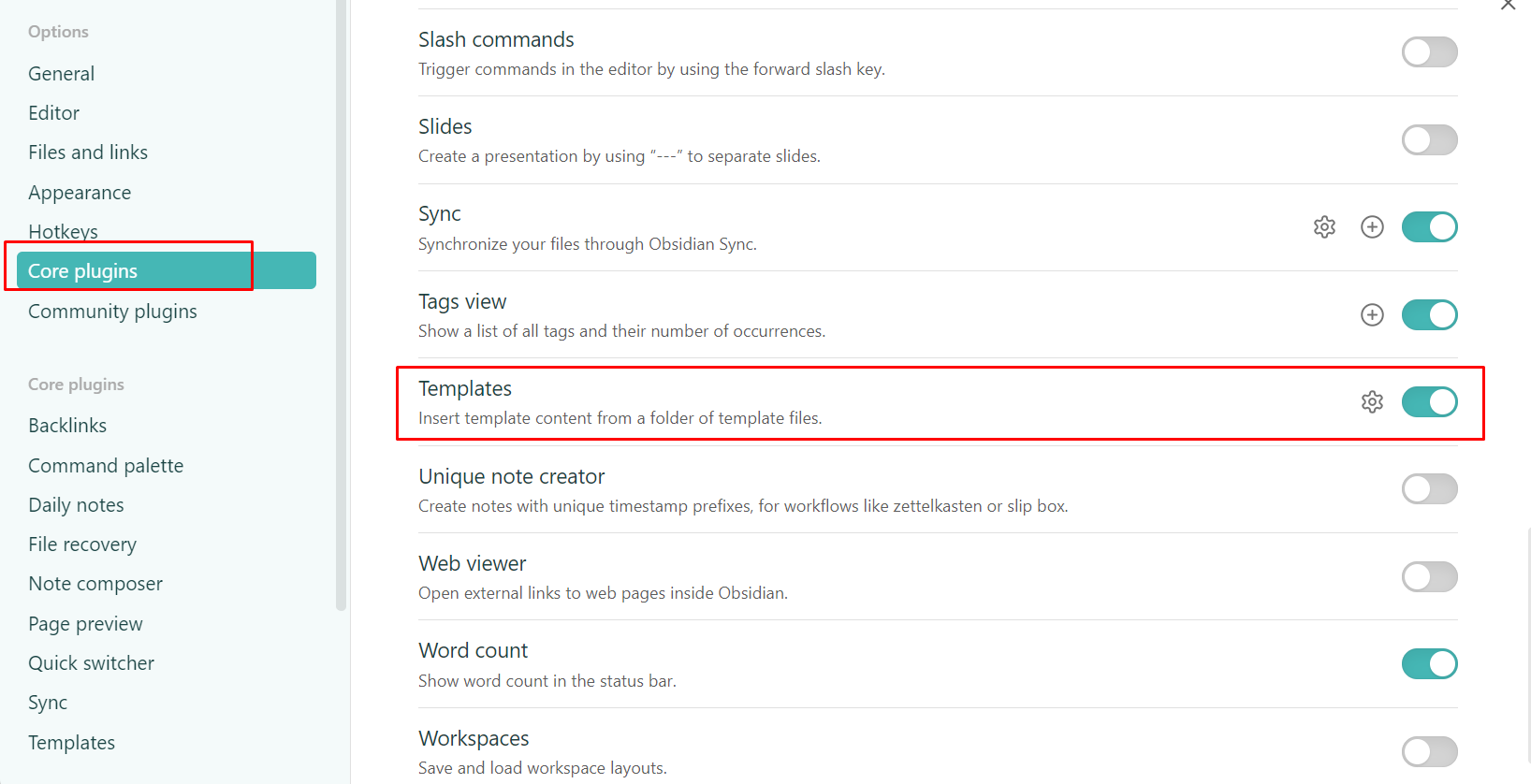
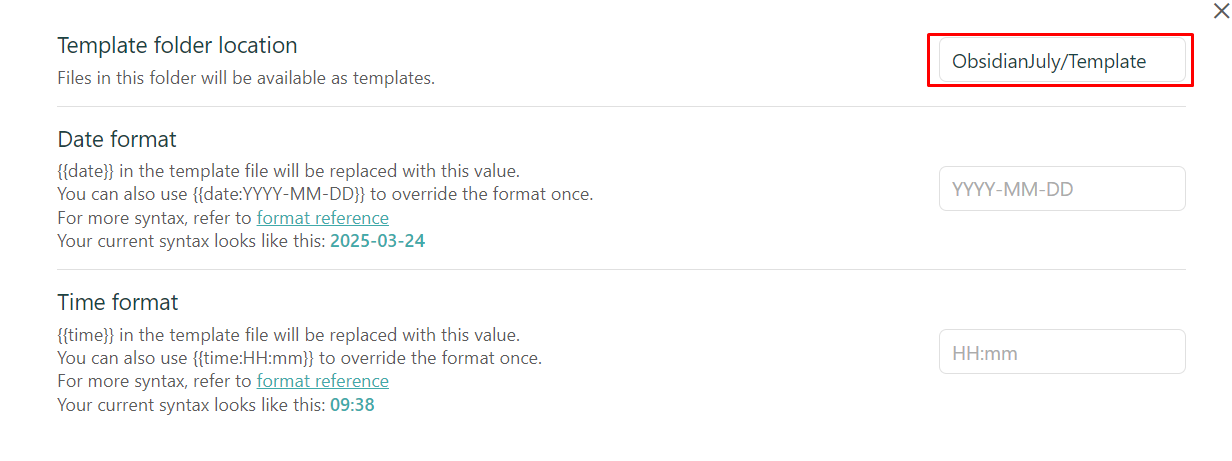
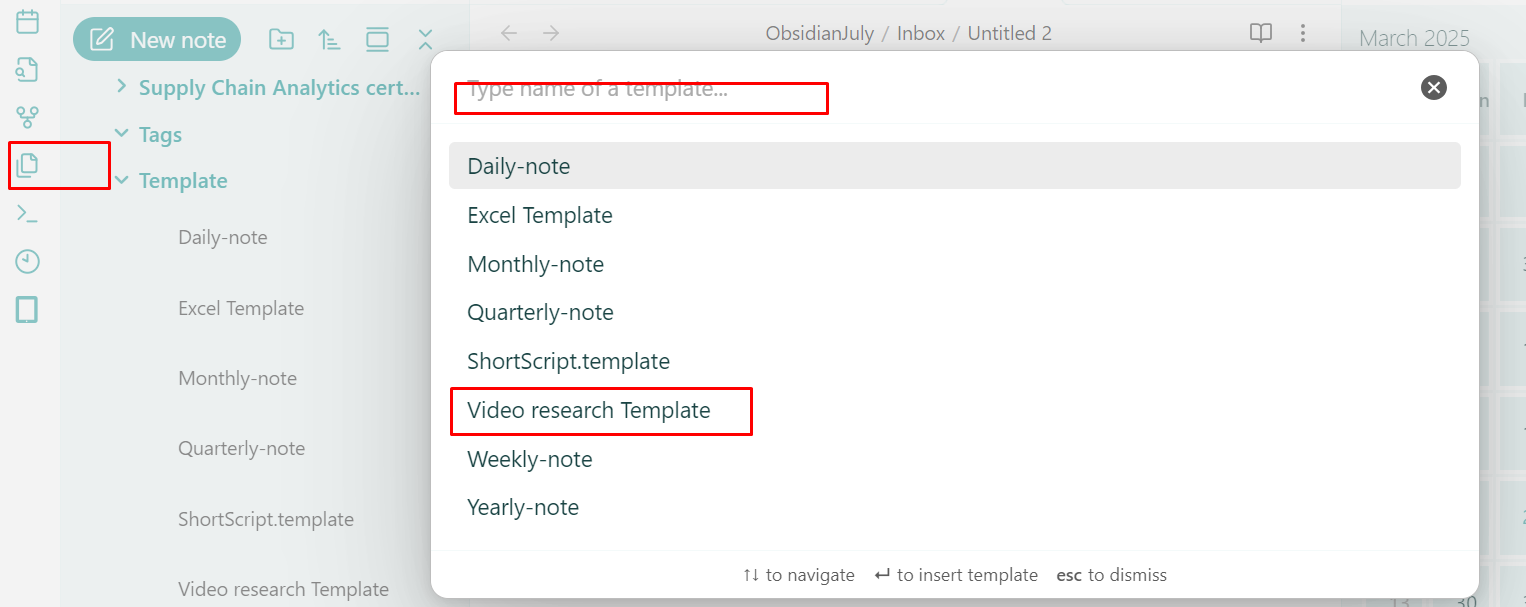
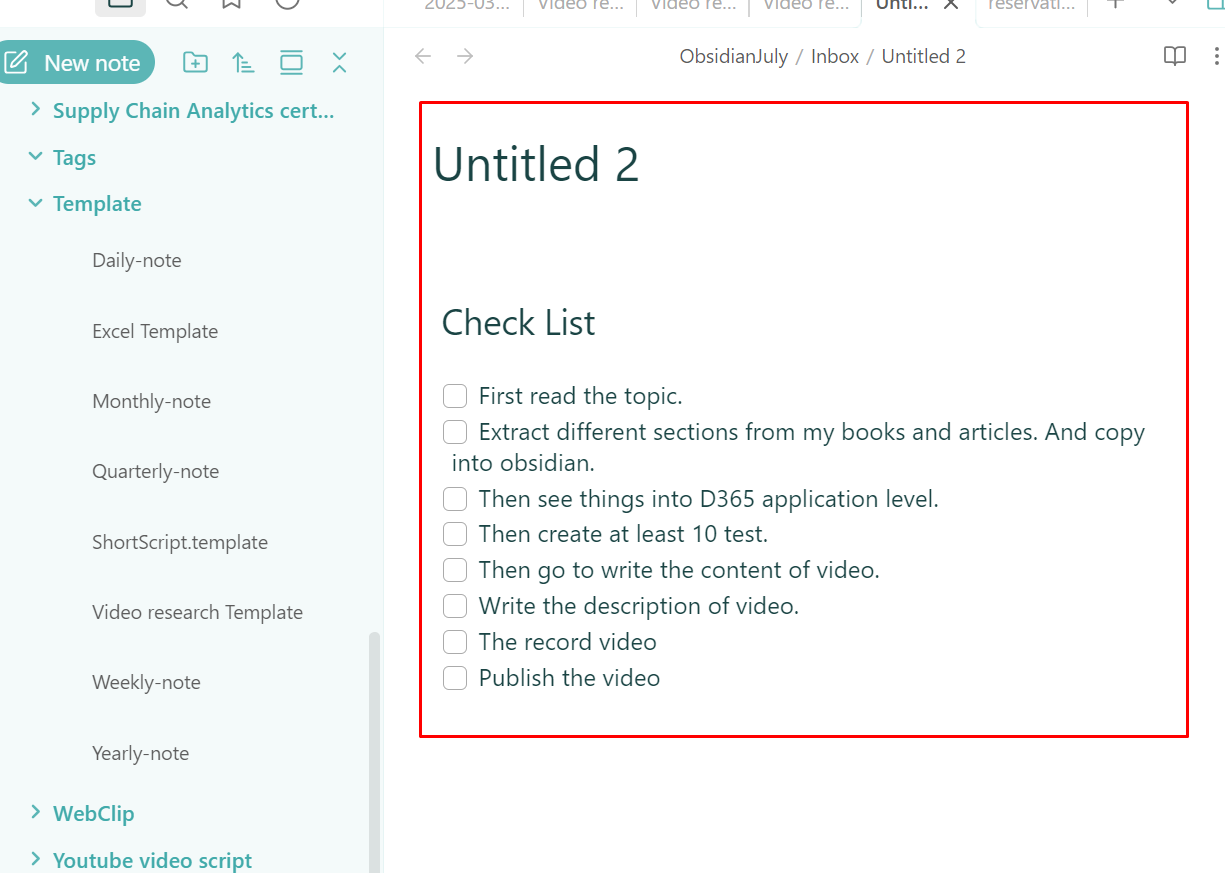
Hello friends, in this post I shared how to create and use templates in Obsidian

Simple PKM with Obsidian

March 9, 2025 by alirazazaidi

Hello friends, welcome to this video!

In this video, I’m sharing a simple Personal Knowledge Management (PKM) System in Obsidian. It consists of three main folders:

1. Inbox

This is where all your notes are initially stored—whether it’s your daily journal, work-related notes, ideas, or anything else you capture throughout the day.

2. MOC (Map of Content)

This folder contains Table of Contents (TOC) notes—a central hub where all notes related to a specific category are linked. Think of it as a gateway to easily access and organize your knowledge.

3. Specific Folders

Once a note is finalized, it gets moved into a relevant category folder. Examples include D365, Excel, and Consulting—but you can create folders based on your own needs.

This is my simple yet effective PKM system in Obsidian. I hope you find it helpful!


Query to get all pending task in -LogSeq

February 28, 2025 by alirazazaidi

So I need to fetch all pending task in logseq. Actually I start using the agenda plugin

{{query (task TODO NOW DOING LATER WAITING)}}

How to use Todoist with Roam Research

November 15, 2024 by alirazazaidi

Hi all, what if you create your todo in Todoist and those sync to your Roam Research daily post and vice versa.

The step by step walkthrough is mentioned in following video.

In my workflow I create task in Todoist and then these will sync in my daily note.

Obsidian folder settings and PKM Best practices Evergreen Notes

October 4, 2024 by alirazazaidi

Hi and hello, everyone.
My personal knowledge management workflow is evolving. I’m a big fan of creating new notes in a predefined folder. These folders focus on specific topics. For instance, I can compose or annotate pre-existing notes on D365 Community or LinkedIn. However, the issue arises when you copy and paste or use a web clipper. And left unfinished or partially modified. These are not completed when you need them.

Best Practices says that you need to convert them into evergreen notes.

You can rewrite Evergeen notes into your own unique ideas or use them as automatic notes on a single topic or concept. You can read more about it at the following link.
https://notes.andymatuschak.org/Evergreen_notes

The Evergreen Note is a finished product. For example, I copied the whole article from LinkedIn. That is from the topic of “Who to User Chain of Command Instead Event Handler.” I copied it into a designated folder. After that, it remained unchanged.
This is not my note. It is a reference note. What should I do? I made changes. Remove unnecessary points from it. Next, I will incorporate my personal experiences into it. Some people suggest that we must modify and rewrite it.
The end product moves into a specific folder.
Copying the entire article for future use is a good practice. Instead of searching the internet, you can find these references in your own note-taking app. You can use these references in your work and share them with your colleagues.
You cannot share or publish these articles on your blog. But the evergreen notes can be.
Remember the simple rule “Document Not Create”? Most of the time, people like me are not capable of creating something new. There is always inspiration.
This past weekend, when I began reviewing each folder, I discovered a significant number of incomplete notes.
So I decided to change my approach. I should move my modifications, rewrites, or final comments into a separate folder. This is the best practice.
I think there are two types of people. One type of person learns from others’ experiences by adhering to best practices or recommendations. The second individual gains knowledge through experience. In Sufi called this Marfat. This refers to the moment when practitioners begin to understand the rationale behind the rule’s creation, also known as best practices.
And third one who never learns.
The two note-taking methodologies, Mike Millo’s ACE framework and Tigo forte’s Para Method, both recommend these best practices.
Now I decided that all my new notes will go in folder “Inbox.”

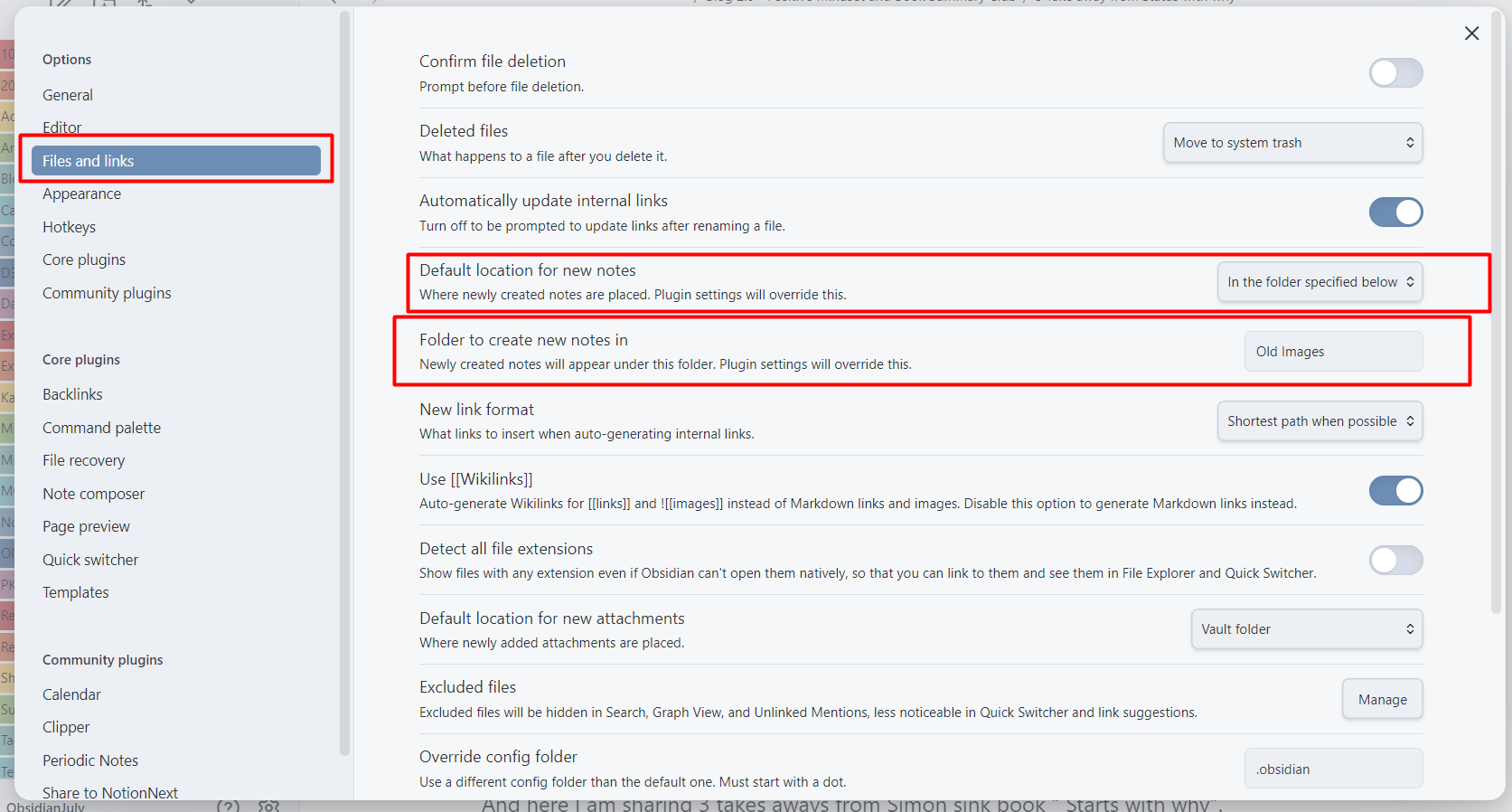
As Obsidian is my core PKM software, here is a walkthrough to create a separate folder, and all notes go directly in that folder.

Click on Settings in Obsidian.

From setting page select the options select the files and links. following two settings need to update.

You can select Default location for new notes as “In the folder specified below”.
Second you can set your own folder name.

Third option you can set here is default location for new attachment.
In default setting in obsidian, you have to copy paste images from specific folder. and it shows and copied into Obsidian Vault.

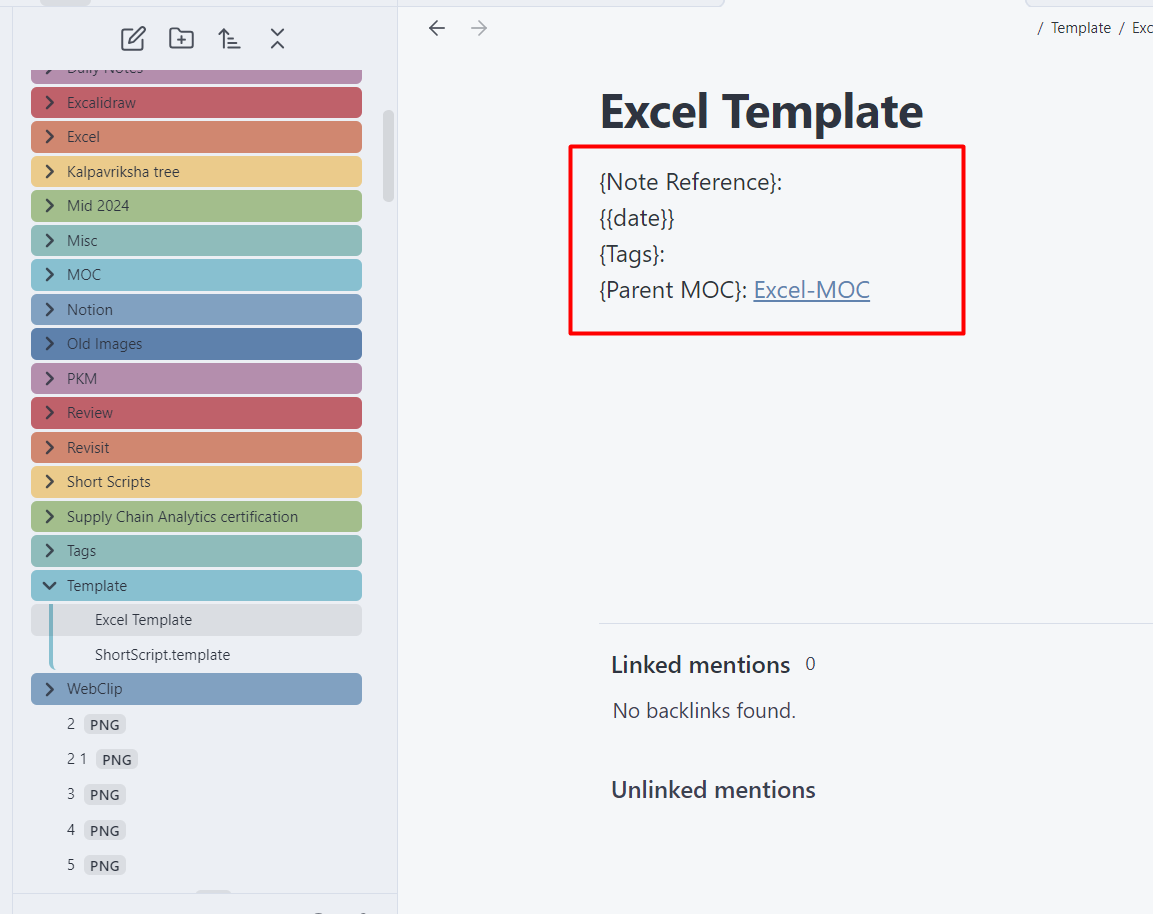
Another best practices you can use that you have to built template. as I mentioned in my last post
https://www.tech.alirazazaidi.com/how-to-add-template-in-obsidian-pkm/

You have to use Tags for category to identity your notes in your inbox folder.
You can use Tags for more detail identification for the category for note.

When each note is processed, You can move them into specific folder.

Hope you like this post.

Next Page »

Primary Sidebar

About

I am Dynamics AX/365 Finance and Operations consultant with years of implementation experience. I has helped several businesses implement and succeed with Dynamics AX/365 Finance and Operations. The goal of this website is to share insights, tips, and tricks to help end users and IT professionals.

Legal

Content published on this website are opinions, insights, tips, and tricks we have gained from years of Dynamics consulting and may not represent the opinions or views of any current or past employer. Any changes to an ERP system should be thoroughly tested before implementation.

Categories

  • Accounts Payable (2)
  • Advance Warehouse (2)
  • AI (1)
  • Asset Management (3)
  • Azure Functions (1)
  • Books (6)
  • Certification Guide (3)
  • ChatGPT (2)
  • Claude (1)
  • Customization Tips for D365 for Finance and Operations (62)
  • D365OF (60)
  • Data Management (1)
  • database restore (1)
  • Dynamics 365 (59)
  • Dynamics 365 for finance and operations (139)
  • Dynamics 365 for Operations (174)
  • Dynamics AX (AX 7) (134)
  • Dynamics AX 2012 (274)
  • Dynamics Ax 2012 Forms (13)
  • Dynamics Ax 2012 functional side (16)
  • Dynamics Ax 2012 Reporting SSRS Reports. (31)
  • Dynamics Ax 2012 Technical Side (52)
  • Dynamics Ax 7 (65)
  • Exam MB-330: Microsoft Dynamics 365 Supply Chain Management (7)
  • Excel Addin (1)
  • Favorites (12)
  • Financial Modules (6)
  • Functional (8)
  • General Journal (1)
  • Implementations (1)
  • Ledger (1)
  • Lifecycle Services (1)
  • Logseq (4)
  • Management Reporter (1)
  • Microsoft Excel (4)
  • MS Dynamics Ax 7 (64)
  • MVP summit (1)
  • MVP summit 2016 (1)
  • New Dynamics Ax (19)
  • Non Defined (9)
  • Note taking Apps (2)
  • Obsidian (4)
  • Personal Knowledge Management (3)
  • PKM (16)
  • Power Platform (6)
  • Procurement (5)
  • procurement and sourcing (6)
  • Product Information Management (4)
  • Product Management (6)
  • Production Control D365 for Finance and Operations (10)
  • Sale Order Process (10)
  • Sale Order Processing (10)
  • Sales and Distribution (5)
  • Soft Skill (1)
  • Supply Chain Management D365 F&O (5)
  • Tips and tricks (278)
  • Uncategorized (165)
  • Upgrade (1)
  • Web Cast (7)
  • White papers (4)
  • X++ (10)

Wiki

  • SCM

Copyright © 2026 · Magazine Pro On Genesis Framework · WordPress · Log in