• Skip to main content
  • Skip to primary sidebar
  • Home
  • About
  • Recommended Readings
    • 2022 Book Reading
    • 2023 Recommended Readings
    • Book Reading 2024
    • Book Reading 2025
  • Supply Chain Management Guide
  • PKM
  • Microsoft Excel
  • Microsoft Copilot in Office 365
  • Public Wiki Page

Ali Raza Zaidi

A practitioner’s musings on Dynamics 365 Finance and Operations

Dynamics Ax 2012 R3

Import Export data: Excel Add-ins with AIF service Dynamics Ax 2012

November 25, 2014 by alirazazaidi


If you set up Aif service data in Dynamics Ax 2012, You can easily import and export data into AX using Excel Add-in.  You can export, import data with all out of the box AIF services.  In the case of table import export in Excel add-ins then under the hood AIF metadata service used.


For current post I am using my exists custom document Service in Excel Add-ins. The more complex custom services can be written.

This custom service is in detail you can follow following article.

http://tech.alirazazaidi.com/creating-and-consuming-custom-document-service-in-dynamics-ax-2012-r3/


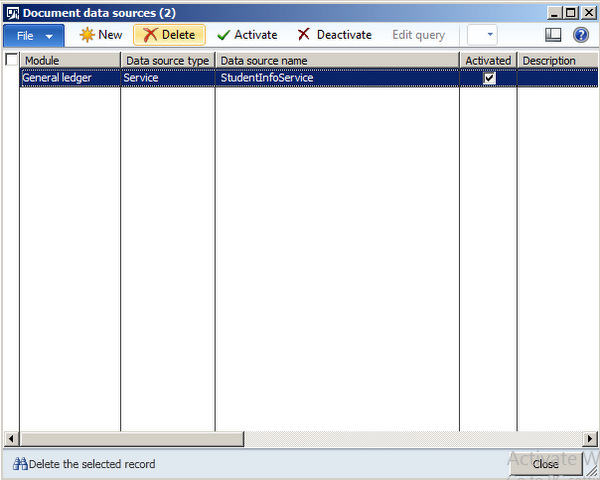
  • Setting up data source in Ax for Excel Add ins

ddddeeeee


11-25-2014 3-21-48 AM


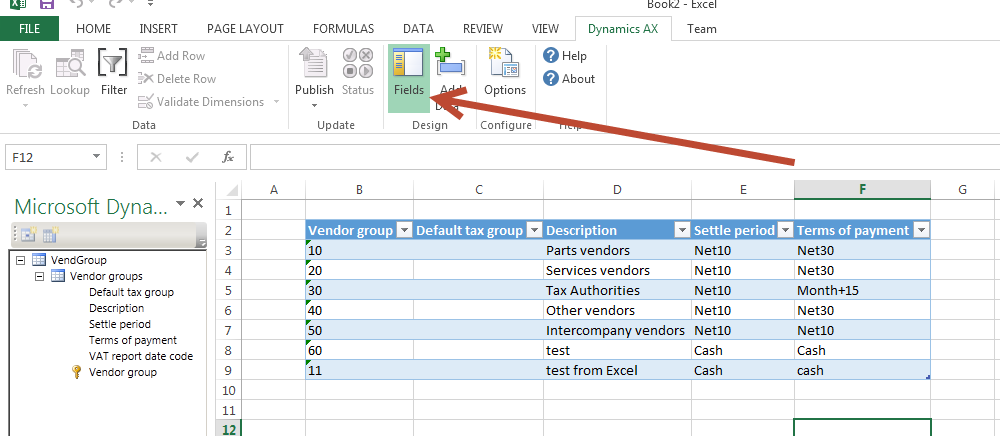
Now click open the Excel and create a new worksheet. You find Dynamics Ax  tab strip as follow

11-23-2014 10-26-45 PM


Click  and open the connection to Dynamics Ax 2012

11-25-2014 3-23-40 AM


Now click on add data at tab strip and click add data

11-25-2014 3-24-16 AM


Select the source

11-25-2014 3-24-39 AM

Now drag and expend it to required number columns.

11-25-2014 3-32-50 AM

11-25-2014 3-34-11 AM


Second way to select the header and click on add row button  from Dynamics AX tab strip.


11-25-2014 11-12-20 AM

Enter data and click on publish button. After pressing the publish button open table explorer in AOT, data is found.

 

11-25-2014 3-47-51 AM


Dynamics ax 2012: excel add-in publish data button disabled

November 23, 2014 by alirazazaidi

Currently working with Excel add-in importing data into Dynamics Ax, I found that publish data is disabled,

Field Option


Latter I found that push, status, add Row, delete row and other button remains disabled until you closed the field selection by re click on field’s button.


Enabled

Exploring proxy classes in Dynamics Ax 2012 R3

November 15, 2014 by alirazazaidi


In C# or vb.net we can connect and perform on Dynamics Ax classes and Tables with business connector.

logoThis technique is widely used in Dynamics Ax 2009 and rarely I saw these used in ax 2012. Its depends on

Requirement.

Consider following scenario where  I have to perform different operations on following custom table.

custom table structure

Create a New console application in C#

For this propose you have to add the reference of dll “Microsoft.Dynamics.BusinessConnectorNet.dll”


Usually you can find it following location.

C:\Program Files (x86)\Microsoft Dynamics AX\60\Client\Bin\


Proxy


Now following code will help perform different operation on Dynamics Ax Table through proxy classes.


Create


try

{

Axapta ax;

AxaptaRecord _recoder;

ax = new Axapta();

ax.Logon("Usmf", null, null, null);


_recoder = ax.CreateAxaptaRecord("StudentInfoTable");

_recoder.set_Field("Address", "Lahore");

_recoder.set_Field("DateOfBirth", new DateTime(1979, 4, 9));

_recoder.set_Field("FirstName", "Ali ");

_recoder.set_Field("LastName", "Zaidi");

_recoder.Insert();


}

catch (Exception ex)

{

Console.WriteLine(ex.Message);


}


Read all  

try

{

Axapta ax;

AxaptaRecord _recoder;

ax = new Axapta();

ax.Logon("Usmf", null, null, null);


_recoder = ax.CreateAxaptaRecord("StudentInfoTable");

_recoder.ExecuteStmt("Select * from %1");


while (_recoder.Found)

{


Console.WriteLine("FirstName " +_recoder.get_Field("FirstName"));

Console.WriteLine("LastName " + _recoder.get_Field("LastName"));


_recoder.Next();

}


Console.ReadKey();


}

catch (Exception ex)

{

Console.WriteLine(ex.Message);


}


Read specific


try

{

Axapta ax;

AxaptaRecord _recoder;

ax = new Axapta();

ax.Logon("Usmf", null, null, null);


_recoder = ax.CreateAxaptaRecord("StudentInfoTable");

_recoder.ExecuteStmt("Select * from %1 where %1.FirstName=='Ali'");


while (_recoder.Found)

{


Console.WriteLine("FirstName " +_recoder.get_Field("FirstName"));

Console.WriteLine("LastName " + _recoder.get_Field("LastName"));


_recoder.Next();

}


Console.ReadKey();


}

catch (Exception ex)

{

Console.WriteLine(ex.Message);


}

11-15-2014 6-38-17 AM

Update

try

{

Axapta ax;

AxaptaRecord _recoder;

ax = new Axapta();

ax.Logon("Usmf", null, null, null);


_recoder = ax.CreateAxaptaRecord("StudentInfoTable");

_recoder.ExecuteStmt("Select forupdate * from %1 where %1.FirstName=='Ali'");


while (_recoder.Found)

{


Console.WriteLine("FirstName " +_recoder.get_Field("FirstName"));

Console.WriteLine("LastName " + _recoder.get_Field("LastName"));

ax.TTSBegin();

_recoder.set_Field("LastName", " Raza  Zaidi");

_recoder.Update();

ax.TTSCommit();

_recoder.Next();

}


Console.ReadKey();


}

catch (Exception ex)

{

Console.WriteLine(ex.Message);


}


Delete

nbsp;


Axapta ax;

AxaptaRecord _recoder;

ax = new Axapta();

ax.Logon("Usmf", null, null, null);


_recoder = ax.CreateAxaptaRecord("StudentInfoTable");

_recoder.ExecuteStmt("Select forupdate * from %1 where %1.FirstName=='Ali'");


while (_recoder.Found)

{


Console.WriteLine("FirstName " +_recoder.get_Field("FirstName"));

Console.WriteLine("LastName " + _recoder.get_Field("LastName"));

ax.TTSBegin();

_recoder.set_Field("LastName", " Raza  Zaidi");

_recoder.Delete();

ax.TTSCommit();

_recoder.Next();

}


Console.ReadKey();


}

catch (Exception ex)

{

Console.WriteLine(ex.Message);


}

Unable to find appropriate service endpoint information in the configuration object Dynamics Ax 2012.

October 12, 2014 by alirazazaidi

Recently installed the SSRS report extension on my VM Dynamics Ax 2012 R2 CU7. During installation, I continuously found following error message In log files.


“Unable to find appropriate service endpoint information in the configuration object”

Later I understand that SSRS reports communicate with AOS through WCF services and WCF service for Dynamics Ax was not running on AOS.

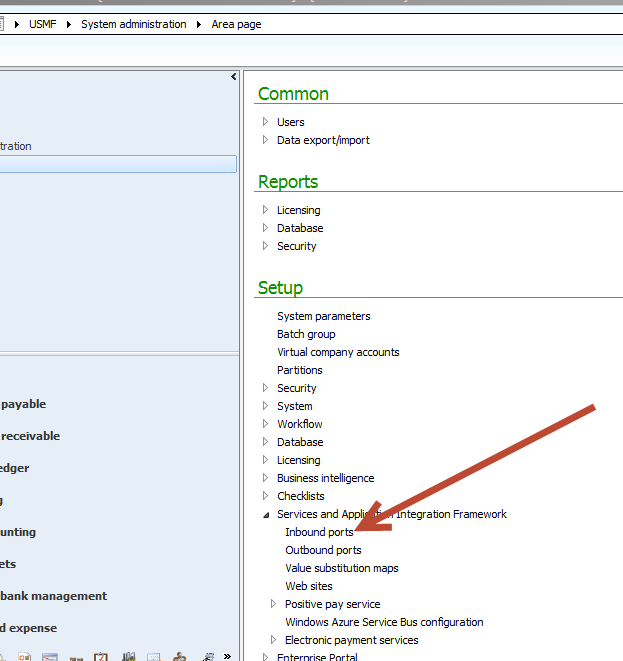
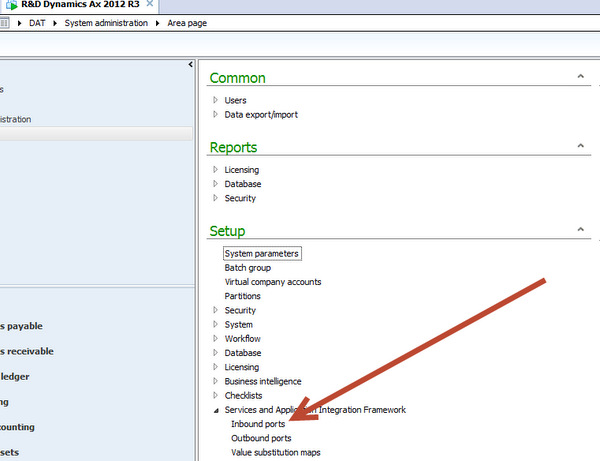
When I opened the Application Integration Framework è Inbound port, I found that BI service was deactivated.

10-12-2014 5-58-16 PM


I activate the service, and retry SSRS reporting extension installation, which installed successfully.


10-12-2014 11-13-28 PM

Exploring The SalesSalesOrderservice AIF Document Service In Dynamics Ax 2012 R3

October 10, 2014 by alirazazaidi


For my session for Integration with Dynamics Ax 2012. I have to consume SalesSalesOrderSerivce. In this article I am configure and consume Sales Order service and share c# code for calling a Sales service and consume.


Enable the methods and configure the inbound port. For this you have to go at following link and open AIf Inbound

Aif Link


Right click on AIF menu and create a New

set the Name there “ for example I create the port with Name “MySalesOrderService”.

10-10-2014 7-58-10 PM

Click on Service Operations add following one

Selection

Click on arrow button and add these method to service

Selected

Now click on Close button to close it.

Now click to check box to enable data policy button document. Click on it.

enable the Data policy


New screen open for all possible fields, Click on Element to sort the list, Enable following fields which are minimum required for Sales Order creation.

Mendatory Selection


Now save it. From port screen enable logging and Click on activate, Wait it will take time to deploy the service on port.

Activate

Info log appear to tell that port is successfully active.

InfoLog


Now copy the WSDL url

Wsdl


Create a new Console application in Visual studio, I am more familiar with C# so I created a console application in C#.

Add new Service reference and set its name “SalesOrderService” and get methods from WSDL.

SalesOrder Service Reference


Now Click on Ok button.


Calling the Create Method.


var line = new SalesOrderService.AxdEntity_SalesLine()

{

ItemId = “D0001”,

SalesQty = 42,

SalesUnit = “ea”

SalesOrderService.AxdEntity_InventDim inventDim = new SalesOrderService.AxdEntity_InventDim();
inventDim.InventSiteId = “JS”;

InventDim = new SalesOrderService.AxdEntity_InventDim[] {inventDim};


};


var order = new SalesOrderService.AxdEntity_SalesTable()

{

CustAccount = “US-003”,

PurchOrderFormNum = “ffg”,

ReceiptDateRequested = DateTime.Now.Date,


SalesLine = new SalesOrderService.AxdEntity_SalesLine[] { line }

};


//   SalesOrderService. _salesOrder= new SalesOrderService.AxdSalesOrder();


var orderList = new SalesOrderService.AxdEntity_SalesTable[] { order };

var callContext = new SalesOrderService.CallContext() { Company = “USMF” };

SalesOrderService.SalesOrderServiceClient client = new SalesOrderService.SalesOrderServiceClient();


//   _salesOrder.SalesTable=orderList;

try

{

client.create(callContext, orderList);


//  client.create(callContext, orderList);

client.Close();

}

catch

{

client.Abort();

throw;

}


Read Method Code

try

{

SalesOrderService.KeyField keyField = new SalesOrderService.KeyField() { Field = “SalesId”, Value = “000767” };


// Create an entity key instance and put in the key field data


SalesOrderService.EntityKey entityKey = new SalesOrderService.EntityKey();


entityKey.KeyData = new SalesOrderService.KeyField[1] { keyField };


// Create an array of entity keys and put in the previously


SalesOrderService.EntityKey[] entityKeys = new SalesOrderService.EntityKey[1] { entityKey };


SalesOrderService.SalesOrderServiceClient _Client = new SalesOrderService.SalesOrderServiceClient();


SalesOrderService.CallContext _callContext = new SalesOrderService.CallContext();


_callContext.Company = “USMF”;


SalesOrderService.AxdEntity_SalesTable[] _SalesOrder= _Client.read(_callContext, entityKeys);


SalesOrderService.AxdEntity_SalesTable _SalesTable = _SalesOrder[0];

SalesOrderService.AxdEntity_SalesLine _SalesLineTable = _SalesTable.SalesLine[0];

Console.WriteLine(“Account Num : ” + _SalesTable.CustAccount.ToString());

Console.WriteLine(“Order date  : ” + _SalesTable.ReceiptDateRequested.ToString());

Console.WriteLine(“ItemId  : ” + _SalesLineTable.ItemId.ToString());

Console.WriteLine(“QTy  : ” + _SalesLineTable.SalesQty.ToString());

Console.WriteLine(“Sales Unit  : ” + _SalesLineTable.SalesUnit.ToString());

_Client.Close();

Console.ReadKey();

}

catch

{

//     client.Abort();

throw;

}


Update Method Call code


SalesOrderService.KeyField keyField = new SalesOrderService.KeyField() { Field = "SalesId", Value = "000756" };


// Create an entity key instance and put in the key field data


SalesOrderService.EntityKey entityKey = new SalesOrderService.EntityKey();


entityKey.KeyData = new SalesOrderService.KeyField[1] { keyField };


// Create an array of entity keys and put in the previously


SalesOrderService.EntityKey[] entityKeys = new SalesOrderService.EntityKey[1] { entityKey };


SalesOrderService.SalesOrderServiceClient _Client = new SalesOrderService.SalesOrderServiceClient();


SalesOrderService.CallContext _callContext = new SalesOrderService.CallContext();


_callContext.Company = “USMF”;


SalesOrderService.AxdEntity_SalesTable[] _SalesOrderList = _Client.read(_callContext, entityKeys);


SalesOrderService.AxdEntity_SalesTable _SalesOrderTable = _SalesOrderList.First();

SalesOrderService.AxdEntity_SalesLine SalesLine = _SalesOrderTable.SalesLine.First();

decimal salesQty = 50;

SalesLine.SalesQty = salesQty;


_Client.update(_callContext, entityKeys, _SalesOrderList);


Delete method code


SalesOrderService.KeyField keyField = new SalesOrderService.KeyField() { Field = "SalesId", Value = "000757" };


// Create an entity key instance and put in the key field data


SalesOrderService.EntityKey entityKey = new SalesOrderService.EntityKey();


entityKey.KeyData = new SalesOrderService.KeyField[1] { keyField };


// Create an array of entity keys and put in the previously


SalesOrderService.EntityKey[] entityKeys = new SalesOrderService.EntityKey[1] { entityKey };


SalesOrderService.SalesOrderServiceClient _Client = new SalesOrderService.SalesOrderServiceClient();


SalesOrderService.CallContext _callContext = new SalesOrderService.CallContext();


_callContext.Company = “USMF”;


_Client.delete(_callContext, entityKeys);


Trouble shooting AIF service.

There are many possible failure of sales service call, You can trouble shoot it from  System Administration section as

Exceptions

During writing code and I got many failures, All exceptions recorded here.


ExceptionsForm


List as data contract in Custom AIF service Dynamics Ax 2012

October 8, 2014 by alirazazaidi

During writing one of custom AIF services, I had requirement to get and set List of certain class type. For exampel Contact list if we have to import Customer or vendor, I found following syntax for attribute to make List as data contract.
[DataMemberAttribute(“MyContactList”),
AifCollectionTypeAttribute(“contactList”,Types::Class, classStr(ContactDC)),
AifCollectionTypeAttribute(“return”,Types::Class, classStr(ContactDC))]
public List parmMyContactList(List contactList =_contactList)
{
_contactList = contactList;
return _contactList;
}

Master Data Management Framework for Dynamics Ax 2012 eLearning course link

September 18, 2014 by alirazazaidi

Recently we used Master Data Management Framework in Dynamics Ax 2012 for Initial load.. I found that Microsoft release the course on its partner resource.
This course contains following topics

• Module 00: Course Introduction and Expert Introduction
• Module 01: Overview of Data Management
• Module 02: Introduction to Data Import Export Framework
• Module 03: Migrating Data using the Data Import Export Framework
• Module 04: Creating a Custom Entity
• Module 05: Introduction to Master Data Management
• Module 06: Using Master Data Management
• Module 07: Course Review

You can download this eLearning course from following link if you have rights on Partner resource

1. Open this link: https://mbs.microsoft.com/partnersource/northamerica
2. Select Readiness & Training > E-Learning
3. Search for 80645

Reference : http://www.agermark.com/2014/07/new-online-course-data-management-in.html

“Wrong field ID in the key data container in entity key” Dynamics Ax 2012 AIF

September 17, 2014 by alirazazaidi

I got following Error when I called the Read method of Dynamics Ax AIF service.

“Wrong field ID in the key data container in entity key”


My code snippet is as follow and I did not found anything wrong with it.

StudentInfoRef.KeyField keyField = new StudentInfoRef.KeyField() { Field = "FirstName", Value = "Ali2" };

// Create an entity key instance and put in the key field data

StudentInfoRef.EntityKey entityKey = new   StudentInfoRef.EntityKey();

entityKey.KeyData   = new   StudentInfoRef.KeyField[1] { keyField };

// Create an array of entity keys and put in the previously


StudentInfoRef.EntityKey[] entityKeys = new StudentInfoRef.EntityKey[1] { entityKey };

StudentInfoRef.StudentInfoServiceClient _Client = new StudentInfoRef.StudentInfoServiceClient();

StudentInfoRef.CallContext _callContext = new StudentInfoRef.CallContext();

_callContext.Company = "USSI";

StudentInfoRef.AxdStudentInfo _StudentInfo = _Client.read(_callContext, entityKeys);

StudentInfoRef.AxdEntity_StudentInfoTable _StudentInfoTable = _StudentInfo.StudentInfoTable[0];


After trouble shooting I found that I was trying to read on field which have same value in multiple rows. For example I am trying to read from filed FirstName and value “Ali” exists more than one row.


It is recommend that read method will applied on column or field which have unique index.

I was working on testing data, so I delete the all records which have “Ali” value in “FirstName” field. Only one record left for value “Ali”. This time Read method works perfectly right.

It is recommended that if you have repeated values in different rows, you Find method of dynamics Ax 2012.

Creating and consuming Custom Document Service in Dynamics Ax 2012 R3

September 15, 2014 by alirazazaidi

For one of Presentation on AIF, I build a custom Document Service based on custom table. To avoid any validation constraints I made a very simple custom table “StudentInfoTable”.

FieldName dataType
Roll Number string
FistName string
LastName string
Address string
DateOfBirth date.


Create a Unique Index on FirstName field, so Read and find method of custom Document service works fine.


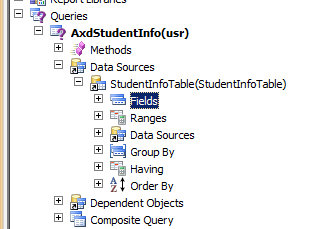
In AOT under Query Node with Name AxdStudentInfo, create a new DataSource and add StudentInfoTable. Right click on field and set Dynamic Property to Yes


Query


Now right click on “StudentInfoTable” Node and set its Update properties to true, so Update methods will created against this query object


UpdateQuery


Now in Development environment from top menu click on AIF frame and then select on Create Document Service and click on it. For this result in running a Wizard

Menu


Select following options from Wizard, select the query which we create above mentioned drop down. Name the Document Name


9-14-2014 10-04-05 AM

Press Next button, from the next button check all the checkbox as per following screen shot.

9-14-2014 10-05-12 AM

Press on Next Button

9-14-2014 10-08-52 AM

Press on Generate button.

9-14-2014 10-12-39 AM

Press On Finished button.

There is possibility of errors in generated code, You can find complete code generated with wizard in private project in Dynamics Ax.

Private Project for Document Services

Right click on AxdStudentInfo and compile again.

You have delete two methods  cacheObject and cacheRecordRecord in AxStudentInfoTable and compile the whole project.


Now right click on StudentInfoService and set namespace

http://schemas.Student.com/ServiceContracts

Service reference

Now create a right on Service group Node and create a new service group.


Service Group

Drag and drop service node under Student InfoService group. So  Student Service will be available for in side service group.


Now generate Inc CIL or right click on StudentInfoServicegroup and click deploy


Deploy Service Group


After successful deployment you may find following info box


Service InfoBox


Now open a new work space and go at System Administration module and open in bound port under Application integration framework

In Bound Port


And Open Application Inbound framework


Address

Copy WSDL URL In my case it is


http://WIN-IKPOSIU2SGD:8101/DynamicsAx/Services/StudentInfoServiceGroup


now open Visual studio Project and create a new Console project I am more comfortable with C#.

Console


From Solution explore right click and add Service reference

ServiceReference2


Now we can use following code to create, Read, Update and delete methods


Create method


  StudentInfoRef.AxdEntity_StudentInfoTable _StudentInfo = new StudentInfoRef.AxdEntity_StudentInfoTable();

StudentInfoRef.AxdStudentInfo _Student = new StudentInfoRef.AxdStudentInfo();

_Student.StudentInfoTable = new StudentInfoRef.AxdEntity_StudentInfoTable[1] { _StudentInfo };


_StudentInfo.FirstName = "Ali";

_StudentInfo.LastName = " Raza";

_StudentInfo.Address = " Lahore";

_StudentInfo.DateOfBirth = new DateTime(1979, 4, 6);

StudentInfoRef.StudentInfoServiceClient _Client = new StudentInfoRef.StudentInfoServiceClient();

StudentInfoRef.CallContext _callContext = new StudentInfoRef.CallContext();

_callContext.Company = "USSI";

StudentInfoRef.EntityKey[] entityKeys = _Client.create(_callContext, _Student);

You can see create function works fine.
TableExploreCreate
In above mentioned code, Create method take two parameter, first is Call context, In Call context variable we can define legal entity where data will be inserted.


Read Method


Read method use EntityKey for searching criteria for example we want to search Student with First Name Ali following code will works for Us.

Read method works on keyField value. It is recommend that you will search records on the bases of Unique indexed based field.


StudentInfoRef.KeyField keyField = new StudentInfoRef.KeyField() { Field = "FirstName", Value = "Ali2" };


// Create an entity key instance and put in the key field data

StudentInfoRef.EntityKey entityKey = new   StudentInfoRef.EntityKey();


entityKey.KeyData   = new   StudentInfoRef.KeyField[1] { keyField };

// Create an array of entity keys and put in the previously


StudentInfoRef.EntityKey[] entityKeys = new StudentInfoRef.EntityKey[1] { entityKey };


StudentInfoRef.StudentInfoServiceClient _Client = new StudentInfoRef.StudentInfoServiceClient();

StudentInfoRef.CallContext _callContext = new StudentInfoRef.CallContext();

_callContext.Company = "USSI";


StudentInfoRef.AxdStudentInfo _StudentInfo = _Client.read(_callContext, entityKeys);


StudentInfoRef.AxdEntity_StudentInfoTable _StudentInfoTable = _StudentInfo.StudentInfoTable[0];


Console.WriteLine("First Name :" + _StudentInfoTable.FirstName);

Console.WriteLine("Last Name :" + _StudentInfoTable.LastName);

Console.WriteLine("Address :" + _StudentInfoTable.Address);


Console.ReadLine();


Update Method

Update in Document is two step process, first step to read the record based on field and second step to update the record which is return as result.


For example I want to update Address and Last Name of student. Following code works for me.


StudentInfoRef.KeyField keyField = new StudentInfoRef.KeyField() { Field = "FirstName", Value = "Ali2" };


// Create an entity key instance and put in the key field data

StudentInfoRef.EntityKey entityKey = new StudentInfoRef.EntityKey();


entityKey.KeyData = new StudentInfoRef.KeyField[1] { keyField };

// Create an array of entity keys and put in the previously


StudentInfoRef.EntityKey[] entityKeys = new StudentInfoRef.EntityKey[1] { entityKey };


StudentInfoRef.StudentInfoServiceClient _Client = new StudentInfoRef.StudentInfoServiceClient();

StudentInfoRef.CallContext _callContext = new StudentInfoRef.CallContext();

_callContext.Company = "USSI";


StudentInfoRef.AxdStudentInfo _StudentInfo = _Client.read(_callContext, entityKeys);


StudentInfoRef.AxdEntity_StudentInfoTable _StudentInfoTable = _StudentInfo.StudentInfoTable.First();


_StudentInfoTable.Address = "Lahore";

_StudentInfoTable.LastName = "Zaidi";

_StudentInfoTable.action = StudentInfoRef.AxdEnum_AxdEntityAction.update;

_StudentInfoTable.actionSpecified = true;

_Client.update(_callContext, entityKeys, _StudentInfo);


Delete Method


Delete Method works for same way, Send entity keys and call for Delete method.


StudentInfoRef.KeyField keyField = new StudentInfoRef.KeyField() { Field = "FirstName", Value = "Ali2" };


// Create an entity key instance and put in the key field data

StudentInfoRef.EntityKey entityKey = new StudentInfoRef.EntityKey();


entityKey.KeyData = new StudentInfoRef.KeyField[1] { keyField };

// Create an array of entity keys and put in the previously


StudentInfoRef.EntityKey[] entityKeys = new StudentInfoRef.EntityKey[1] { entityKey };


StudentInfoRef.StudentInfoServiceClient _Client = new StudentInfoRef.StudentInfoServiceClient();

StudentInfoRef.CallContext _callContext = new StudentInfoRef.CallContext();

_callContext.Company = "USSI";

_Client.delete(_callContext, entityKeys);


ENUM values missing in SRSANALYSISENUMS Table

September 12, 2014 by alirazazaidi

During one of assignment, I have to get some data directly from Dynamics Ax table in SQL Server.

All enum based column in table shown their numeric values in Sql Server. For Analysis services Or OLAP services Dynamics Ax holds a table with name “SRSANALYSISENUMS”. This table contains the all enum which are used inside the Cube ETL process.

Analysis services was not install on my machine, for this reason “SRSAnalysisENums” table was empty.

This table is populate with static method “populateSRSAnalysisEnums” of class “BIGenerator”. We can directly run this method to populate the require table so we can join it in SQL server to get enum display/Name in query result instead of their numeric values.

If you have custom table which has one or more tables are based on Enum data type. Or your required enum values are not present in “SRSANALYSISENUMS”.  You have to perform following steps.

  • Create a new prospective.
  • Drag required table in Table node of new prospect.

9-12-2014 6-06-17 PM

  • Save the prospect.
  • Open a new job inside the Dynamics Ax AOT node.


  • Run a static method populateSRSAnalysisEnums() of class BIGenerator as follow

static void Job4(Args _args)
{
//BIGenerator _Bi= new BIGenerator();
BIGenerator::populateSRSAnalysisEnums();
}

  • You will find that SRSAnalysisENums” will be populated and your required Enum will be present there.

SRSANALYSISENUMS

« Previous Page
Next Page »

Primary Sidebar

About

I am Dynamics AX/365 Finance and Operations consultant with years of implementation experience. I has helped several businesses implement and succeed with Dynamics AX/365 Finance and Operations. The goal of this website is to share insights, tips, and tricks to help end users and IT professionals.

Legal

Content published on this website are opinions, insights, tips, and tricks we have gained from years of Dynamics consulting and may not represent the opinions or views of any current or past employer. Any changes to an ERP system should be thoroughly tested before implementation.

Categories

  • Accounts Payable (2)
  • Advance Warehouse (2)
  • AI (1)
  • Asset Management (3)
  • Azure Functions (1)
  • Books (6)
  • Certification Guide (3)
  • ChatGPT (2)
  • Claude (1)
  • Customization Tips for D365 for Finance and Operations (62)
  • D365OF (60)
  • Data Management (1)
  • database restore (1)
  • Dynamics 365 (59)
  • Dynamics 365 for finance and operations (139)
  • Dynamics 365 for Operations (174)
  • Dynamics AX (AX 7) (134)
  • Dynamics AX 2012 (274)
  • Dynamics Ax 2012 Forms (13)
  • Dynamics Ax 2012 functional side (16)
  • Dynamics Ax 2012 Reporting SSRS Reports. (31)
  • Dynamics Ax 2012 Technical Side (52)
  • Dynamics Ax 7 (65)
  • Exam MB-330: Microsoft Dynamics 365 Supply Chain Management (7)
  • Excel Addin (1)
  • Favorites (12)
  • Financial Modules (6)
  • Functional (8)
  • General Journal (1)
  • Implementations (1)
  • Ledger (1)
  • Lifecycle Services (1)
  • Logseq (4)
  • Management Reporter (1)
  • Microsoft Excel (4)
  • MS Dynamics Ax 7 (64)
  • MVP summit (1)
  • MVP summit 2016 (1)
  • New Dynamics Ax (19)
  • Non Defined (9)
  • Note taking Apps (2)
  • Obsidian (4)
  • Personal Knowledge Management (3)
  • PKM (16)
  • Power Platform (6)
  • Procurement (5)
  • procurement and sourcing (6)
  • Product Information Management (4)
  • Product Management (6)
  • Production Control D365 for Finance and Operations (10)
  • Sale Order Process (10)
  • Sale Order Processing (10)
  • Sales and Distribution (5)
  • Soft Skill (1)
  • Supply Chain Management D365 F&O (5)
  • Tips and tricks (278)
  • Uncategorized (165)
  • Upgrade (1)
  • Web Cast (7)
  • White papers (4)
  • X++ (10)

Wiki

  • SCM

Copyright © 2026 · Magazine Pro On Genesis Framework · WordPress · Log in