• Skip to main content
  • Skip to primary sidebar
  • Home
  • About
  • Recommended Readings
    • 2022 Book Reading
    • 2023 Recommended Readings
    • Book Reading 2024
    • Book Reading 2025
    • Book Reading 2026
  • Supply Chain Management Guide
  • PKM
  • Microsoft Excel
  • Microsoft Copilot in Office 365
  • Public Wiki Page

Ali Raza Zaidi

A practitioner’s musings on Dynamics 365 Finance and Operations

Tips and tricks

Trello as lean project management tool for Dynamics Ax 2012 R3

December 1, 2017 by alirazazaidi

Hi All, from last two years, I used Trello as lean project management tool. I used it track different customization task and its status.

This was wonderful free tool for post implementation or support projects. I tried to share some tips. Remember this is just small overview video for Trello.

Relation between PurchLine and PurchReqline Tables in Dynamics AX 2012 R3.

November 9, 2017 by alirazazaidi

In one of SSRS Report requirement, client wants to see Purchase order quantity, Invoice Quantity against items purchase requisition Quantity.


Instead of writing a query on ItemId and InventdimId, I found out of the box function In PurchReqLine table. This method return the reference of Purchline. With reference of Purchline, I can get Purchase order Number and get Item Invoiced quantity.


PurchLine       purchLine;

PurchReqLine reqline;


_purchLine = reqline.purchLine();


The relationship between Purchline and PurchReqline is RecId, Purchline contains the Reference RecId of PurchReqline.


PurchLine       purchLine;


if (this.PurchId && this.LineRefId)

{

select firstonly purchLine

where purchLine.PurchId           == this.PurchId    &&

purchLine.PurchReqLineRefId == this.LineRefId  &&

!purchLine.IsDeleted;

}

Mass delete records D365 for Finance and Operations.

October 28, 2017 by alirazazaidi

I was testing one scenario, I have created some main account wrongly. So I want to delete them quickly.

Secondly I want to explore the Office integration In D365 for finance and operations.

So I did following steps to delete the required records quickly.

 Organization administration > Setup > Office integration > Excel workbook designer


Select entity “MainAccount”

. Create workbook

and download it

Login in Excel

Open excel

Delete selected records

Publish

Confirm.

Records are successfully deleted.

float value conversion in string SSRS expression and decimal points SSRS dynamics ax 2012 R3.

September 29, 2017 by alirazazaidi


Today I have to record very small tip. During development of on SSRS report for Dynamics Ax 2012 R3, End user wants a row at the report footer for  analysis. he wants some kind of percentage  calculation with ‘%’.  A For this I have to use CStr ssrs expression function  like


Ctr(((sum(DataSet!field.Value) / sum(DataSet!field.Value)))*100)+”%”.


Now it is string and shows number of decimal as it result from division. For example  5.4356333. But end user wants formatting like 5.43 .

It is string or text value and SSRS textbox formatting is not apply on it.


Following SSRS expression works for me.


Left(CStr(5.4356333),instr(CStr(5.4356333),”.”)+2)


My Updated expression is something like this


Left(CStr(IIF(Parameters!ProductionReportBM2DS_ItemName.Value = “ITEM-00000420”,((sum(Fields!Scrap.Value)/sum(Fields!TotalConsumption.Value))*100),((sum(Fields!CutLength.Value)/sum(Fields!TotalConsumption.Value))*100))),instr(CStr(IIF(Parameters!ProductionReportBM2DS_ItemName.Value = “ITEM-00000420″,((sum(Fields!Scrap.Value)/sum(Fields!TotalConsumption.Value))*100),((sum(Fields!CutLength.Value)/sum(Fields!TotalConsumption.Value))*100))),”.”)+2) +”%”

Workflow Approve Name  in Grid Dynamics Ax 2012 R3

September 28, 2017 by alirazazaidi

Small tip, with reference at the end of post. I got small task, User want Last approval Name in grid at the result.

I wrote following code snippet as method in a required table and bind it to grid field.


display Name LastApprovalName()

{

WorkflowTrackingStatusTable workflowTrackingStatus;

WorkflowTrackingTable workflowTrackingTable;

WorkflowTrackingCommentTable workflowTrackingCommentTable;

UserInfo userInfo;

RecId _recId;

Name _name;

_recId=5637145391;

select firstFast RecId, User from workflowTrackingTable

order by RecId desc

join workflowTrackingCommentTable

where workflowTrackingCommentTable.WorkflowTrackingTable == workflowTrackingTable.RecId

join UserInfo

where UserInfo.id == WorkflowTrackingTable.User

exists join workflowTrackingStatus

where workflowTrackingTable.WorkflowTrackingStatusTable == workflowTrackingStatus.RecId

&& workflowTrackingStatus.ContextRecId == this.RecId

&& workflowTrackingStatus.ContextTableId == tableNum(MyTablelRequestTable) //PurchTable

&& workflowTrackingTable.TrackingType == WorkflowTrackingType::Approval;

if (workflowTrackingTable.RecId > 0)

{

_name=userInfo.name;


}

else

{

_name='';

}

return _name;

}


Original Code snippet is https://community.dynamics.com/ax/b/amazingax1/archive/2016/04/28/microsoft-dynamics-ax-2012-get-workflow-last-approver-name-and-approved-date

Dynamics 365 for Finance and Operations Development Cookbook Review.

September 16, 2017 by alirazazaidi


Book is excellent. It is handy and cover the almost all technical scenarios with very simple and precise examples. It is scenario based book, Instead a lot of story and unnecessary details, It focus to the point. As compare to previous cook books, which were more abstract, this feel book wrote in mind of fresh graduates or new developers in Dynamics Ax / Dynamics 365 for finance and operations.  After reading book, I feel it is like jigsaw puzzle, you can create a full customization by arrange piece by piece if you have this book. It contains everything which I come across in my 5 years’ experience for Dynamics.


Followings are chapters and my review.


Processing Data:


This chapter covers from creating new model, project in visual studio to complex Sql query execution.  Here you can find, creating a new sequence number, rename primary key, use regular table as temporary table. How to create query object at run time. And how to execute SQL Query directly in X++ code.

My favorite recipe here is ” How to use regular table as temporary table”.


Working with Forms

This chapter gives us very basics of Dynamics 365 for finance and operations forms. Very precise examples for day to day  scenarios.  These recipes contains how to make dialog, tips on catching dialog events, building dynamic form, creating a model form, storing the last values in form. Tree view control, Adding a view detail link. Also good detail of Dynamics form Patterns in Dynamics 365 for finance and operations.


My favorite recipe here is ” Storing Last values in form “.


Working with Data in Forms

This chapter covers the recipes for data manipulations in forms.  It covers sequence number handling, creating custom filter controls. Building a selected  or available list. Processing multiple record, Coloring the records, adding images to different record.

My favorite recipe is ” coloring the records “;


Building Lookups


This chapter covers the lookups based on different scenario, I found all are practical example for building Lookups


Processing Business Tasks.

This chapter is amazing. Containing everything you need to customize. You will find here, segment entry control, creating and posting general entry posting with X++ code, processing of Project ledger,  creating and posting of ledger voucher, creating Sales order, purchase order and electronic payment format.


Data Management

This chapter provide recipes of data migration for example,  data entities, data entities with multiple sources, Data packages, import export and trouble shooting.


Integration with Microsoft Office.


This chapter covers the integration with Excel and word using add-in, workbook designer, custom ax lookup in excel. And creating word document with repeated elements.


Integration with Power BI.

This chapter is also good, recipe for Dynamics 365 for finance and operations starts with Configuring Power BI, consuming data in Excel, Integration with excel, developing interactive Dashboards, embedding Power BI visuals.


Integration with services.


Couple of years back, I was integration expert, I did a lot of integration. This chapter is favorite for me. I was never be good designer, So services attract me more. Just write, consume, map fields schedule and run. I still do integrations of dynamics with. Even with devices like thumb recognition and attendance machines available locally with HR and Payroll.


This chapter contains the recipes

Custom service development, authentication with native client also with Azure. Consuming services in Json and soap. You can also find about Odata services. And also consuming external web services in Dynamics 365 for finance and operations.


Improving development efficiency and performance.


This chapter name seems not right, noting about performance here. It feels what left is placed here, Still recipes are valid and from practical day to day development / customization scenarios. Like extensions, display methods, calculate code execution time, enhance insert, delete and update time. Writing efficient SQL Queries. Event handler and delegate handlers.


I recommend you to read this book.

Custom lookup for Financial Dimension D365 for Finance and Operations (Dynamics Ax 7)

August 6, 2017 by alirazazaidi

Suppose we have to display all values in “Cost Center” financial dimension in custom lookup. For this post I used unbound field.

So first step is we need we need a text box. So drop a control of type “String” ( “Traditionally it is StringEdit Control”).

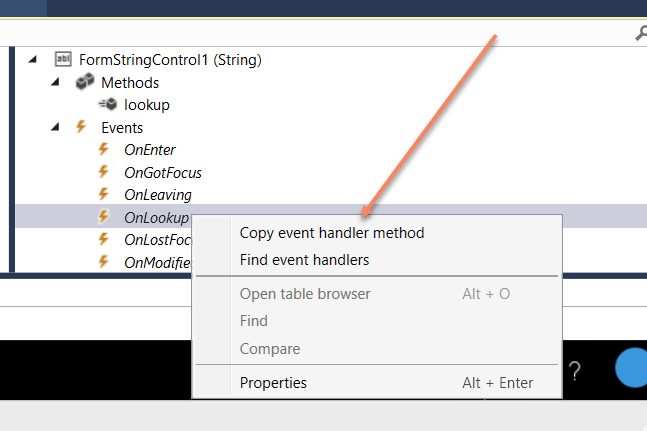
Right click on “OnLookup” event and click on “copy event handler method”.

Now add a new class in project, update its same as required. For this post I renamed it as FromControlEventHandler

Between opening closing brackets of class, paste the event code, I copied code in previous step.

[FormControlEventHandler(formControlStr(FrmTestDetail, FormStringControl1), FormControlEventType::Lookup)]
public static void FormStringControl1_OnLookup(FormControl sender, FormControlEventArgs e)
{

}

Later update event method with following code snippet, If you are seasonal Ax consultant or developer you will find this very similar to Ax 2012.

/// [FormControlEventHandler(formControlStr(FrmTestDetail, FormStringControl1), FormControlEventType::Lookup)]
public static void FormStringControl1_OnLookup(FormControl sender, FormControlEventArgs e)
{
Query query = new Query();
QueryBuildDataSource queryBuildDataSource;
QueryBuildRange qbrForAccount;
SysTableLookup sysTableLookup;
// DimType dimType;
DimensionAttribute dimensionAttribute;
// SysTableLookup::newParameters(tableNum(CustTable),sender);
sysTableLookup = SysTableLookup::newParameters(tableNum(OMOperatingUnit),sender,true);
sysTableLookup.parmUseLookupValue(false);
sysTableLookup.addLookupfield(fieldNum(OMOperatingUnit, OMOperatingUnitNumber));
sysTableLookup.addLookupfield(fieldNum(OMOperatingUnit, Name));
queryBuildDataSource = query.addDataSource(tableNum(OMOperatingUnit));
queryBuildDataSource.addSortField(fieldnum(OMOperatingUnit,OMOperatingUnitNumber));
queryBuildDataSource.addRange(fieldNum(OMOperatingUnit, OMOperatingUnitType)).value(int2str(any2int(OMOperatingUnitType::OMCostCenter)));
sysTableLookup.parmQuery(query);
sysTableLookup.performFormLookup();

FormControlCancelableSuperEventArgs ce = e as FormControlCancelableSuperEventArgs;
//cancel super() to prevent error.
ce.CancelSuperCall();

}

There is no need to add different classes for each event. You can copy and write events of different controls in single class.
There is another option on form control event, “Find Event Handler”. On click on it, will leads to event handler reference, I we wrote it. For current post I clicked on “Find Event handler”

results in as

Now let see what will our output. So I pressed Ctrl+F5 to form run without debugging.
Cheers, After pressing Edit Button my unbound custom lookup with Specific financial dimension works fine.

Custom Financial Dimension in Dynamics 365 for Finance and Operations (AX 7)

July 14, 2017 by alirazazaidi

Purpose of this post to share the procedure I learned yesterday for adding custom Financial dimension in Dynamics 365 for Finance and Operations aka (AX 7). So I added a fictional Financial dimension.

Suppose we have to create a financial dimension with “Jaggah Tax”. This financial dimension required in Sales order, Sales Line, Purchase Order, Purchase line.


New Custom financial can be added and activate by following steps.


First of all open Ax in browser and change its legal entity to USMF.

Now click on General Ledger ==> Charts of Accounts ==> Dimensions => Financial Dimensions.


From financial dimensions page Click on New button. As a result detail page open in new / create mode.


You will find here three editable controls. From Used value drop down, select custom dimension, in second text box type name of dimension and in third text box type Report column Name.


Now click on Activate button from top menu.


On pressing Activating menu button, on right hand side a popup dialog opens. You can select different options from here. I want to activate this financial dimension so I selected activate now option.


So progress dialog show activation is under progress.


Finally we created a new financial dimension.


Now next step is to add values for dimension. Suppose our organization pay two types of jaggah tax.

-Noori Naath

-Mola Jatt.


So for this click on Dimension values menu button after selecting dimension open in detail section.


Click on New and enter values as much as requires. With each value also add  activation date.


We successfully create custom financial dimension. But until we add financial dimension in accounting structure  it will not available for selection.


For this again open General Ledger => Setup => Ledger


From Ledger detail form, select Manufacturing P&L. either double click on it or after selection click on edit button.


Account Structure is open, Also click on add  segment.


On right side a pop up opens with all financial dimensions. You can select required dimension.

From right side a pop up opens from there you can select required Dimension.


After selection Accounting structure look a like below screenshot.


Now on update financial dimensions values below text boxes in grid to “”;*. By default it will be *. Which means value is required.  “”;*. Means empty value or null values also allow in dimension.

Now update top value and activate it.

Activation in progress.


Now open Purchase order and from Header view, select newly added financial dimension.


Values are available here.


Our newly add financial dimension successfully added


Skip certain values Report group sum SSRS Dynamics Ax 2012 R3. Dynamics 365 for operations

July 3, 2017 by alirazazaidi

There is again small tips. Let me share you again scenario. Suppose you have to show customer Sale With customer group level. And group footer want to sum of Sales of that group. Now requirement is that customer with certain sub classification will skip in group sum. For example those customer who are on hold or blocked will not shown in report group sum, but shown in report detail

I was developing RDP based reports. So I add a int field in table. So I can mark specific record need to skip at group level sum.

I update the following SSRS expression to skip certain records at group level.

=Sum(iif(Fields!Flag.Value= 0, Cdbl(Fields!Value.Value), 0.0),”Group Name”)

Serial Number in Report Group SSRS Dynamics Ax 2012 R3.

July 3, 2017 by alirazazaidi

Today I have small tip. Let me share a scenario. Suppose you have to display Customer group as report level group and customer at detail level who did purchased products from your organization in given period of time.

Serial number on detail level can be achieved by RowNumber(“Scope Name”)

But serial number shown on Group level is tricky because RowNumber not works there. For example in above mention scenario, Client wants serial number on Customer Group instead of Customer at detail level.

I used following single line SSRS expression helps me to achieve this.

=Runningvalue(Fields!FieldName.Value,countdistinct,”Dataset1″)

« Previous Page
Next Page »

Primary Sidebar

About

I am Dynamics AX/365 Finance and Operations consultant with years of implementation experience. I has helped several businesses implement and succeed with Dynamics AX/365 Finance and Operations. The goal of this website is to share insights, tips, and tricks to help end users and IT professionals.

Legal

Content published on this website are opinions, insights, tips, and tricks we have gained from years of Dynamics consulting and may not represent the opinions or views of any current or past employer. Any changes to an ERP system should be thoroughly tested before implementation.

Categories

  • Accounts Payable (2)
  • Advance Warehouse (2)
  • AI (3)
  • Asset Management (3)
  • Azure Functions (1)
  • Books (6)
  • Certification Guide (3)
  • ChatGPT (3)
  • Claude (1)
  • Customization Tips for D365 for Finance and Operations (64)
  • D365OF (60)
  • Data Management (1)
  • database restore (1)
  • Dynamics 365 (59)
  • Dynamics 365 for finance and operations (139)
  • Dynamics 365 for Operations (175)
  • Dynamics AX (AX 7) (134)
  • Dynamics AX 2012 (274)
  • Dynamics Ax 2012 Forms (13)
  • Dynamics Ax 2012 functional side (16)
  • Dynamics Ax 2012 Reporting SSRS Reports. (31)
  • Dynamics Ax 2012 Technical Side (52)
  • Dynamics Ax 7 (65)
  • Exam MB-330: Microsoft Dynamics 365 Supply Chain Management (7)
  • Excel Addin (1)
  • Favorites (12)
  • Financial Modules (6)
  • Functional (8)
  • General Journal (1)
  • Implementations (1)
  • Ledger (1)
  • Lifecycle Services (1)
  • Logseq (4)
  • Management Reporter (1)
  • Microsoft Excel (4)
  • MS Dynamics Ax 7 (64)
  • MVP summit (1)
  • MVP summit 2016 (1)
  • New Dynamics Ax (19)
  • Non Defined (9)
  • Note taking Apps (2)
  • Obsidian (4)
  • Personal Knowledge Management (3)
  • PKM (16)
  • Power Platform (6)
  • Procurement (5)
  • procurement and sourcing (6)
  • Product Information Management (4)
  • Product Management (6)
  • Production Control D365 for Finance and Operations (10)
  • Sale Order Process (10)
  • Sale Order Processing (10)
  • Sales and Distribution (5)
  • Soft Skill (1)
  • Supply Chain Management D365 F&O (5)
  • Tips and tricks (278)
  • Uncategorized (165)
  • Upgrade (1)
  • Web Cast (7)
  • White papers (4)
  • X++ (10)

Wiki

  • SCM

Copyright © 2026 · Magazine Pro On Genesis Framework · WordPress · Log in