• Skip to main content
  • Skip to primary sidebar
  • Home
  • About
  • Recommended Readings
    • 2022 Book Reading
    • 2023 Recommended Readings
    • Book Reading 2024
    • Book Reading 2025
  • Supply Chain Management Guide
  • PKM
  • Microsoft Excel
  • Microsoft Copilot in Office 365
  • Public Wiki Page

Ali Raza Zaidi

A practitioner’s musings on Dynamics 365 Finance and Operations

Dynamic AX 2012

One or more project in the solution were not loaded correctly SSRS Dynamics Ax 2012 R2.

October 12, 2015 by alirazazaidi

Today I got an error when I try to edit customize SSRS report project on environment which I first time use.


“One or more project in the solution were not loaded correctly. Please see the Output Window for details”


Visual studio project opens but report did not load, Application Explore shows the message that

AOS is not connected.


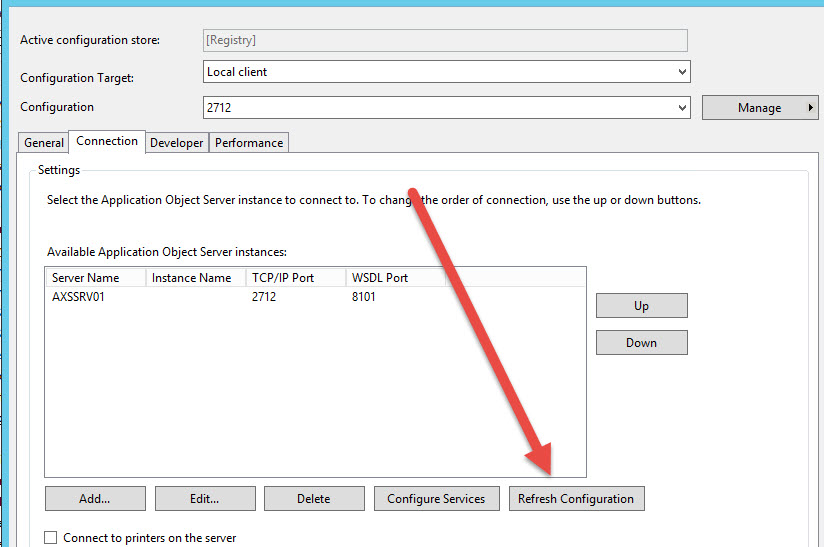
For this I open the control panel, Administrative tools and then open Microsoft Dynamics Ax 2012 Configuration

Configurations


Click on Refresh Configuration.


After a few second, I edit the visual studio project, it perfectly open.

Sale Order processing In Dynamics Ax 2012 R3 part 1

September 12, 2015 by alirazazaidi

In dynamics Ax 2012, we can sale stock Item and service Item through sales orders.

We can create sales order from Sales and Marketing module or Account receivables module.

Currently I am creating and exploring Sales order on demo data contoso data and legal entity UsMF.

Open Sales and distribution module and from common menu expand sales order and click on “All Sales order” menu.

2015-09-12_20-11-10

Click on it and open sales order

All Sales Order

Now click on top Sales button

Sales Order

A new popup or dialog open

SaleOrderDialog1

Select customer for against you want to enter sale Order. For example I create Sales order for Cave wholesales customer.


SaleOrderDialog1CustomerSelect

Now expand General fast tab. Customer Invoice Account is already selected, we can also change Currency, currently I select USD.

SalesOrderGeneraltab


If we explore Order type. We find five type of sales order

SalesOrderTypes

We explore more, we found

Journal:  If we select sales order of type Journal. There is no financial and Inventory impact of sales order. It will be draft sale order.

Subscription:  We can create periodic re-occurring sales orders.

Sales Order:  Sales order type will be have impact on financial and Inventory. It means, items or services are deliver to customer.

Return Order: We can register sales return, Item quantity will received back from customer and customer credit note will be generate against the sale order.

Item requirement:  This type of sales order related to project requirements.

Please select Sales Order and click on ok.


From Administrator fast tab, you can also select sales order origin for example we are register sales order from phone call, mail, fax or email. Similarly I also select Sales responsible.

SaleOrderDialog1CustomerSelect

Click ok to Create Sales Order

It will open Sales order detail page. By default it will open Item view

SalesOrderDetails

Now we select Item for sales and Item configuration.

ItemDetail


Other Item other dimension can be set like warehouse and site.

SalesItemDetail2


For current sales line I enter 2 percent discount amount.

Similarly we can create multiple items.

Multiple Sales Item


Sales from action pane click on Sell tab and click on confirm button

Sales Order confirmation

Posting a Sale Order confirmation will nothing more record keeping the document. It is just create a receipt for insure customer that your sale order is booked or confirm,

Sales Order confimration Dialog

You can generate print and click OK to confirm it


I confirmed the sales order multiple times, you can see the confirmation history from sell action  tab strip

2015-09-12_22-50-19


2015-09-12_22-50-40


Further sale order processing will be in next post


Sales Quotations In Dynamics Ax 2012 R3.

September 11, 2015 by alirazazaidi

Sales process usually starts with Request for Quotation. And result Sales Quotation generates and send to client. These clients were possible two types. Either they were register customer with organization or they were first time come to register. These first time client which possible become customer or reject our quotation handle as Prospect in Dynamics Ax 2012.

These prospects may be person, organization or individuals. They register In Dynamics Ax 2012 is very similarly as customer register. Only difference between customer and prospect is that prospect has no financial impact. They are just record keeping or register sales of Quotation. But in the case of client accepts the sales quotation, the prospect must be converted into customer and sale quotation into sales order.

Now we go to create a new prospect and then send sales quotation, and accept the sales quotation to convert Sales Order.

At the time of writing this article I am using Dynamics Ax 2012 R3 Cu9 with demo license.

Open Ax client and go in Sales and marketing module.

Sales and Marketing=> Common=> Prospects => All prospects

2015-07-24_23-08-45


List page of all prospects open, click on prospect and open a create a new prospect form.

Create-New-Prospect


For current article I want to create prospect for person type. I select Person from drop down. Entry required highlighted and click on save and open to prospect detail page,

From detail form you can change Type Id to customer / vendor or let it prospect, I left it as prospect as default value selected. You can also update sales tax group for prospect.

Change-Type


Now click on top menu click on sell and then click on Sales Quotation

xss


A new Sales Quotation form will open

Form is very similar to sales order, but having very limited option as compare to sales order.

SalesLine

For current example we select two items and described 100 items per 100 dollar as unit price.

Enable1


Save it now open to quotation tab. And click on send Quotation


Quoation-Send


If you want print on click on “Print quotation” chick box and click on ok


Info box appears to show infobox.

InfoBox


Now we got feedback from client, for this open sales quotation and from follow tab strip You will find confirm, cancel and lost quotation button.

ConfirmCode


As we member we did not change the type of Prospect to customer so AX will not let you confirm sales quotation. In the case of rejection or cancel you can click on cancel or lost button to reject the sales quotation.

For current example, we assume that our sales quoatation is accepted and new we convert this sale quotation into sales order. First step to convert prospect into customer, for this click on convert to customer , you will find small popup form. Where you can enter customer account.

Convert-to-Customer


After entering new customer account, you can check that account number is valid, click on check button, for example I added the small length customer account and following error message shows

ManualEntryRejected


Now enter account with required length check and then press ok.

check-button

You can see that after converting prospective into customer, Confirmation button is enabled

Enable1


Click on confirm to convert this into sales order

Confirmation-Screen

Click ok, Sales Quotation converts into sales order

confirm

If we open sales order list page we find a new sales order created against sales quotation.

Sales-Order

Exploring the Full text index In Dynamics Ax 2012 R3

August 23, 2015 by alirazazaidi

Consider following points for Full text index on Dynamics Ax 2012

  • Full text index used only on text fields on table.
  • They find all records from table which contains the key words
  • Queries can be used to and full text index used in range filters
  • If keywords contains spaces then it will used as “Or” operator.
  • X++ select statement cannot use full text index.


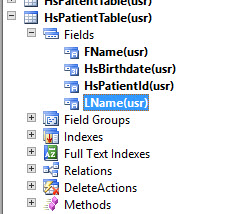
Let explore the full text index on our custom table “HSPatientTable”

2015-08-23_1-55-28

And we want full index search of FName of above mentioned table. First of all right click on table and from property window set table group property to “Main”.

2015-08-23_1-58-16

Now expand the full text Index node of table and create a new full index name it as IdxFName and drag drop the Fname in this index.

2015-08-23_2-00-55

Compile and synchronize table so changes reflect at sql server level.


Now create Now Ax job and paste following code there

static void Job1(Args _args)

{

HsPatientTable patientTable;

Query query;

QueryBuildDataSource queryBDSource;

QueryBuildRange queryBRange;

QueryRun queryRun; 

delete_from patientTable;

patientTable.HsPatientId ="01";

patientTable.FName =" Ali Raza zaidi";

patientTable.insert();

patientTable.HsPatientId ="02";

patientTable.FName =" Ranjah jogi";

patientTable.insert();

patientTable.HsPatientId ="03";

patientTable.FName ="Waseem akahram";

patientTable.insert();

patientTable.HsPatientId ="04";

patientTable.FName ="Shah jii";

patientTable.insert();

patientTable.HsPatientId ="05";

patientTable.FName ="AX guru";

patientTable.insert(); 

query = new Query();

queryBDSource = query.addDataSource(tableNum(HsPatientTable));

queryBRange = queryBDSource.addRange(fieldNum(HsPatientTable, FName));


queryBRange.rangeType(QueryRangeType::FullText);


// The space character is treated as a Boolean OR.

queryBRange.value("AX jii");


queryRun = new QueryRun(query);

while (queryRun.next())

{

patientTable = queryRun.get(tableNum(HsPatientTable));

info (" Patient Id: "  + patientTable.HsPatientId + " , Patient Name: " +patientTable.FName);

}


}

I used the value “AX jii”. The space between two words consider as Or and in result it will return two records

2015-08-23_13-41-18

Invalid object name “tempd.dbo” Dynamics ax 2012 R2 cu7

August 21, 2015 by alirazazaidi

xyz.png

Yesterday at one of our company client was facing this issue, on every transaction or even on validating the Journal post error popup as

Invalid object name “tempd.dbo.t4887_”.

“Sql statement, select t1.recid from tempdb.”DBO”.t4887_”


I feel that this error is due  tempdb space fill in sql server or temp table created in SQL already exists. It did not let delete or create temp tables inside SQL server.  I solve this issue with following work around.


  1. Stop AOS.
  2. Stop, analysis services, and SSRS services
  3. Stop Sql server and sql server agent ( If running)
  4. Start SQL server.
  5. Start analysis services and ssrs services.
  6. Start AOS.

Last one week this error is not appear on client.


I think there will be planned down time on AX production environment, where AOS and SQL services must be restarted after weekly or monthly basis.

Customer account is missing in general ledger entry by Using X++

July 23, 2015 by alirazazaidi

Today I was facing a strange problem. I use ledger entry for customer code which was freely available on different blog. You can find the same code here, which I used it two years ago.

Create and post Vendor Invoice Journals X++ Dynamics Ax 2012

This code will work perfectly fine. We create ledger entry for different customer and our customization is working fine. But when we create ledger entry for newly created customer. Ledger entry successfully created but customer account was not populated. More interestingly if we create or manually update same ledger entry for same customer account, the rest of customization works fines for same customer.

When I struck and no way out, I queried to NDA AX group, Only André Arnaud de Calavon

Replied with hint. Problem was that Customer account must exist in DimensionAttributeValueCombination.

When we create a ledger entry first time for customer, Ax create first customer entry in DimensionAttributeValueCombination table. Then go for Ledger entry.

After writing code, searched finally I found that following statement works for me.


DimensionStorage::getDynamicAccount(_FromAccount, LedgerJournalACType::Cust);

This statement, search Ledger dimension, if found it will return otherwise will create and return.

Why I love Dynamics Ax, Because, ERP is so vast that every day new challenge and every day something new for learning.

How to handle long running reports in Dynamics Ax 2012 R3

July 8, 2015 by alirazazaidi


Consider a scenario that we are listing  sale line for  customers on RDP based report. Data is huge on server and report time out occur.

In Dynamics Ax 2012 R3 provide new class “SrsReportDataProviderPreProcessTempDB”  use this class instead of SRSReportDataProviderBase

For base for this report we please follow below link

RDP or Business logic based SSRS Reports in Dynamics Ax 2012 R3.


If you report is already developed you have to require three changes

Change 1:  RDP report always return table of type TempDB, If not then change it.


TempDbChange 2-Extend the class SrsReportDataProviderPreProcessTempDB instead of SRSReportDataProviderBase.

[


SRSReportParameterAttribute(classstr(CustomerSalesDataContract))

]


class CustomerSalesDataProvider extends  SrsReportDataProviderPreProcessTempDB

{

CustomerSaleTemp _CustomerSaleTemp;

}


Change 3.  Set report connection to temp data table.

The temp table connection string statement will be look like


  _CustomerSaleTemp.setConnection(this.parmUserConnection());


Rest of the logic remains same on report.

Query Based SSRS report from Scratch Dynamics Ax 2012 R3.

July 4, 2015 by alirazazaidi

In Microsoft Dynamics Ax 2012, we can create less complex reports with AOT Query or Static Query.

Simple or model based report is as follow.

QueryBased Report

http://dynamics-ax.blogspot.com/2011/12/ax-2012-ax-ssrs-report-design-concepts.html


The steps are as follow  We can create simple or model based report with following steps

  • Step 1: Create a Microsoft Dynamics AX query
  • Step 2: Create a new report in Visual Studio
  • Step 3: Apply Layout template
  • Step 4: Add Column sorting
  • Step 5: Group report data
  • Step 6: Filter report data
  • Step 7: Add a dynamic parameter
  • Step 8: Save and deploy the report
  • Step 9: View the report in Microsoft Dynamics AX


We can see these steps below


Now consider a scenario, where we have to display sales item detail with respect to its customer. As this report is not much complex and on exploring Dynamics Ax 2012 default tables we found that Sales order detail at Item level can be found on “SalesLine” table. Complexity is less so we decide to create this report with Static Query or AOT query based Report.

This Article is based on Contoso demo data, and Dynamics Ax 2012 R3 on demo licences


Open MS Dynamics Ax 2012 Client And press Ctrl+Shift+W to open dev environment or open the AOT.

When AOT open expand it and at AOT node add new query

CreatingAOTQuery

Rename Query to simple “QSalesLine”.

Expand its data Source Node, right click and add new data Source

Add DataSource

Rename the Data Source to SalesLine and select SalesLine table

SalesLineDataSource

Now expand the field Node and set its dynamic property to no

DynamicPropertyToNo

Right Click on Field and add new field and select salesId


SelectField


SalesId

Similarly you can add following fields

  • CustAccount
  • SalesId
  • OrderQty
  • SalePrice
  • LineAmount
  • ItemId,
  • Name,
  • CustGroup

QSales


Now save the Query.


Open Visual studio and create a new report project

ModelReport


Open Visual studio environment and create a new Report and Rename It to SalesLineReport


From solution Explorer add new report

SolutionExplorer

Now expand report and right click on data Source to create a new data source Rename It to DSSaleLine

SalesLineDS


Right click on “DSSaleLine” it Edit it or click on properties and open property window

propertyWindow

From Property window select


Click on Query and from Brower window select Required Query


Click on next window

SelectionOfQSales


Select all fields and click on save

FieldSelection


ReportDetails


Now drag the data set and drop on designs node, It will create auto Design

AutoDesign

Right click on report designer and do the following

Rename AutoDesign to as “SalesLineDesign”

Select ReportLayoutTemple to ReportLayoutTemplate

Title to “CustomSalesLineReport”

and click on save.

ReportTitle

Now expand “SalesLineDesign” design and drop and drop CustAccount in Group and Sort node. This will create the records group and line according to CustAccount

SalesLineReport


Now Compile the report, Deploy it and At to AOT.


Now open the AOT. Change the legal entity to “USMF” expand the menuItem node, and create a new display menu item

NewMenuItem


Change its Name to mnuCustomSalesLineReport

Change object Type to SSRS report and select the object is SalesLinereport and Report Design to SalesLineDesign

MenuSalesLine


Now save the menu and let’s run the report

ReportDailog

Click on ok to run the preview

Reports

Adding Dynamic Parameter

Create another query in AOT name it QCustomer, and add AccountNum is in field. You have to follow the same step which we used to create QSalesLine Query. Save the Query

DynamicQuery

Now switch back to model project in Visual studio and add new Dataset and Name it DSCustomer and pointed to QCustomer query the same way we select the Query.

DsCustomer

Now expand parameter node of report

And add new Parameter with Name “CustomerParm”

Expand Values and set

Customer

DynamicParameterparamet

Now expand Report designer and under filter node add new node

AccountFilter

Right Click on AccountFilter and from property window

Click on expression  To select = Fields!CustAccount

Operator select “Like”

And Value select =Parameters!CustomerParm.Value

FilterProperties


Save the report and deploy it, and then Add to AOT.


Open Aot and from item display menu to run report


You will found a new drop down for parameter in

CustomerSelection


Form this parameter You can select and run the report for specific customer

CustomerSelectionReport

Now everybody can deploy MS Dynamics Ax 2012 on Azure.

July 1, 2015 by alirazazaidi

Here is very interesting development, Now Microsoft offer, Demo Dynamics Ax 2012 on azure can be deployed, test, learn and train. Previously only partner source and customer source can only login at lcs.dynamics.com. Where they can deploy preconfigured Dynamics Ax 2012 on Azure. From 29-Jun 2015, Microsoft allow very one with live / Hotmail / outlook account can login in lcs.dynamics.com. Accept agreement and deploy, learn, test, explore and enjoy world’s leading ERP.  Idea of special demo laptop gone, enjoy world’s leading ERP on Azure.  Now everybody is welcome to Dynamics AX.

Lcs

How to create request for quotations in Dynamics AX 2012

January 8, 2015 by alirazazaidi


Consider a scenario, where your organization “USMF” (demo data legal entity), what to purchase items from Vendors. They have different vendors who can provide these items / services on different discounted rate. So USMF create a request Items with specific quantity and send these request to different vendors. When vendors receives these request they evaluate different points and return the bids against them, We can register these responses in Ax against Request for which quotations they offered.  After finalizing selected Quotes converted into Purchased order.

In this post we are going to request for quote and post this quote to different Vendors.


For creating request for Quotations you have to go Procurement and sourcing module.


The menu path will be Procurement and sourcing=> Request of Quotation=> All request for quotation

request for Quotation


When you click on “All requests for quotations” link a list page will open

All Request for Quotetion list page


Click on Request for Quotation new button from top Quotation tab.


Create New Quotation


Select solicitation type and select RFQ-for Goods.

1-8-2015 3-31-19 PM


Update the delivery date to 2/28/2015 and also set expiration date and time to 1/21/2015.

Request for Delivery Date

Expiration date and time is means that vendor has to send response before the expiry date.

Click on Ok button and Request for Quotes detail page opens.

line Item


Here you can select item, its quantity and site id.

sss

Quantatity


Now you can select the vendors for list against you send request for quotes by expending vendor fast tab below the

Vendor

Select vendor account and click on add button.

For example I want to send this request for quotes to two vendors Acme Office Supplies and Lande Packaging Supplies.

selected vendor

Now vendors are selected we have to send these quotes to vendors, If your organization use the Enterprise portal then you can post this request for quote to vendor portal. But here I am just Request of quotes to posted

dd


By Clicking on Send button following window will be open, If you are interested in printing you can click on print button.

1-8-2015 4-49-52 PM


After clicking on ok button you can check that in Request for quote detail page, that vendor highest status  become sent.

Vendor status

If we saw the list page then find the status of request for quotes is also send

1-8-2015 5-03-15 PM

« Previous Page
Next Page »

Primary Sidebar

About

I am Dynamics AX/365 Finance and Operations consultant with years of implementation experience. I has helped several businesses implement and succeed with Dynamics AX/365 Finance and Operations. The goal of this website is to share insights, tips, and tricks to help end users and IT professionals.

Legal

Content published on this website are opinions, insights, tips, and tricks we have gained from years of Dynamics consulting and may not represent the opinions or views of any current or past employer. Any changes to an ERP system should be thoroughly tested before implementation.

Categories

  • Accounts Payable (2)
  • Advance Warehouse (2)
  • AI (1)
  • Asset Management (3)
  • Azure Functions (1)
  • Books (6)
  • Certification Guide (3)
  • ChatGPT (2)
  • Claude (1)
  • Customization Tips for D365 for Finance and Operations (62)
  • D365OF (60)
  • Data Management (1)
  • database restore (1)
  • Dynamics 365 (59)
  • Dynamics 365 for finance and operations (139)
  • Dynamics 365 for Operations (174)
  • Dynamics AX (AX 7) (134)
  • Dynamics AX 2012 (274)
  • Dynamics Ax 2012 Forms (13)
  • Dynamics Ax 2012 functional side (16)
  • Dynamics Ax 2012 Reporting SSRS Reports. (31)
  • Dynamics Ax 2012 Technical Side (52)
  • Dynamics Ax 7 (65)
  • Exam MB-330: Microsoft Dynamics 365 Supply Chain Management (7)
  • Excel Addin (1)
  • Favorites (12)
  • Financial Modules (6)
  • Functional (8)
  • General Journal (1)
  • Implementations (1)
  • Ledger (1)
  • Lifecycle Services (1)
  • Logseq (4)
  • Management Reporter (1)
  • Microsoft Excel (4)
  • MS Dynamics Ax 7 (64)
  • MVP summit (1)
  • MVP summit 2016 (1)
  • New Dynamics Ax (19)
  • Non Defined (9)
  • Note taking Apps (2)
  • Obsidian (4)
  • Personal Knowledge Management (3)
  • PKM (16)
  • Power Platform (6)
  • Procurement (5)
  • procurement and sourcing (6)
  • Product Information Management (4)
  • Product Management (6)
  • Production Control D365 for Finance and Operations (10)
  • Sale Order Process (10)
  • Sale Order Processing (10)
  • Sales and Distribution (5)
  • Soft Skill (1)
  • Supply Chain Management D365 F&O (5)
  • Tips and tricks (278)
  • Uncategorized (165)
  • Upgrade (1)
  • Web Cast (7)
  • White papers (4)
  • X++ (10)

Wiki

  • SCM

Copyright © 2026 · Magazine Pro On Genesis Framework · WordPress · Log in