• Skip to main content
  • Skip to primary sidebar
  • Home
  • About
  • Recommended Readings
    • 2022 Book Reading
    • 2023 Recommended Readings
    • Book Reading 2024
    • Book Reading 2025
    • Book Reading 2026
  • Supply Chain Management Guide
  • PKM
  • Microsoft Excel
  • Microsoft Copilot in Office 365
  • Public Wiki Page

Ali Raza Zaidi

A practitioner’s musings on Dynamics 365 Finance and Operations

Tips and tricks

Cannot edit a record .. An Update Conflict occurred due to … Dynamics Ax 2012 R3.

August 11, 2016 by alirazazaidi

today I got this error while running a custom report.

Cannot edit a record in  Table

An update conflict occurred due to another user process deleting the record or changing one or more fields in the record.


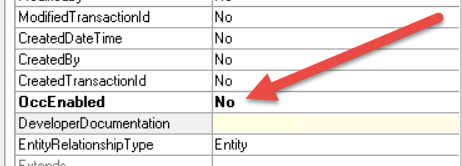
I found that this error occurs due to concurrent access to table is allowed. And we did not need concurrent access.

I change the ccEnabled to no

Concurrent


If this error occur on table that can be used on concurrent mode, then write tableBuffer.reread() before adding or modify data.


Reference: https://community.dynamics.com/ax/f/33/t/95177

water mark in SSRS report Dynamics Ax 2012.

August 4, 2016 by alirazazaidi

Hi, all very small tip today, Recently I have to add water mark in one of custom report.

In SSRS for Dynamics Ax 2012, we can achieve water mark by adding background image in report body.

Water mark image should be small in size and used as background Image. If you use high in size image, Report will threw errors on deployed at server.

This water mark can hide and show with ssrs expression.

So complete real word requirement will be Print report with water mark if certain criteria meets, other wise print report normal report.


At SSRS side right right  click on report Body and click on Body Properties.

2016-08-04_11-38-16

From property window, select fill, select file the image source “embedded” and import file.

Import

After import file will be shown as report explorer


Duplicate

Now add following expression  to show report display water mark or not.


=IIf(Fields! DuplicateCopy.Value=1,”Duplicate3″,””)

Customization in New Dynamics AX (AK 7) Part 3- Form and Table Extensions.

July 30, 2016 by alirazazaidi


In new Dynamics Ax, the extensions are created for extension. Previously we use overlay or overwrite change in Out of the box Dynamics Ax object. For example, if we have to add some fields or modification we are overlay or adding changes in original Object. Object is overwrite in configured layer. But in new Dynamics Ax we create extensions. And we added changes in extension. And run time all these extension run as single object.


This is post is third in series, you can also view previous two posts as follow.

Customization In New Dynamics Ax (AX 7) Part 1 – Creating New Model

http://tech.alirazazaidi.com/customization-in-new-dynamics-ax-aka-7-create-new-module/


Consider the scenario, that we writing our custom payroll and here is customer wants direct two 3 fields in Worker details.

  • National Identification Number.
  • Passport Number.
  • Passport Expire date.


For this we create extensions and add required fields in table. So expand Tables in Application explorer.     Right click on WorkerPersonalDetail table and click on extension.

Table extension2


New extension is created and double click on it a
ExtensionDetails


Before that Right click on Project and set Data Base Synchronize properties true.

Visual Studio Properties


New added two string of length 20 character and added expire date and set extended data type of FromDate.

GroupDetails

Add new group

NewGroup


Set properties

PasportGroup

Drag new fields in it.

GroupDetails

Now build project to synchronized to data base.


Now expand Forms and HcmWorker and creates it extension.

FormExtension


Double click on form extension and open it in designer


Expand


Expand he deign portion until you reach the control, where you want to add required field. for example I want to add New fields in PersonDetail section.

ExpandDesigner


Expand profile Tab page and add new group as NIC and Passport.

FormNewGroup

Set its data source and data group as follow

New Fields

Save and Run Project by Ctrl+ F5.

Detail Page


On click and edit mode


Edit


Now we add values and save them

Values Save

Customization in New Dynamics Ax (Aka 7) Part 2- Create New Module

July 26, 2016 by alirazazaidi

This post is continuity of

Customization In New Dynamics Ax (AX 7) Part 1 – Creating New Model

In Dynamics New module is a Menu,


In this post we are Creating A new module In Dynamics where we add complete implementation.


So first step to create a menu Item

CustomMenu

Double click on menu and open it in design area,


Designer


and then right click on it and update its name and label as follow

MyCustomPayrollProperties

Now add new Menu item,

menuDisplay


and Set its form properties to HCMWorker.


MenuDisplayProperties


Now drag open again menu in Design screen and drag display menu from solution explore and save it.

Drag


Now expand the Main menu in AOT and right click on it and click on generate Extension in current project

Extension


You can see new extension in with MainMenu.Extension in solution explorer.

New Extension In Solution Explorer


Double click on It and open it in designer and then right click on it to create a new menu reference


NewReference


ReferenceMenuName


Rename reference menu and set its menu properties to Menu which we create in previous step.


ReferenceProperties


Because we are doing this is post is as introduction, so we set display menu target to HCMWork set it as starting object in Visual studio project.


VisualStudioProject

Now compile, and Run Project With Ctrl+F5.

You can find our custom menu is appeared in Main menu.

MainMenu


How to run RDP based report from X++ and passing parameter using Data contract.

July 19, 2016 by alirazazaidi

Interesting, I was modifying some RDP based report, I found that parameter was passed to report through custom table, As report will run form button, and based on current selected record. So former developer did that on pressing button, selected value inserted some custom table. When report run, query on table and fetch required value form custom table and whole report logic run on that value. That approach works fine, single user environment. Problem I found to send parameter to report through x++ code. I found SrsReportRunController works wonder here.

Suppose we are running some report for customer, And Report Name is customer Report and we have to pass current customer account on form as parameter. If you report is based on Report data provider than following code snippet works for you.


SrsReportRunController          controller = new SrsReportRunController();

CustomerReprtDC  rdpContract = new CustomerReprtDC  ();

SRSPrintDestinationSettings     settings;

super();

controller.parmReportName(ssrsReportStr(CustomerReport,CustomerCopy));


controller.parmShowDialog(false);

rdpContract.parmCustAccount(CustTable.AccountNum);

controller.parmReportContract().parmRdpContract(rdpContract);

controller.startOperation();

Employee hiring process (recruitment process) in new Dynamics Ax (Aka AX 7).

July 16, 2016 by alirazazaidi


Suppose we have to hire a Ax Dynamics Ax Technical consultant in new Dynamics AX (AKA).

There are multiple ways to do that, but we follow these steps.

2016-06-04_10-09-57

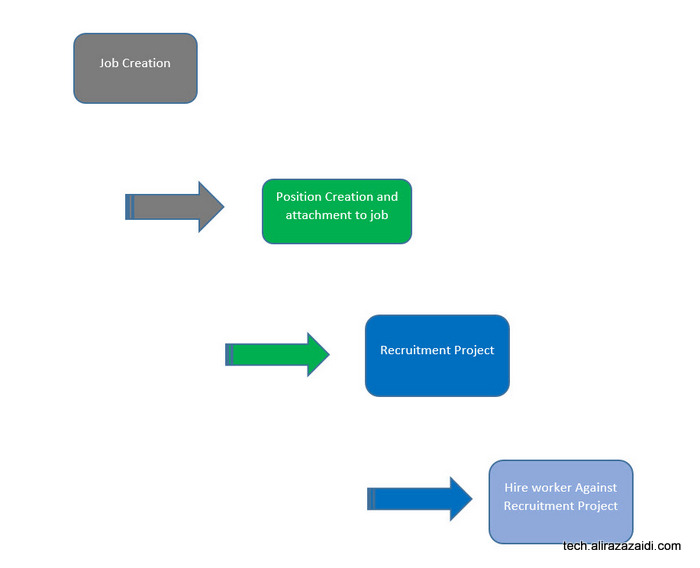
For this we have follow following steps. We explore, Job creations, we create skills, education and certification required for this job, later we create position and attach it to job. Than create a recruitment project where we mentioned who is HR Manager, who is recruiter and create a new application and hire the required person.


We can divide the whole process into following parts

  1. Create a new job
  2. Create a position and associate with job
  3. Create a new recruitment project for job.
  4. Hire a new worker against Recruitment Project.


 Create  a new Job.

2016-06-04_11-36-23

After successful login


and from menu open the HR module

2016-06-04_11-44-22


and expand it and click on Jobs.

Job


On click  a new web page opens, that shows the list of jobs present in Dynamics Ax. Now Click on new button.

Job list page

In a new Job detail page, enter, Dynamics Ax consultant in job , In description, mentioned “Dynamics AX techno Functional Consultant” And Title select Consultant. You can also set

Job details

You can also Expand Skills fast tab and add new skill, If skill is not available for example in my current scenario, X++ and supply chain is not preset so on skill text box right click and click on view details.

Add new Skills

You have to add rating also the same way.


New skills Rating


When skills are added, I select them in skill section.

Details

Next step is to add certification, Here requirement is that Person must have certification.

McP Certification

So right click on certification and create new certification and then select it.

MCP selection


Add new Education, suppose we require to person at least Graduate. So select graduation.

Bsc Computer


Now we have to add three task, that belongs Customization, integration and code.

Skill selection


Save the job from top menu and close the job

If we see on list page, we find our new job is listed there


New job is created


.


Create the new position


Now second step is Position creation and attach job with it.

From menu, select position.

Position Menu


On list page, from top menu, Click on new

New position


Select Job we created in last step.

New Position detail Page


You find the now position associated with job in position

Create

New position is listed on list page

New Position List page


Create a Recruitment Project.


Now go back to Main menu and create a new Recruitment Project


Recuriement Project Menu


Form list page create new recruitment Project by clicking on new at top menu.

New Recuritment Job


Select Previously Created Job and save the Recruitment project.

Recruitment Project selection


From top menu click on and start the Recruitment Project

Click on start


Hire new employee against recruitment project

New recruitment project is started, we can receive application against this

Start Project


From top menu click on applications.

Create Application Menu


Select the applicant name, In my current scenario, required Applicant name was not exists in ERP. So I right click on Name field and click on View Details.

New Applicant


From New party page enter the Required name and create a new party.

New Person detail


After that save and select newly created party as new applicant.  Right click on top menu. And hire new worker.

Application Status and


If select employee from menu.


333d


Click on Hire button to create new worker, the applicant successfully Hired against job.


No such host is known and AOS not reached SSRS Dynamics AX R3.

July 14, 2016 by alirazazaidi

Yesterday I deployed the new SSRS customization to staging, so QA / Functional guy can test.

Client configured the AOS to Database server and Application server was moved for backup services.

Due to change in AOS server I have to face two issues.

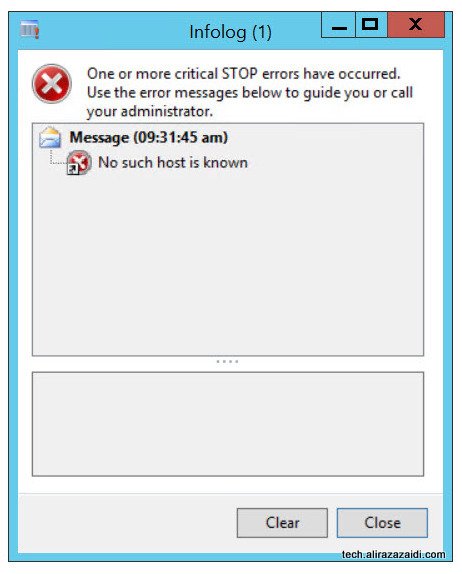
“No Such Host is known.”

2016-07-12_9-33-00

Whenever we run the report on staging server during report processing Error pop up appear with message “ Host not found “.


Modification in Windows Register, did not solve this problem. I have to reinstall the Reporting services extension form Dynamics Ax 2012 R3.

Reporting Server Extension


Second issue I faced that During installation of Reporting Extensions. Setup did complete and shows message about it did not locate the Required AOS. Interesting setup pointing to old server.

AoS problem


I solve this error by removing the credential save for Business connecter form Administration module for Dynamics AX. After rerun the reporting extension form AX Setup, Installation will complete successfully. Later deploy all reports and reports runs successfully.


Dynamics Ax 7 RTW update 1 available for download.

July 4, 2016 by alirazazaidi

You can download Dynamics AX 7 RTW update 1 from Microsoft connect with following link.

https://connect.microsoft.com/site1321/Downloads/DownloadDetails.aspx?DownloadID=61368

2016-07-04_14-08-14

More interestingly, now You can download it in browser, I used Internet download manager.


You can find detail about what’s new in update 1 in following links


https://ax.help.dynamics.com/en/wiki/whats-new-or-changed-in-dynamics-ax-7/


https://blogs.msdn.microsoft.com/lcs/2016/05/27/may-2016-release-notes/


Display methods in Report SSRS Dynamics Ax 2012 .

June 13, 2016 by alirazazaidi

Hi, All, today I have to modify the report. Interestingly this report was built on AOT Query, instead of Data provider class. Current Scenario I was working on Worker Report. The requirement was to show’s primary position and department. HCMWorker table has two display method returns these values.

We can add these display methods into reports by following way.

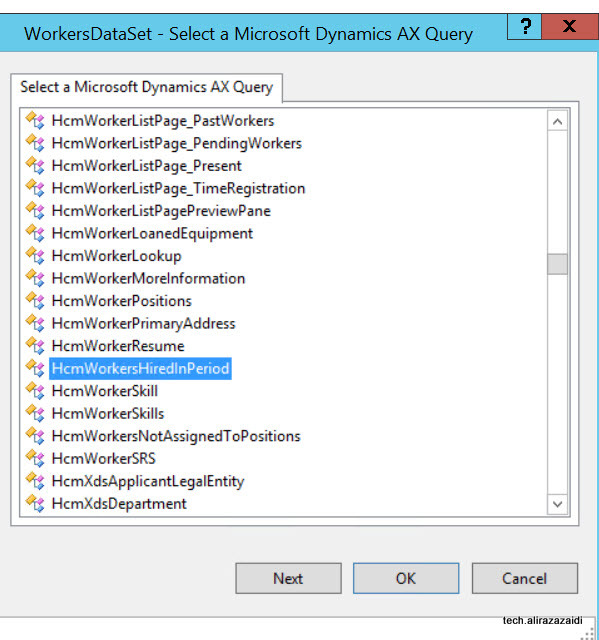
For example I am modify the out of the box HCMWorkersHiredInPeriod Report.


2016-06-13_15-25-16 2016-06-13_15-25-51


2016-06-13_15-47-15


ddd


Now Problem appears, we need different values then provided by out of the box display methods. For example we need Position Title instead of Primary Position Id. for this Add new display method that will return the Position Title instead of Position Id, compile table synchronize table, restore the AOT Query and refresh the report data Set. If there is no error in your working environment you will find required methods in report Data set.


Currency Exchange rate Type in Dynamics Ax (Aka AX 7)

June 8, 2016 by alirazazaidi

For creating new exchange rate type click on top menu and click on ledger.

2016-06-08_20-14-42


From detail menu click on Exchange Rate Type

Exchange Rate Type


Click on new button from exchange rate types list page


new Echange Rate Type


Enter PkR and detail about it and click on save.

PkrType

« Previous Page
Next Page »

Primary Sidebar

About

I am Dynamics AX/365 Finance and Operations consultant with years of implementation experience. I has helped several businesses implement and succeed with Dynamics AX/365 Finance and Operations. The goal of this website is to share insights, tips, and tricks to help end users and IT professionals.

Legal

Content published on this website are opinions, insights, tips, and tricks we have gained from years of Dynamics consulting and may not represent the opinions or views of any current or past employer. Any changes to an ERP system should be thoroughly tested before implementation.

Categories

  • Accounts Payable (2)
  • Advance Warehouse (2)
  • AI (3)
  • Asset Management (3)
  • Azure Functions (1)
  • Books (6)
  • Certification Guide (3)
  • ChatGPT (3)
  • Claude (1)
  • Customization Tips for D365 for Finance and Operations (64)
  • D365OF (60)
  • Data Management (1)
  • database restore (1)
  • Dynamics 365 (59)
  • Dynamics 365 for finance and operations (139)
  • Dynamics 365 for Operations (175)
  • Dynamics AX (AX 7) (134)
  • Dynamics AX 2012 (274)
  • Dynamics Ax 2012 Forms (13)
  • Dynamics Ax 2012 functional side (16)
  • Dynamics Ax 2012 Reporting SSRS Reports. (31)
  • Dynamics Ax 2012 Technical Side (52)
  • Dynamics Ax 7 (65)
  • Exam MB-330: Microsoft Dynamics 365 Supply Chain Management (7)
  • Excel Addin (1)
  • Favorites (12)
  • Financial Modules (6)
  • Functional (8)
  • General Journal (1)
  • Implementations (1)
  • Ledger (1)
  • Lifecycle Services (1)
  • Logseq (4)
  • Management Reporter (1)
  • Microsoft Excel (4)
  • MS Dynamics Ax 7 (64)
  • MVP summit (1)
  • MVP summit 2016 (1)
  • New Dynamics Ax (19)
  • Non Defined (9)
  • Note taking Apps (2)
  • Obsidian (4)
  • Personal Knowledge Management (3)
  • PKM (16)
  • Power Platform (6)
  • Procurement (5)
  • procurement and sourcing (6)
  • Product Information Management (4)
  • Product Management (6)
  • Production Control D365 for Finance and Operations (10)
  • Sale Order Process (10)
  • Sale Order Processing (10)
  • Sales and Distribution (5)
  • Soft Skill (1)
  • Supply Chain Management D365 F&O (5)
  • Tips and tricks (278)
  • Uncategorized (165)
  • Upgrade (1)
  • Web Cast (7)
  • White papers (4)
  • X++ (10)

Wiki

  • SCM

Copyright © 2026 · Magazine Pro On Genesis Framework · WordPress · Log in