• Skip to main content
  • Skip to primary sidebar
  • Home
  • About
  • Recommended Readings
    • 2022 Book Reading
    • 2023 Recommended Readings
    • Book Reading 2024
    • Book Reading 2025
    • Book Reading 2026
  • Supply Chain Management Guide
  • PKM
  • Microsoft Excel
  • Microsoft Copilot in Office 365
  • Public Wiki Page

Ali Raza Zaidi

A practitioner’s musings on Dynamics 365 Finance and Operations

Tips and tricks

Dynamics Ax 2012 R3 Check list dialog did not Post Installation or Upgrade

December 5, 2016 by alirazazaidi

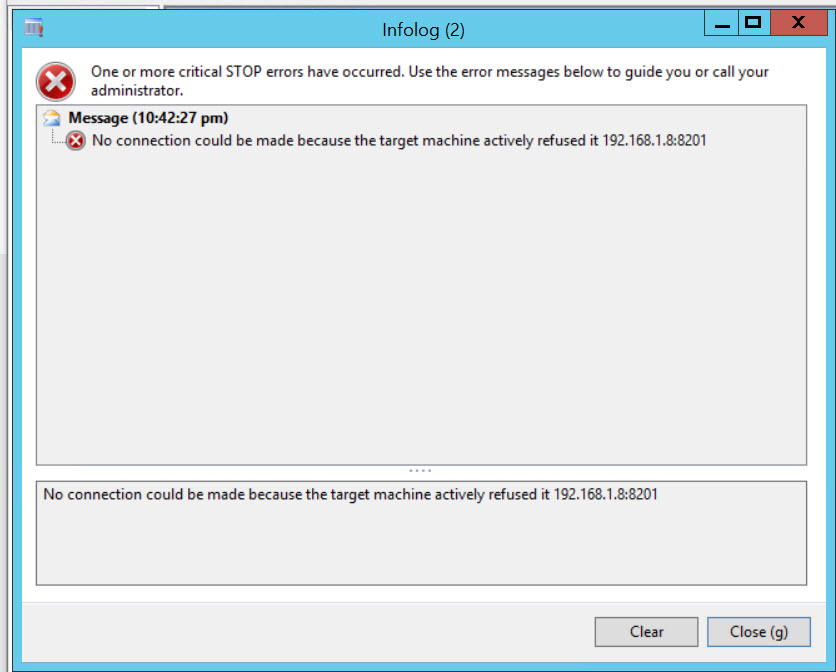
After upgrade process, Dynamics Ax checklist dialog did not let me do anything. 2016-11-24_21-51-51


So closed the Ax client and in Windows command prompt, I run following command. Remember, run Windows command prompt as run as administrator.


AXUTIL set /noinstallmode

Now open Dynamics Ax client and perform following steps.

  • Synchronize the database.
  • Full compile and resolve any error.
  • Generate Full CIL.


Introduction to New Dynamics 365 for operations in 90 seconds.

November 13, 2016 by alirazazaidi

Microsoft release a 90 seconds video as introduction to new Dynamics 365. More and less a advertisement video.  Video release with title


Increase the Speed of Doing Business with Microsoft Dynamics 365 for Operations


https://www.youtube.com/watch?v=MlxJRUN1EiI

Workflow resubmit code snippet dynamics ax 2012

November 3, 2016 by alirazazaidi

Recently I wrote the code for Custom workflow for resubmit.  It took me half an hour to explore out of box code for resubmit.

While working in ERP, we have to daily learn new things and handle new situation.

Most of resubmit functionality is done through a lot of inheritance and much complex way.  Finally I found simplest resubmit code from “LedgerJournalWFApprResubmitToWF” class. I modified that code snippet, that works for me. Here is complete resubmit code. You have to update the resubmit event handler class generated by Workflow Approval Wizard as follow

public static void main(Args _args)
{
recID recID = _args.record().RecId;
tableId tableId = _args.record().TableId;
tableName tableBuffer = _args.record();
WorkflowWorkItemTable workItem = _args.caller().getActiveWorkflowWorkItem();
WorkflowWorkItemActionDialog workflowWorkItemActionDialog;
if (workItem.RecId > 0)
{
try
{

workflowWorkItemActionDialog = WorkflowWorkItemActionDialog::construct( workItem,
WorkflowWorkItemActionType::Resubmit,
new MenuFunction(_args.menuItemName(),_args.menuItemType()));
workflowWorkItemActionDialog.run();

if (workflowWorkItemActionDialog.parmIsClosedOK())
{
if ( tableName.WorkflowStatus == WorkflowStatus::ChangeRequest)
{
workItem = _args.caller().getActiveWorkflowWorkItem();
WorkflowWorkItemActionManager::dispatchWorkItemAction( workItem,
workflowWorkItemActionDialog.parmWorkflowComment(),
workflowWorkItemActionDialog.parmTargetUser(),
WorkflowWorkItemActionType::Resubmit,
_args.menuItemName(),
false);

tableName.WorkflowStatus= WorkflowStatus::Submitted;
ttsbegin;
tableName.dataSource().write();

ttscommit;
}
else
{
throw Exception::Error;
}
}
}

catch(Exception::Error)
{
throw error(strfmt("Can not resubmit some error occur"));
}
}
// Make the form refresh its common workflow UI controls.
_args.caller().updateWorkflowControls();
}


RegisterOverrideMethod was called twice for the same object for method Dynamics Ax 2012

October 28, 2016 by alirazazaidi

I was developing the report by adding UI Class and building the drop down list to select multiple customer.


When I try to bind, DataSet of SSRS report to data provider class, it shows following error.


RegisterOverrideMethod was called twice for the same object for method ‘textChange’. You can only override a method once per instance.

error

On Exploring I found that I used the Same dialog field in two lookup methods.


SysLookupMultiSelectCtrl::constructWithQuery(this.dialog().dialogForm().formRun(), dlgCustAccount.control(), query, false, selectedFields);

Time field on SSRS shows time format Report Dynamics Ax 2012

October 28, 2016 by alirazazaidi

Today is another small tip,

I was developing a custom report. Queried table stored the date and time in separate fields ie. Transdate and transtime. On  mapping the transtime to report, its showed time format. Instead of time value.

2016-10-28_19-18-27

For it solution, I added the string field on report temp table and then convert the time with time2str function and map to the field.

Complete statement is below.

TableTmp.StransTime  = time2Str(_Trans.transTime, TimeSeparator::Colon, TimeFormat::AMPM);


As result, report will display the trans time instead of its format.

2016-10-29_1-56-07

6 new courses for Dynamics 365 on Dynamics learning Portal

October 13, 2016 by alirazazaidi

Just open then dynamics learning portal, two new menus or classification found on top menu.

Dynamics 365 enterprise and Dynamics 365 Business.

interesting-new-courses

I found that Microsoft just upload 6 new courses for Dynamics Enterprise on Dynamics Learning Portal.


If you have time and passion and more importantly Dynamics Learning Portal access credentials, you must enjoy the 365 degree change in World of ERP.

operations

List of courses are as below.

80731AE: Architecture of Microsoft Dynamics 365 for Operations

80777AE: Monitoring and Diagnostic Tools in Microsoft Dynamics 365 for Operations

80794AE: Deploying and Servicing Environments in Microsoft Dynamics 365 for Operations by using LCS

80773AE: System Administration in Microsoft Dynamics 365 for Operations

80774AE: Managing Users and Security in Microsoft Dynamics 365 for Operations

80795AE: Managing Users and Security in Microsoft Dynamics 365 for Operations


TSQL Query for tables where each General ledger entry has effect Dynamics Ax 2012

September 27, 2016 by alirazazaidi

For Future reference, I used following Queries to check the General Ledger Entry in Dynamics ax 2012. Small tip,

You can used them to delete posted ledger entry


select * from LEDGERJOURNALTABLE where JOURNALNUM =’XYZ-015528′


select * from LEDGERJOURNALTRANS where JOURNALNUM =’XyZ-015528′


select * from LedgerEntryJournal   where JOURNALNUMBER =’XyZ-015528′

select recid,* from GeneralJournalEntry where  LedgerEntryJournal= LedgerEntryJournal.RecID


select * from GeneralJournalAccountEntry where GeneralJournalEntry = GeneralJournalEntry.RecID


select * from custtrans where   custtrans.VOUCHER      in
–ACCOUNTNUM =’Cust-02032′ and
(
select LedgerJournalTrans.VOUCHER from   LedgerJournalTrans
join  LEDGERJOURNALTABLE
on LedgerJournalTrans.JOURNALNUM = LEDGERJOURNALTABLE.JOURNALNUM
where LEDGERJOURNALTABLE.POSTED =1  and ( LedgerJournalTrans.ACCOUNTTYPE =1 or LedgerJournalTrans.OFFSETACCOUNTTYPE =1) and LEDGERJOURNALTABLE.JOURNALNUM =’XyZ-015528′


Customization in New Dynamics Ax (Aka AX 7) Part 5 – Custom forms – Simple List Page.

September 13, 2016 by alirazazaidi


This post is series. In Last post we create some custom tables for  in Dynamics Ax.

Customization in New Dynamics AX (AK 7) Part 4- Custom Tables

In basic level we create two tables EarningCodeGroup and Earning Code. In this post we build simplest and very basic level forms.


Open the project and add a new Item and select Form  from “Add New Item “ Dialog and set its Name “AlEarningCodeGroup”

2016-09-13_22-36-57


New form will be created in solution explore. Double click on it and open it in design mode.

FormDesign


Now right click on right side and select form Pattern.

Apply Pattern

From pattern select Simple list pattern.

You can read more details about simple list in the following

https://ax.help.dynamics.com/en/wiki/simple-list-form-pattern/


Patterns are applied but it described the following controls are missing.

Missing Controll


Now again right click on designer on and add action pane, custom filter group and grid.

Add new control


In first step I add the Action tab, then Add Action tab Pane page and then Button group and then add three command button.

ActionTab


Now update the different properties of Action Pane, tab strip and command button.

Change default to strip

Strip stryle

Set Caption as Home

Now select first command button set its text as New and command button as New.

Command Button Properties

Similarly set other two command button as Edit, and delete.

Now again right click on design and also add  group and rename it to grpFilter

Also right click on custom filter group and apply pattern We will see this in next post.

ButtonFitler


Now add Grid so form pattern requirement will be complete. Rename It to grpEarningCodeGroup. After that form design look like

Validated FormPattern


Now we go back to add table as a data source. We created the AxEarningCodeGroup in previous post, we will use that table here.

Grid data source


Set Name it with your table name, select table and set insertIfEmpty property to no.

DataSourceProperty

Now go back and expand action pane => Pane and then button group  and update datasouce property to table  property to  AlEarningCodeGroup

Button Group DataSource property


Now right click on grid and press F4 or open property window and set datasource to AxEarnigCodeGroup and datagroup to grid (I created the field group with Name “Grid” In previous post”.

Grid dDaou


If you see, you find two fields are added under grid node


Grid fields


Now go back to solution explorer and create a new menu Item of type display

DisplayMenu

Name It as “AlEarningCodeGroupMenu” . New menu Item will be added on solution explorer. Double click on it to open it in design mode and Set Object Type to form and Object to AlFormEarningCodeGroup. Also Update its label Property to “Earning code Group”.

DisplayMenuProperty


Open the AlEarningCodeGroup table in designer window and set its form ref to AlFormEarningCodeGroupMenu This will help us to add earning code group in earning code entry form.

Table Propeperties


Now we add the menu Item in  Menu to run and display,  For this open the menu Item in designer mode and drag menu item created in above step. In this post I am using custom Menu, If you are working with out of box menu then you must create menu extension then drag the menu Item in it.

Menu Display


Now run the application with Ctrl F5, I found the earning Code group in menu.

Live menu


By Clicking on link, forms open and I did following entries.


Data Entry


Customization in New Dynamics AX (AK 7) Part 4- Custom Tables

August 24, 2016 by alirazazaidi

Suppose we are writing a custom module for Payroll. According to requirement, we have to create a custom table for Earning code. As well as Earning group.


At minimum we required following fields

Earn  Code Group Table

Earning Group of length 20.

Earning Group description length 60


Earning Code Table

Earning Code possible length 20.

Earning Code Description length 60.

Variable of fixed, If Variable the base value will be used as base percentage of Basic Salary, If fixed then base value will used as fixed amount.

Amount, The base value described as previous step.

And reference of Earning Code Group.


Lest explore some Extended data Type and enum and we create them with.


Extended Data Type:

For Extended Data Type is some kind of reusable data type based in primitive data type with some extra properties.

For example In Dynamics AX there is out of box extended Data type with “AmountCur”. It is Real based data Type. This extended Data Type usually used in amount related fields. So one of the many benefit of Extended data type is that we can change one place and it reflect where ever it used. For example, some organization want two decimal point while some required 4 decimal point. So if update decimal point at extended data type it update all fields where In our case we need to extended data Type, one for Earning code and one for Earning Group code,  For description fields we used the Out of the box field.

Now we have to create two extended data type .

2016-08-22_21-09-01


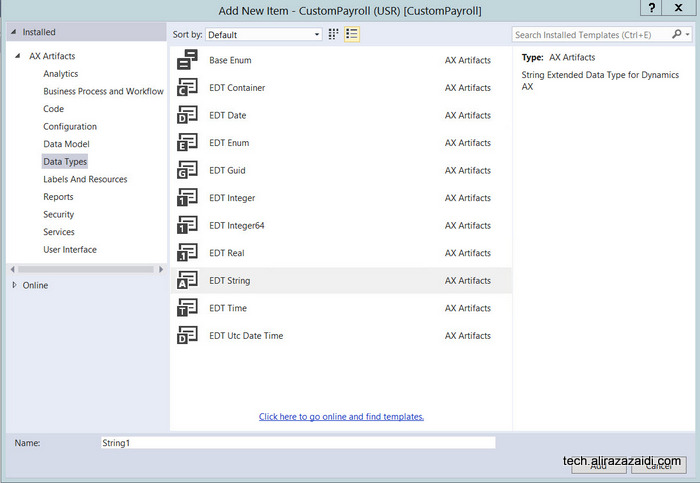
Currently I am creating objects with AL extension. So I added a extended Data type of EDT String type and name it ALEarngingCode.  Clicking on Add. A new Extended will be added in Visual studio project. Double click on it and It will open in Designer window. Right click on it and open property window and set its size properties and 20.

Size

Similarly, you can create ALEarningGroupCode


extendedDataType


Enum:

Similar there is enum is basically name of literal for example if we have Week days and enum then Sunday , Monday…. Saturday are literals.  In our current example we need Earning type as Fixed or Variable.

AddNewEnumBase

Double click on it and describe its detail on designer window


Add new Element


Double click and update Name and label.

Add name and label

Similarly add one more element

newElements


Tables.

Now we have to add new tables.


Now we explore some important properties of Tables in

Table types.  We can define regular table in database or required temporary table. Temporary table stay in memory until its related object stay in memory. There are two type of Temporary tables.

In memory or Temp db, In memory are usually used in report. Temp db type are used when larger data and larger processes are instantiated.

In current example we use the regular tables.


Now add new tables First we create ALEarningGroup and then AlEarningCodes.

Add new item in visual studio and select table from add new Item dialog.

New Table


Set table name as as AlEarningCodeGroup, right click on table object in designer window solution explorer and open set table type as regular.

TypeGroup


Now add two fields  with EarningCode and Description of string type


Fields


EarninCodeGroup


DescriptionProperties


Now expand field group and add new group Named to Grid and drag both fields into it

EarnCodingDetailss


Similarly create another table for EarningCode


Add two fields AlEarningCode and fields EarningCode and description.

earningCodeTable

Now add one more field with type Enum

EnumField

Set its name EarningcodeType  and set its enum Type to AlEarningCodetype, We created this enum type in previous steps.

EnumSelection


Now add one more field with real type and set its


EarnCodeAmountCur


similarly create a Field group name Grid and drag all fields there.

EarnCodeTableee


Add one more string type for EarningCodeGroup we will map this field with Earning Code table for primary and foreign key relationship.

WithEarningCodeGroup

Indexes – are a way to speed up retrieval of data from a table


There are three types of Index in New Dynamics Ax.

A primary Index. This will provide the unique key to each record.  And field used in primary index used as primary or alternative key for table.

Second one is Clustered and not Clustered which are not scope of this post, we will discuss them in later post.

A clustered index organizes the data in the table in the order of the index.

Non-Clustered index is some kind of reference stored somewhere else to pointed to data. Example of the book index, placed at the end of book, reference of sorted title with page number.

Now we create Index in AlEarningCodeGroup table and then AlEarningCode

EarningCodeGroup

Update the following properties to    Alternate Key Yes, Allow Duplicates to now and set its name as idxEarnGode p


Index

Now drag EarningCodeGroup Under index.


IndexGroup

Now open table properties and add following  update Primary Index  to IdxEarningGrpCode and also select

IndxGroupProperties

Similar create index in ALEarningCodes

EarningCodeTableIndex


Table Relationship

There are two types of relationship in new Dynamics ax.

The first relationship type is called a normal relationship.  A normal relation is used to specify a relation without any conditions.

Another type of relation is called a foreign key relation.  This is used to specify a correspondence between a foreign key field in the present table to the primary key field in another parent table.  Foreign key relations are usually set on a child table.

In our current Scenario, we want to we want EarningGroup code as reference in EarningCode table. For this we expand relationship node of AlEarningCode and add new Relation based on Primary key relation

PrimaryRelation

Updates relation Name and also select related table

RelationProperties


Save it again right click and Select Normal relation


PrimaryKeyRelationDetails


Click on Related Field fixed.

FieldSelectionInRelation

Now from selected screen select both related fields.

Save It compile, so Tables will be synchronizing to database.


In next post we will build simple data entry forms on these two tables.


Financial dimension for work position Dynamics Ax 2012.

August 15, 2016 by alirazazaidi


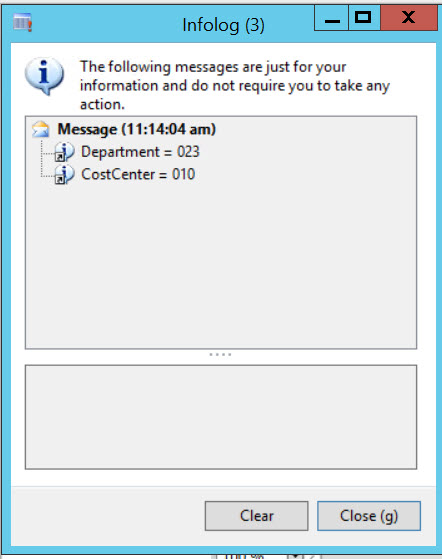
I used following code snippet to get financial dimension attached with hcmposition


static void GetFinancialDimensionValue1(Args _args)

{

HcmPosition  position;

HcmPositionDefaultDimension  positionDefaultDimention;

DimensionAttributeValueSetStorage dimStorage;

Counter i;

select * from position

join * from positionDefaultDimention


where position.PositionId=="000001"

&& position.RecId == positionDefaultDimention.Position;


dimStorage = DimensionAttributeValueSetStorage::find(positionDefaultDimention.DefaultDimension);


for (i=1 ; i<= dimStorage.elements() ; i++)

{


info(strFmt("%1 = %2", DimensionAttribute::find(dimStorage.getAttributeByIndex(i)).Name,

dimStorage.getDisplayValueByIndex(i)));


}

}

2016-08-15_23-14-22


Reference:  https://jkmsdax2012.wordpress.com/2015/11/16/how-to-get-financial-dimensions-for-a-particular-customer-using-x-code-in-ax-2012/

« Previous Page
Next Page »

Primary Sidebar

About

I am Dynamics AX/365 Finance and Operations consultant with years of implementation experience. I has helped several businesses implement and succeed with Dynamics AX/365 Finance and Operations. The goal of this website is to share insights, tips, and tricks to help end users and IT professionals.

Legal

Content published on this website are opinions, insights, tips, and tricks we have gained from years of Dynamics consulting and may not represent the opinions or views of any current or past employer. Any changes to an ERP system should be thoroughly tested before implementation.

Categories

  • Accounts Payable (2)
  • Advance Warehouse (2)
  • AI (3)
  • Asset Management (3)
  • Azure Functions (1)
  • Books (6)
  • Certification Guide (3)
  • ChatGPT (3)
  • Claude (1)
  • Customization Tips for D365 for Finance and Operations (64)
  • D365OF (60)
  • Data Management (1)
  • database restore (1)
  • Dynamics 365 (59)
  • Dynamics 365 for finance and operations (139)
  • Dynamics 365 for Operations (175)
  • Dynamics AX (AX 7) (134)
  • Dynamics AX 2012 (274)
  • Dynamics Ax 2012 Forms (13)
  • Dynamics Ax 2012 functional side (16)
  • Dynamics Ax 2012 Reporting SSRS Reports. (31)
  • Dynamics Ax 2012 Technical Side (52)
  • Dynamics Ax 7 (65)
  • Exam MB-330: Microsoft Dynamics 365 Supply Chain Management (7)
  • Excel Addin (1)
  • Favorites (12)
  • Financial Modules (6)
  • Functional (8)
  • General Journal (1)
  • Implementations (1)
  • Ledger (1)
  • Lifecycle Services (1)
  • Logseq (4)
  • Management Reporter (1)
  • Microsoft Excel (4)
  • MS Dynamics Ax 7 (64)
  • MVP summit (1)
  • MVP summit 2016 (1)
  • New Dynamics Ax (19)
  • Non Defined (9)
  • Note taking Apps (2)
  • Obsidian (4)
  • Personal Knowledge Management (3)
  • PKM (16)
  • Power Platform (6)
  • Procurement (5)
  • procurement and sourcing (6)
  • Product Information Management (4)
  • Product Management (6)
  • Production Control D365 for Finance and Operations (10)
  • Sale Order Process (10)
  • Sale Order Processing (10)
  • Sales and Distribution (5)
  • Soft Skill (1)
  • Supply Chain Management D365 F&O (5)
  • Tips and tricks (278)
  • Uncategorized (165)
  • Upgrade (1)
  • Web Cast (7)
  • White papers (4)
  • X++ (10)

Wiki

  • SCM

Copyright © 2026 · Magazine Pro On Genesis Framework · WordPress · Log in