• Skip to main content
  • Skip to primary sidebar
  • Home
  • About
  • Recommended Readings
    • 2022 Book Reading
    • 2023 Recommended Readings
    • Book Reading 2024
    • Book Reading 2025
  • Supply Chain Management Guide
  • PKM
  • Microsoft Excel
  • Microsoft Copilot in Office 365
  • Public Wiki Page

Ali Raza Zaidi

A practitioner’s musings on Dynamics 365 Finance and Operations

Dynamics AX 2012

Exploring Report Controller class in dynamics AX 2012 R3

June 21, 2014 by alirazazaidi

In Dynamics AX 2012 Reports can be called from Class, and it is import part of MVC pattern implementation for reports
The report created from following link is called from controller class
http://tech.alirazazaidi.com/exploring-drill-through-reports-in-dynamics-ax-2012-r3/
Create a new class and extends it with “SRSReportRunController” class.
Add New method, and update it with following code

public static void main(Args args)
{
DyWorldDrillThroughReportController _Con= new DyWorldDrillThroughReportController();
    _Con.parmReportName(ssrsReportStr(DynamicCustomerList,DesignCustomerList));
    _Con.parmArgs(args);
    _Con.startOperation();
    
}


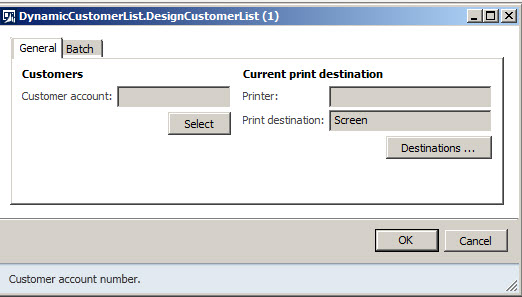
When you run the class report will be open.

ReportController


Very interestingly if you did not want to show report dialog, and just run the report form default parameter value you have to add following statement in above code

_con.parmShowDialog(false);
Exploring Drill through Reports in Dynamics Ax 2012 R3.

June 19, 2014 by alirazazaidi

Creating basic drill through reports in Dynamics Ax 2012 R3 is really simple. Consider following scenario where we have to show the list of customer and their sales Orders in particular legal Entity.  In this report when User click on customer account, a new report open which contains list of all possible sales Order.

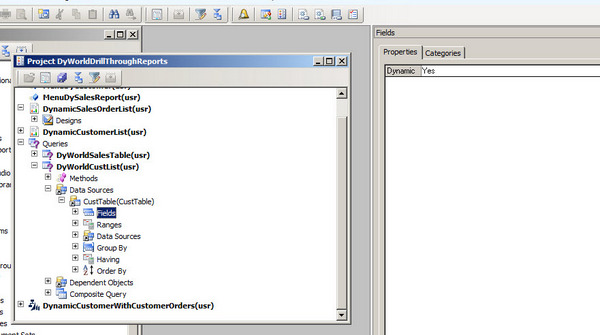
For this Purpose I created two Static/AOT queries. First for Customer, and second for Sales Order.


Customer Query is as follow.

  • Create a new AOT query with Name DyWorldCustomerList.
  • In DataSource add CustTable table.
  • In fields dynamic to true.

CustListTable


Similarly Create another Query “DyWorldSalesTable” for SalesTable. With Name DyWorldSalesTable


SalesTable

Now Open a Visual studio and create a new Dynamics Ax Report Project


Report Project

Add a new report with name

  • DynamicCustomerList


  • Add New dataset with Name
  • DynamicCustomerList set its properties as follow

CustomerDataSet

  • Select Following fields
    •   AccountNum
    •    CustGroup
    •    Party


  • Drag this DSCustomerList data set on Report Designer to create an AutoDesign.
  • Change the AutoDesign1 properties as follow

o   Name to DesignCustomerList

o   LayoutStyle to ReportLayoutStyleTemplate

 ReportDesinger2


Now create another report inside same Dynamics Ax Model Project, this report will call from customer Report

SalesOrderReport

Create and DataSet with DSSaleOrder with query  “DyWorldSalesTable”

SalesOrderDataSet

Drag this dataset on Report Designer and update newly Designer as follow.

SalesOrderDesignerProperties


Now open the parameter Section of report and add new parameter as “CustId” of string type

CustIdParameter

Now expand report designer and expand Table and add filter with following Properties

NewParameter

Set following Properties of filter

o   From  Expression select “=Fields!CustAccount.Value”

o   Name= Customer

o   Operator =Equals

o   Value “=Parameters!CustId.Value”

Properties


Save the report.


Now Open the first report “DynamicCustomerList”. And expend the reports design, “DSCustomerListTable” and then Data and select AccountNum.

Right click on AccountNum and select “Report Drill Through Action”

AddDrillThrough


Now Double click and Select the report designer which will open against the click on field

ActionProperties

Select SalesOrderReport and its Desinger form dialog

ReportSelectionSalesOrderList

It will create, number of parameters, all belongs to  DynamicSalesOrderList Report as follow

DrillThroughParameters


Delete all parameters except AX_CompanyName and CustId. If any other parameter remains, you definitely got following error when you call Sales Order report form drill through option.

“The Microsoft Dynamic AX parameter ID should be a RECID. The exception is System.FormatException: Input string was not in a correct format.”

AfterDeleteParameters


Please Select following Values for these Properties AX_CompanyName

Select its value “=Parameters!AX_CompanyName.Value

CompanyNameValue

Please select the following value for CustId as “=Field!AccountNum.Value”

SaleIdValue

Now saves the reports and right click on Report Project to Add to AOT and then deploy on Report Server


AOT and Deploy

Now Go to AOT, and refresh the Select the Visual Studio Model Project and SSRS reports into Dynamics Ax project so it will easy to edit or locate easily

Menu2

Now create a Menu Item of Display type and set its following Properties

Menu

Now run the report as follow


CusttomerList

As click on first Customer “CNMF-000001” To its salesOrderList , The second report successfully open as follow

SaleOrderList

A call to the Microsoft Dynamics AX SRSFramework Service failed.

June 13, 2014 by alirazazaidi

Today while deploying Dynamics AX 2012 R3 SSRS reports on window 7 I got following when I run Report deployment command on publish-AXReport -ReportName *.

“A call to the Microsoft Dynamics AX SRSFramework Service service failed. An existing connection was forcibly closed by the remote host.“.

Errors

I perform following steps to solve this problem.
1. Stop reporting services,
2. Stop AOS.
3. Goto: C:\Users\\AppData\Local\

UAC files
4. Take the backup of all AUC files,
5. Remove them from there
6. Start reporting services
7. Start AOS.
8. Again run publish-AXReport -ReportName *. In powershell.

Reports are successfully deploy on my machine.

References:

http://dynamics-ax.blogspot.no/2013/03/ax-2012-fatal-axrdce-exception-error.html

https://community.dynamics.com/ax/f/33/t/115327.aspx

Dynamics Ax 2012 Development Overview session

May 31, 2014 by alirazazaidi

PowerPoint and pictures taken during Session at Lahore MIC on the topic of MS Dynamics Ax 2012


Dynamics Ax development Overview session

SQL Server 2012 Reporting Services UAC (User Access Control)

May 25, 2014 by alirazazaidi

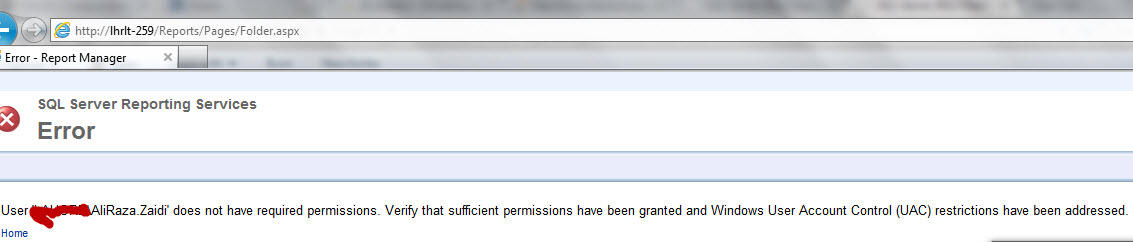
While configuring Reporting server with Dynamics Ax 2012 R23, I got error that Dynamics Ax 2012 R3 did not validate the Reporting Server. On Opening reporting server in Browser I got following error.

“User ‘Domain\User’ does not have required permissions. Verify that sufficient permissions have been granted and Windows User Account Control (UAC) restrictions have been addressed.”


1-error

After searching and trouble shooting, I found that nor Dynamics Ax Client or IE run with administrator rights.

First I run the IE with Administrator rights
From Start > All Programs > Internet Explorer, Right Click and choose Run as administratorimage_thumb132


Enter the Reporting Server Address.

This open the Reporting server in IE.

2-Successfully Login


After That I open the Dynamics Ax client By right click and open with Administrator

3-Run As Administatrator


On Administrator section,  on validate the configuration settings, and SSRS successfully configured on My Machine.

4-Validation

List of framework in Dynamics Ax 2012

May 18, 2014 by alirazazaidi

There are a lot of frameworks in Dynamics Ax 2012 a Few of them listed as follow.

  •                 Address Book
  •                 Application Integration Framework (AIF)
  •                 Budget Control framework
  •                 Data Import Export/Data Migration framework
  •                 Date Effective
  •                 Eventing Framework
  •                 Extensible Security Policy (XDS)
  •                 Human Resources Framework
  •                 Number Sequence
  •                 Organization Model
  •                 Policy Framework
  •                 SQL Server Rerporting Services (SSRS)

Exploring the Navigation layout of Dynamics Ax 2012

May 9, 2014 by alirazazaidi

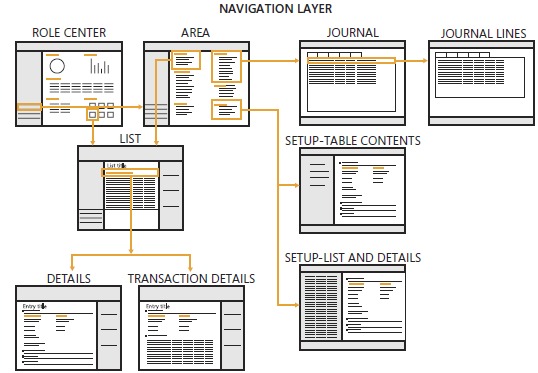
7711.image_06B8A9D3

Above picture is taken from following link

http://blogs.msdn.com/b/microsoft_press/archive/2012/10/25/new-book-inside-microsoft-dynamics-ax-2012.aspx

Role center is user page; appear on opening at Dynamics Ax. The role center is depending on rights and role of user. Role center provide dashboards, which helps to user to monitor their roles. This information includes transaction data, alerts, links and common tasks that are associated with user’s role.

6443.CFO Role Center with Power View Map.JPG-550x0


Another example of Role center:

Role Center


Area Page. Area page is the main page of Every Module.

06-Area Page With Detail


Every area page have link to, List page, Journal, Reports, Setup table list, Inquiries and Periodic page.

  • By Default 20 area page exists for dynamics Ax.
  • Each Area page focus on one complete module or area, for example Account receivable, Account payable, cost accounting and Administration.


05-Area Page

Common or list pages. These links leads you to list page of any Entities in that module. For example in Account receivable module contains customer list page. Through list page user is able to Navigate every part of data related to that entity.


07-CustomerListPage Customer List Page with data


Detail From: Detail forms are primary way to create or update entities in Dynamics Ax like customer Vendor, worker and products. These detail forms can be open by click on list page.  By default these pages are open in read only mode. You have to click edit button to open in detail page.

01-Detail Page


Transaction detail Forms.

Transaction detail forms are forms that are used to create, update transaction in Microsoft Dynamics Ax.

Traction is business event that occurs with in company that needs to be recorded in ERP system.

Transaction detail forms have to divided two parts one is Line view and Header view.


: This shows a few header level fields which are required for transaction. This default view and items are added here.

02-LineView


Header View:

This contains all most all fields at header view. Most of fields have default values and required to modify here.

03-Header View


Journal: These pages link to all related which have some functional or finance related information.

08-Journal


Periodic:

All those page which will periodically access by user example

Payment fee.

09-Periodic


How to import Contoso Demo Data to Dynamics Ax 2012 R3.

May 3, 2014 by alirazazaidi

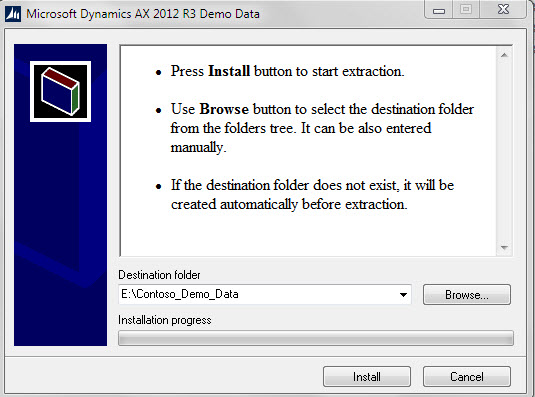
The setup contoso demo data for Dynamics Ax 2012 R3 is different from previous version. I remember, I used .dat file to load demo data into Dynamics Ax 2012 R2. Now DynamicsAX2012R3DemoData.exe available partner Resource.
03-Demo setup
DynamicsAX2012R3DemoData.exe extracted files round 15 GB. Extracted folder contains three types of files. According to MSDN

  • Xml (A bcp data file that contains table data. Columns are separated by #|EOC|#. Rows are separated by #|EOR|#\n.)
  • Out (A bcp data file that contains the table metadata (column descriptions).
  • OutModel (This metadata includes all names and IDs of the table and its fields. This file also includes the elementType attribute, which stores the names and IDs of any Microsoft Dynamics AX tables, classes, or extended data types that are referenced by the table)

Installation of Test Data Transfer Tool:

The MSDN Described The Import export with Test Data Transfer Tool (beta) as follow.

IC665318


Test Data transfer Tool is available on partner resource.

Go on following link

https://informationsource.dynamics.com//RFPServicesOnline/Rfpservicesonline.aspx?ToolDocName=Microsoft+Dynamics+AX+2012+Test+Data+Transfer+Tool+(Beta)%7cQJ4JEM76642V-8-1465


04-InformationSource


On login I found download page

05-download


There will be zip file downloaded.  On running I found following installation wizard.


11-Beta Setup


12-Beta Setup next


Setup run will be generated as following

06-folderDetail


Import Data Into Dynamics Ax 2012 R3 instance:

And import MetaDataXMLGenerator.xpo in dynamics Ax.

07-ImportGenerator


This xpo imports results a job inside job node under AOT.


08-Job


This job will generate Metadata.xml. This Metadata.xml will be created in window temporary folder.

Path of file in metadata.xml can be get from infobox which will appear after successful run of job.

13-metaFile


if you lost infobox,You can get temporary folder path with following command echo %temp%. where you can get Metadata.xml

Copied metadata.xml into [list] folder of test tool Data folder. If it already exists then overwrite it.

15-copy meta data

Go to services, and stop the Dynamics Ax service.

33


Now open command prompt. Go to directory where Test import tool is extracted.

Run the following command

DP.exe IMPORT “E:\Contoso_Demo_Data\DynamicsAXR3DemoData” MicrosoftDynamicsAx


If your SQL server configure with other than default instance then you must mentioned the server with instance name for example

DP.exe IMPORT “E:\Contoso_Demo_Data\DynamicsAXR3DemoData” MicrosoftDynamicsAx WIN-TLRNMFCLU9N\SQLSERVER


Please update path according to your installation.


09-Command Prompt


After running the command, you will find following window which describe the process by remaining table to number data, and number of error occurs during import.

10-Remaining


This process takes hours and hours with respect to your machine. After completion, I found demo data inside my dynamics Ax 2012 R3.


14-DataAppear


Different Sections of Dynamics Ax 2012 forms

April 27, 2014 by alirazazaidi

Dynamics Ax forms is divided into different section. Pictures worth thousand words.


1-Forms Section


2-Tabs

AX 2012 – Unable to write the generated WCF configuration to local storage

April 26, 2014 by alirazazaidi


I found following log entry in event log,

Unable to write the generated WCF configuration to local storage. The generated WCF configuration will be used from memory. The contents of the new configuration are written to the following temp file: C:\Users\i<BC Account> \AppData\Local\Temp\Microsoft.Dynamics.AX.Framework.Services.Client.Configuration.ClientConfigurationInternal.log.

Exception details:
System.ComponentModel.Win32Exception (0x80004005): Access is denied
at Microsoft.Dynamics.AX.Framework.Client.ConfigurationModel.NativeRegistry.OpenNativeRegistryKey(String keyPath, Boolean writable)
at Microsoft.Dynamics.AX.Framework.Client.ConfigurationModel.MachineWideRegistryConfigurationModel.GetConfigurationKey(Boolean writable)
at Microsoft.Dynamics.AX.Framework.Client.ConfigurationModel.RegistryConfigurationModel.WriteWcfConfiguration(String configuration, Guid versionId)
at Microsoft.Dynamics.AX.Framework.Services.Client.Configuration.ClientConfigurationInternal.GetClientConfiguration()

All servers configured to use local configurations stored in the registry.

Possible solution:

  1. Grant the AD Account used as the Business Connector Proxy Account, Full Control to the current configuration in the registry (remember HKEY_LOCAL_MACHINE – not HKEY_CURRENT_USER)
  2. Use the approach described in Install multiple Enterprise Portals on the same server [AX 2012](TechNet) to use persistent (AXC-files) configuration files instead of local configurations stored in the registry

As a side note, this is another example of undocumented requirements, and in my mind something the installer should configure during installation or at least describe as a manual configuration item.

Apparently the Business Connector binary (assembly) has built in functionality to automatically refresh the WCF configuration part of the AX configuration requiring additional configuration steps to be performed.

Update: http://ax2012tech.blogspot.com/2014/01/ax-2012-unable-to-write-generated-wcf.html

This could also be caused by Group Policy (domain) settings applied after the AX Components were installed.


reference:

reference

« Previous Page
Next Page »

Primary Sidebar

About

I am Dynamics AX/365 Finance and Operations consultant with years of implementation experience. I has helped several businesses implement and succeed with Dynamics AX/365 Finance and Operations. The goal of this website is to share insights, tips, and tricks to help end users and IT professionals.

Legal

Content published on this website are opinions, insights, tips, and tricks we have gained from years of Dynamics consulting and may not represent the opinions or views of any current or past employer. Any changes to an ERP system should be thoroughly tested before implementation.

Categories

  • Accounts Payable (2)
  • Advance Warehouse (2)
  • AI (3)
  • Asset Management (3)
  • Azure Functions (1)
  • Books (6)
  • Certification Guide (3)
  • ChatGPT (3)
  • Claude (1)
  • Customization Tips for D365 for Finance and Operations (63)
  • D365OF (60)
  • Data Management (1)
  • database restore (1)
  • Dynamics 365 (59)
  • Dynamics 365 for finance and operations (139)
  • Dynamics 365 for Operations (174)
  • Dynamics AX (AX 7) (134)
  • Dynamics AX 2012 (274)
  • Dynamics Ax 2012 Forms (13)
  • Dynamics Ax 2012 functional side (16)
  • Dynamics Ax 2012 Reporting SSRS Reports. (31)
  • Dynamics Ax 2012 Technical Side (52)
  • Dynamics Ax 7 (65)
  • Exam MB-330: Microsoft Dynamics 365 Supply Chain Management (7)
  • Excel Addin (1)
  • Favorites (12)
  • Financial Modules (6)
  • Functional (8)
  • General Journal (1)
  • Implementations (1)
  • Ledger (1)
  • Lifecycle Services (1)
  • Logseq (4)
  • Management Reporter (1)
  • Microsoft Excel (4)
  • MS Dynamics Ax 7 (64)
  • MVP summit (1)
  • MVP summit 2016 (1)
  • New Dynamics Ax (19)
  • Non Defined (9)
  • Note taking Apps (2)
  • Obsidian (4)
  • Personal Knowledge Management (3)
  • PKM (16)
  • Power Platform (6)
  • Procurement (5)
  • procurement and sourcing (6)
  • Product Information Management (4)
  • Product Management (6)
  • Production Control D365 for Finance and Operations (10)
  • Sale Order Process (10)
  • Sale Order Processing (10)
  • Sales and Distribution (5)
  • Soft Skill (1)
  • Supply Chain Management D365 F&O (5)
  • Tips and tricks (278)
  • Uncategorized (165)
  • Upgrade (1)
  • Web Cast (7)
  • White papers (4)
  • X++ (10)

Wiki

  • SCM

Copyright © 2026 · Magazine Pro On Genesis Framework · WordPress · Log in