• Skip to main content
  • Skip to primary sidebar
  • Home
  • About
  • Recommended Readings
    • 2022 Book Reading
    • 2023 Recommended Readings
    • Book Reading 2024
    • Book Reading 2025
  • Supply Chain Management Guide
  • PKM
  • Microsoft Excel
  • Microsoft Copilot in Office 365
  • Public Wiki Page

Ali Raza Zaidi

A practitioner’s musings on Dynamics 365 Finance and Operations

Dynamics AX 2012

Exploring the message box in Dynamics Ax 2012 R3

February 22, 2015 by alirazazaidi

Message box are common tools that helps us show messages, results and Provide choices to preform actions or not.

Here are some messagebox with examples.


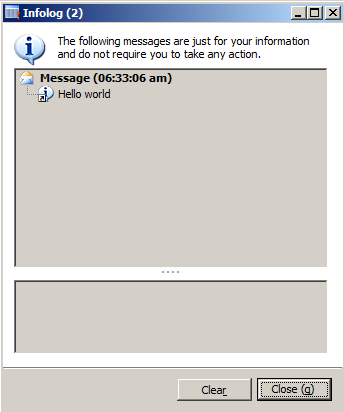
Info box : this is simple box used to display any message other than warnings or error messages.


static void JobInfoBox(Args _args)

{

info (“Hello world”);


}

Infobox

infoOnce:

This message box is similar to infobox only difference here you can set message header and message details. This message box shows option to disable message box if warning or message is continuously appear in code iteration.


void clicked()

{

Box::infoOnce(“this is message box “, ” For detail click http://tech.alirazazaidi”,” Only once”);

super();


}

InfoOnceBox


infoOnceEx:


This message allows us to display caption of messagebox, header of message, Detail or information, gives us option to stop at execution of code until we click on ok button or move forward by showing message box.


void clicked()

{

//   Box::infoOnce(“this is message box “, ” For detail click http://tech.alirazazaidi”,” Only once”);

super();

Box::infoOnceEx(“this is message box”,”http://tech.alirazazaidi.com”,” Hello”,” this is testing”,boolean::true);

}


You can saw  caption of Dialog “This is testing” is coming from code.

InfoOncEx


Ok cancel box: Allows us to option Provide accept and rejection to proceed further


void clicked()

{

DialogButton Button;

super();


Button=  Box::okCancel(“This is test”,DialogButton::No);


if (Button == DialogButton::Ok)

info(“Allo”);

else

info(“NotAllo”);

}

Messagebox


Warning:

This messagebox used to show warning message


void clicked()

{

super();

Box::warning(“this is warning”);


}


Warning


yesAllNoAllCancel


This message provide option to yes , yes for all, no, no for all or cancel

void clicked()

{

//   Box::infoOnce(“this is message box “, ” For detail click http://tech.alirazazaidi”,” Only once”);

DialogButton _Button;

super();

// Box::infoOnceEx(“this is message box”,”http://tech.alirazazaidi.com”,” Hello”,” this is testing”,boolean::true);


_Button=  Box::yesAllNoAllCancel(“This is test”,DialogButton::No);


if (_Button == DialogButton::NoToAll)

{

info(“OK”);

}

else if (_Button==DialogButton::YesToAll)

{

info (“Yes to All”);

}

else if (_Button==DialogButton::Cancel)

{

info(“Cancel”);

}


}

Yes no Yes to all


Other message box like yesno, yesnoonce has similar options

Error:

One important message box is Error box, Under the hood it use Info box but with error icon is used in infobox.

void clicked()
{
super();

error ( ” This exceptional blog “);

}

Error message

Enable and Disable an Action Pane Button on grid row change Dynamics Ax 2012

February 18, 2015 by alirazazaidi

This is very simple tip. That usually found that when we move record to record in list page, from top Action pane button enable or disable as result of this movement.  This functionality required one of my customization from.

For example, I have to enable and disable button on action pane “BtnGenerateLine”  based on status / enum field of table.


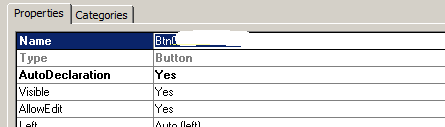
Step 1, right click on button and its set its auto declaration property to true.

Btn

Now right click on Data Source of form which bind to grid and overwrite SelectionChanged Method


Selection change


So Code snippet will be something like

public void selectionChanged()

{

super();


if (CustTabletmp.StatusProcessed == StatusProcessed::LineProcessed)

{

BtnGenerateLines.enabled(false);

}

else

{

BtnGenerateLines.enabled(true);

}


}


Date in Advance filter Dynamics Ax 2012

February 7, 2015 by alirazazaidi

Consider we are going to build a Inquiry form, where we are applying different filter criteria’s.

One of them is date time filter. Consider this post is second part of one of my previous post. Where we created filter on Sales line.

http://tech.alirazazaidi.com/how-to-create-a-custom-filter-on-list-or-inquiry-form-in-dynamics-ax-2012/


For this filter add two utcdatetimeEdit control and set auto declaration to true so these control accessible in code. Set first Name is From_Date and second Name is To_Date.

Now drag and drop shippingDateConfirm field to Grid.


Now In DataSource Execute Query Method which we over write in previous post  add following lines


public void executeQuery()

{

QueryBuildRange QcustomerFilter;

QueryBuildRange ShippingDateConfirmedFileter;

QcustomerFilter = SysQuery::findOrCreateRange(SalesLine_q.datasourceTable(tableNum(SalesLine)),fieldNum(SalesLine,CustAccount));

ShippingDateConfirmedFileter = SysQuery::findOrCreateRange(SalesLine_q.datasourceTable(tableNum(SalesLine)),fieldNum(SalesLine,ShippingDateConfirmed));

if (txtCustomerNumber.text()!=””)

{

QcustomerFilter.value(queryValue(txtCustomerNumber.text()));


}

else

{

QcustomerFilter.value(SysQuery::valueUnlimited());

}

if (to_date.dateTimeValue() !=utcdatetimenull() && from_date.dateTimeValue() !=utcdatetimenull())

{


ShippingDateConfirmedFileter.value(SysQuery::range(from_date.dateTimeValue(),to_date.dateTimeValue()));

}

else

{

ShippingDateConfirmedFileter.value(SysQuery::valueUnlimited());

}


//ShippingDateConfirmed

super();

}


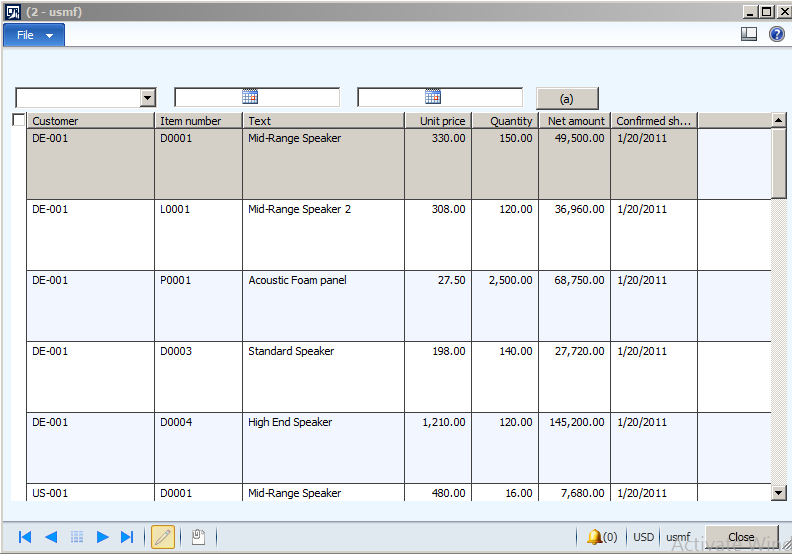
Now run the form , It look likes

2-7-2015 10-46-13 PM

Now click on button to apply the new added filter

2-7-2015 11-00-00 PM

Custom lookup field with no exist join records dynamics Ax 2012

February 6, 2015 by alirazazaidi

During customization I got requirement that in drop down or lookup shows those customer which did not have sales line.

I handle this customization with the help of no exist join.  Code snippet is something like.


public void lookup()

{

Query query = new Query();

QueryBuildDataSource queryBuildDataSource, qbds, dsView;

QueryBuildRange queryBuildRange;


SysTableLookup sysTableLookup = SysTableLookup::newParameters(tableNum(CustTable), this);


sysTableLookup.addLookupField(fieldNum(CustTable, AccountNum));

sysTableLookup.addLookupField(fieldNum(CustTable, Party), false);


queryBuildDataSource = query.addDataSource(tableNum(CustTable));


qbds = queryBuildDataSource.addDataSource(tableNum(DirPartyTable));

qbds.joinMode(JoinMode::InnerJoin);

qbds.addLink(fieldNum(CustTable, Party), fieldNum(DirPartyTable, RecId));


dsView =queryBuildDataSource.addDataSource(tableNum(SalesLine));

dsView.joinMode(JoinMode::NoExistsJoin);

dsView.addLink( fieldNum(Salesline, CustomerAccount),fieldNum(CustTable, AccountNum));


sysTableLookup.parmQuery(query);


sysTableLookup.performFormLookup();


}


How to create a custom filter on list or inquiry form in Dynamics AX 2012

February 4, 2015 by alirazazaidi

During development we have to create custom inquiry forms. Or Form where we can  search and filter records on different criteria.

Consider a scenario, where we have to build custom inquiry form for all saleline. In this inquiry or custom list form, we can filter on records on date, customer and amount or discount.

Lets do this,


Create a form with name custom Sales


From expend its designs and right click on design to open its property window


Design property


From property window set its design style to simplelist


Simple list


Now add new data source on form, and sets create and edit property to no, Because we did not want to insert , update and delete operation  on this form.


Drop down


Now drag and drop following fields form  data source to grid.


ItemId,CustNumber,SalesQty,SalesPrice,


selected fields


Now right click on grid and set its datasource to salesline.

Datasource for grid

Now run the form its look like similar


Grid with data

Now above grid, add  group control and set its column property to 2, also set its visible property to true.

Add String Edit control, and button here.

Right click on String Edit control and set its auto delecaration to true, so we can access this control in x++. Set its name as “txtCustomerNum”. And set its lookup property to always.


ControlName


lookup always


Now we are going to create Unbound control with lookup,

Right lock on methods under stringEditcontrol and add lookup method.

Add following code to fill the lookup to customer and Name which belongs to current legal entity.

public void lookup()

{

Query query = new Query();

QueryBuildDataSource queryBuildDataSource, qbds, dsView;

QueryBuildRange queryBuildRange;


SysTableLookup sysTableLookup = SysTableLookup::newParameters(tableNum(CustTable), this);


sysTableLookup.addLookupField(fieldNum(CustTable, AccountNum));

sysTableLookup.addLookupField(fieldNum(CustTable, Party), false);


queryBuildDataSource = query.addDataSource(tableNum(CustTable));


qbds = queryBuildDataSource.addDataSource(tableNum(DirPartyTable));

qbds.joinMode(JoinMode::InnerJoin);

qbds.addLink(fieldNum(CustTable, Party), fieldNum(DirPartyTable, RecId));


dsView = qbds.addDataSource(tableNum(DirPartyPostalAddressView));

dsView.joinMode(JoinMode::InnerJoin);

dsView.addLink(fieldNum(DirPartyTable, RecId), fieldNum(DirPartyPostalAddressView, Party));


sysTableLookup.parmQuery(query);


sysTableLookup.performFormLookup();


}


Now run the form lets see the how behave the lookup control.

Lookupdisplay

Man its working. Now check that selected value from this textbox is accessible, then we move to filter the records

Add Click event/ method on button we just added with this string edit button.


And right following code.

void clicked()

{

super();

info(  txtCustomerNumber.text());

}


Now run the form, select customer and click on button.

dd


Now right click on Salesline datasource and over rights its execute Query method.

And add following lines to filter it.

public void executeQuery()

{

QueryBuildRange QcustomerFilter;

QcustomerFilter = SysQuery::findOrCreateRange(SalesLine_q.datasourceTable(tableNum(SalesLine)),fieldNum(SalesLine,CustAccount));

if (txtCustomerNumber.text()!=””)

{

QcustomerFilter.value(queryValue(txtCustomerNumber.text()));


}

else

{

QcustomerFilter.value(SysQuery::valueUnlimited());

}

super();

}


In button click even add this line code

void clicked()

{

super();

SalesLine_ds.executeQuery();


}


Now run the form, select the customer and click on button, you will find the filter records on form

Column


In next post will add more filters to this form.


Current language of client Dynamics Ax 2012

February 4, 2015 by alirazazaidi

static void Job5(Args _args)
{
info(companyinfo::languageId());
}

How to get trade agreement price for An Item or for customer Dynamics Ax 2012

February 1, 2015 by alirazazaidi

When we make trade agreement, there are 3 possibilities

  • On some products we make discounted price for all Customers.
  • On some products we make discounted for selected Customers
  • All products have discounted or fixed prices for some customers.

Third case is exceptional, but there is possibility that organization set sales prices on all items for some customers or all customer.

If we dig deep, we find that trade agreements stored in

PRICEDISCTABLE and PriceDiscAdmTrans


I am sharing code which just check that particular item exists in trade agreement. These both table have item variant level detail. You can extended the code according to your need. Code is running on Contoso data.


PRICEDISCTABLE _PRICEDISCTABLE,priceDiscTable;

PriceDiscAdmTrans  _trans;

ItemId _Item=”C10034″;

ItemId itemRelation=”C0001″;

ItemId _itemWithCustomer =”D0011″;

CustAccount  accountRelation =”US-001″;

Price _price;

PriceType  relation =PriceType::PriceSales;

NoYes _RelationExist=NoYes::No;

// Item scenerio for all customer.

//  _RelationExist= PRICEDISCTABLE::existItemRelation(PriceType::PriceSales,_Item);


/// First if  trade agreement exist for Item for all customer.


select firstonly RecId from priceDiscTable

where priceDiscTable.Relation           == relation                 &&

priceDiscTable.ItemCode           == TableGroupAll::Table  &&

priceDiscTable.ItemRelation       == itemRelation

&& priceDiscTable.AccountCode ==  TableGroupAll::All;


if (priceDiscTable !=null)

{


info (“found”);

}


 // trade agreement exist for particular item for particular customer

    select firstonly RecId from priceDiscTable

where priceDiscTable.Relation           == relation                 &&

priceDiscTable.AccountCode        == TableGroupAll::Table   &&

priceDiscTable.AccountRelation    == accountRelation &&

priceDiscTable.ItemCode           == TableGroupAll::Table  &&

priceDiscTable.ItemRelation       == _itemWithCustomer;

if (priceDiscTable !=null)

{


info (“found”);

}


   // third possibility is that when Customer have to all product with same price of amount.


      select firstonly RecId from priceDiscTable

where priceDiscTable.Relation           == relation                 &&

priceDiscTable.ItemCode           == TableGroupAll::All  &&

priceDiscTable.AccountRelation    == accountRelation &&

priceDiscTable.AccountCode ==  TableGroupAll::Table; //&&

//   priceDiscTable.AccountRelation == accountRelation;


if (priceDiscTable !=null)

{


info (“found”);

}


Hopes this helps


How to control events or method on the list page Dynamics Ax 2012

January 28, 2015 by alirazazaidi

In dynamics if form is created by listpage template, it would not let you write any code on form level.


Best practices says that you have to wrote code in extended interaction classes. But what if we have to write simple method at form levels, For such cases  you can write events or method like modified or clicked on controls.

You can write method or event of button or control by changing “DisplayTarget” property to “Client”.


1-28-2015 8-44-39 PM

No cost rollup is found for this item. Activate the item cost price

January 25, 2015 by alirazazaidi

During posting a receive entry against purchase order I got following error for a product.

“No cost rollup is found for this item. Activate the item cost price.”

Intemprice

As understand there is no item cost activate in Dynamics Ax 2012 for this.

For this purpose you have to go

Product inform Management => Common=> Release products

Release product

Form list page open  search and edit the required product

From detail page click on item cost fast tab strip


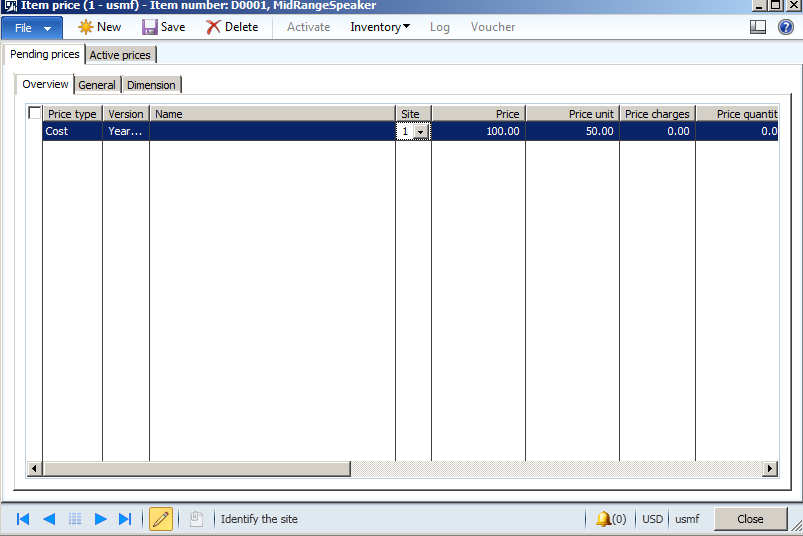
Click on item price.


From pending line create a new line and click on activate it

Adding a new active

Now go to try purchase that Item there is no error.

For D365 Finance and Operations open The Cost management Fast tab form Released product detail from. and click on Item price

And setup the active cost price

Product receipt against purchase order in Dynamics Ax 2012 R3

January 25, 2015 by alirazazaidi

In this post I am going to create a new Purchase order and receive inventory against Purchase Order.

My post against purchase order in Dynamics Ax 2012 are as follow.

http://tech.alirazazaidi.com/how-to-create-request-for-quotations-in-dynamics-ax-2012/

http://tech.alirazazaidi.com/how-to-register-request-for-quotation-response-in-dynamics-ax-2012-and-its-convert-purchase-order/


First of all we create a Purchase order with single line. For this we have to go

Accounts payable=>Area page=> Common=>Purchase order=> All purchase orders


All Purchase Order


Purchase order list page open as

All Purchase Order lis tpage

Now from top strip click on Purchase Order and following new Purchase Order form open


Lets say we create Purchase order against 104 Vendor

vendor Selection

Now from General fast tab select following settings. Set Purchase type: Purchase order

Site to 1 and warehouse 11 (Contoso data) and update delivery date to update to 4 then from now.

DeliverydateAndWareHouse

Click ok to create a purchase order

Now select Item “1000” and update its quantity to 100 items and let its price to default.


Now go to up top tab strip “Purchase” and click on confirm purchase order

Confirmation Detail


Click on Ok button to confirm the purchase order.

Confirmation

Now select the purchase line and click on Inventory and then on on-hand to check to check its present inventory

on hand


Following on-hand detail page appears

on hand details


For example, Now vendor send you required product with full quantity, and with invoice, you accept the Quantity and signed it that you received the quantity and invoice number enter in dynamics ax 2012


Now go to Receive tab strip and click on Product receipt.

Product Receipt


Let see my I received the Product against Invoice number Invo-0001.Invo Received


Click on ok.


Now again select the line and check its inventory you can see that inventory increased by 100 item.


Quantity received


Product entry successfully completed and Inventory successfully increased by 100 items.


« Previous Page
Next Page »

Primary Sidebar

About

I am Dynamics AX/365 Finance and Operations consultant with years of implementation experience. I has helped several businesses implement and succeed with Dynamics AX/365 Finance and Operations. The goal of this website is to share insights, tips, and tricks to help end users and IT professionals.

Legal

Content published on this website are opinions, insights, tips, and tricks we have gained from years of Dynamics consulting and may not represent the opinions or views of any current or past employer. Any changes to an ERP system should be thoroughly tested before implementation.

Categories

  • Accounts Payable (2)
  • Advance Warehouse (2)
  • AI (3)
  • Asset Management (3)
  • Azure Functions (1)
  • Books (6)
  • Certification Guide (3)
  • ChatGPT (3)
  • Claude (1)
  • Customization Tips for D365 for Finance and Operations (63)
  • D365OF (60)
  • Data Management (1)
  • database restore (1)
  • Dynamics 365 (59)
  • Dynamics 365 for finance and operations (139)
  • Dynamics 365 for Operations (174)
  • Dynamics AX (AX 7) (134)
  • Dynamics AX 2012 (274)
  • Dynamics Ax 2012 Forms (13)
  • Dynamics Ax 2012 functional side (16)
  • Dynamics Ax 2012 Reporting SSRS Reports. (31)
  • Dynamics Ax 2012 Technical Side (52)
  • Dynamics Ax 7 (65)
  • Exam MB-330: Microsoft Dynamics 365 Supply Chain Management (7)
  • Excel Addin (1)
  • Favorites (12)
  • Financial Modules (6)
  • Functional (8)
  • General Journal (1)
  • Implementations (1)
  • Ledger (1)
  • Lifecycle Services (1)
  • Logseq (4)
  • Management Reporter (1)
  • Microsoft Excel (4)
  • MS Dynamics Ax 7 (64)
  • MVP summit (1)
  • MVP summit 2016 (1)
  • New Dynamics Ax (19)
  • Non Defined (9)
  • Note taking Apps (2)
  • Obsidian (4)
  • Personal Knowledge Management (3)
  • PKM (16)
  • Power Platform (6)
  • Procurement (5)
  • procurement and sourcing (6)
  • Product Information Management (4)
  • Product Management (6)
  • Production Control D365 for Finance and Operations (10)
  • Sale Order Process (10)
  • Sale Order Processing (10)
  • Sales and Distribution (5)
  • Soft Skill (1)
  • Supply Chain Management D365 F&O (5)
  • Tips and tricks (278)
  • Uncategorized (165)
  • Upgrade (1)
  • Web Cast (7)
  • White papers (4)
  • X++ (10)

Wiki

  • SCM

Copyright © 2026 · Magazine Pro On Genesis Framework · WordPress · Log in