Hi friends, in this video I shared how to create a product template and reuse them in to d365 finance and operations
Dynamics 365 for finance and operations
How To Use Advanced Filter: D365 Finance and Operations

Hello every one, today in this blog post we will explore Advance filter in D365 page.
We normally used filters on grid by using key words like “Begin with”, “Contains”, “Is one of”, ”is exactly” etc.

D365 Also provide the advanced filter and sorting options, from where end user can create complex queries.
These queries can be used data from another related tables.
You can find the option in almost every form under option tab in the ribbon.

- Table – This provide the option to select the table that can be used inside the selection.
- Derived table – this will update when you select the table.
- Field – This is the field on which we can apply filter
- Criteria – Here we select the criteria to filter the records.

If you click on sorting, here we can add and used files on records will display in grid.

If we click on Joins. select on
Construct a query

On show details toggle button click and show yes. It will show more detail on grid.

Select the customer where custTable: OrderCustomer

After selection, you will also find Customer

In rage screen, click on Add button and new row will appear. Select Customers and then from field select “Account Status” and in Criteria select Hold.

on apply sales order list shows all records with Invoice accounts.

For verification if we go on customer and in Credit and collections fast tab, the status of account status as Hold.

Json empty string to Null D365 finance and operations
Small tip today
str myJson = FormJsonSerializer::serializeClass(sContract);
        myJson = strReplace(myJson,":"",",": null,");
        return myJson;
Like this
Prepayment for Purchase order step by Step D365 Finance and Operations
In this video I shared how you can configure prepayment for purchase order and how we can settle it with purchase Invoice.
How to create page view and transfer to another user
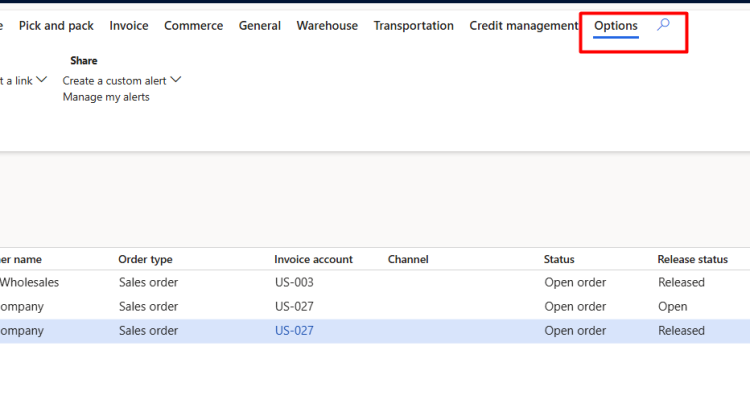
Hi friends. We can apply different filters on list page and save as view for future use and even this view can assign to another user.
Here is step by step tutorial.
Suppose I have to create custom filter on Sales order list page that only specific take care will be appear in list page. And this view I have to move to another user.
if we click on Option action pane on top menu. we found “Advance filter or sort”
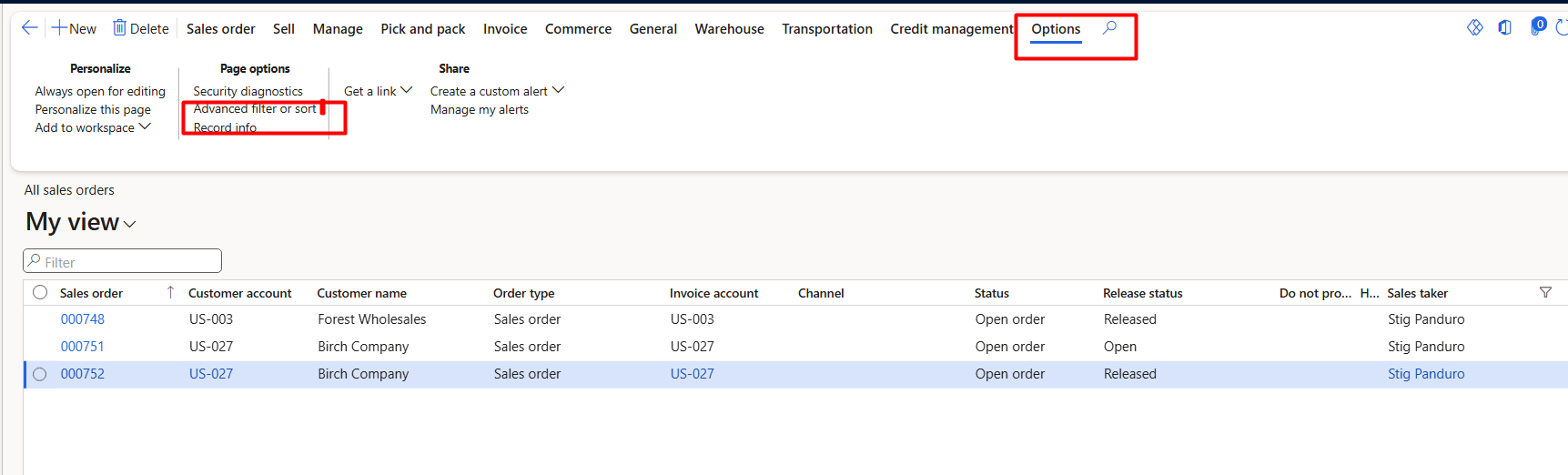
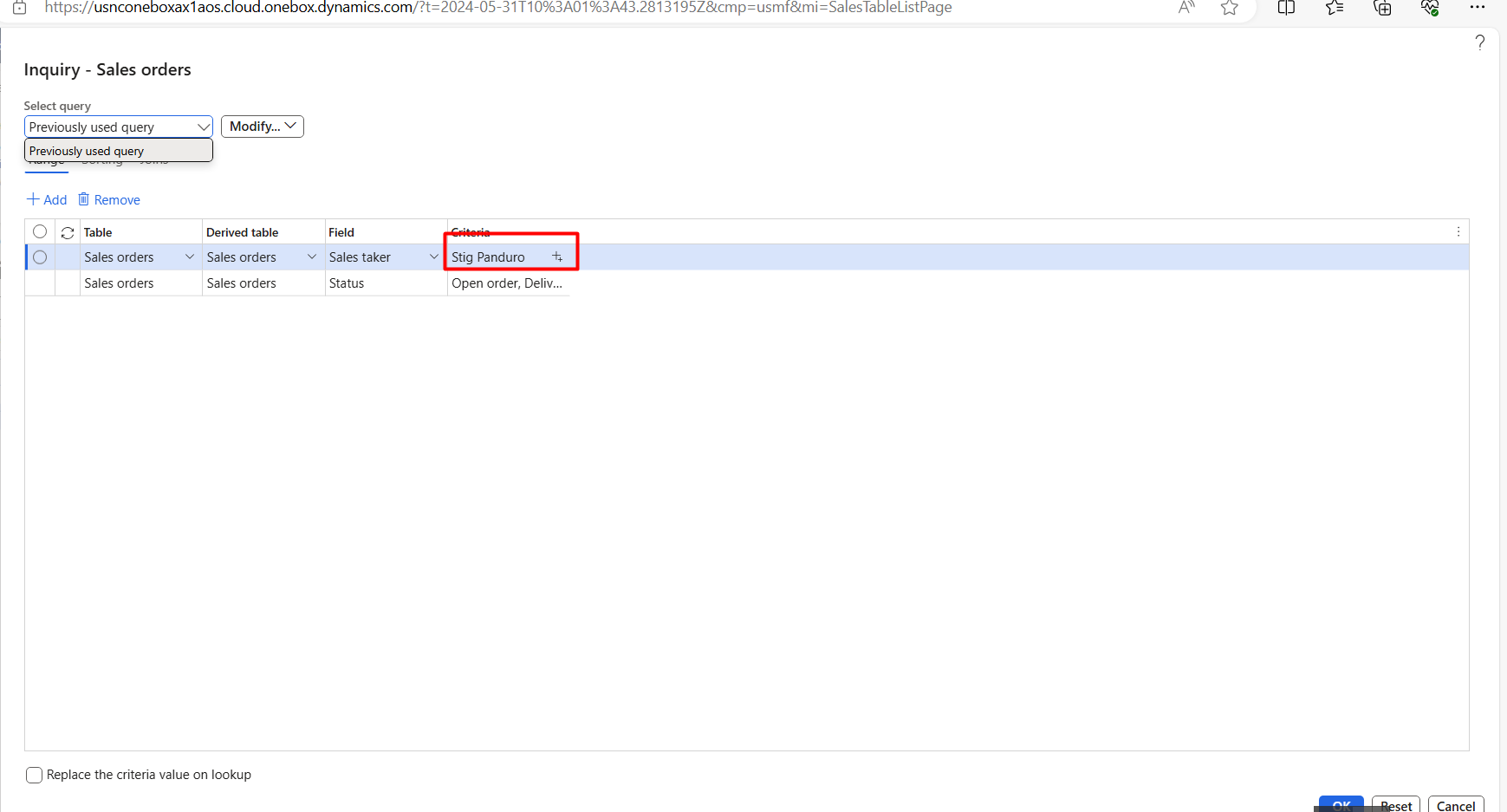
When click on on this “Advance filter and sort” it opens a query window opens.
For example I added here “Stig Panduro” in sales care taker.
When click on ok button. The records are shown grid with “Stig Panduro” care taker.
Now click on my View and save it as

And add its name for example I saved it with “Stig Panduro”.
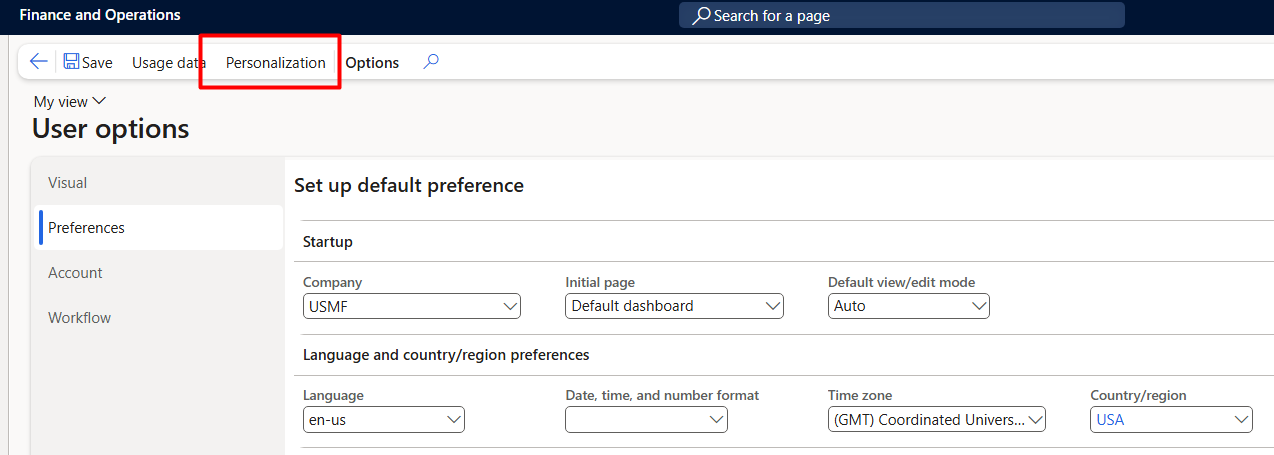
Now goes on top menu in D365 finance and operations and click on user options.
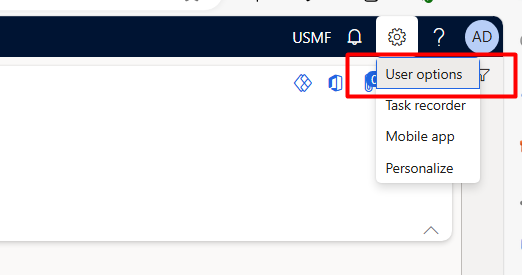
Then from open button click on “Personalization”
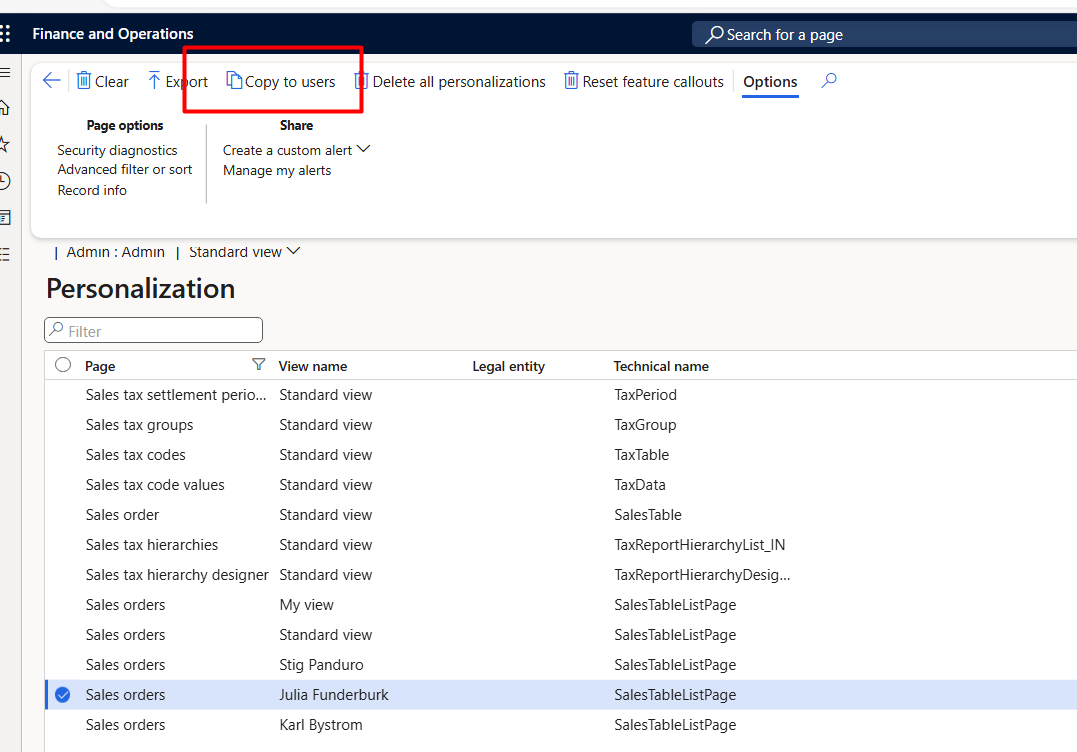
Apply filter on page as sales order or you can apply filter on view name

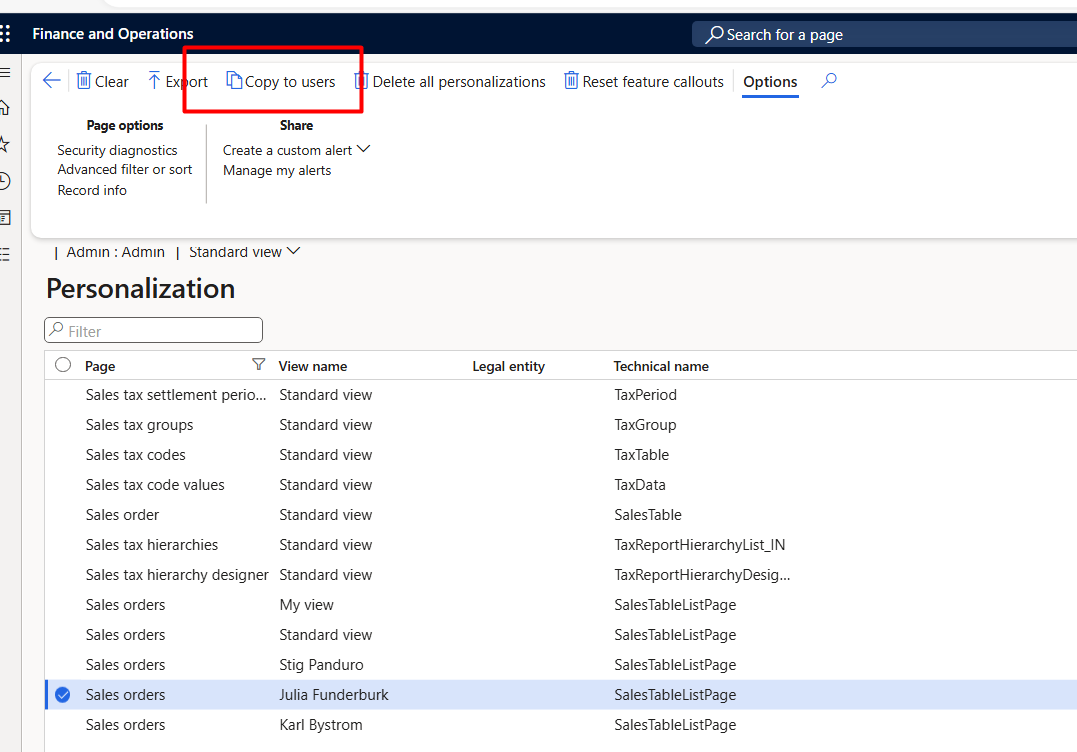
When we select any page or view. it enables the copy to users menu from top.
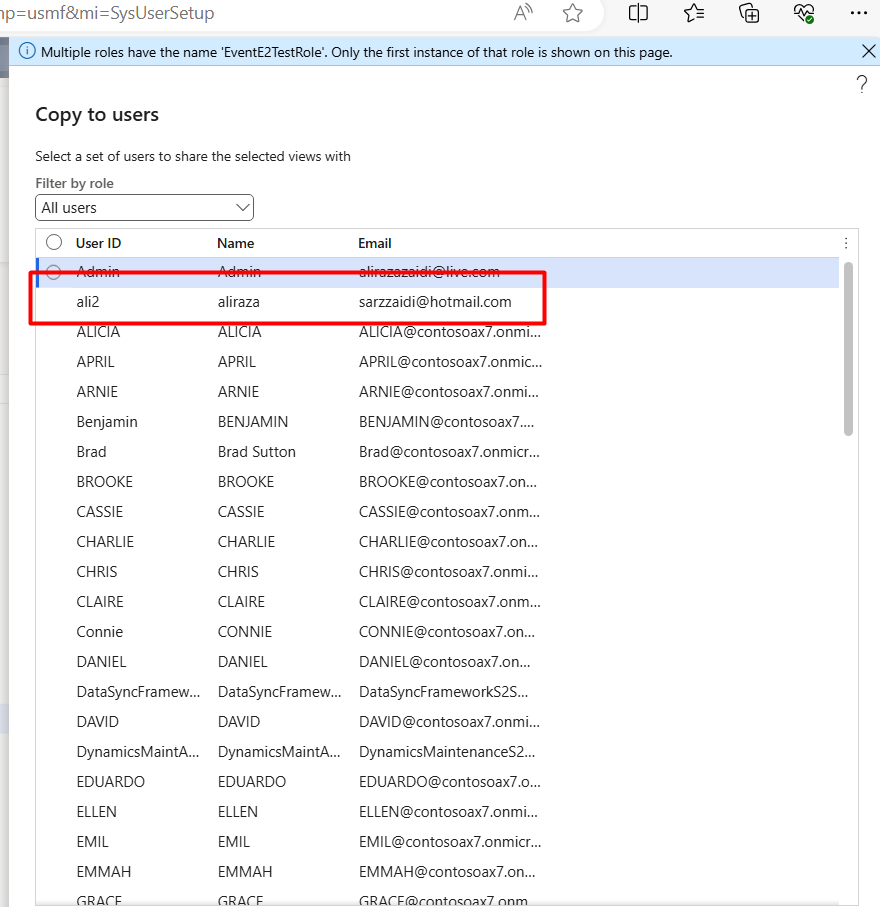
On clicking on “Copy to users” a dialog list page opens and from there we can select user to which we assign the view.
After selection click ok.
I tried this by login to another user. I found that view is attached to my.
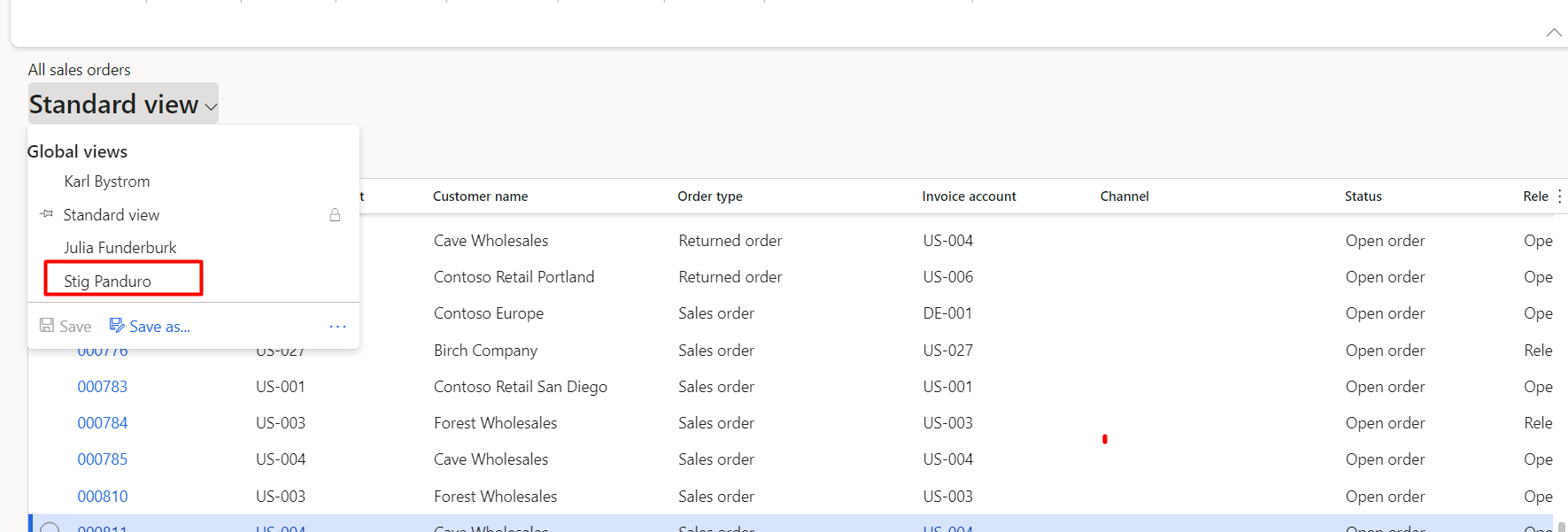
Applying this view. The all sales order started to shown with required filter.
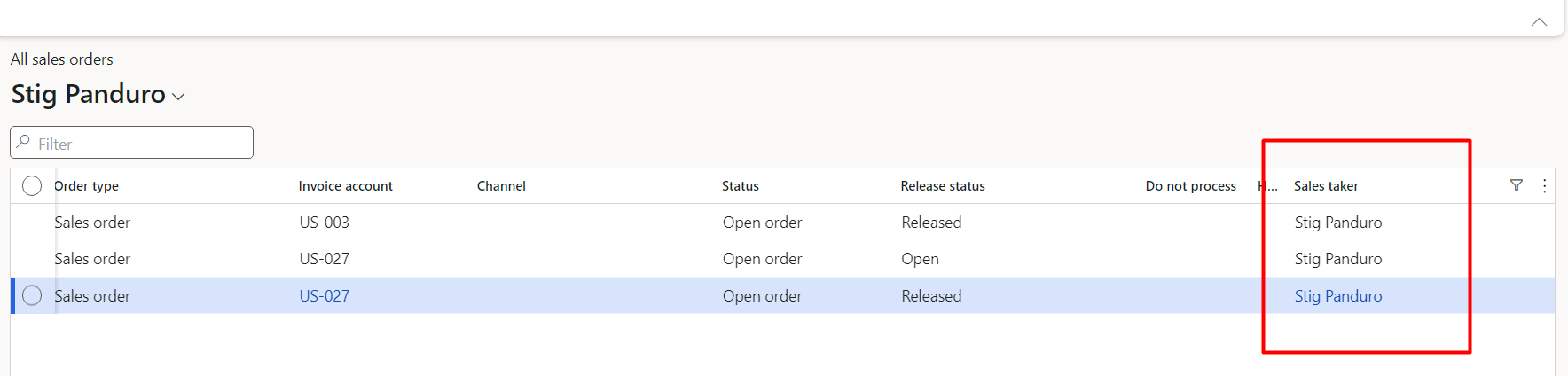
Hope you like this post.
Where is admin Provisioning tool in 10.0.39. vm
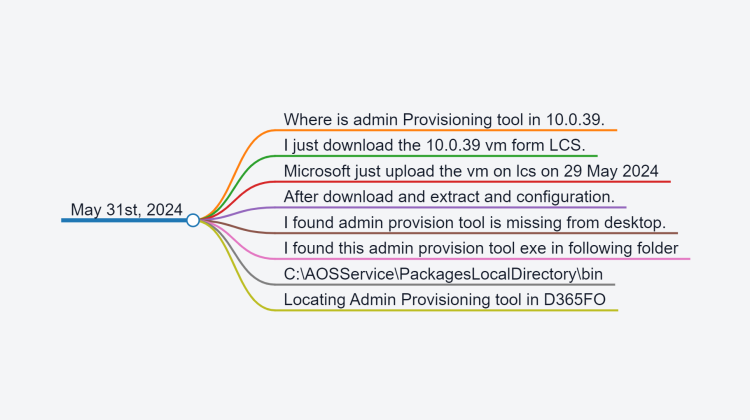
- Where is admin Provisioning tool in 10.0.39.
- I just download the 10.0.39 vm form LCS.
- Microsoft just upload the vm on lcs on 29 May 2024
- After download and extract and configuration.
- I found admin provision tool is missing from desktop.
- I found this admin provision tool exe in following folder
- C:\AOSServicePackagesLocalDirectory\bin

Custom Cell format – Excel for Consultant
I was doing some data cleansing and data entry I was facing problem
for number in such a way 4 digits: 0001, 0002, … , 1000 etc.
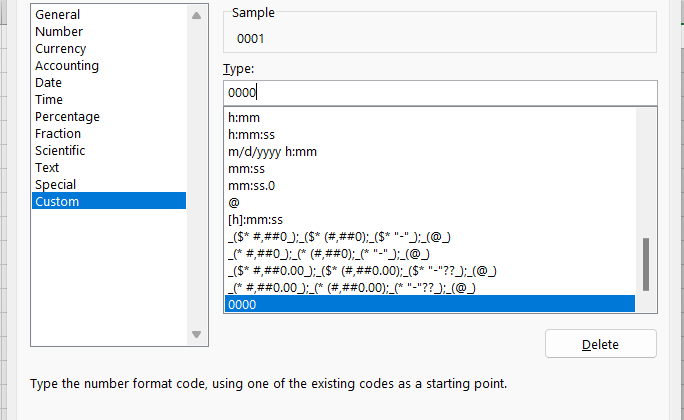
Now I do not want to type “0001” in excel, instead I wanted to type 1 and I want excel to convert that to 0001 for me. So I started looking for a custom cell format and dug a little deeper to understand those. I thought it would be nice to share them to you all.
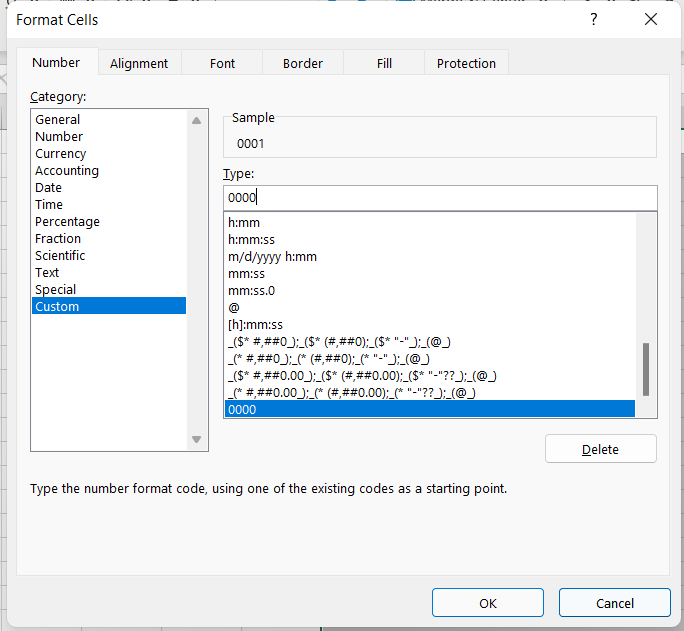
First take a look at how the cell formatting dialog box – number tab looks like:
I found two things for
Special: Used for phone number, zipcode, social security number formats depending on the locale you select. For eg. for US they would be phone number [xxx-xxx-xxxx], ssn [xxx-xx-xxxx], zipcode[xxxxx, xxxxx-xxxx].
Custom: Used for creating your own cell formatting structure.
Ok, without further confusion, this is probably how you can use the custom cell formatting feature in Microsoft excel.
Some explanation that you can skip if you already get it
- For formatting a number [eg. 1] to fixed number of digits [eg. 0001] you have to use 0000 as the custom formatting code
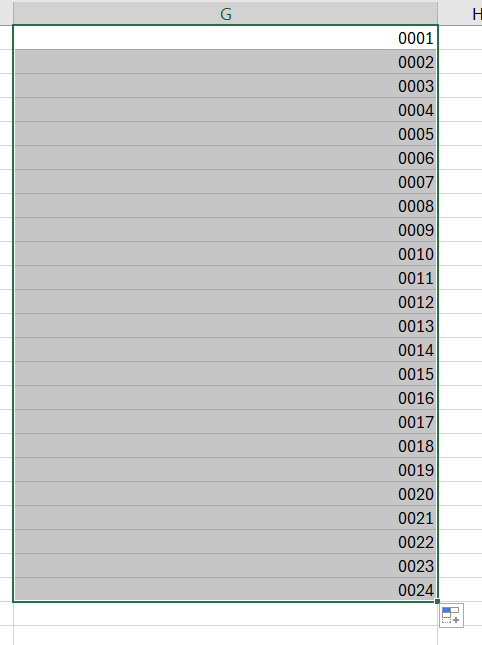
More interesting If you drag it will automatically fill the sell as follow.
Sale group or item sale group is missing, complete your input.
While processing Purchase Invoice I got this error
Sale group or item sale group is missing, complete your input.
On Release product Item sales group was missing. I update Item sales tax group on Invoice header. After that Invoice is successfully posted.
Sales Order Return In D365 Finance and Operations
In this video, I shared complete process for sales order return.
Sales Categories Deep dive Dynamics 365 Finance and Operations
In this video, is shared
How to configure Sales category.
How to add Category heriarchy.
Tangeble and non tangibal heriarachy.
How to add attribute on heriarachy,
How to configure posting profile for Heriarachy.
How to set Default Sales Category.
How use sort order in sales Category heriarchy.
How to create a sales order for Sales Category.