• Skip to main content
  • Skip to primary sidebar
  • Home
  • About
  • Recommended Readings
    • 2022 Book Reading
    • 2023 Recommended Readings
    • Book Reading 2024
    • Book Reading 2025
    • Book Reading 2026
  • Supply Chain Management Guide
  • PKM
  • Microsoft Excel
  • Microsoft Copilot in Office 365
  • Public Wiki Page

Ali Raza Zaidi

A practitioner’s musings on Dynamics 365 Finance and Operations

Dynamics 365 for finance and operations

How to fetch un-Invoiced Delivery notes for sales order – D365 Finance and Operations

March 1, 2025 by alirazazaidi

So here is another code snippet, that I develop after two hours of testing and understanding the D365 F&O that get all non invoiced , delivery notes or packingslip. I want to restrict the code to invoice against Delivery note, If no non posted delivery note exists, Code will not generate the invoice.

 public static str getUninvoicedPackingSlipsBySalesId(SalesId _salesId)
 {
     CustPackingSlipJour custPackingSlipJour;    // Packing slip journal
     InventTrans         inventTrans;            // Inventory transaction

     str packingSlipIds = "";
     container distinctPackingSlips;             // Container to store unique Packing Slip IDs
     int i = 0;

     // Fetch only un-invoiced Packing Slips based on Sales ID
     while select inventTrans
     where inventTrans.InvoiceId == ""
     
     join custPackingSlipJour
     where custPackingSlipJour.PackingSlipId == inventTrans.PackingSlipId
       && custPackingSlipJour.SalesId == _salesId
     {
         // Check if the Packing Slip ID is already in the container
         if (conFind(distinctPackingSlips, custPackingSlipJour.PackingSlipId) == 0)
         {
             distinctPackingSlips += custPackingSlipJour.PackingSlipId;  // Add to container if unique
                          
         }
     }

     return con2Str(distinctPackingSlips);  // Return the comma-separated string or empty if none found
 }
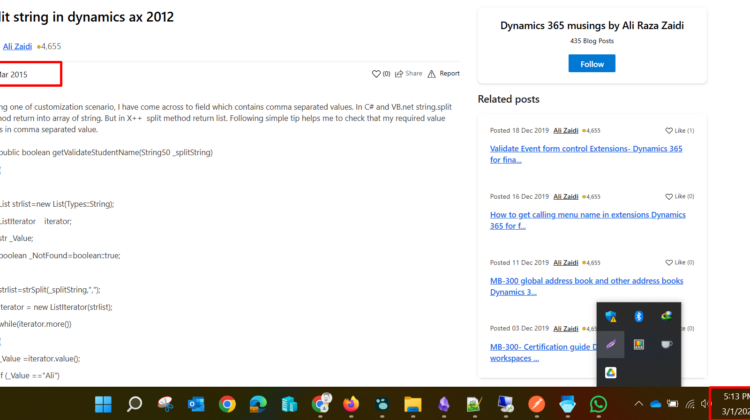
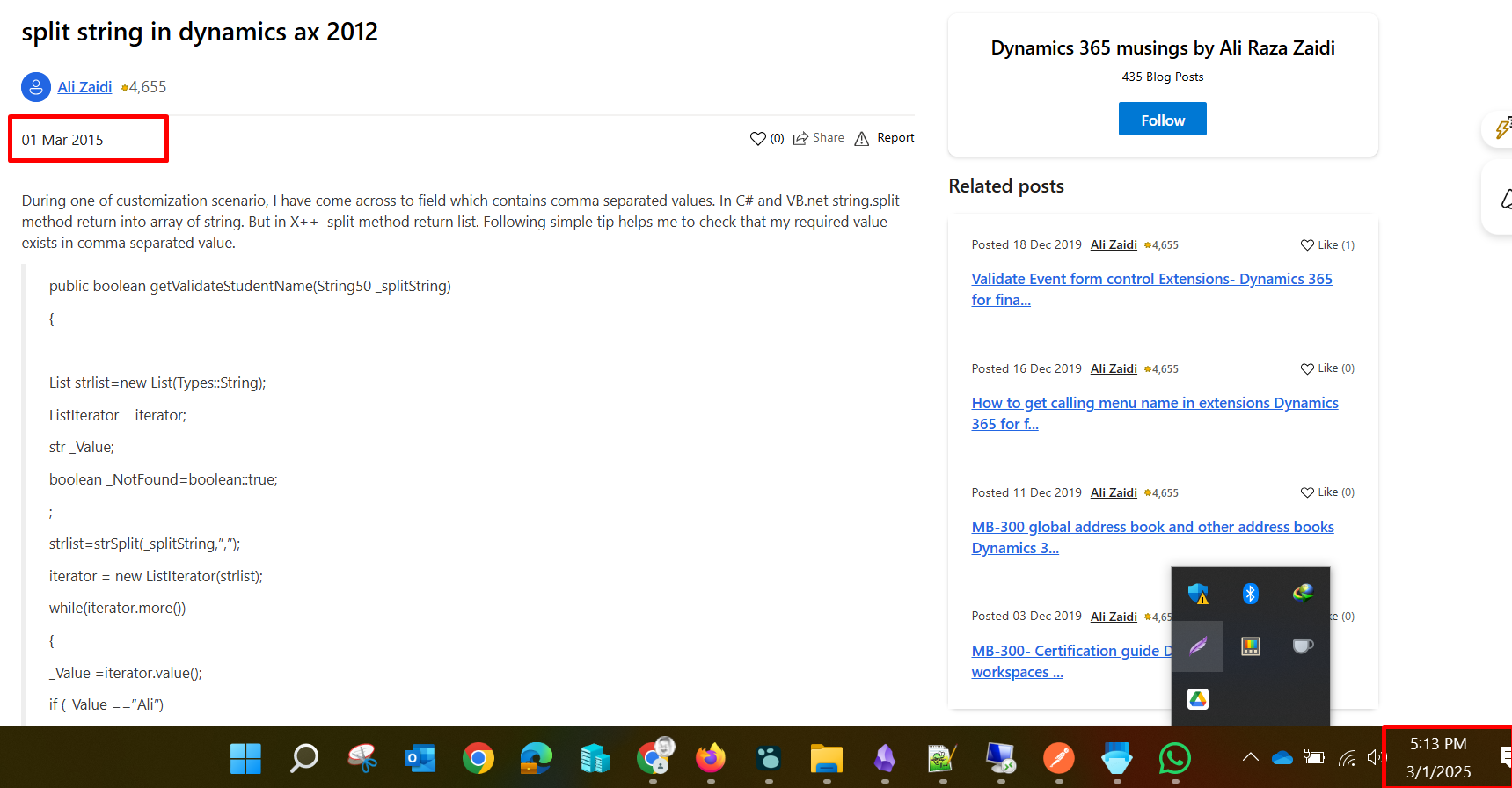
Note to self – What a joke Same date, but 10 year a part

March 1, 2025 by alirazazaidi

Today I found interesting thing, I need a small code snippet, I google it, I found my own, same date, but different year. At least 10 years

How to Import Data into D365 Finance and Operations

February 23, 2025 by alirazazaidi

Hello friends, welcome to today’s video/blog post!

In this guide, we will walk through the process of loading data into Dynamics 365 Finance and Operations (D365 F&O). This step is typically performed twice:

  1. During initial environment configuration – before starting the User Acceptance Testing (UAT).
  2. Before going live – to ensure all required business data is in place.

Data Collection and Preparation

After analyzing business requirements, the Functional Consultant collects data from Business Users. There are two common approaches for preparing data:

  1. Business Users Provide Data in Excel
    • The business users share their data in Excel files.
    • The functional consultant then transforms it into the required D365 template for import.
  2. Predefined D365 Templates
    • The functional consultant exports predefined Excel templates from D365 F&O.
    • These templates are shared with business users for data entry.
    • Once completed, the business users upload the data into the system.
Excel Expertise is Essential

From my experience, strong Excel skills are crucial when handling data imports. You’ll often need to:

  • Remove duplicates.
  • Replace lookup values with valid data.
  • Ensure data is formatted correctly before uploading.

However, delays can occur due to confusion over responsibility. Business users may not provide data in the required format, while functional consultants may hesitate to modify it. This can result in delays of two weeks to a month in some cases.

Data Import Methods in D365

Microsoft provides two ways to import data into D365 Finance and Operations, both based on the D365 Data Entity Framework:

  1. Data Entity Framework – Used to import/export structured data.
  2. Excel Add-in – Allows direct data updates from Excel into D365.

Step-by-Step Guide to Import Data

In this walkthrough, we will use both methods to import data into D365 F&O.

Step 1: Exporting a Data Template
To get started, we first need to export a data template from D365. Here’s how:

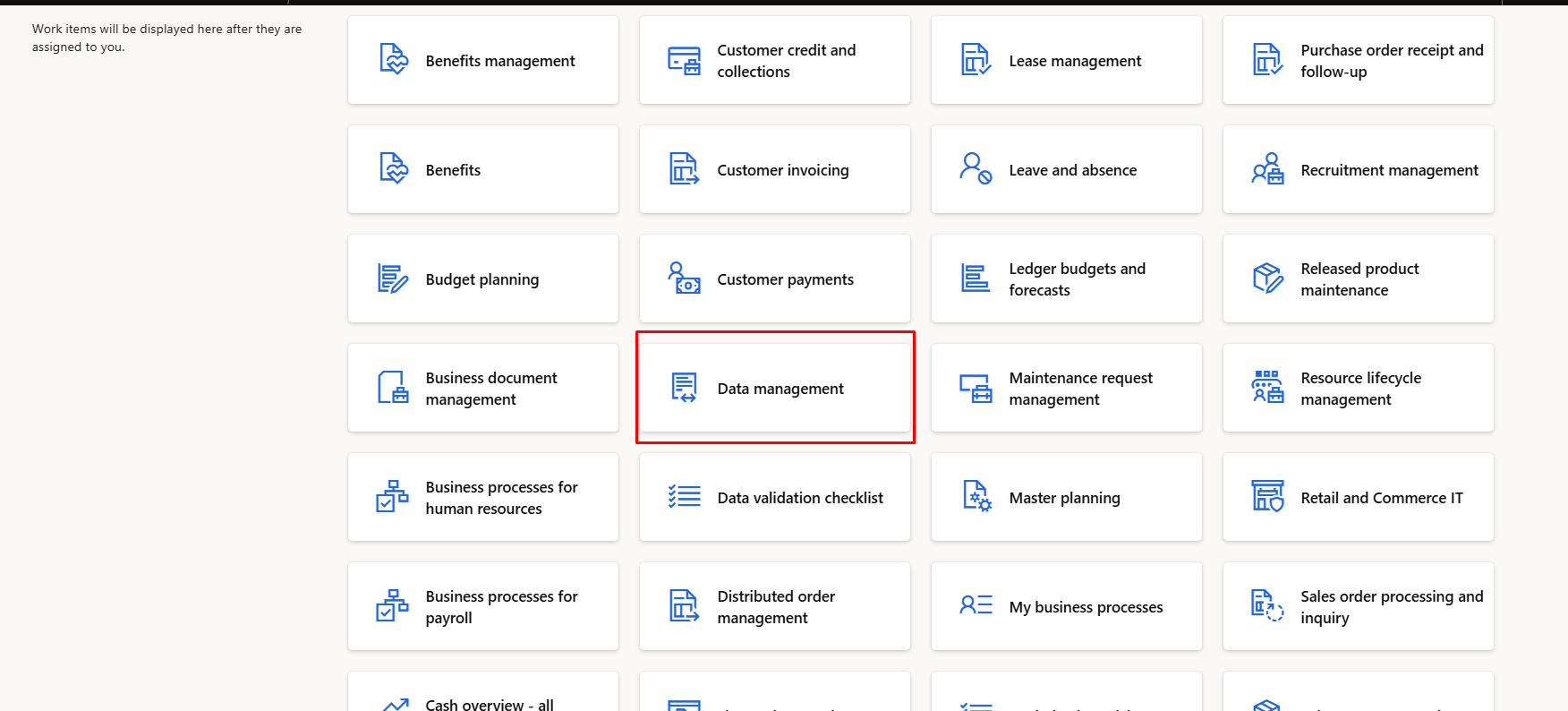
  1. Navigate to the Dashboard.
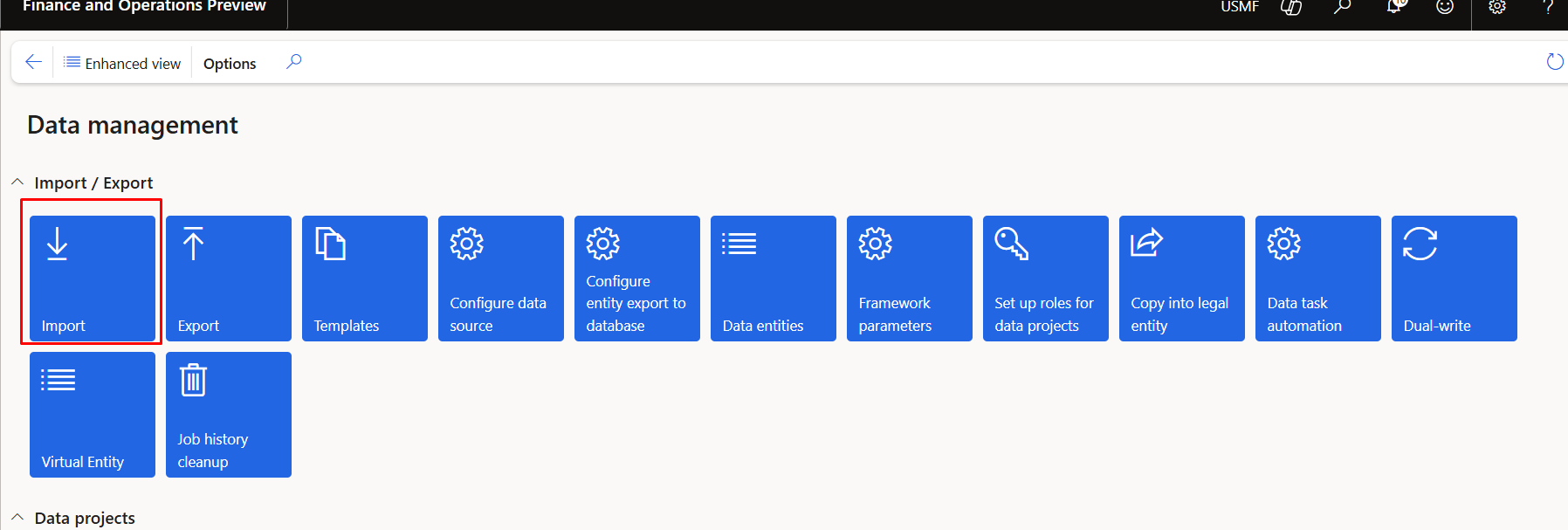
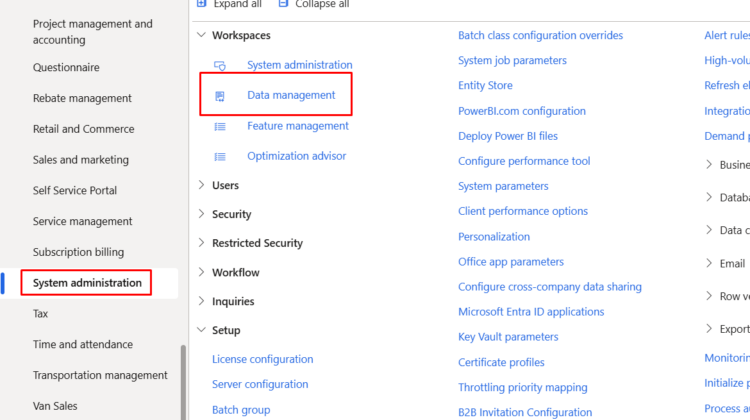
  2. Click on Data Management.

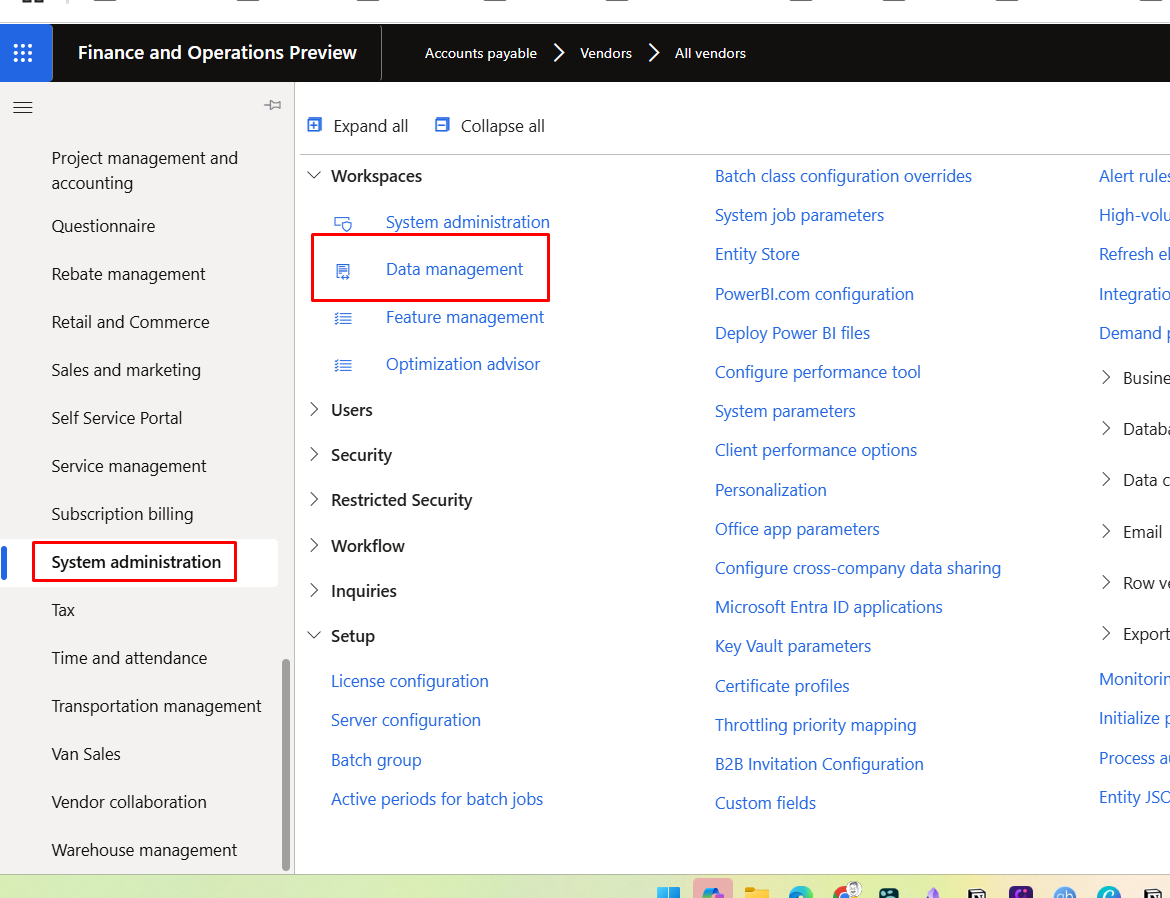
Second way to go System administrator and there you can go Data Management
System Administration > Workspaces > Data management.

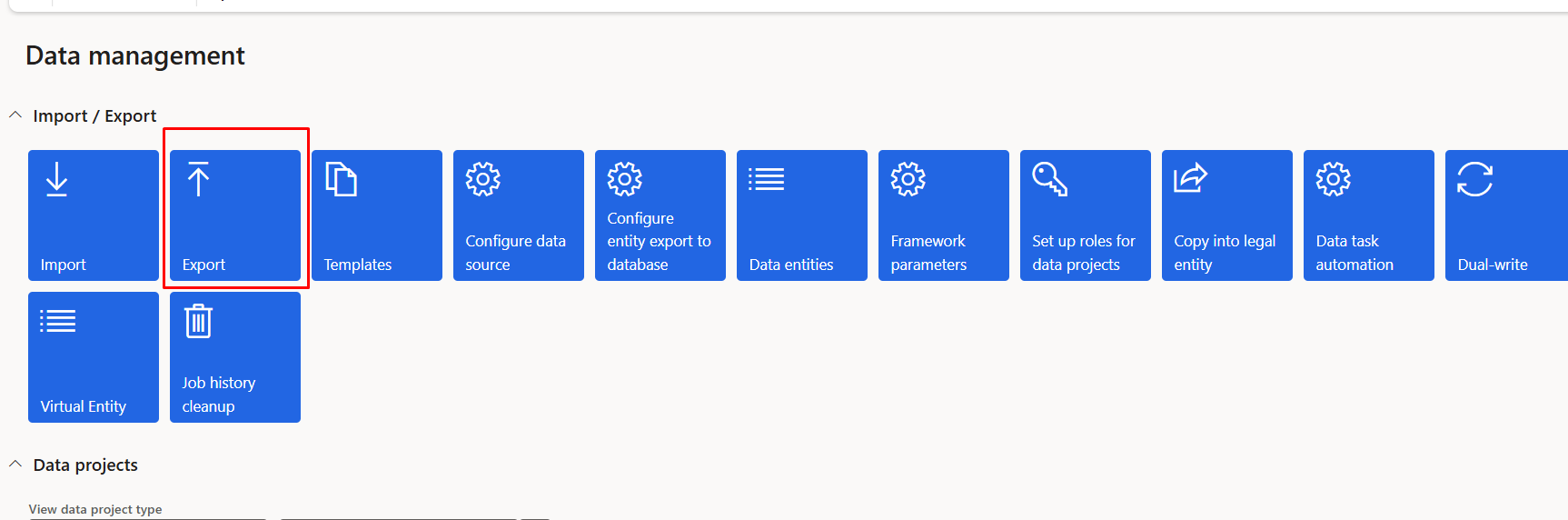
From Title Click and select Export

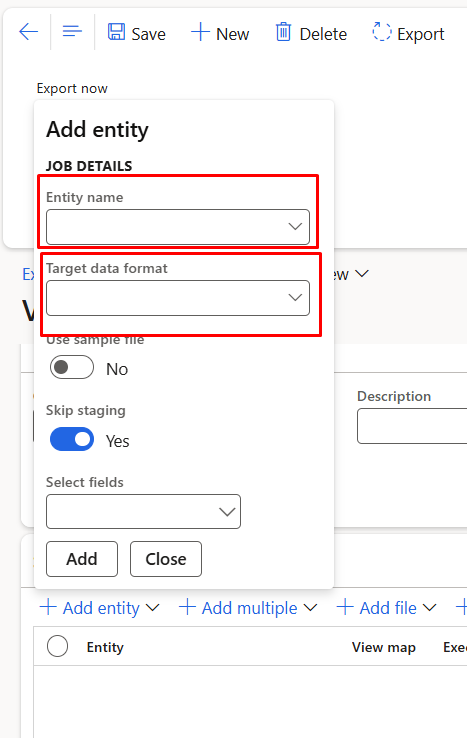
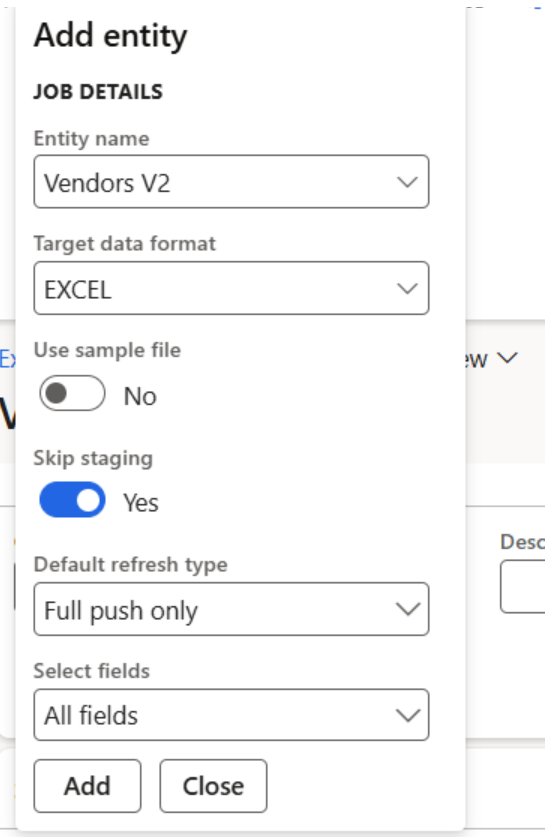
Create a new group and add vendor Info. and then click on Add entity

Search and select Vendors v2 in entity name and then select Excel in Target data format

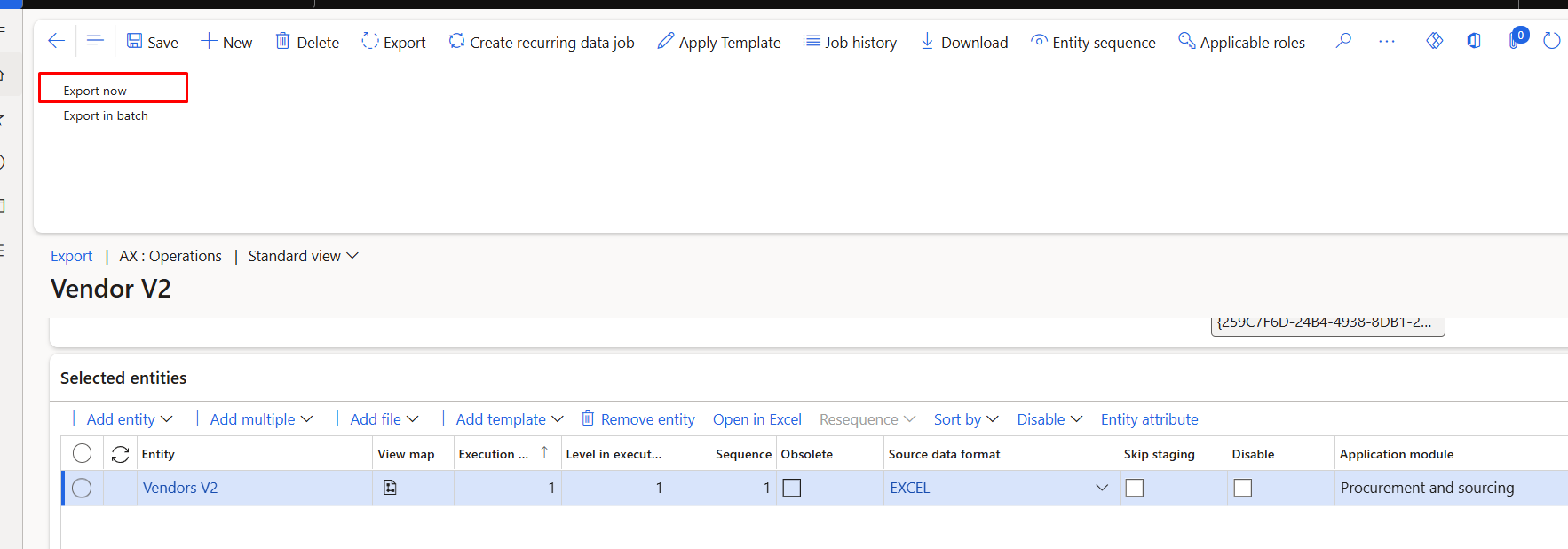
Click on Export now

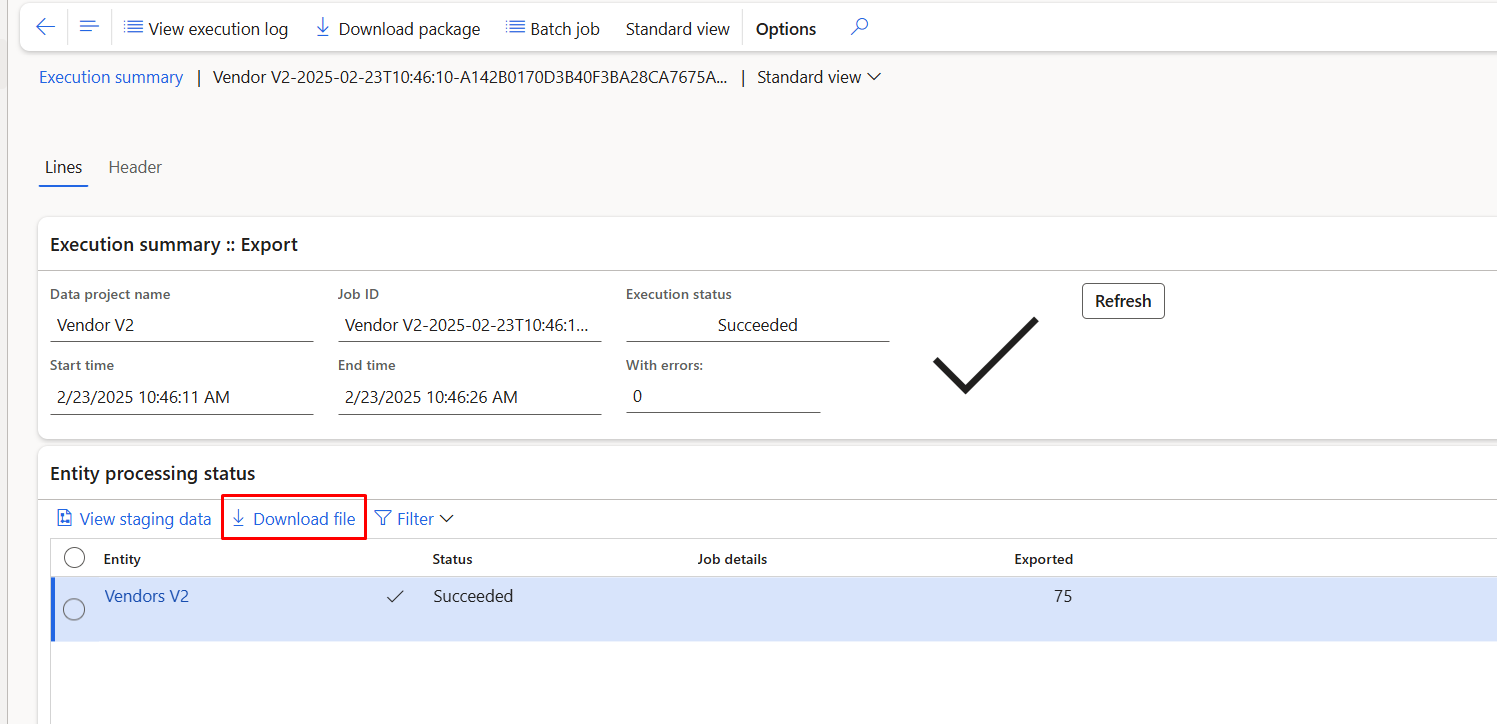
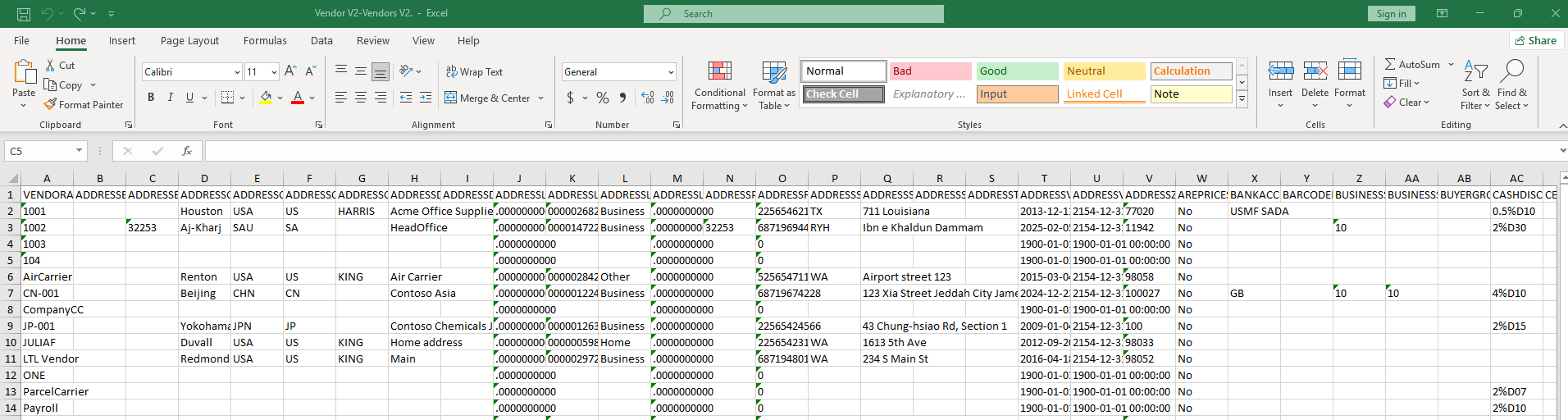
download excel by click on download excel file. Our excel template is ready.

We can remove unnessary fields from here and remove existing data and add new vendor information in excel sheet.

When excel sheet is prepared click again on Data management workspace on import Title

Create a new group with Vendor Import v2

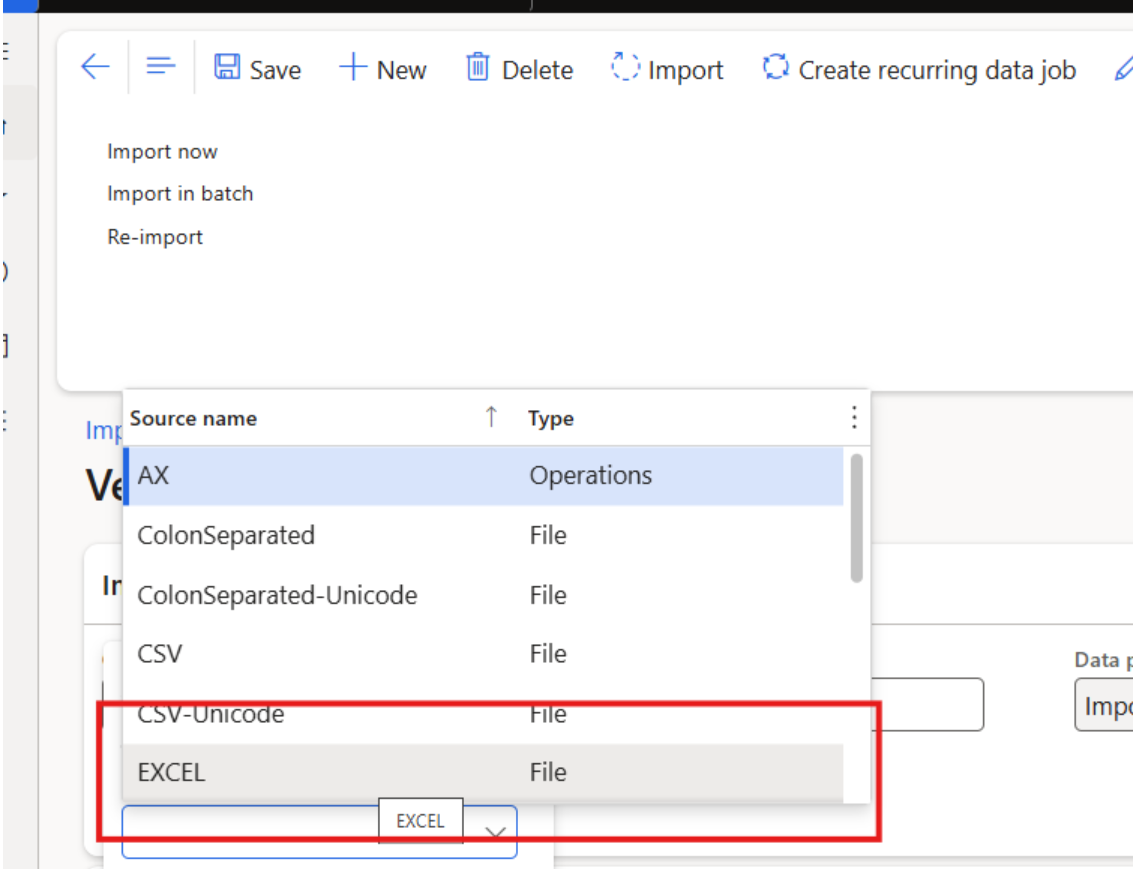
click on add file and select Excel

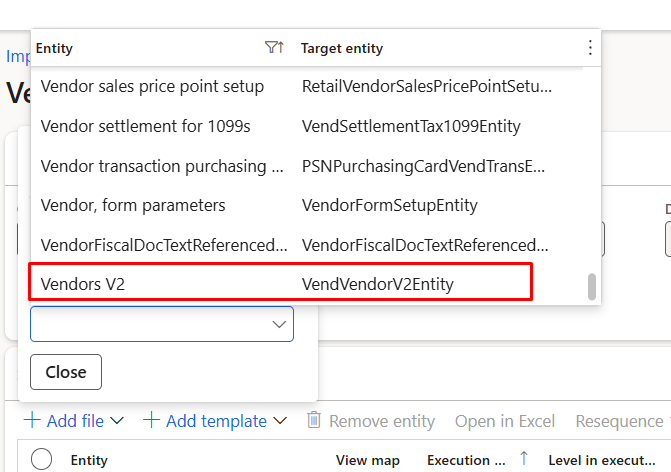
and then search and select vendor V2 from form entity Name.

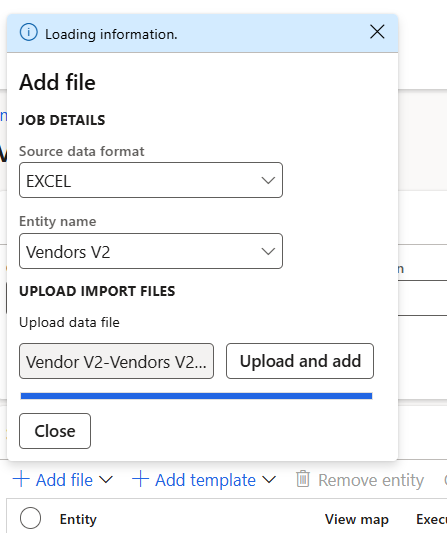
select the file and upload

Load and upload modified excel sheet and click on close button.

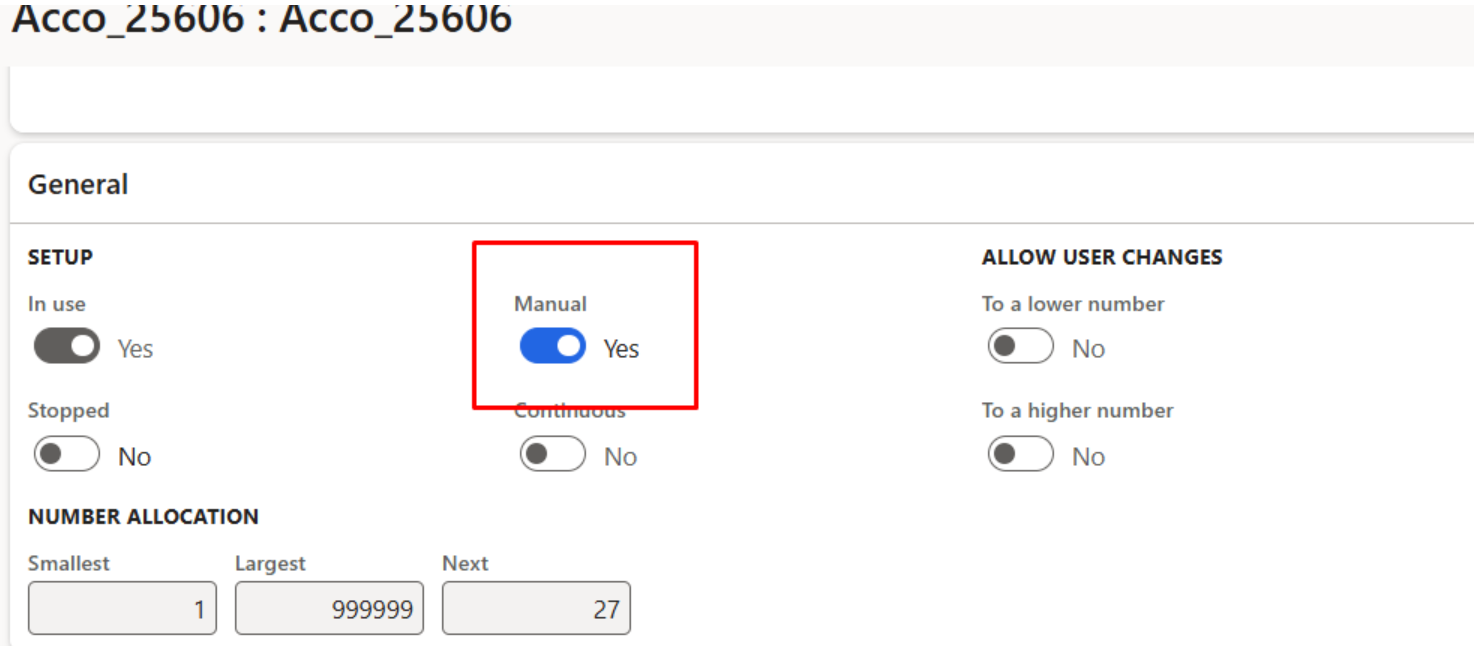
Before going to import go to vendor number sequence and set it manual and allow to a higher number.

And click on import

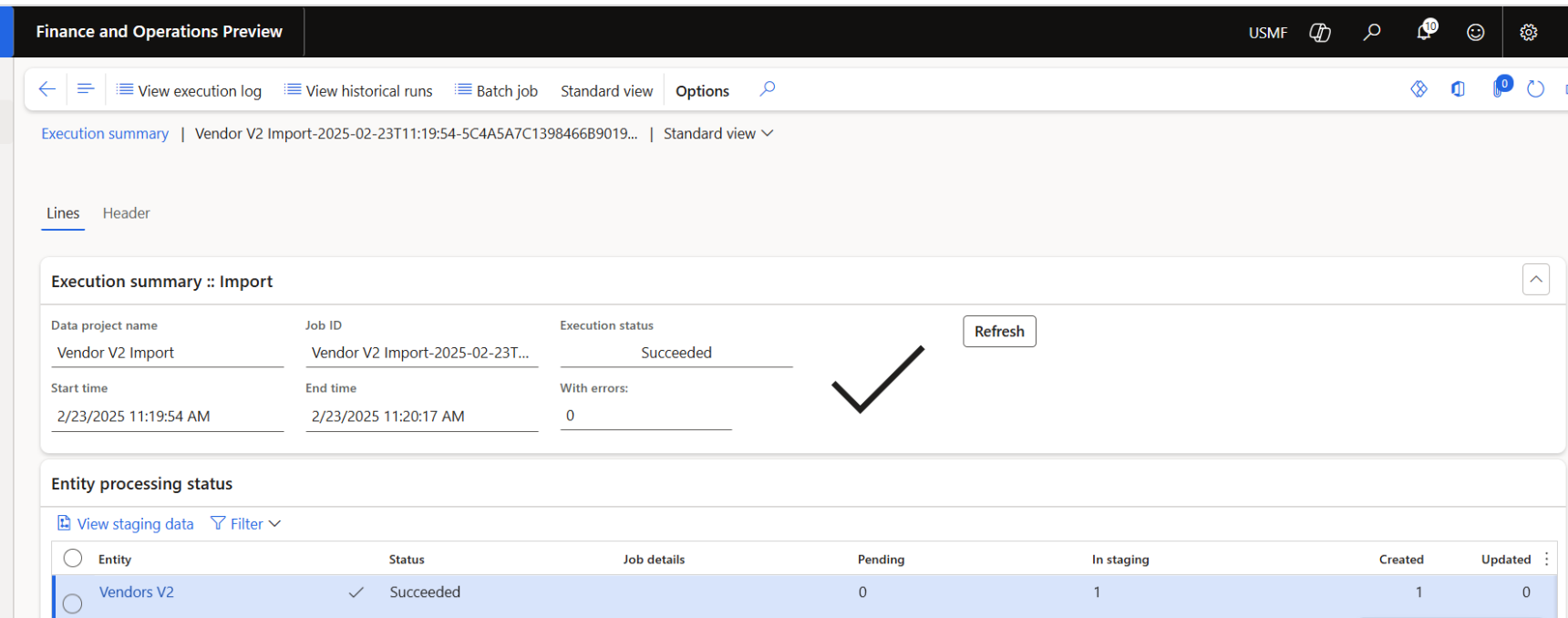
It is successful. If there are issue, then we try to resolve any validation issue. and try to import again.

![[Pasted image 20250223162113.png]]

Excel Addin

Using the Excel Add-in to Load Data into D365 F&O

Another efficient way to load data into D365 Finance and Operations (D365 F&O) is by using the Excel Add-in. This method allows users to import and update records directly from Excel, streamlining the data entry process.

Steps to Load Vendor Data Using the Excel Add-in

  1. Navigate to the Vendor List Page
    • Go to Accounts Payable > Vendors > All Vendors.
    • This page displays the list of all vendors in the system.
  2. Open the Excel Add-in
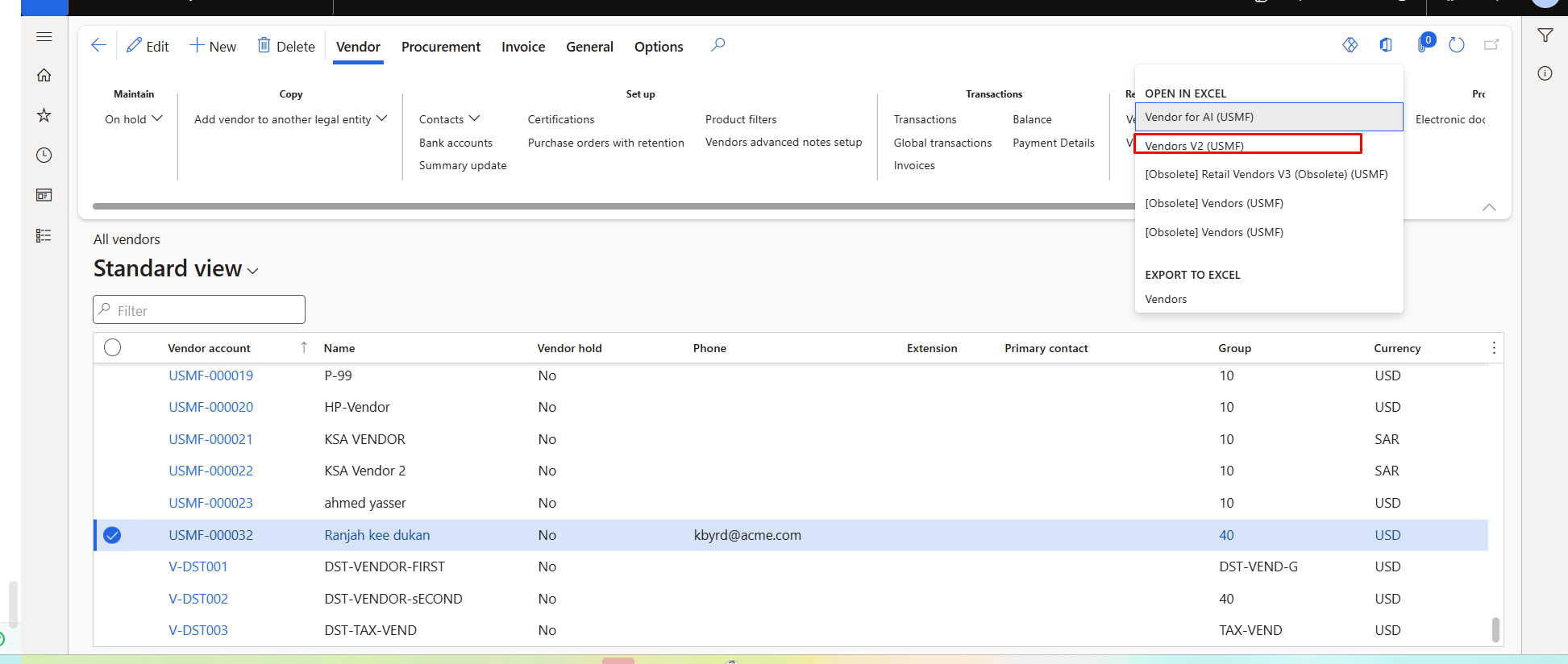
    • Click on the Microsoft Office icon in the top-right corner of the screen.
    • Select Vendor V2 under Open in Excel.

Work with the Excel Template

  • The system will download an excel file with all required fields.
  • Need to enable the Microsoft Dynamics Add-in if prompted.

Add new vendor and drag table boarder to new line save it
Publish the Data to D365

  • Once the data is entered, click the Publish button in the Excel Add-in.
  • The data will be validated and imported directly into D365 F&O.

click on publish

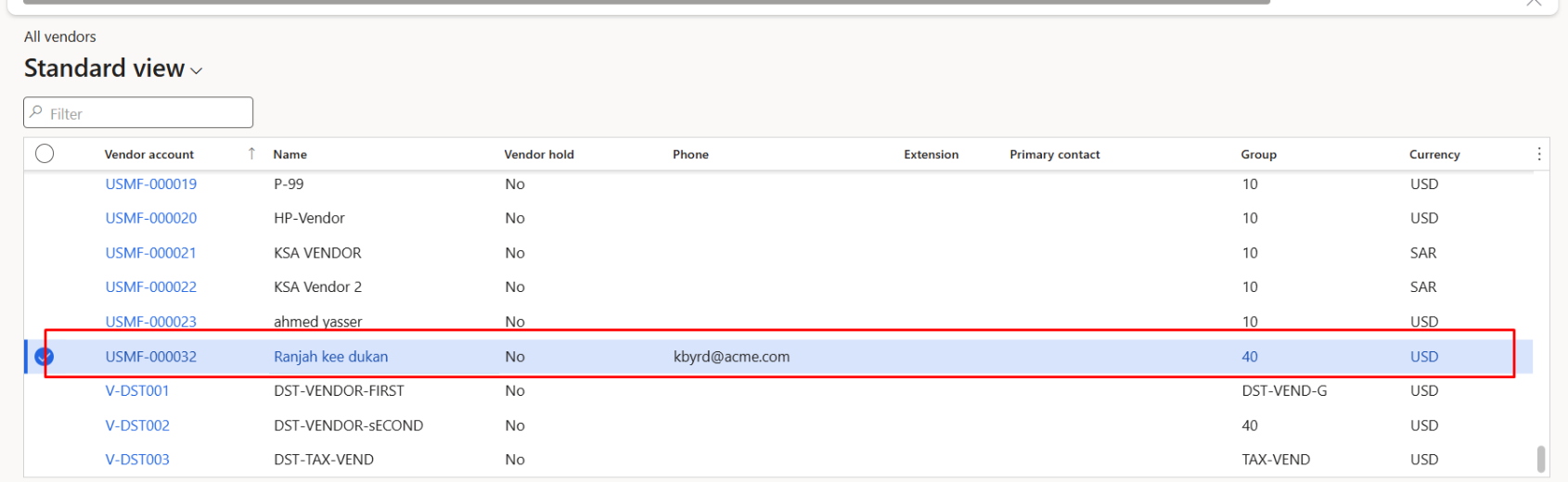
You can see the uploaded data into D365 F&O

How to convert utcdate time to ISO 8601 Formats D365 Finance and Operations

January 26, 2025 by alirazazaidi

Hi friends, recently I got chance to write a code to convert Utc date time to iso 8601. I wrote following code snippet you can modify as per your need

public static str GetEPochTime(utcdatetime _DateTimeValue)
{
    utcDateTime utcDateTimeValue;
    str formattedDateTime;
  
    date datepart;
    int milliseconds;
    TimeOfDay _time;
    // _DateTimeValue = DateTimeUtil::applyTimeZoneOffset(_DateTimeValue, Timezone::GMTPLUS0300KUWAIT_RIYADH); // Adjust for specific timezone if needed
    int _year= DateTimeUtil::year(_DateTimeValue);
    int _day = DateTimeUtil::day(_DateTimeValue);
    int _Month = DateTimeUtil::month(_DateTimeValue);
    int _Hour = DateTimeUtil::hour(_DateTimeValue);
    int _second = DateTimeUtil::second(_DateTimeValue);
    int _minute = DateTimeUtil::minute(_DateTimeValue);
    int _timetomilliSecond = 0;
    var localTime =  new System.DateTime(_year, _Month, _day, _Hour, _minute, _second,_timetomilliSecond, System.DateTimeKind::Utc);
    localTime =System.TimeZoneInfo::ConvertTime(localTime,System.TimeZoneInfo::FindSystemTimeZoneById("Arabic Standard Time"));
    // Example UTC DateTime
    // utcDateTimeValue = _DateTimeValue;
    formattedDateTime = localTime.ToString("o");
    // formattedDateTime =DateTimeUtil::toStr(_DateTimeValue);
    formattedDateTime =strReplace(formattedDateTime,".0000000",".00+03:00");
    return formattedDateTime;

Sales order cancellation validation through event handler X++

November 30, 2024 by alirazazaidi

Hi friends, small tip, I got chancel to add validation in Cancel functionality of D365 Finance and operations.Interestingly the menu button called the class. So I have to write the pre event handler for main method.

Following is the [[Code Snippet]]

public static void SalesCancelOrder_Pre_main(XppPrePostArgs _args)
    {
     

        Args args =_args.getArg("args");
        SalesTable salesTable = args.record();
        CustmTable _Response;

        select * from _Response where _Response.PrimaryKey == salesTable.SalesId && _Response.TransType == CustmTransType::SalesOrder;
         
        if (_Response.RecId !=0)
        {
           // validateEventArgs.parmValidateResult(false);
           Error("This sales order is integrationed with wms, Cancellation is not recommended, use the cancellation dailog for Cancel in wms.");
            if (Box::yesNo("Sales order is integrated with WMS, Do you really want to cancel it.", DialogButton::No) == DialogButton::No)
            {
                throw Exception::Error;
            }
        }
       
    }

Finalize the Purchase Order- D365 Finance and Operations

November 8, 2024 by alirazazaidi

  • Hello friends, Today we explore the finailzed option on purchased order.
  • I usually confirm the purchased order but never use this functionality.
  • We can use this option only when we call lines in purchase order are cancelled or invoiced.
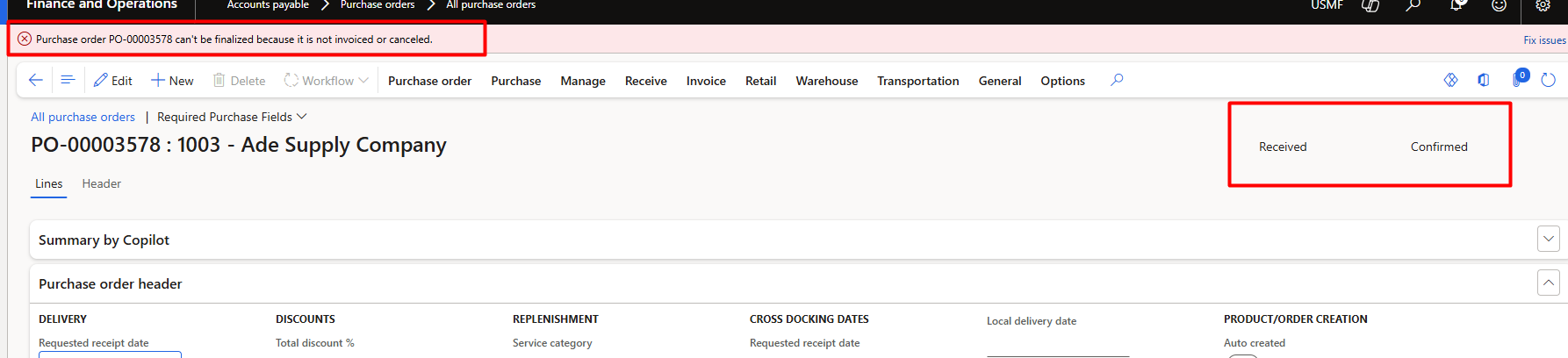
  • I tried it and found following error message on purchase order with Received status.
  • One thing is sure, after finalization of purchase order we can not change in purchase order.
  • After posting Invoice I tried
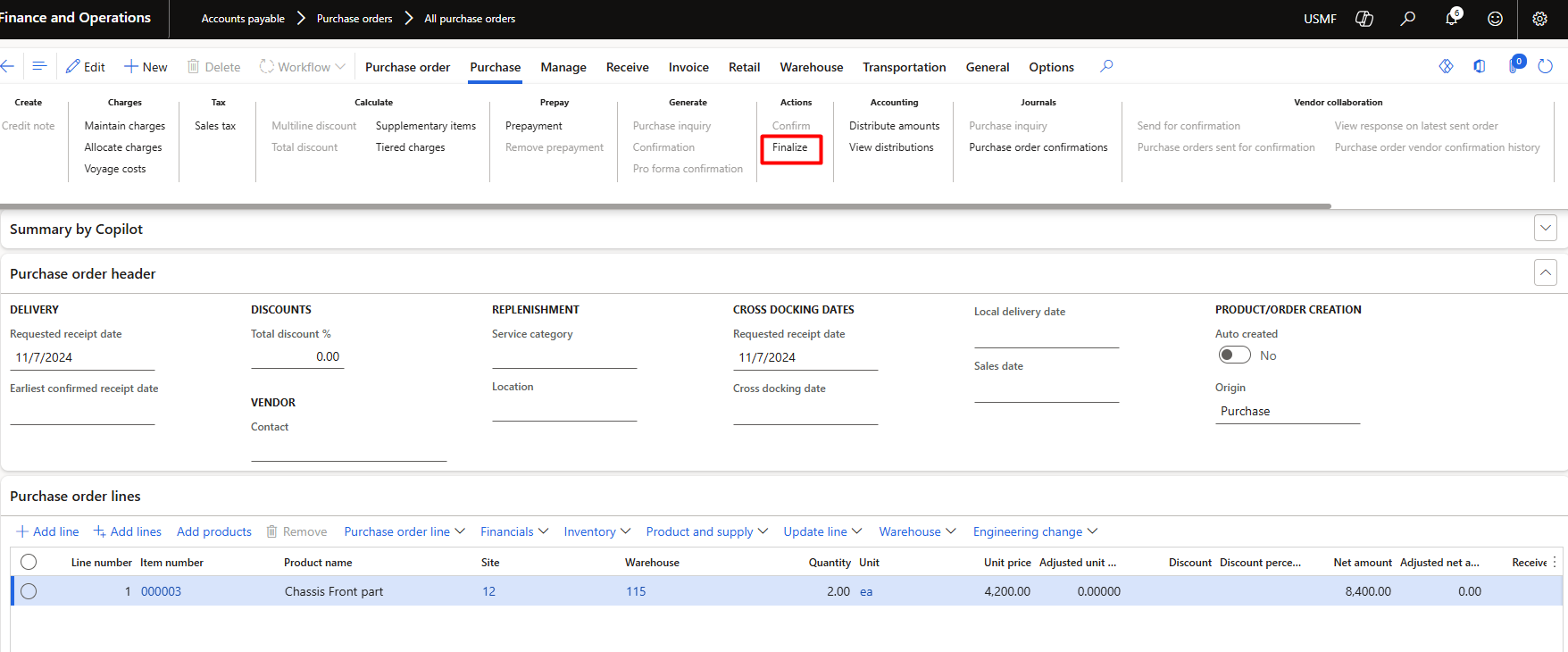
  • We can finalize purchase order by two ways, one is from purchase top menu.
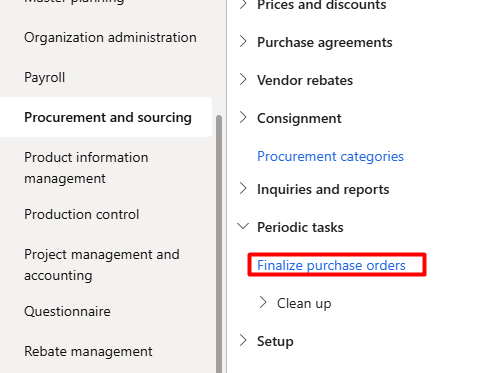
  • Or we can use use the following navigation
  • Procurement and Sourcing > Periodic Tasks> Finalize Purchase Orders.
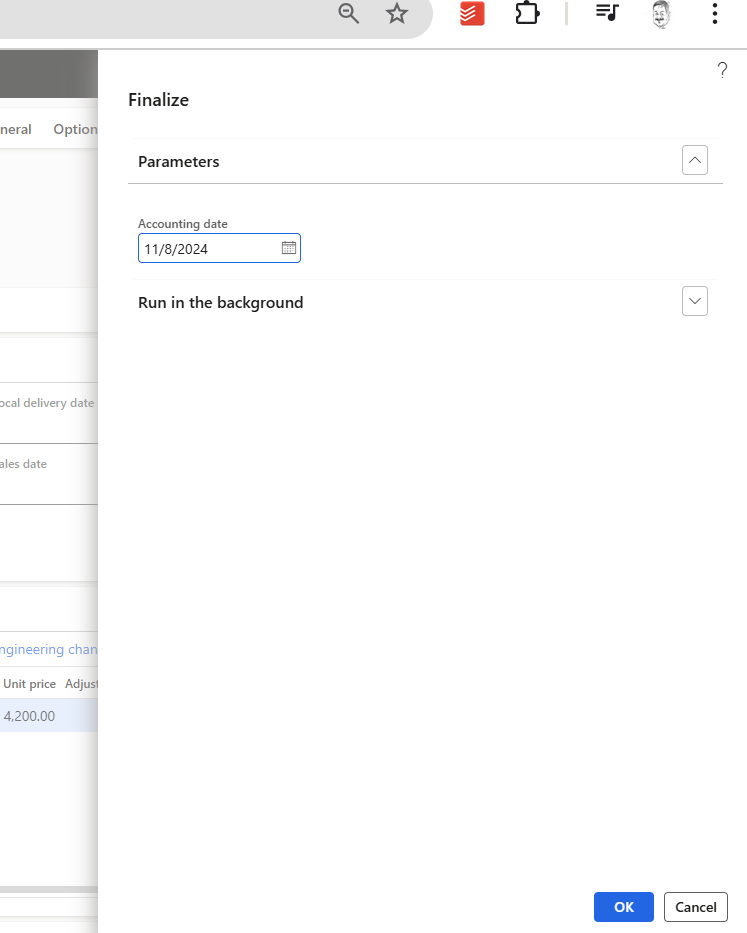
  • we tried from purchase order on action pane. and let see what happen
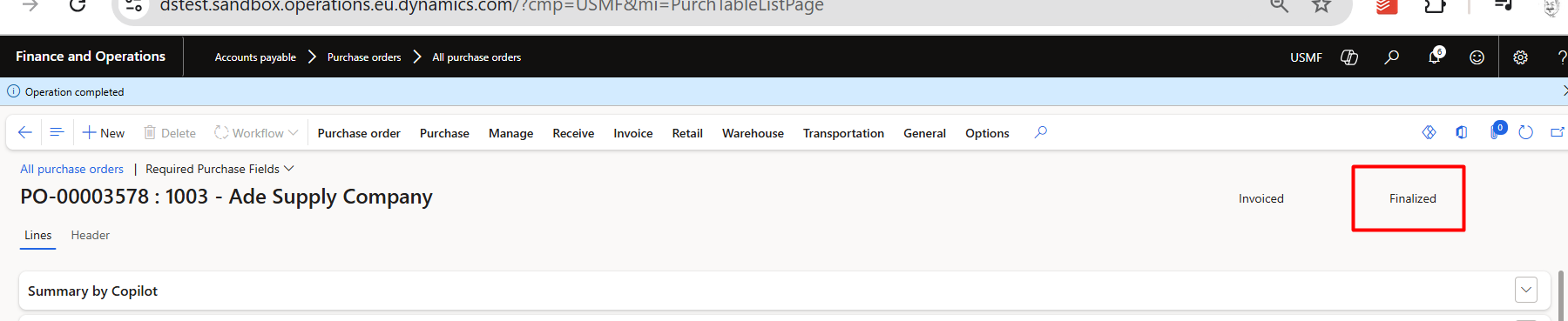
  • After click on Ok, the status of purchase order is final.
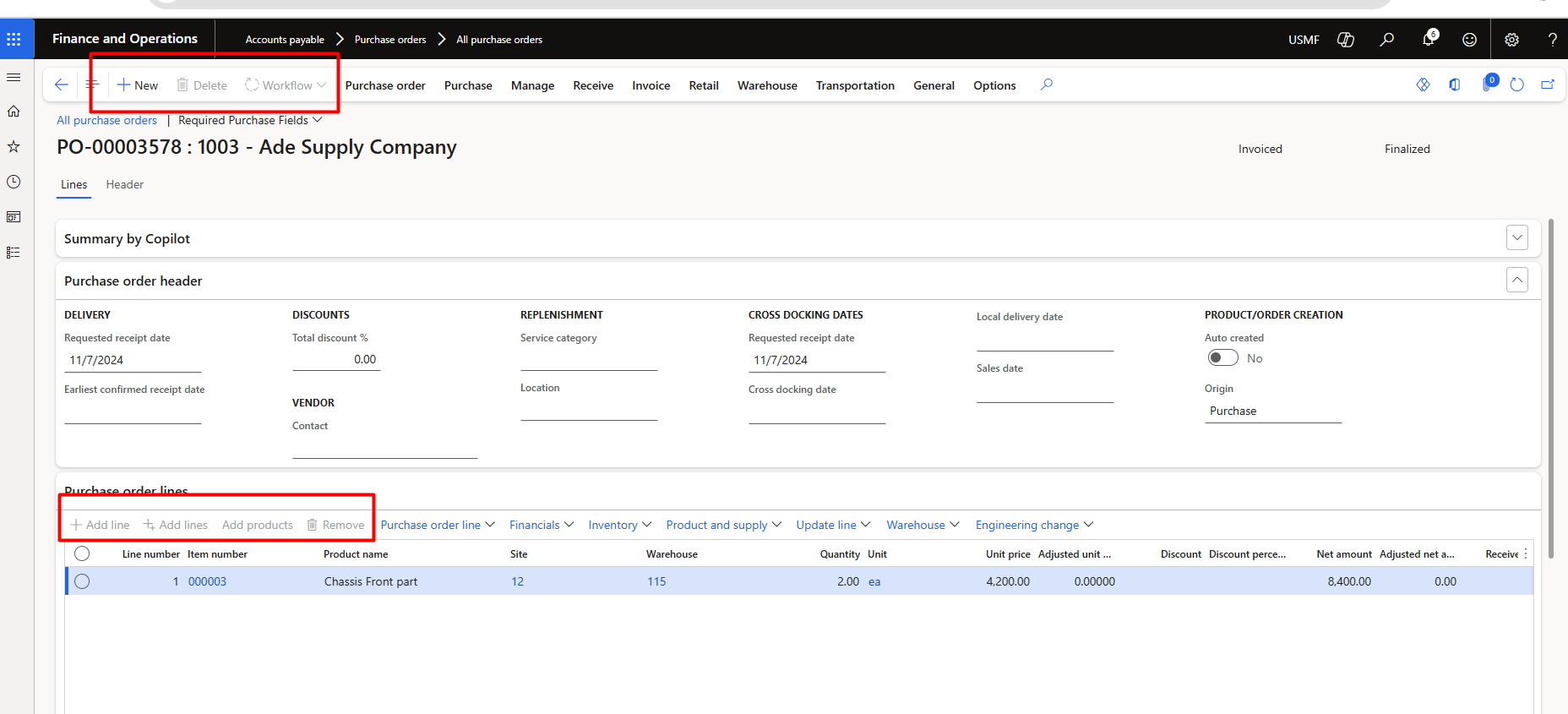
  • let me try to add a new line.
  • The add new line option is gray out, we can not add or edit line
  • When a [[Purchase Order]] or Purchase Order Line is “Finalized”, the system does 2 things:
  • 1) It did not allow to any changes or add new line in purchase order.
  • 2) If you enable the budgeting module in d365 F&O and buget is reserved against purchase order, Finalization of purchase 

I used Roam Research app for writing this blog post.

Visual Studio Code Extensions are stuck on Installing

October 30, 2024 by alirazazaidi

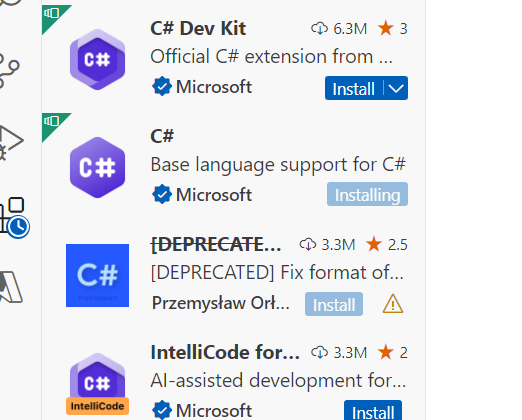
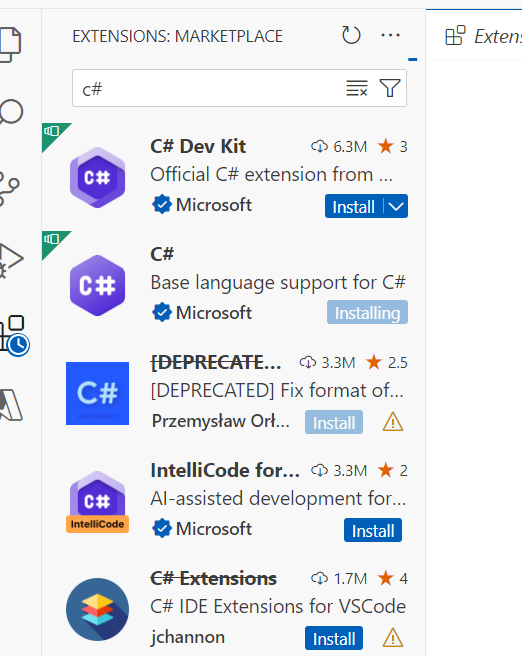
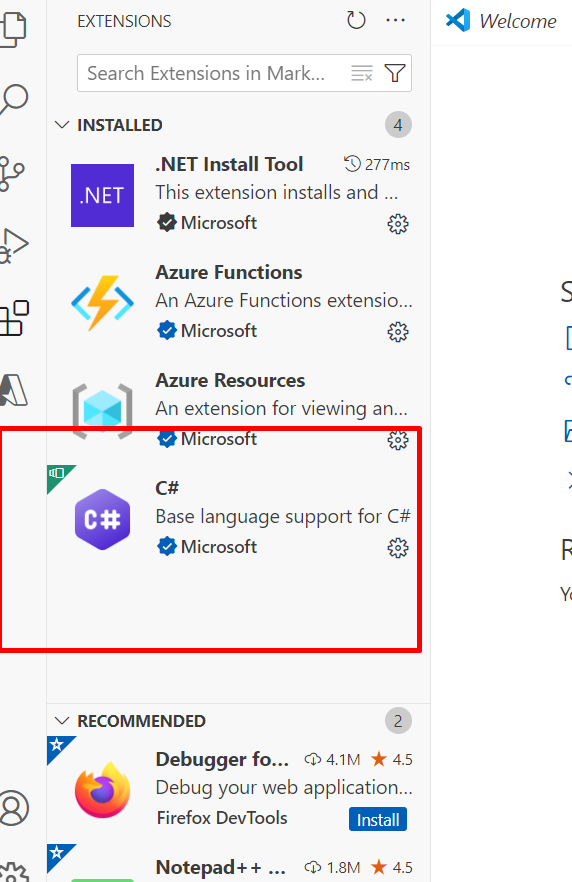
    I started learning the Azure functions. During the installation process, I discovered that the Azure function requires various components for Visual Studio Code. However, a few extensions became stuck during this process. Consider the process of installing C# extensions within Visual Studio Code when it gets stuck.

    This issue arises due to the size of the extension. It’s possible that if I leave it in the installation state for extended hours, it will eventually complete.

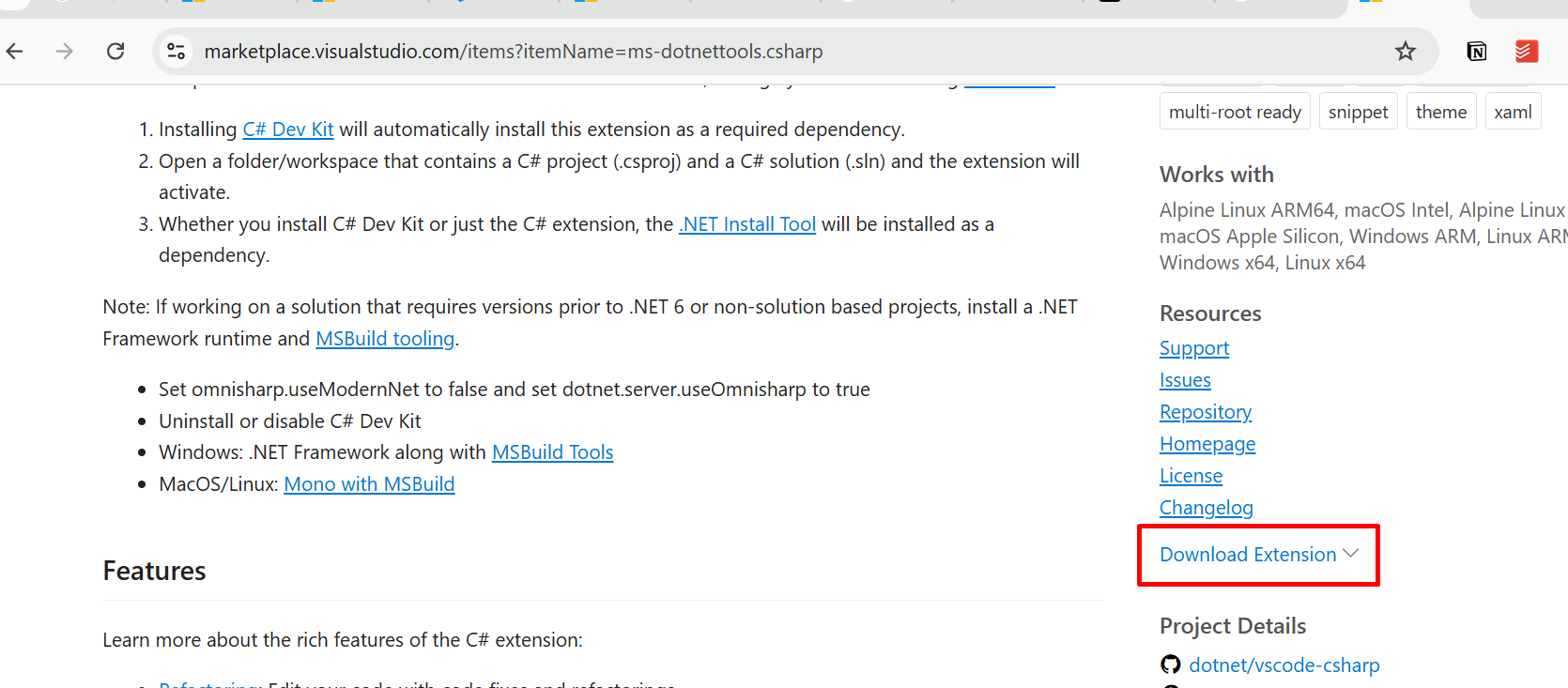
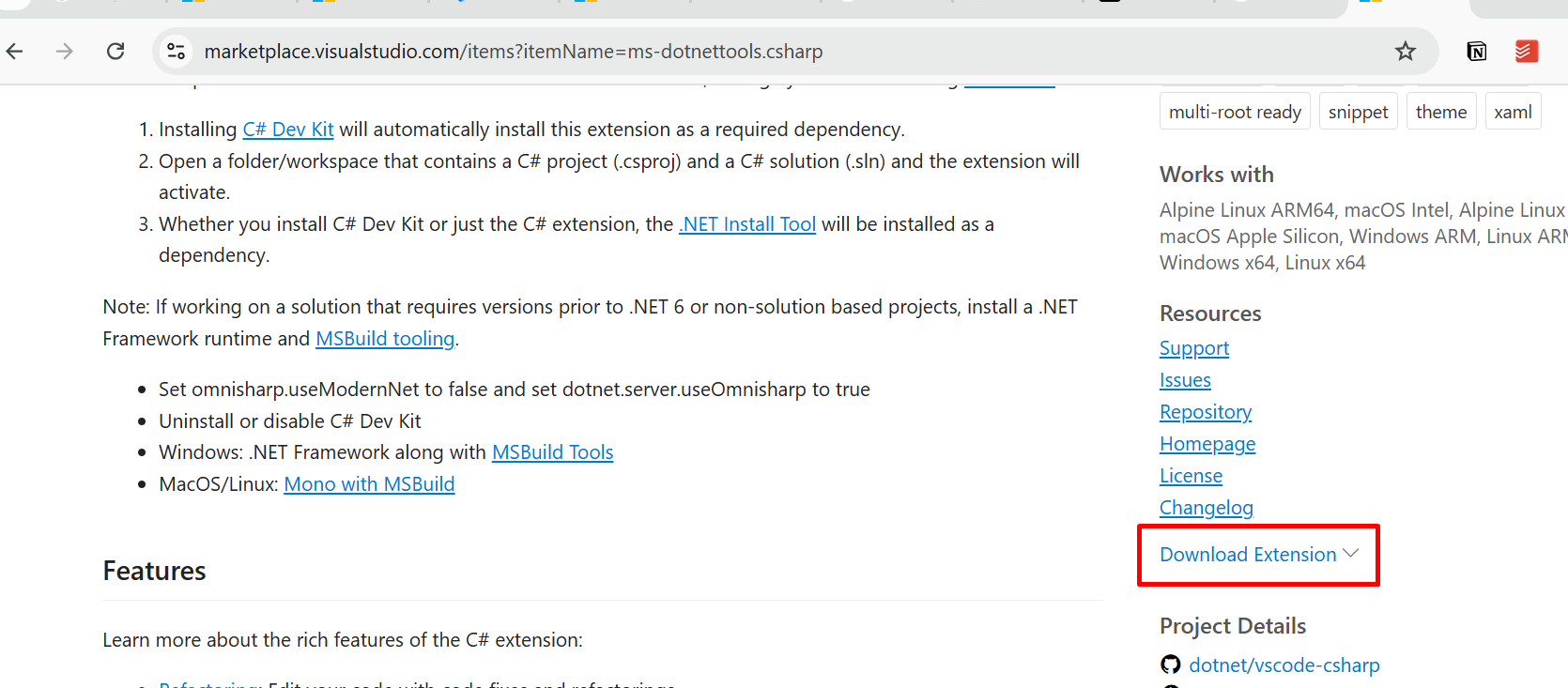
    To avoid this stuck situation, I go to Market Place (https://marketplace.visualstudio.com/ and search for the required extension; in my case, it is “C# for Visual Studio Code.”.

    From the left side, there is a download link. From here, I download the extension.

    Now open the Visual Studio code, and from the extensions area, click on the three dots.

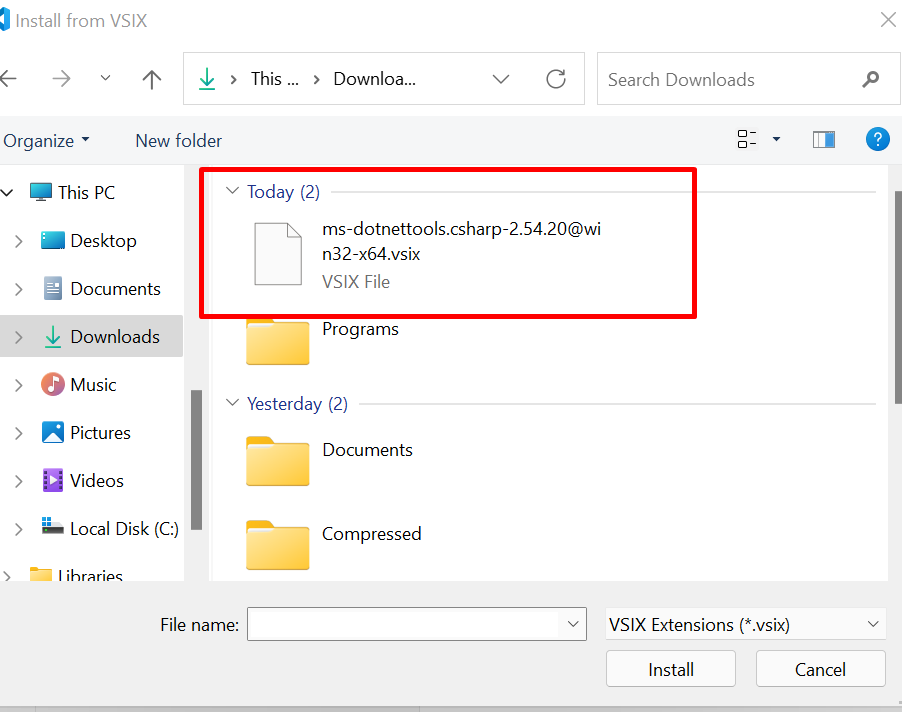
    Then select the last option from the pop-up window, “Install from VSIX.”

    And select the downloaded files.

    The extension installs successfully after selection and running.

    Write Extensible Data Security (XDS) in Dynamics 365 Finance and Operation

    September 3, 2024 by alirazazaidi

    In D365, with Role based security we can restrict specific operations
    to Certain user. Role based security will restrict the menu, forms and report.
    It did not restrict certain records to view.

    For example, They want to see only vendor with certain vendor group.
    Customer for certain key market.
    For this blog post, there is scenario that end user can be his created sales order.
    For this requirement, we can use [[Extensible Data Security (XSD)]].

    For this we require three elements.

    AOT query.
    Security Policy
    And last one is Security Role.

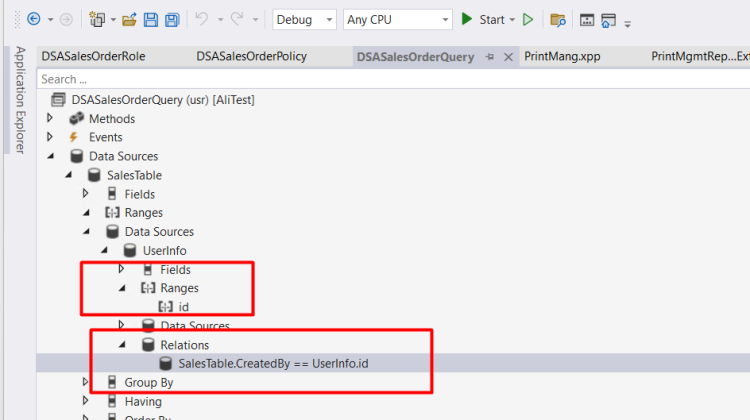
    First we create AOT Query and add Sales table and inner join with userInfo Table and make join with userInfo.Id with SalesTable.CreatedBy

    Then add range in UserInfo and add (CurrentUserId())

    Now Create a new role. That will used in Security policy and later used for End user.

    Now add a new Security policy

    and set following properties.

    Set following properties.

    Constraint Table Yes
    Context Type RoleName

    Operations All Operations

    Primary Table set as SalesTable

    Query set the name of Query

    Set Role Name with Role we created in above role.

    Build and Sync Database.

    Open D365 Finance and Operations goes and Userinfo in System Administrator and assign to specific end user.
    Remember, that either assign, Sales Clerk role or Sales Manager role.
    Extensible Data Security (XDS) is not working for system administrator role.

    Sales order list will comes with sales order with filter.

    Default order Settings in D365 finance and Operations

    August 4, 2024 by alirazazaidi

    Hi friends, in this video, I demonstrate the default order settings for purchase order, Sales and Inventory order. Hope you like this video.

    How to restrict customer beyond its credit limit.

    July 13, 2024 by alirazazaidi

    Credit limit is very important. When ever customer cross his due limit, he should be on hold until he paid his due. D365 provide ability to automatically restrict customer from posting any transaction

    You found customer form following page.

    Account Receivable > Customer > All Customers

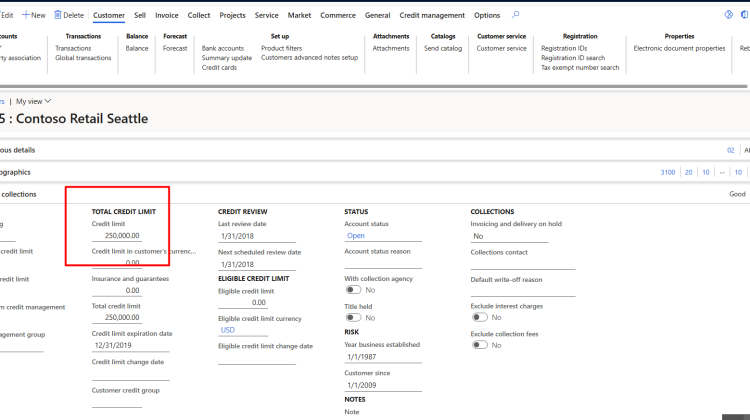
    Open any customer and then open the Credit and Collections fast tab.

    Set the credit limit.

    You can update it as per requirement.

    You can check the balance of customer. It is available customer > Balance action.

    For customer US-005, very that that custom er has balance of 233,231.00

    Now goes to credit and collection module and then opens the credit and collection parameters

    click on Credit and from credit limit fast tab

    Select “Error” in the “Message when exceeding credit limit” ” drop-down list

    For test this functionality, you have to go into Accounts Receivable module.

    Navigation to sales order form is as follow.

    Navigate to Accounts receivable > Orders > All sales orders

    Create new sales order

    Create sales order line and add a limit more then 250000 usd dollar.

    On the confirmation of sales order

    Adding a quantity more the remaining limit. On confirmation of Sales order error message appear.

    « Previous Page
    Next Page »

    Primary Sidebar

    About

    I am Dynamics AX/365 Finance and Operations consultant with years of implementation experience. I has helped several businesses implement and succeed with Dynamics AX/365 Finance and Operations. The goal of this website is to share insights, tips, and tricks to help end users and IT professionals.

    Legal

    Content published on this website are opinions, insights, tips, and tricks we have gained from years of Dynamics consulting and may not represent the opinions or views of any current or past employer. Any changes to an ERP system should be thoroughly tested before implementation.

    Categories

    • Accounts Payable (2)
    • Advance Warehouse (2)
    • AI (3)
    • Asset Management (3)
    • Azure Functions (1)
    • Books (6)
    • Certification Guide (3)
    • ChatGPT (3)
    • Claude (1)
    • Customization Tips for D365 for Finance and Operations (64)
    • D365OF (60)
    • Data Management (1)
    • database restore (1)
    • Dynamics 365 (59)
    • Dynamics 365 for finance and operations (139)
    • Dynamics 365 for Operations (175)
    • Dynamics AX (AX 7) (134)
    • Dynamics AX 2012 (274)
    • Dynamics Ax 2012 Forms (13)
    • Dynamics Ax 2012 functional side (16)
    • Dynamics Ax 2012 Reporting SSRS Reports. (31)
    • Dynamics Ax 2012 Technical Side (52)
    • Dynamics Ax 7 (65)
    • Exam MB-330: Microsoft Dynamics 365 Supply Chain Management (7)
    • Excel Addin (1)
    • Favorites (12)
    • Financial Modules (6)
    • Functional (8)
    • General Journal (1)
    • Implementations (1)
    • Ledger (1)
    • Lifecycle Services (1)
    • Logseq (4)
    • Management Reporter (1)
    • Microsoft Excel (4)
    • MS Dynamics Ax 7 (64)
    • MVP summit (1)
    • MVP summit 2016 (1)
    • New Dynamics Ax (19)
    • Non Defined (9)
    • Note taking Apps (2)
    • Obsidian (4)
    • Personal Knowledge Management (3)
    • PKM (16)
    • Power Platform (6)
    • Procurement (5)
    • procurement and sourcing (6)
    • Product Information Management (4)
    • Product Management (6)
    • Production Control D365 for Finance and Operations (10)
    • Sale Order Process (10)
    • Sale Order Processing (10)
    • Sales and Distribution (5)
    • Soft Skill (1)
    • Supply Chain Management D365 F&O (5)
    • Tips and tricks (278)
    • Uncategorized (165)
    • Upgrade (1)
    • Web Cast (7)
    • White papers (4)
    • X++ (10)

    Wiki

    • SCM

    Copyright © 2026 · Magazine Pro On Genesis Framework · WordPress · Log in