MS Dynamics Ax 7

Required table did not appear in relation drop-down D365 for Finance and Operations.
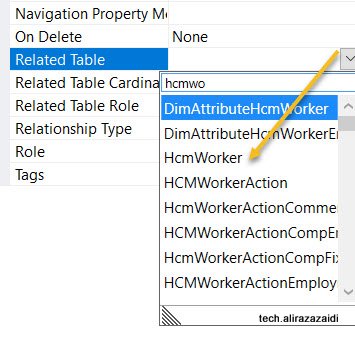
Hi All, I was doing my Pilot project in D365 for Finance and operations. I want to add HCMWorker relation to my custom table. But did not found in drop down.
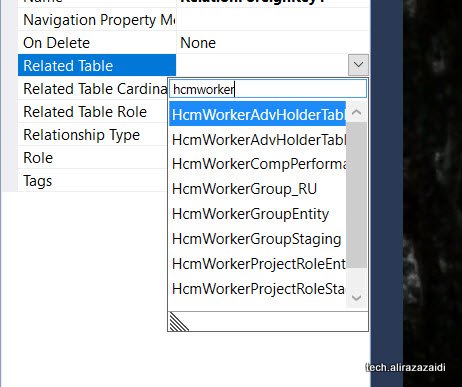
It means model reference(Package) was not included in Current Model. For this
For this first check Required model on table and add its reference On AOT
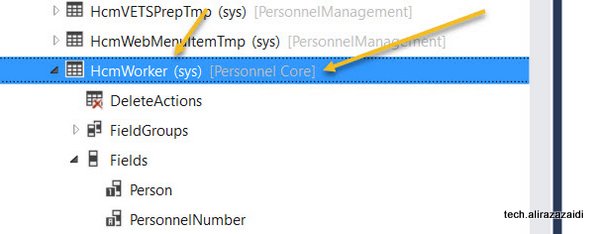
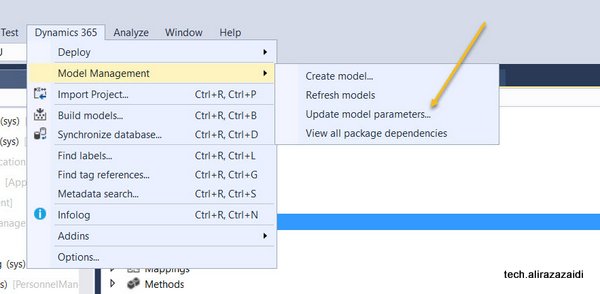
For adding this click on Dynamics 365 Menu on top. Model Management => Update Model Parameters
Select your current Model, for example, My Pilot Model is OpnAxPayroll I selected that.
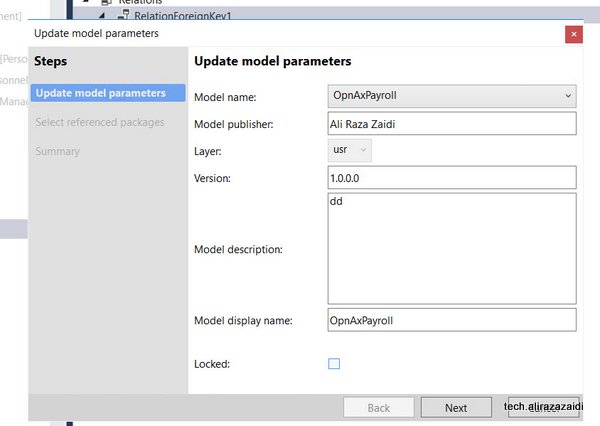
Select required Models and

Now I found the HCMWorker in relation dropdown.
Extension Perspective Microsoft Blog posts Dynamics 365 for Finance and operations
Hi all, I found two precisely written post by José A. Estevan
Also interesting video by
Michael Fruergaard Pontoppidan about chain of command idea under the Extensions.
Notes about Labels D365 for Finance and operations.
Suppose we are doing customization or new development from scratch. We need labels for our control, forms, fields for display caption or titles.
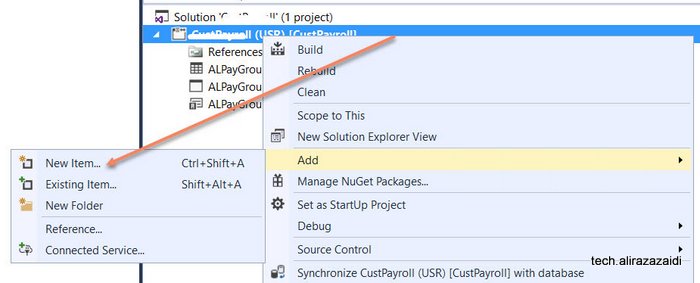
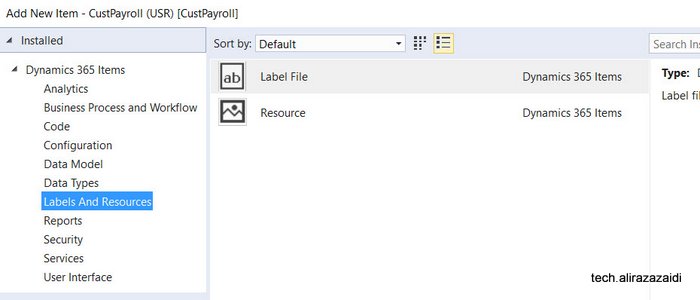
So first step is to create it by adding new item in Visual studio.
Name it as required,
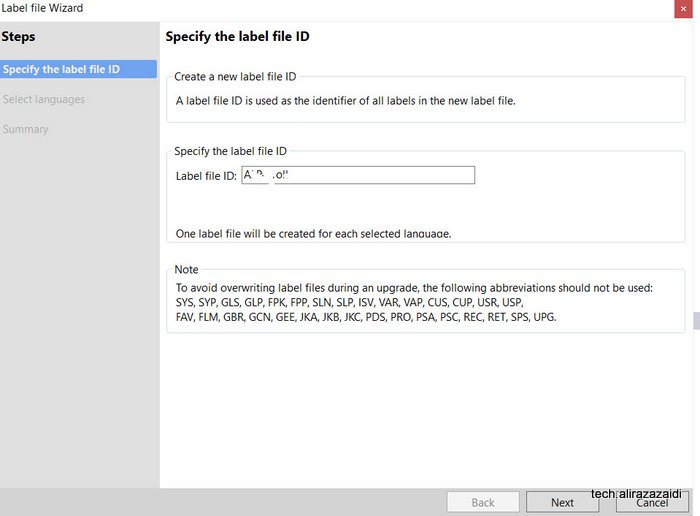
Select language. I select the English “US”
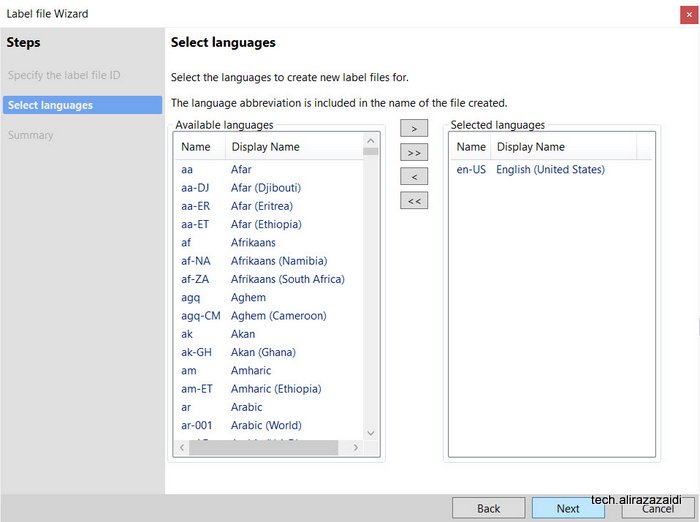
Make it finish
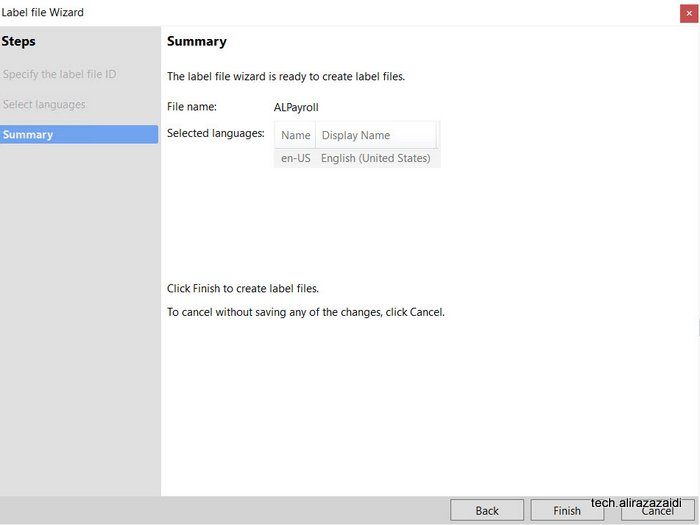
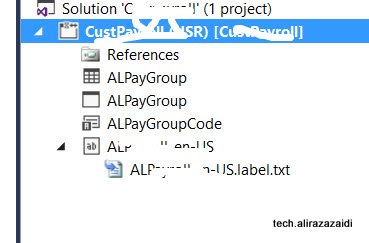
As a result new label file is created in visual studio solution
Click on file and add values through editors.
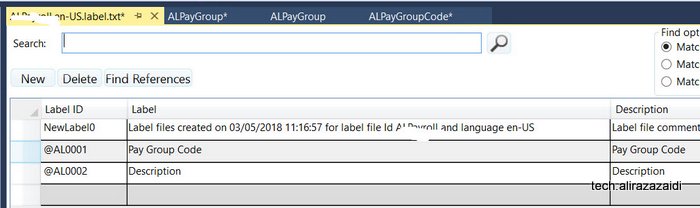
Labels created here can be search at control, field, EDT and Enum can be searched and used
After creating labels file in project you find button in labels.
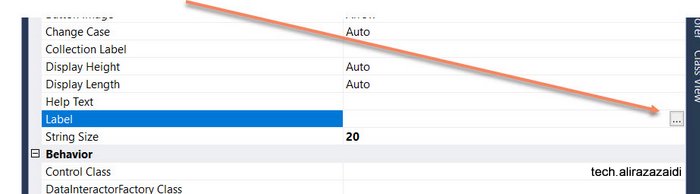
Search and selected required label
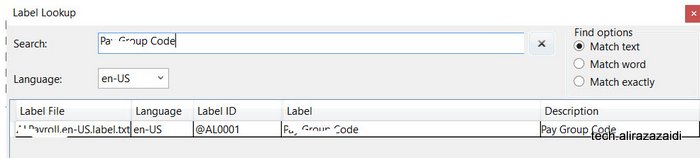
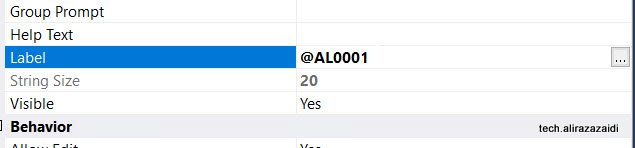
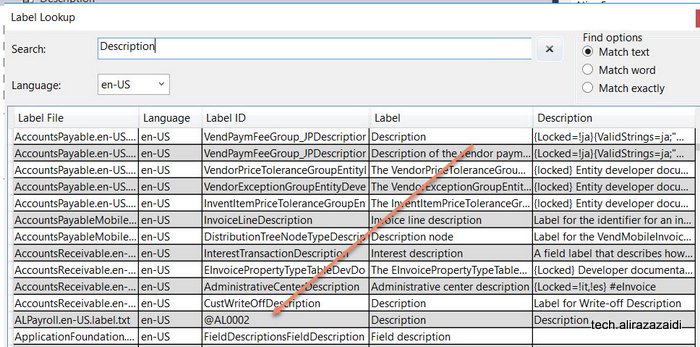
It is not recommend to create a new label for every field instead search and use label. For example for “Description” search and use existing one.
Something similar appear when I searched “Description”.
It shows all possible labels
You can add labels in label file using text editor. For example I write AL0005 in text editor.
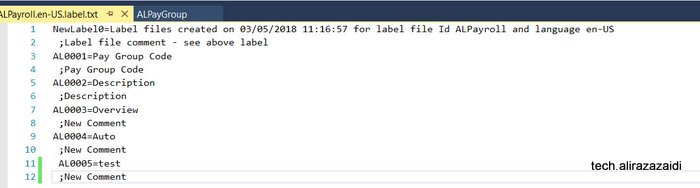
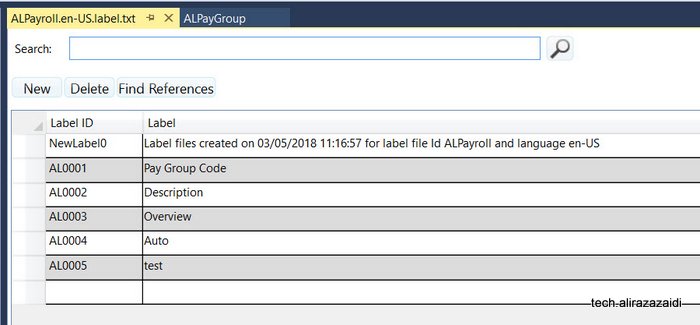
On saving, On opening label editor I found something similar.
Sales Quotations Dynamics 365 for Finance and operations.
In response to Customer/ prospect request for quotation. Sale and marketing department generate Sales Quotations.
This Sales quotation can be generate existing customer. Otherwise D365 OF provide functionality to register sales Quotation against Prospect.

When Customer Response against Sales Quotation, We can confirm Sales Quotation convert to Sales Sale order and Prospect convert to Customer.
Similar to Sales order , Sale quotation is added in lines section. When entry is complete, from top menu and sent Sales quotation, Print can be generated.

There are multiple options available against Sales Quotations as response. We can find these options are available on “follow up” top tab menu.
Confirm:, Customer send confirmation so Sales Quotation convert to into Sales Order.
Cancel: Sales Quotations can be cancel, possible there will be no response form Prospect.
Lost quotation: In the case of another company won the quotation we can set as Lost. It is some kind of cancel. After that quotation is closed for edit.
Two options also found in sales and marketing parameter form.

You find in General tab

Days campaign expire, means sales quotation automatic expire the create of sales quotation.
Sales follow up date automatically created quotation creation date plus date mentioned here.
Sales follow up means, date of sales Quotation is created plus days mentioned here in setup.
Customer / Vendor ledger Dimension D365 for finance and operations X++
In D365 for finance things are little bit change and much more organized. In Dynamics Ax 2012, which consider as classic AX. We get ledger dimension with DimensionStorage class
ledgerDim = DimensionStorage::getDynamicAccount(
‘US-001’,
LedgerJournalACType::Cust);//Account
offsetLedgerDim = DimensionStorage::getDynamicAccount(
‘USMF OPER’,
LedgerJournalACType::Bank);//OffsetAccount
In D365 this Microsoft provide LedgerDynamicAccountHelper. Code snippet is here
ledgerDim = LedgerDynamicAccountHelper:
:getDynamicAccountFromAccountNumber(‘US-1001’,
LedgerJournalACType::Cust);
offsetLedgerDim = LedgerDynamicAccountHelper:
:getDynamicAccountFromAccountNumber(
‘USMF OPER’,
LedgerJournalACType::Bank);
Reference http://daxingwitheshant.blogspot.com/2015/04/creating-payment-journal-using-x-in-ax.html
Microsoft Connect portal retired, you have to follow other link
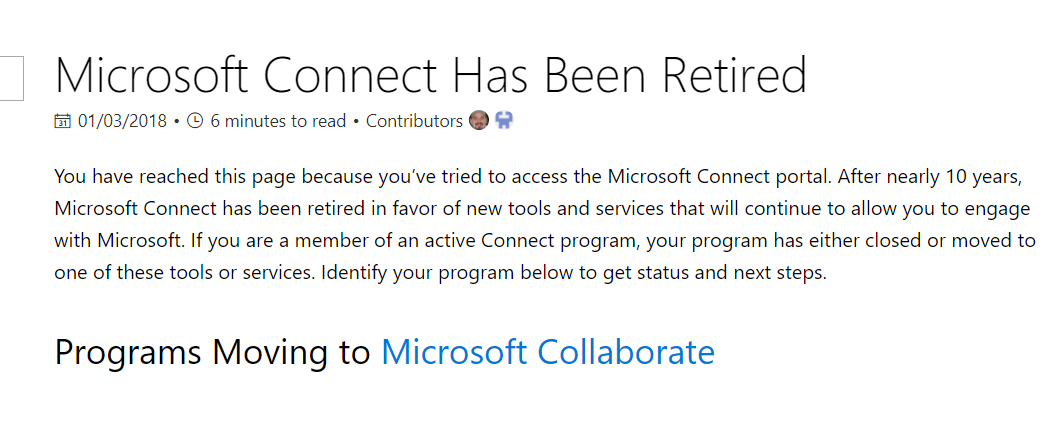

Hi all, I was trying to download latest Dynamics 365 for finance Dev box vm, but found that Microsoft Connect portal is retired. you can found all information here.
https://docs.microsoft.com/en-us/collaborate/connect-redirect
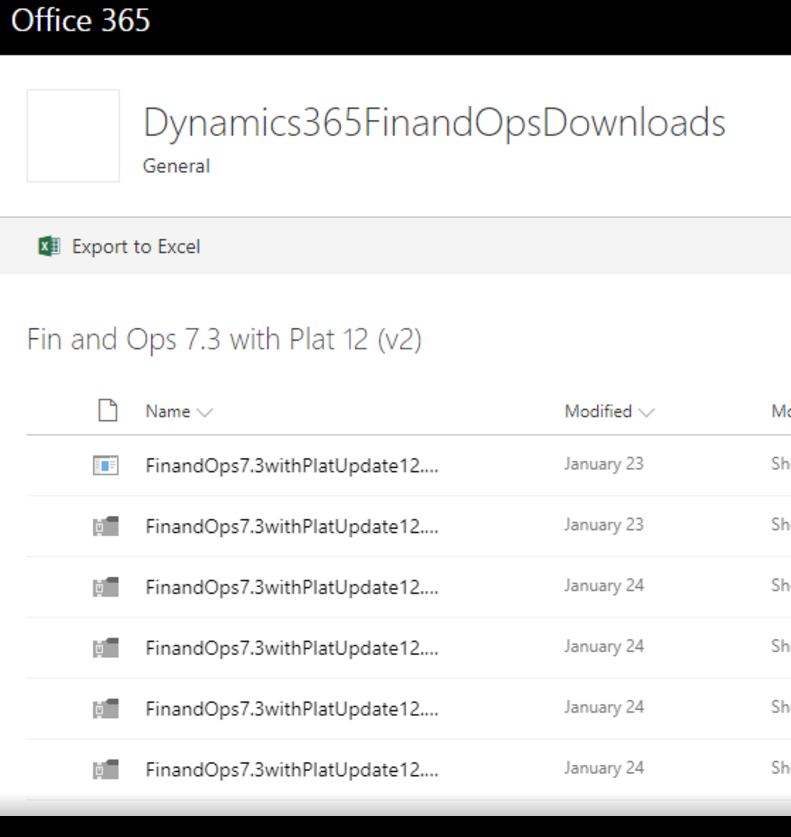
I expect that lastest VM link will available here, As I found latest 7.3 update 12 link here
https://aka.ms/finandops73pu12
And it leads us to some share point link, Download is good as compare to old connect link.
Process Busy Indicator D365 for finance and operations
Hi All, today I have small tip, During development, I have to process a lot of records. During this , I need Busy screen process indicator.
I used following code snippet to create progress busy indicator.
For this I have to do following changes in my Class method (Business logic).
- Convert required method to Static
- Parameter is changed to Container and then required parameter extract from container inside the method.
So my required method become something like
Class myProcess

{


Public static void RunmyProcess(Container _C)

{

Str _Value = conpeek(_C,1);


}


}


class RunBtnProcess

{

/// <summary>

///

/// </summary>

public void clicked()

{


container _Xyz=[TableName.FieldValue];

super();

SysOperationSandbox::callStaticMethod(classNum(myProcess),
staticMethodStr(myProcess,RunmyProcess),_Xyz,
'Ledger Record in process', 'Operation completed');


}


}

Reference : Internet.
Parent child form Customization D365 for Finance and Operations
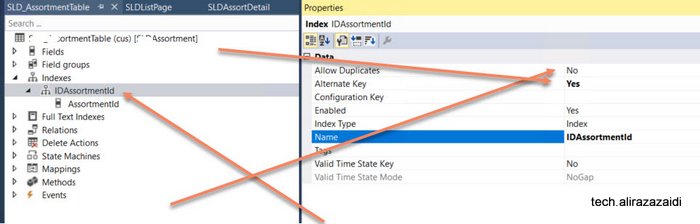
Today I just noted down a very simple parent child form customization in D365 for Finance and operations.
First step is to create a primary key or alternative key For this create a Index
and set Alternative key true and Allow duplicate set to no.
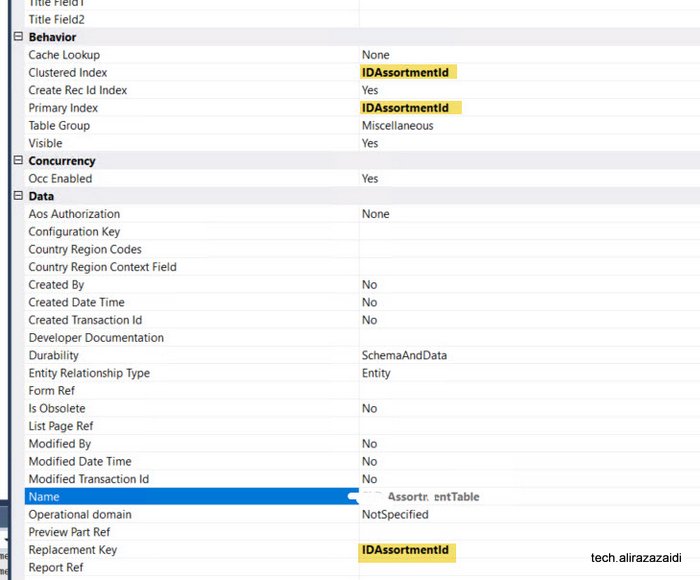
Next step expand the table Property and set following properties. With newly created Index.
As different to Dynamics Ax 2012. Reference field you have to manually created in child table.
Now expand relationship node of child and right click and add relation
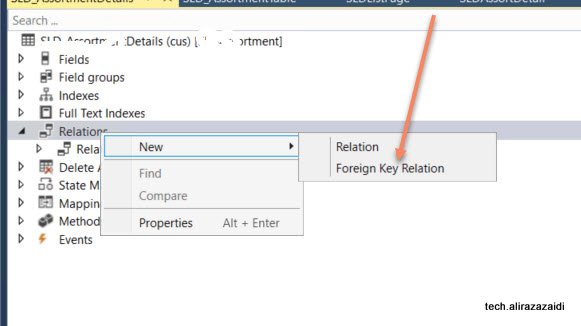
Relationship property window set table
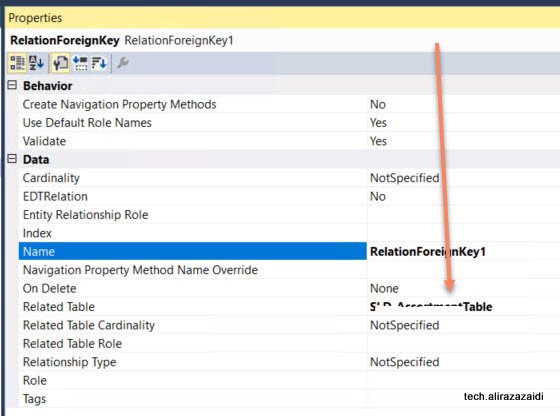
Now relight click on it and add normal relationship
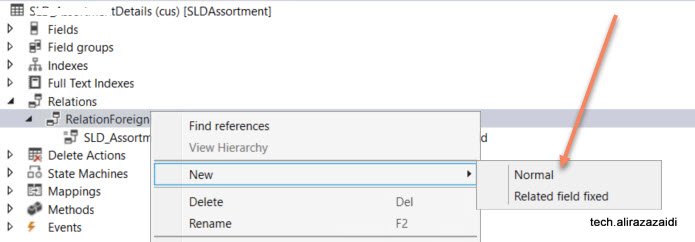
Set new both side of required field.
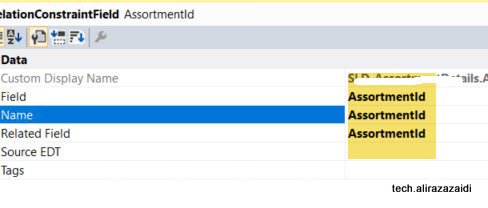
Table relation is complete.
As I am fan of old style Dynamics Ax 2012 Style development So I made Customization similar to that.
There are multiple way to build parent child forms, with a new form Patterns of D365 for Finance and operations
For Detail page. Add new form in your project and did not select any form pattern.
Then add Tab control and add two tab pages, one for Parent and one for child
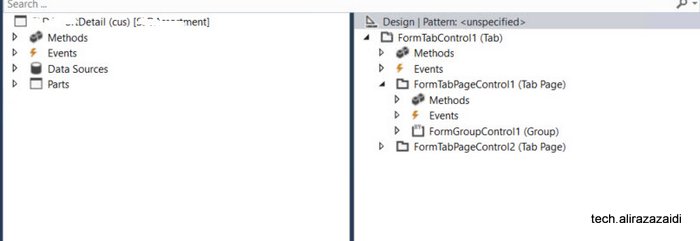
Set tab control style property to FastTabs.

Now add both Tables in data source of form.
Set Join Source of child table set parent table

Now Drag required fields in group in parent area.

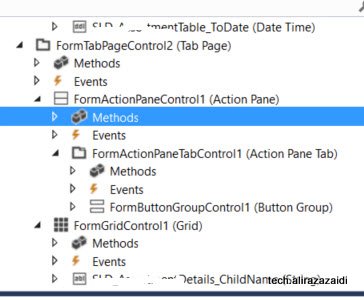
Now in child tab page, Add action pane, Action Tab control ,Button group and add three command buttons with Name add, edit and delete also set their command type respectively.
Also set action tab as Strip.
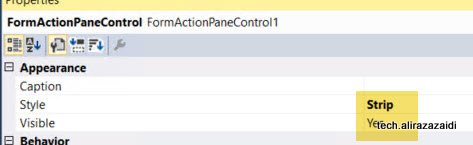
Also Set Button group data source property to child data source so Add, edit and Delete works on child table.
Now Add grid below action tab and Set its data source to child data source.
Also drag child table fields under the grid.
Tab page structure look like similar.
Now click on tab Design and Set its data source to Parent Table, so out of the box button on form works for parent table.

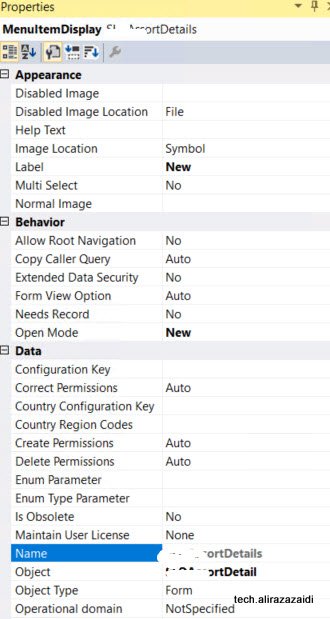
Now create three display menu and set one for Edit, one for View and Add new also set object property to detail form.
Like this. For new set open mode to new and Set form in object
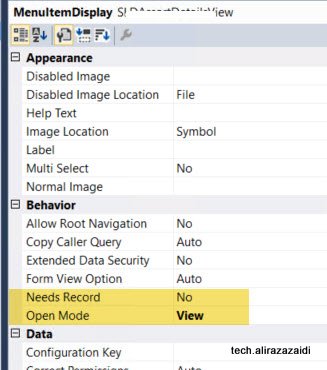
Similar edit menu, View menus the difference is open mode.
Now create a new form and a form and apply simple list pattern.
Also resolve pattern requirement, by adding Grid, Action Pane, and Group, Apply pattern on and then add Search
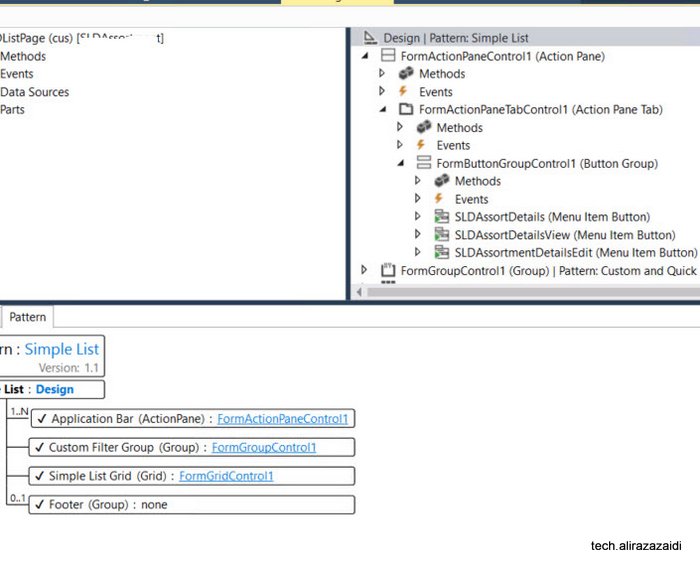
Like follow
Now drag three display menu drag them in Button group on List page’s action pane.
Right click Design and from properties set New Record Action property to menu button of Action pane so on click on new button redirect to child page in new mode.
And set the
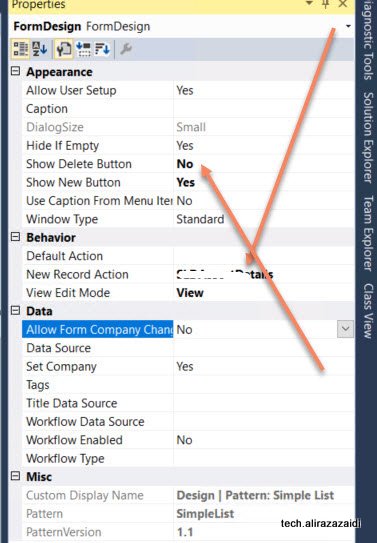
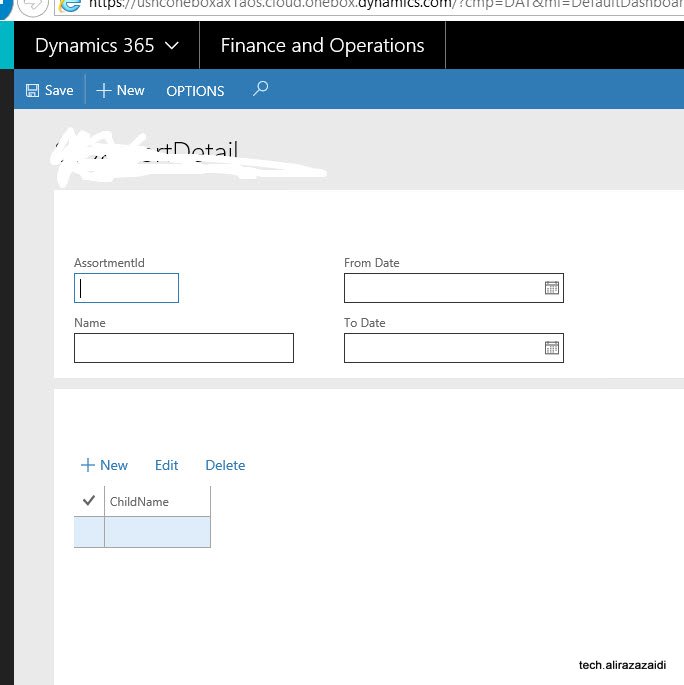
Let see the out put

If we click on new button, it will leads us to child page for create new, edit and delete records
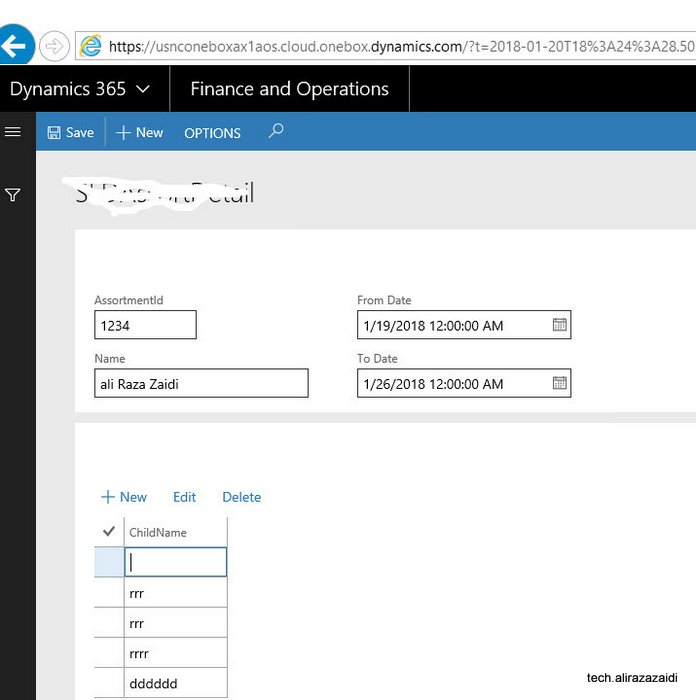
On Clicking on link this will leads to detail page for selected record, which where we can add entries for child records.
How to apply application hot fix on Dynamics 365 for finance and operations
Hi a couple of days ago, I got chance to apply application hot fixes required to apply on cloud dev environment.
So I made this very short post.
First Step:
Check in all changes in TFS and make sure no error in AOT.
Second step:
You need to download hot fix from LCS.
Third Step:
To download vm RDP file and credential from LCS and login in VM.
Fourth step:
Open visual studio with run as admin.
Then from Dynamics 365 menu click on addins and from contex menu click on hot fix.

fifth Step:
Extract the zip file and extract the hot fix file and load into dialog. Also set TFS settings.

Apply And in couple of second patch is applied

Sixth Step:
After path applied, Synchronization database from Dynamics 365 menu.

Seventh Step:
Check all compile model, Make sure that all models are check in.

Eighth Step:
Resolve error in the case errors occurs,

In my case no error occurs.

9th step:
Check in everything into TFS with hot fix name in comments.