• Skip to main content
  • Skip to primary sidebar
  • Home
  • About
  • Recommended Readings
    • 2022 Book Reading
    • 2023 Recommended Readings
    • Book Reading 2024
    • Book Reading 2025
    • Book Reading 2026
  • Supply Chain Management Guide
  • PKM
  • Microsoft Excel
  • Microsoft Copilot in Office 365
  • Public Wiki Page

Ali Raza Zaidi

A practitioner’s musings on Dynamics 365 Finance and Operations

alirazazaidi

Try catch and finally in new Dynamics Ax (aka AX7)

January 24, 2016 by alirazazaidi

Finally I found that in new Dynamics Ax finally statement introduce in exception handling statement.

try
{
}
catch
{
}
finally
{
}

It means, everything written in finally must be execute. For testing this functionality I just create a runnable class and written following code.

class HelloWorld

{

/// <summary>

/// Runs the class with the specified arguments.

/// </summary>

/// <param name = "_args">The specified arguments.</param>

public static void main(Args _args)

{

ColorDC dc = new ColorDC();

ColorSc Sc = new ColorSc();


try

{

dc.parmColorName("Red");

Sc.InsertColor(dc);

dc.parmColorName("Green");

Sc.InsertColor(dc);

} catch (Exception::Error)

{

info("error");

}

finally

{

info("finally");

}


}


}


When run the code.

I found Info box in browser as

2016-01-24_12-47-01

Lot ID not specified Error DMF import Dynamics Ax 2012 R2 Cu7

January 15, 2016 by alirazazaidi

Today I had to troubleshoot the Inventory journal DMF import, which previously working fine. But somehow it start to throw “Lot ID not specified. Import cancel. Hour of hours debugging reveals nothing. Finally I found some warnings in Database synchronize. These warnings described some index errors on DMF entity tables and need to drop and recreate them.

So I delete the DMFInventJournalEntity  table at SQL Server level and from AOT right click on table and click on synchronize. This recreate the require table at SQL server level.

Or ignore the old entity create a new entity and import data with that.

Runnable classes and table browser in Dynamics Ax (Dynamics AX 7).

January 2, 2016 by alirazazaidi

Purpose of This post to explore the runnable classes to test the logic, checking the traditional X++ (AX 2012) code and new table explorer in Dynamics Ax 7.  This post is based on Dynamics AX (Dynamics AX 7) CTP 8.


In new Dynamics Ax (Dynamics AX 7) there is no more AX Jobs.  For testing certain logic we have to use runnable classes.


Suppose we have to test the logic for some service, which has data contract and Service contract classes.

Right click inside solution explorer and add new object and select runnable class.

New Item

New Job


Add test logic as

class HelloWorld

{

/// <summary>

/// Runs the class with the specified arguments.

/// </summary>

/// <param name = “_args”>The specified arguments.</param>

public static void main(Args _args)

{

ColorDC dc = new ColorDC();

ColorSc Sc = new ColorSc();

dc.parmColorName(“Red”);

Sc.InsertColor(dc);

dc.parmColorName(“Green”);

Sc.InsertColor(dc);


}


}


Now expand the project properties and set my Hello world class a start up object

sss


To explore the debug feature I add a break point and press F5. With debug window a new diaglonsitic tool runs, which shows memory and space used by my code processing.


I just test the traditional X++ code, Its works the same way as it was in Morphix editor in tradition AX (2012).

public void InsertColor(ColorDC Colorobj)


{


MyColorTable _Color;


Name _Name;


_Name = Colorobj.parmColorName();


select * from _Color where _Color.ColorName== _Name;


if (_Color==null)


{


try


{


ttsBegin;


_Color.ColorName = _Name;


_Color.insert();


ttsCommit;


}


catch


{


ttsAbort;


}


}


}


Now right click on table and from properties popup menu click on table browser.

2016-01-02_21-43-18


The new table browser inside Visual studio show me the values just inserted during debugging of above mentioned code.

sss3333

Exploring the Dynamic Ax (AX 7) workspace.

December 29, 2015 by alirazazaidi

New Dynamics AX (AX 7) is web based. Its navigation layout is different than Dynamics Ax 2012.

Writing of this blog post, I am using Dynamics Ax 7 CTP8 beta version, so possible later version will have better navigation layout.

Lets explore what Current version offers us.


When we login into AX 7 web page. The first page or dashboard appears shows us multiple workspace. These workspace are depended on login user role.


Currently I am login with administrator user. So It will show all workspaces. Consider following screenshot.

Workspace.


Dashboards central area shows the multiple workspace links based on role of login user.

Workspace1

Left section contains a calendar, favorites and recently used pages. Calendar shows us current date. If click on any date, pop up message ask to change the session date.

Favorits and clander

On favorite tab, can be find all favorite page linked, which select as favorite, this feature helps user to go on specific page directly on which he most frequently works.

Next to it Recent, Here Dynamics Ax shows all forms you recently visited inside Dynamics Ax. It is some kind of history.

From right side or right section user can find all links to records which are assigned to him or her as result of workflow submission.

Assign to me


If we see top menu bar It will contains legal entry change, universal search and module menu. In below screenshot I attached different points to described in more detail.

navigation panePoint 1: If we click Dynamics Ax button, this will lead us on dashboard page or home page.

Point 2: Click on Icon pointed in 2. This will shows us pop up menu, which take us different modules and there respected forms.

2015-12-29_23-35-24

Point 3: AX provide excellent search button, for example in point 3 I entered the word “Product” , a drop down shows all possible links where word product found.

Search

Point 4: On point 4 is place where we can change legal entity

Legal entitiesPoint 5: Next item is on click we found link for task record and other option.

Menu2


Now we explore on other Sales order processing and Inquiry workspace. For this we have to click on top menu and open

Sales Inquery page

On clicking that we find following workspace page open

Workspace detail

The workspace is clearly divided into three parts.

  1. Summary one is summary section.

This section shows the summary of number of issues, status, count of particular status. For example above summary section shows that currently two unconfirmed sales order, Zero confirmed sales orders and 0 partially shipped in current legal entity. This summary also contains quick links for All Sales Orders and All customers.

Summary Sections

If I click on Unconfirmed summary button this will leads to list page where unconfirmed sales orders are placed.

Sumarry details

You can also see the action pane in above screenshot, This form open as result of clicking on Unconfirmed Sales Order summary button.


  1. Second section is tab section.
Tabbed Area

Tab are shows the list, steps and do list. For example if I click on unconfirmed tab than tabbed area looks the like following screen shot.

Tabbed Details

  1. Third section in workspace is links. Where you find links for other pages which related current paged. Here you find inquiries, frequently access page links etc.

Links


Multiple windows.

While working we usually open multiple screens, for this purpose Dynamics Ax 7 , provide a button on Action pane. Click on this button you can open multiple web pages.

Open in new window


Reports:

 We can also run reports from pop up menu. Lets run sales orders per customer.

Reports menu

By clicking on “Sales Order per customer” following tab open at right side of workspace.

Report Daliog


Expand Records to Include and add filter for report

Report Dalilog details

Click on filter under “Record to Include”

Customer DEtails


Click ok and customer is selected

Customer Selection details


Click ok to run report.

Loading and loading wait for loading report for selected Sales order.

Report load

Taa taan Reports opens.

Report is runned


How to enable country or regional functionality to every country or region in Dynamics Ax 2012

December 20, 2015 by alirazazaidi

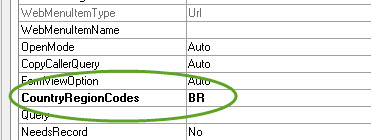
During customization, the requirement for client is met by feature built for certain region ie. China and Brazil. Instead of develop that functionality we have to enable this functionality to available in other region too. For this we have to clear the  “CountryRegionCodes” property.

2015-12-20_20-53-04


If we remove this property from menu, menu item, extended data types, enums, tables and forms.

Then this functionality will be available in all legal entities of every region. And more importantly we have to debug the code to remove any country or region specific checks.

Running Dynamics Ax 7 CT8 Vm on Windows 8.1

December 17, 2015 by alirazazaidi

By writing of this post, I just download the AX7 CTP8 Vm and configure on my machine.

I successfully configure it on hyper V. Only one tricky point is external network adapter in Hyper V.


First step is download VHD and extract it to some place. If you are registered to AX 7 Feedback program, then you  must have vhd download link.

After the download, run the self-extract exe and extract the Vhd at specific location.

CTP8


2015-12-17_18-24-16

Step 2. Create a new external network adapter

Open hyper v console, and create new external network. As I am using wireless network, so I select it as bridge for using internet inside VM. You can use your Ethernet network as bridge.


2015-12-17_21-06-18


Step 3 Create a new Vm.

2015-12-17_21-01-54

Select generation 1 vm in next step

2015-12-17_21-04-01

2015-12-17_21-04-28


Set 8 GB ram to vm, recommend ram is 16 GB.

2015-12-17_21-04-56

Select network adapter we created in previous step.

2015-12-17_21-07-42

Select use existing hard drive and select the Vhd extracted in previous steps.

2015-12-17_21-08-33


Click on next and click on finished.


Run the VM and click on connect button. Login in with “Administrator” and Password is “pass@word1”


When VM is running you find new network connection ask your permission, Click on Yes button.

2015-12-17_21-15-34


Please check that network is working fine inside VM. Some times it will gives error “network has not assigned ip address”.  If external network adapter will not work then you have to create internal network and use that.

For this I create Internal network adapter in Hyper v. For currently I created a new internal adapter with name
“GateWayToInternet”.

internal

Now open the network and sharing center in windows. either using wifi or Ethernet. right click on it and from properties window select sharing tab.

Sharing

check the checked box for sharing internet and from drop down select the v Ethernet (which we create in one above step). stop the vm and use newly created internal network adapter in its network setting. When you start the vm. it will successfully access the internet and let you access ax 7 in browser.

For more detail for Internal networks setting please use following link, I used it for configuration.

http://wordsideasandthings.blogspot.com/2013/01/hyper-v-internal-virtual-network-and.html


Wait a few minutes and then open Internet Explorer and type following url


https://usnconeboxax1aos.cloud.onebox.dynamics.com


This will lead you at login page

2015-12-17_21-38-38


For login you need to use some office 365 account.  Currently I used my other account which i created for Microsoft Dynamics CRM trail. Possible if office 365 account did not work then register for CRM trail. 🙂

You may found “Provision tool” on the desktop of VM”.

2016-02-17_13-18-31

Right click on it and run it  as administrator.

enter your office 365 account  and click on submit.

2016-02-17_11-56-48

wait a few minutes. When  success message popup login with office 365 account.

2016-02-17_11-58-33


If your network Adapter is successfully configured, AX 7 welcome page will open, other wise you will find error page.


2015-12-17_21-42-56


Delete a legal entity in Dynamics Ax 2012

December 12, 2015 by alirazazaidi

Today I have to delete all legal entities from one of MS Dynamics Ax 2012 environment.

During this I got following error while deleting legal entities.

“Can not record , The corresponding AOS  validation failed”.

This error clearly shows that Transnational data exists in that legal entity.

I follow these steps to clear all legal entities.

  • First of open AOT with development rights.
  • Change the legal entity from DAT to required legal entity.
  • From AOT, expand the Class node, type SysdatabaseTransDelete. When find, right click on it click it open / run. It will delete all transactional history of required legal entity.
  • Now open the new workspace and open Organization Administrator ion => setup=>organization => legal entities.
  • Select on required legal entity and click on delete from top menu.

Some but on some legal entities delete button is still disabled. Because there is no important data as well I want to delete all legal entities, I manually delete the data in RCHYRELATIONSHIP table.

Otherwise I have to delete the organization hierarchy data carefully.


Following two links help me to solve this issue.

http://daxture.blogspot.com/2014/09/delete-legal-entities-in-ax-2012.html

https://community.dynamics.com/ax/f/33/t/139605

New video material on Dynamics Ax 7 at Microsoft Dynamics Learning portal

December 8, 2015 by alirazazaidi

I just login on Microsoft Dynamics Learning Portal and found that Microsoft Uploaded new videos for Dynamics Ax 7 under following heads

  • General
  • Retail
  • Technical Conference
  • Technical Conference –LCS
  • Technical conference courses

https://mbspartner.microsoft.com/AX/Topic/21


Unable to preview the report, install the Business Intelligence Dynamics Ax 2012

December 6, 2015 by alirazazaidi

A few days ago, I had to modify reports in standard Dynamics Ax 2012 R3. Report successfully opened in Visual studio 2010, but when I tried to modify the report design, visual studio throw following error.

Unable to preview the report, install the Business Intelligence. Development Studio feature.

2015-11-29_9-59-09

For this I had to install the Business Intelligence Development Studio from SQL Sever 2008 R2 setup.

2015-11-29_17-14-13

After Installment this error resolved.

Reference: http://msdynamicsaxtips.blogspot.com/2015/02/unable-to-preview-report-install.html


How to handle empty pages in SSRS report dynamics Ax 2012

November 30, 2015 by alirazazaidi

Today I was facing the report issue that it print three blank pages other than one require page. This issue is due to page body is covering more area then print page size. During development phase we test the print page size by saving the report review as pdf. Followings is the tip which helps me to remove empty white pages from report print.

Check that page size and set it also set the you want print in portrait or landscape.

For example if I have to run the report on A4 and portrait form. Then I will perform following steps to set the print page setting and size of report page.

Right click on gray area of report and click on report properties.

2015-11-30_22-44-15


And set the report print and size and also set left and right margins

Page Size


Now note the page size is 8.27. We have to check report body size and it must be less than 8.27 inch. For this right click on White area in report canvas and press f4.

Body Size detail


From property window you can check it body size. If it larger then 8.27 in, then you must reset the table, tablix and matrix to and resize the body to less then 8.27.

resize


Now check rerun the report and save its preview in pdf.


« Previous Page
Next Page »

Primary Sidebar

About

I am Dynamics AX/365 Finance and Operations consultant with years of implementation experience. I has helped several businesses implement and succeed with Dynamics AX/365 Finance and Operations. The goal of this website is to share insights, tips, and tricks to help end users and IT professionals.

Legal

Content published on this website are opinions, insights, tips, and tricks we have gained from years of Dynamics consulting and may not represent the opinions or views of any current or past employer. Any changes to an ERP system should be thoroughly tested before implementation.

Categories

  • Accounts Payable (2)
  • Advance Warehouse (2)
  • AI (3)
  • Asset Management (3)
  • Azure Functions (1)
  • Books (6)
  • Certification Guide (3)
  • ChatGPT (3)
  • Claude (1)
  • Customization Tips for D365 for Finance and Operations (64)
  • D365OF (60)
  • Data Management (1)
  • database restore (1)
  • Dynamics 365 (59)
  • Dynamics 365 for finance and operations (139)
  • Dynamics 365 for Operations (175)
  • Dynamics AX (AX 7) (134)
  • Dynamics AX 2012 (274)
  • Dynamics Ax 2012 Forms (13)
  • Dynamics Ax 2012 functional side (16)
  • Dynamics Ax 2012 Reporting SSRS Reports. (31)
  • Dynamics Ax 2012 Technical Side (52)
  • Dynamics Ax 7 (65)
  • Exam MB-330: Microsoft Dynamics 365 Supply Chain Management (7)
  • Excel Addin (1)
  • Favorites (12)
  • Financial Modules (6)
  • Functional (8)
  • General Journal (1)
  • Implementations (1)
  • Ledger (1)
  • Lifecycle Services (1)
  • Logseq (4)
  • Management Reporter (1)
  • Microsoft Excel (4)
  • MS Dynamics Ax 7 (64)
  • MVP summit (1)
  • MVP summit 2016 (1)
  • New Dynamics Ax (19)
  • Non Defined (9)
  • Note taking Apps (2)
  • Obsidian (4)
  • Personal Knowledge Management (3)
  • PKM (16)
  • Power Platform (6)
  • Procurement (5)
  • procurement and sourcing (6)
  • Product Information Management (4)
  • Product Management (6)
  • Production Control D365 for Finance and Operations (10)
  • Sale Order Process (10)
  • Sale Order Processing (10)
  • Sales and Distribution (5)
  • Soft Skill (1)
  • Supply Chain Management D365 F&O (5)
  • Tips and tricks (278)
  • Uncategorized (165)
  • Upgrade (1)
  • Web Cast (7)
  • White papers (4)
  • X++ (10)

Wiki

  • SCM

Copyright © 2026 · Magazine Pro On Genesis Framework · WordPress · Log in