• Skip to main content
  • Skip to primary sidebar
  • Home
  • About
  • Recommended Readings
    • 2022 Book Reading
    • 2023 Recommended Readings
    • Book Reading 2024
    • Book Reading 2025
    • Book Reading 2026
  • Supply Chain Management Guide
  • PKM
  • Microsoft Excel
  • Microsoft Copilot in Office 365
  • Public Wiki Page

Ali Raza Zaidi

A practitioner’s musings on Dynamics 365 Finance and Operations

Dynamics Ax 2012

List of framework in Dynamics Ax 2012

May 18, 2014 by alirazazaidi

There are a lot of frameworks in Dynamics Ax 2012 a Few of them listed as follow.

  •                 Address Book
  •                 Application Integration Framework (AIF)
  •                 Budget Control framework
  •                 Data Import Export/Data Migration framework
  •                 Date Effective
  •                 Eventing Framework
  •                 Extensible Security Policy (XDS)
  •                 Human Resources Framework
  •                 Number Sequence
  •                 Organization Model
  •                 Policy Framework
  •                 SQL Server Rerporting Services (SSRS)

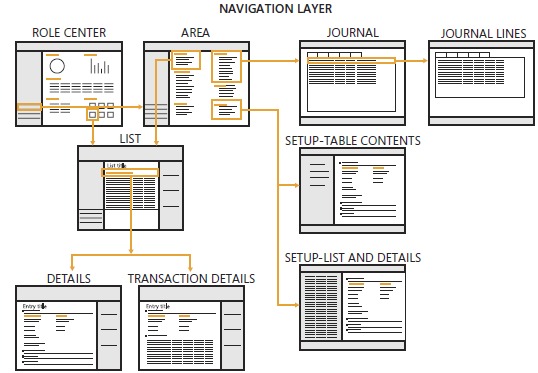
Exploring the Navigation layout of Dynamics Ax 2012

May 9, 2014 by alirazazaidi

7711.image_06B8A9D3

Above picture is taken from following link

http://blogs.msdn.com/b/microsoft_press/archive/2012/10/25/new-book-inside-microsoft-dynamics-ax-2012.aspx

Role center is user page; appear on opening at Dynamics Ax. The role center is depending on rights and role of user. Role center provide dashboards, which helps to user to monitor their roles. This information includes transaction data, alerts, links and common tasks that are associated with user’s role.

6443.CFO Role Center with Power View Map.JPG-550x0


Another example of Role center:

Role Center


Area Page. Area page is the main page of Every Module.

06-Area Page With Detail


Every area page have link to, List page, Journal, Reports, Setup table list, Inquiries and Periodic page.

  • By Default 20 area page exists for dynamics Ax.
  • Each Area page focus on one complete module or area, for example Account receivable, Account payable, cost accounting and Administration.


05-Area Page

Common or list pages. These links leads you to list page of any Entities in that module. For example in Account receivable module contains customer list page. Through list page user is able to Navigate every part of data related to that entity.


07-CustomerListPage Customer List Page with data


Detail From: Detail forms are primary way to create or update entities in Dynamics Ax like customer Vendor, worker and products. These detail forms can be open by click on list page.  By default these pages are open in read only mode. You have to click edit button to open in detail page.

01-Detail Page


Transaction detail Forms.

Transaction detail forms are forms that are used to create, update transaction in Microsoft Dynamics Ax.

Traction is business event that occurs with in company that needs to be recorded in ERP system.

Transaction detail forms have to divided two parts one is Line view and Header view.


: This shows a few header level fields which are required for transaction. This default view and items are added here.

02-LineView


Header View:

This contains all most all fields at header view. Most of fields have default values and required to modify here.

03-Header View


Journal: These pages link to all related which have some functional or finance related information.

08-Journal


Periodic:

All those page which will periodically access by user example

Payment fee.

09-Periodic


How to import Contoso Demo Data to Dynamics Ax 2012 R3.

May 3, 2014 by alirazazaidi

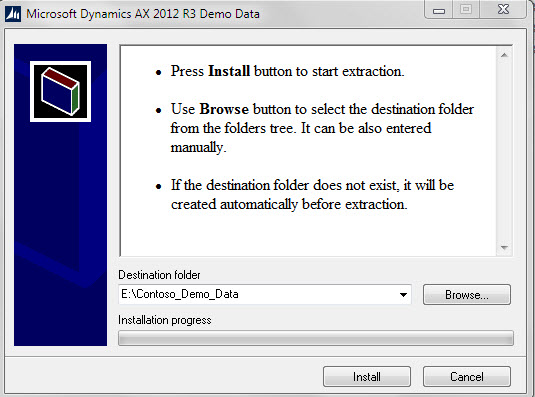
The setup contoso demo data for Dynamics Ax 2012 R3 is different from previous version. I remember, I used .dat file to load demo data into Dynamics Ax 2012 R2. Now DynamicsAX2012R3DemoData.exe available partner Resource.
03-Demo setup
DynamicsAX2012R3DemoData.exe extracted files round 15 GB. Extracted folder contains three types of files. According to MSDN

  • Xml (A bcp data file that contains table data. Columns are separated by #|EOC|#. Rows are separated by #|EOR|#\n.)
  • Out (A bcp data file that contains the table metadata (column descriptions).
  • OutModel (This metadata includes all names and IDs of the table and its fields. This file also includes the elementType attribute, which stores the names and IDs of any Microsoft Dynamics AX tables, classes, or extended data types that are referenced by the table)

Installation of Test Data Transfer Tool:

The MSDN Described The Import export with Test Data Transfer Tool (beta) as follow.

IC665318


Test Data transfer Tool is available on partner resource.

Go on following link

https://informationsource.dynamics.com//RFPServicesOnline/Rfpservicesonline.aspx?ToolDocName=Microsoft+Dynamics+AX+2012+Test+Data+Transfer+Tool+(Beta)%7cQJ4JEM76642V-8-1465


04-InformationSource


On login I found download page

05-download


There will be zip file downloaded.  On running I found following installation wizard.


11-Beta Setup


12-Beta Setup next


Setup run will be generated as following

06-folderDetail


Import Data Into Dynamics Ax 2012 R3 instance:

And import MetaDataXMLGenerator.xpo in dynamics Ax.

07-ImportGenerator


This xpo imports results a job inside job node under AOT.


08-Job


This job will generate Metadata.xml. This Metadata.xml will be created in window temporary folder.

Path of file in metadata.xml can be get from infobox which will appear after successful run of job.

13-metaFile


if you lost infobox,You can get temporary folder path with following command echo %temp%. where you can get Metadata.xml

Copied metadata.xml into [list] folder of test tool Data folder. If it already exists then overwrite it.

15-copy meta data

Go to services, and stop the Dynamics Ax service.

33


Now open command prompt. Go to directory where Test import tool is extracted.

Run the following command

DP.exe IMPORT “E:\Contoso_Demo_Data\DynamicsAXR3DemoData” MicrosoftDynamicsAx


If your SQL server configure with other than default instance then you must mentioned the server with instance name for example

DP.exe IMPORT “E:\Contoso_Demo_Data\DynamicsAXR3DemoData” MicrosoftDynamicsAx WIN-TLRNMFCLU9N\SQLSERVER


Please update path according to your installation.


09-Command Prompt


After running the command, you will find following window which describe the process by remaining table to number data, and number of error occurs during import.

10-Remaining


This process takes hours and hours with respect to your machine. After completion, I found demo data inside my dynamics Ax 2012 R3.


14-DataAppear


Different Sections of Dynamics Ax 2012 forms

April 27, 2014 by alirazazaidi

Dynamics Ax forms is divided into different section. Pictures worth thousand words.


1-Forms Section


2-Tabs

AX 2012 – Unable to write the generated WCF configuration to local storage

April 26, 2014 by alirazazaidi


I found following log entry in event log,

Unable to write the generated WCF configuration to local storage. The generated WCF configuration will be used from memory. The contents of the new configuration are written to the following temp file: C:\Users\i<BC Account> \AppData\Local\Temp\Microsoft.Dynamics.AX.Framework.Services.Client.Configuration.ClientConfigurationInternal.log.

Exception details:
System.ComponentModel.Win32Exception (0x80004005): Access is denied
at Microsoft.Dynamics.AX.Framework.Client.ConfigurationModel.NativeRegistry.OpenNativeRegistryKey(String keyPath, Boolean writable)
at Microsoft.Dynamics.AX.Framework.Client.ConfigurationModel.MachineWideRegistryConfigurationModel.GetConfigurationKey(Boolean writable)
at Microsoft.Dynamics.AX.Framework.Client.ConfigurationModel.RegistryConfigurationModel.WriteWcfConfiguration(String configuration, Guid versionId)
at Microsoft.Dynamics.AX.Framework.Services.Client.Configuration.ClientConfigurationInternal.GetClientConfiguration()

All servers configured to use local configurations stored in the registry.

Possible solution:

  1. Grant the AD Account used as the Business Connector Proxy Account, Full Control to the current configuration in the registry (remember HKEY_LOCAL_MACHINE – not HKEY_CURRENT_USER)
  2. Use the approach described in Install multiple Enterprise Portals on the same server [AX 2012](TechNet) to use persistent (AXC-files) configuration files instead of local configurations stored in the registry

As a side note, this is another example of undocumented requirements, and in my mind something the installer should configure during installation or at least describe as a manual configuration item.

Apparently the Business Connector binary (assembly) has built in functionality to automatically refresh the WCF configuration part of the AX configuration requiring additional configuration steps to be performed.

Update: http://ax2012tech.blogspot.com/2014/01/ax-2012-unable-to-write-generated-wcf.html

This could also be caused by Group Policy (domain) settings applied after the AX Components were installed.


reference:

reference

Microsoft Dynamics AX 2012 Xpp – Sales Orders Import

April 17, 2014 by alirazazaidi

I am sharing the excellent article of Alex Anikiev, PhD, MCP  about import Sales order in X++ code with article link
Purpose: The purpose of this document is to illustrate how to write a required minimum X++ code in Microsoft Dynamics AX 2012 in order to import Sales orders.
Challenge: Data model changes in Microsoft Dynamics AX 2012 related to high normalization and introduction of surrogate keys made some imports more complex. However the structure of tables comprising Sales order header/lines didn’t change. Please note that after you import Sales orders you may need to perform full/partial Physical and/or Financial update if required (for example, for Purchase orders already in execution).
Solution: Appropriate tables buffers (SalesTable, SalesLine) will be used when writing X++ code in Microsoft Dynamics AX 2012 in order to import Sales orders. Alternatively AxBC classes may be used instead of table buffers.
Data Model:
Table Name
Table Description
SalesTable
The SalesTable table contains all sales order headers regardless of whether they have been posted.
SalesLine
The SalesLine table contains all sales order lines regardless of whether they have been posted.
InventDim
The InventDim table contains values for inventory dimensions.
Data Model Diagram:
<![if !vml]><![endif]>
 
Development:
ttsBegin: Use ttsBegin to start a transaction.
clear: The clear method clears the contents of the record.
initValue: The initValue method initializes the fields of the record.
initFrom*: The initFrom* methods usually populate the fields of the child record based on the fields on the parent record. Example is initFromSalesTable method on SalesLine table.
validateWrite: The validateWrite method checks whether the record can be written.
write: The write method writes the record to the database.
insert: The insert method inserts the record into the database.
doInsert: The doInsert method inserts the record into the database. Calling doInsert ensures that any X++ code written in the insert method of the record is not executed. Calling insert always executes the X++ code written in theinsert method of the record.
ttsCommit: Use ttsCommit to commit a transaction.
Source code:
static void SalesOrdersXppImport(Args _args)
{
    #define.Customer(“US-001”)
    #define.DeliveryDate(“1/1/2014”)
    #define.ItemId(“M0001”)
    #define.Qty(10)
    #define.Unit(“ea”)
    SalesTable      salesTable;
    SalesLine       salesLine;
    InventDim       inventDim;
    try
    {
        ttsbegin;
        //Order header
        salesTable.clear();
        salesTable.initValue(SalesType::Sales);
        salesTable.SalesId = NumberSeq::newGetNum(SalesParameters::numRefSalesId()).num();
        salesTable.DeliveryDate = str2Date(#DeliveryDate, 213);
        salesTable.CustAccount = #Customer;
        salesTable.initFromCustTable();
        if (salesTable.validateWrite())
        {
            salesTable.insert();
            //Order line
            inventDim.clear();
            inventDim.InventSiteId = “1”;
            inventDim.InventLocationId = “12”;
            salesLine.clear();
            salesLine.initValue(salesTable.SalesType);
            salesLine.initFromSalesTable(salesTable);
            salesLine.ItemId = #ItemId;
            salesLine.initFromInventTable(InventTable::find(#ItemId));
            salesLine.InventDimId = InventDim::findOrCreate(inventDim).inventDimId;
            salesLine.SalesQty = #Qty;
            salesLine.RemainSalesPhysical = salesLine.SalesQty;
            salesLine.SalesUnit = #Unit;
            salesLine.QtyOrdered = salesLine.calcQtyOrdered();
            salesLine.RemainInventPhysical = salesLine.QtyOrdered;
            salesLine.setPriceDisc(InventDim::find(salesLine.InventDimId));
            if (salesLine.validateWrite())
            {
                salesLine.insert();
            }
            else
                throw error(“Order line”);
        }
        else
            throw error(“Order header”);
        ttscommit;
    }
    catch
    {
        error(“Error!”);
        return;
    }
    info(“Done!”);
}
Result:
 
Please note that I assign SalesId programmatically from Number sequence
 
Product – Sales price
Sales order header
 
Sales order lines
 
Packing Slip
 
Invoice
 
Inventory transactions
Physical Voucher
 
Financial Voucher
 
Note: Microsoft Dynamics AX 2012 Demo Data (Company USMF) was used for this example
 
Version: Microsoft Dynamics AX 2012 RTM, R2
 
Summary: In this document I explained how to write a required minimum X++ code in Microsoft Dynamics AX 2012 in order to import Sales orders. Appropriate table buffers were used when writing X++ code in Microsoft Dynamics AX 2012. This approach can be very handy for POC’s or in situation with always changing requirements. You can also use Microsoft Dynamics AX Excel Add-in to import relatively small amounts of data. Please consider using DIXF (Data Import Export Framework) for import of significant amounts of data when performance is an important consideration. DIXF (Data Import Export Framework) provides a standard template for import of Sales orders.
Author: Alex Anikiev, PhD, MCP

Functional side Training of new features of Dynamics Ax 2012 R3

April 8, 2014 by alirazazaidi

Recently I found the training session for new features of dynamics Ax 2012 R3 on Channel 9 website.

The important features of Dynamics Ax 2012 R3 are Warehouse management and Transportation management.  Presenters described these feature in brief and very precisely.  You can explore these features on below link of Channel 9.

http://channel9.msdn.com/Series/Microsoft-Dynamics-AX-2012-R3-Training

What’s New In dynamics Ax 2012 R3.

April 4, 2014 by alirazazaidi

I just saw the R3 demo VM. There is Lot of new features.  The major feature Include

  • Forecasting.
  • Budgeting
  • Transportation management
  • A wireless client for warehouse.
  • Retail Module has number of changes.

Let’s see small detail which I just collected.


  • Demand Planning – New Sales Forecasting Tool
    In Dynamics AX 2012 R3 a new Sales forecasting Tool giving which provide the more accurate for forecast.
  • Budget Planning – New tool for Budget Preparation 
    A budget planning include in Dynamics Ax R3 which will more standard to support the budgeting process.
  • Now Budget allocation based on allocation basis rules
  • Improved process flexibility and control by default and locked dimension values on certain type of budget plans
  • Evaluation of different scenarios for what-if analysis


  • Improved Warehouse Management functionality
    The warehouse management functionality enhanced to support for scanners, wave picking, license plates and process are more improve the warehouse.
  • Improved Inventory Control
  • Embedded Radio Frequency
  • Improved Inbound & Outbound Warehouse Operations


  • Transportation Management – New module for Shipment Planning and Control
    In transportation management, a new module that supports planning and packing containers, vehicles routes freight rates booking and billing, this will very important to enhancement for supply chain.
  • Rate, Route and Load Planning
  • Freight Reconciliation


Retail

  • A new and Windows 8 Tablet Point of Sales (POS) and Mobile POS.
  • A loyalty programs across legal entities and tiering of customer as well as enhanced gift card support.
  •  There are enrichments in pricing and promotions, assortment and catalog, BI and reporting and mark downs enhancements helping optimize revenue.


For developer or technical point of

  • a new compiler in Dynamics AX builds in the context of multiple developments integration.
  • A strong TFS Version Control support, which has previous version has problems.


References:

Here are some reference and  articles I found

A great article about compiler enhancement in Dynamics Ax 2012 R3 http://axwonders.blogspot.com/2014/03/hi-there-i-hope-everybody-is-doing.html


A detail article about Project management functionality enhancement in Dynamics Ax 2012 R3

http://sandeepchaudhury.wordpress.com/2014/01/26/enhancements-to-project-planning-functionality-in-ax-2012-r2-cu7/


There is registration going on for Webinar for Dynamics Ax 2012 R3 visit following link

https://presentations.inxpo.com/Shows/microsoft/4-10-14/Registration/Registration.html?AffiliateKey=21572&AffiliateData=


References : http://www.mwdata.dk/news/new-exciting-features-for-dynamics-ax-2012-coming-up/

http://blogs.msdn.com/b/dax/archive/2013/11/05/microsoft-dynamics-ax-2012-r3-a-preview.aspx

http://blog.encorebusiness.com/new-features-microsoft-dynamics-ax-2012-r3/

http://blog.encorebusiness.com/new-features-microsoft-dynamics-ax-2012-r3/

Simple Query Based Report in Dynamics Ax 2012

February 25, 2014 by alirazazaidi

The SSRS reports need a data source from where data can be fetched and displayed on the report. Since we are going to develop query based report therefore we will use an AOT query as a data source.

For creating report, First we have to create A AOT Query. For this we have A simple AOT query base on Bank Deposit table

BankDeposit table.

query

By Default there is no field selected under field.

fields

Click on it and set dynamic property to ‘YES’, so all possible filed will appear on table.

properties

You can see all the fields of the table.

tablefields

Now open Visual studio and create a new SSRS report named it as QueryBasedReport. Use this query as data source

reportproject

Now you need to create a data set, QueryBasedReportDS, that will refer to an AOT query created earlier. In data set properties set ‘Data Source Type’ to ‘Query’ and in query property select the AOT query SampleQuery created earlier.

datasetproperties

All the fields are visible under Fields node of QueryBasedReportDS.  These fields won’t be visible if you haven’t set ‘Dynamic’ property of Fields to ‘Yes’ in AOT query and you won’t be able to see any field on report. Now add an auto design by right clicking on Design node and name it Report. Drag the data set of your report “QueryBasedReportDS” to report design named ‘Report’.

company_name

Make sure that the table you are using has some records in it. If there is data in table and still you are unable to see records on report, you might need to do following steps.  Go to ‘Parameters’ node of your report ‘QueryBasedReport’.Right click on AX_ComapnyName and select properties. Set the value of the property ‘Visibility’ from Hidden to Visible and save the changes.Now right click on report design to preview it. Following dialog will appear. Enter AX_CompanyName ‘CEU’.

company_properties1

parameters

Now click on Report tab. Following report output will be shown.You can also view the developed report from browser using following url http://localhost/reports but before this you need to deploy the report on report sever.  This can be done by right clicking the solution in

reportoutput

visual studio and selecting deploy. default.


If this service is not started, start it. If it is already started, you need to restart it. After restarting the service, go to visual studio and deploy the solution. Your report is successfully deployed on the server.

Now you can see the report result from any browser. Go to http://localhost/Reports click on DynamicsAX folder and click on the report you want to run. In our case, it is QueryBasedReport.Report. If you can’t find any record, change the company name from DAT to CEU.

reportoutput

Now you can see data on the report.

Running report Inside Dynamics AX Client, you have to output menu item. Save following properties and save the changes.


menuitemproperties

You will see records on the report.

So these were the errors and solutions, I came across so far. I hope it helps. If you have encountered some more, please do share. Keep rocking 🙂


Customer Form run from Job

February 22, 2014 by alirazazaidi

Here is the code in X++:
public static void CustomerForm(Args _args)
{
//Initialization
DictTable dictTable;
DictTable dictTable1;
Form form;
FormBuildDesign design;
FormBuildDataSource formBuildDataSource;
FormBuildDataSource formBuildDataSource1;
FormBuildActionPaneControl actionPane;
FormBuildActionPaneTabControl actionPaneTab;
FormBuildButtonGroupControl buttonGroup1;
FormBuildButtonGroupControl buttonGroup2;
FormBuildCommandButtonControl CommandNew;
FormBuildCommandButtonControl CommandDelete;
FormBuildMenuButtonControl CustomerButton;
FormBuildFunctionButtonControl NewCustomerButton;
FormBuildFunctionButtonControl ForecastButton;
FormBuildGroupControl Grp;
FormBuildGridControl grid;
FormBuildGroupControl grpBody;
Args args;
FormRun formRun;
#task
//Adding DataSources
dictTable1 = new DictTable(tableNum(CustTable));
dictTable = new DictTable(tableNum(DirPartyTable));
form = new Form();
form.name(“Customer Overview”);
formBuildDataSource = form.addDataSource(dictTable.name());
formBuildDataSource.table(dictTable.id());
formBuildDataSource1 = form.addDataSource(dictTable1.name());
formBuildDataSource1.table(dictTable1.id());
//Building Form Design
design = form.addDesign(‘Design’);
design.caption(“Overview”);
design.style(FormStyle::SimpleList);
design.titleDatasource(formBuildDataSource.id());
//Adding Action Pane and Buttons
actionPane = design.addControl(
FormControlType::ActionPane, ‘ActionPane’);
actionPane.style(ActionPaneStyle::Strip);
actionPaneTab = actionPane.addControl(FormControlType::ActionPaneTab, ‘ActionPaneTab’);
buttonGroup1 = actionPaneTab.addControl(FormControlType::ButtonGroup, ‘NewDeleteGroup’);
buttonGroup2 = actionPaneTab.addControl(FormControlType::ButtonGroup, ‘ButtonGroup’);
CommandNew = buttonGroup1.addControl(FormControlType::CommandButton, ‘NewButton’);
CommandNew.buttonDisplay(FormButtonDisplay::TextAndImageLeft);
CommandNew.normalImage(’11045′);
CommandNew.imageLocation(SysImageLocation::EmbeddedResource);
CommandNew.primary(NoYes::Yes);
CommandNew.command(#taskNew);
CommandDelete = buttonGroup1.addControl(FormControlType::CommandButton, ‘NewButton’);
CommandDelete.text(“Delete”);
CommandDelete.buttonDisplay(FormButtonDisplay::TextAndImageLeft);
CommandDelete.normalImage(’10121′);
CommandDelete.imageLocation(SysImageLocation::EmbeddedResource);
CommandDelete.saveRecord(NoYes::Yes);
CommandDelete.primary(NoYes::Yes);
CommandDelete.command(#taskDeleteRecord);
CustomerButton = buttonGroup2.addControl(FormControlType::MenuButton, ‘CustomerquickCreate’);
CustomerButton.helpText(“Create New Customer”);
CustomerButton.text(“Customer”);
NewCustomerButton = CustomerButton.addControl(FormControlType::MenuFunctionButton, ‘CustomerquickCreate’);
NewCustomerButton.text(‘New’);
NewCustomerButton.saveRecord(NoYes::No);
NewCustomerButton.dataSource(formBuildDataSource.id());
NewCustomerButton.menuItemName(menuitemDisplayStr(CustomerquickCreate));
ForecastButton = buttonGroup2.addControl(FormControlType::MenuFunctionButton, ‘SalesForecast’);
ForecastButton.text(‘Forecast’);
ForecastButton.saveRecord(NoYes::No);
ForecastButton.menuItemName(menuitemDisplayStr(ForecastSalesGroup));
//Body
grpBody = design.addControl(FormControlType::Group, ‘Body’);
grpBody.heightMode(FormHeight::ColumnHeight);
grpBody.columnspace(0);
grpBody.style(GroupStyle::BorderlessGridContainer);
grid = grpBody.addControl(FormControlType::Grid, “Grid”);
grid.dataSource(formBuildDataSource.name());
grid.widthMode(FormWidth::ColumnWidth);
grid.heightMode(FormHeight::ColumnHeight);
grid.addDataField(formBuildDataSource.id(), fieldNum(DirPartyTable,Name));
grid.addDataField(formBuildDataSource1.id(), fieldNum(CustTable,AccountNum));
grid.addDataField(formBuildDataSource.id(), fieldNum(DirPartyTable,LanguageId));
Grp = design.addControl(FormControlType::Group, ‘Group’);
ForecastButton = Grp.addControl(FormControlType::MenuFunctionButton, ‘SalesForecast’);
ForecastButton.text(‘Forecast’);
ForecastButton.menuItemName(menuitemDisplayStr(ForecastSalesGroup));
args = new Args();
args.object(form);
formRun = classFactory.formRunClass(args);
formRun.init();
formRun.run();
formRun.detach();
}

« Previous Page
Next Page »

Primary Sidebar

About

I am Dynamics AX/365 Finance and Operations consultant with years of implementation experience. I has helped several businesses implement and succeed with Dynamics AX/365 Finance and Operations. The goal of this website is to share insights, tips, and tricks to help end users and IT professionals.

Legal

Content published on this website are opinions, insights, tips, and tricks we have gained from years of Dynamics consulting and may not represent the opinions or views of any current or past employer. Any changes to an ERP system should be thoroughly tested before implementation.

Categories

  • Accounts Payable (2)
  • Advance Warehouse (2)
  • AI (3)
  • Asset Management (3)
  • Azure Functions (1)
  • Books (6)
  • Certification Guide (3)
  • ChatGPT (3)
  • Claude (1)
  • Customization Tips for D365 for Finance and Operations (64)
  • D365OF (60)
  • Data Management (1)
  • database restore (1)
  • Dynamics 365 (59)
  • Dynamics 365 for finance and operations (139)
  • Dynamics 365 for Operations (175)
  • Dynamics AX (AX 7) (134)
  • Dynamics AX 2012 (274)
  • Dynamics Ax 2012 Forms (13)
  • Dynamics Ax 2012 functional side (16)
  • Dynamics Ax 2012 Reporting SSRS Reports. (31)
  • Dynamics Ax 2012 Technical Side (52)
  • Dynamics Ax 7 (65)
  • Exam MB-330: Microsoft Dynamics 365 Supply Chain Management (7)
  • Excel Addin (1)
  • Favorites (12)
  • Financial Modules (6)
  • Functional (8)
  • General Journal (1)
  • Implementations (1)
  • Ledger (1)
  • Lifecycle Services (1)
  • Logseq (4)
  • Management Reporter (1)
  • Microsoft Excel (4)
  • MS Dynamics Ax 7 (64)
  • MVP summit (1)
  • MVP summit 2016 (1)
  • New Dynamics Ax (19)
  • Non Defined (9)
  • Note taking Apps (2)
  • Obsidian (4)
  • Personal Knowledge Management (3)
  • PKM (16)
  • Power Platform (6)
  • Procurement (5)
  • procurement and sourcing (6)
  • Product Information Management (4)
  • Product Management (6)
  • Production Control D365 for Finance and Operations (10)
  • Sale Order Process (10)
  • Sale Order Processing (10)
  • Sales and Distribution (5)
  • Soft Skill (1)
  • Supply Chain Management D365 F&O (5)
  • Tips and tricks (278)
  • Uncategorized (165)
  • Upgrade (1)
  • Web Cast (7)
  • White papers (4)
  • X++ (10)

Wiki

  • SCM

Copyright © 2026 · Magazine Pro On Genesis Framework · WordPress · Log in