• Skip to main content
  • Skip to primary sidebar
  • Home
  • About
  • Recommended Readings
    • 2022 Book Reading
    • 2023 Recommended Readings
    • Book Reading 2024
    • Book Reading 2025
    • Book Reading 2026
  • Supply Chain Management Guide
  • PKM
  • Microsoft Excel
  • Microsoft Copilot in Office 365
  • Public Wiki Page

Ali Raza Zaidi

A practitioner’s musings on Dynamics 365 Finance and Operations

Tips and tricks

errors in Payroll classes Symmetry dynamics ax 2012 r3

May 1, 2015 by alirazazaidi

Today I was configuring POS on Azure test/dev environment, I got very strange errors during compilation  of classes node.

All these classes were belong to Payroll modules.

5-2-2015 3-50-44 AM

Error described that Symmetry variable is not declare.

5-2-2015 3-50-28 AM


Later I discover that reference of ste-net.dll is missing in AOT.

This mysterious dll (mysterious for me) is found at  C:\Program Files (x86)\Microsoft Dynamics AX\60\Client\Bin


Yu can add  its reference by right click on reference node In AOT

5-2-2015 3-59-36 AM


5-2-2015 3-59-58 AM

Click on browse and go to  C:\Program Files (x86)\Microsoft Dynamics AX\60\Client\Bin

Select

5-2-2015 4-08-59 AM

Select and click on ok

5-2-2015 4-10-42 AM

As reference is added into AOT. Compilation errors are gone.


Reference:  https://community.dynamics.com/ax/f/33/t/150222
 

Reading CSV files in Dynamics Ax 2012.

April 28, 2015 by alirazazaidi

Today I come across a scenario where, I have to read data from csv file.


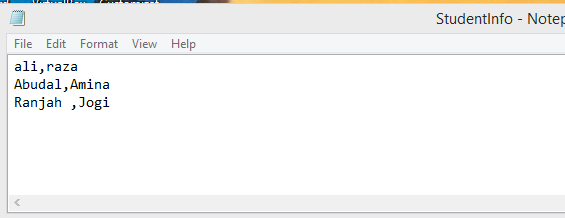
Reading data from csv file is very easy with IO operation. For example I have csv file with following student first name and last name which I have to migrate into custom ax table.

CVS file


Custom Ax table.

StudentInfoTable


Following a simple code snippet which read csv file and insert data into custom data

static void Job9(Args _args)

{

#File

IO  iO;

Name FirstName;

Name LastName;

StudentInfo _StudentInfo;

FilenameOpen        filename = “c:\\StudentInfo.csv”;//To assign file name

Container           record;

boolean first = true;

;

    iO = new CommaTextIo(filename,#IO_Read);

if (! iO || iO.status() != IO_Status::Ok)

{

throw error(“@SYS19358”);

}

while (iO.status() == IO_Status::Ok)

{

record = iO.read();// To read file

if (record)

{

if (first)  //To skip header

{

first = false;

}

else

{


FirstName = conpeek(record, 1);//To peek record

LastName = conpeek(record, 2);

_StudentInfo.FirstName=FirstName;

_StudentInfo.LastName =LastName;

_StudentInfo.insert();

//     info(strfmt(‘%1–%2’,custAccount,custname));

}

}

}

}


After running the ax job, I found following data into Ax table.

4-28-2015 9-59-45 PM


If you saw, first row of csv is missing in table. The reason for that above code snippet consider first row as header so it did not require to insert it.


One thing I missed, The reference, original code snippet is belongs to “Jitendra Kumar Singh”

http://axaptacorner.blogspot.com/2012/09/how-to-read-csv-files-in-ax-2012.html

Advance filter Dynamics Ax 2012 Similar to Like wildcard functionality

April 22, 2015 by alirazazaidi

Today during development of inquiry form, I had chance to explore filters in little more depth.

For example if you have to add functionality similar to wildcard like operator.


“Select * from customer where Customer.Name is like ‘%Ali%’

You have to use static functions  SysQuery::valueLike and SysQuery::ValueLikeAfter. For example If I had customer table as data source then I create a new filter inside ExecuteQuery method


QueryBuildRange customerFilter;

customerFilter  =SysQuery::findOrCreateRange(PGDFileline_q.dataSourceTable(tablenum(custtable)),fieldNum(Custtable,AccountNum));


if (custTxt.text()=="")

{

customerFilter .value(SysQuery::valueUnlimited());

}

else

{

customerFilter.value(SysQuery::valueLikeAfter(custTxt.text()));

}

super();

}


Similar posts are


http://tech.alirazazaidi.com/how-to-create-a-custom-filter-on-list-or-inquiry-form-in-dynamics-ax-2012/


Date in Advance filter Dynamics Ax 2012

Fetching data from AX table using Query AIF service Dynamics Ax 2012 R3

April 11, 2015 by alirazazaidi

We can expose AOT query as service which can consume in any WCF client. We can call and fetch data from any AX table,  without Static AOT query. For this purpose Dynamics Ax provide the methods to create a query at run time and call with Query service.


This Query service is built in feature if during Application Interface framework component installed with Dynamics Ax Setup.

http://[HostName]/DynamicsAx/Services/QueryService


using System;

using System.Collections.Generic;

using System.Linq;

using System.Text;

using System.Data;

//using Microsoft.Dynamics.AX.Framework.Services.Metadata.Contracts;


namespace ConsoleApplication1

{

class Program

{

static void Main(string[] args)

{

testService.QueryServiceClient _QueryClient = new testService.QueryServiceClient();

DataSet dataSet;

testService.Paging paging = null;

testService.QueryMetadata query;

testService.QueryDataSourceMetadata customerDataSource;


query = new testService.QueryMetadata();


// Set the properties of the query.

query.QueryType = testService.QueryType.Join;

query.AllowCrossCompany = true;

query.DataSources = new testService.QueryDataSourceMetadata[1];


// Set the properties of the Customers data source.

customerDataSource = new testService.QueryDataSourceMetadata();

customerDataSource.Name = "DataArea";

customerDataSource.Enabled = true;

customerDataSource.FetchMode = testService.FetchMode.OneToOne;

customerDataSource.Table = "DataArea";

// Setting DynamicFieldList property to true returns all fields.

customerDataSource.DynamicFieldList = true;

//Add the data source to the query.

query.DataSources[0] = customerDataSource;


dataSet = _QueryClient.ExecuteQuery(query, ref paging);

foreach (DataRow dr in dataSet.Tables[0].Rows)

{


Console.WriteLine(dr["Id"].ToString());


}

Console.ReadKey();


}


}

}


if you got error with similar message “The maximum message size quota for incoming messages (65536) has been exceeded. To increase the quota, use the MaxReceivedMessageSize property on the appropriate binding element.

update the binding section of app.config

<bindings>
<netTcpBinding>
<binding name=”QueryServiceEndpoint” transferMode=”Streamed”
maxReceivedMessageSize=”20000000″
maxBufferSize=”20000000″
maxBufferPoolSize=”20000000″
>
<readerQuotas maxDepth=”32″
maxArrayLength=”200000000″
maxStringContentLength=”200000000″/>
</binding>
</netTcpBinding>
</bindings>


Fiscal year calendar and ledger calendar in Dynamics Ax 2012

April 9, 2015 by alirazazaidi

In Dynamics Ax 2012, Fiscal year is common all the legal entities. They usually define in initial step of implementation. The length of Fiscal years is up to user how long he defines the length according to requirement.

They are essential for financial reporting for particular company. Define the account period or begin and end date for one financial cycle.


In Pakistan, Fiscal year usually starts from 1 July and ends at 30 June.


You can define the fiscal year from following link

General Ledger-> Setup-> Fiscal Years

4-9-2015 7-25-02 AM

4-9-2015 7-25-31 AM


As I working on contoso demo data for my R & D.  By clicking on above link all Fiscal years appears as follow


FiscalYear

We can add Fiscal year as follow by clicking on new fiscal year in Dynamics Ax 2012

4-9-2015 7-55-13 AM


Now I am going to create a fiscal year with what follow in Pakistan. In Pakistan companies follow the Fiscal year starting from 1 July and ends at 30 June every year.

Lahore-Foscal year


As I select the length of period is 1 month the default calendar build with respect to as follow.

4-9-2015 8-13-40 AM


Ledger Calendar : Are based on fiscal year calendar. Every ledger transaction is mapped in open period of fiscal year selected as ledger calendar. You can find ledger calendar form following link


General Ledger-> Setup-> Ledger

Ledger


From Fiscal calendar dropdown, you can change the fiscal year calendar in Dynamics Ax 2012.

Ledger det

And from above menu button, we can see the detail of selected fiscal year calendar


details


I changed the fiscal year in ledger I got following message


4-9-2015 8-31-48 AM

“The fiscal calendar has been updated. We recommend that you run the recalculate ledger period process.”


To Recalculate ledger period click on top menu.

recaluclate


Following dialog box which run the batch process, You can set it re occurrence. Click ok to recalculate the ledger period process.

reoccurance


How to generate Entity relation diagram for specific tables in Dynamics Ax 2012

April 1, 2015 by alirazazaidi

Recently I have to generate a ER-diagram for specific list of tables in Dynamics Ax.  Dynamics Ax has built in feature.

Prerequisite of this article has Microsoft Visio.


Create a project for all tables which require in ER-diagram.

For this article I  created a new project with Name customer Address and drop CustTable and DirpartyTable in it.

Customer

In AOT or development workspace. Click on tools and reverse engineer menu .


4-1-2015 12-11-00 AM


Following form will open, Select location where file with ERX will be generated. Select your private or public projects.

4-1-2015 12-12-013

Click ok to generate it.


When file is generated, go on windows start up menu and open MS visio. Select database modeling Diagram Template.

4-1-2015 12-14-013


When Database Model diagram is open, From database menu=> Import=> Import Erwin ERX file…

load erx file generated in previous step. This menu is only available when you select Database diagram as template in Visio.

4-1-2015 12-15-44 AM

click on Browse.. button and load erx file.4-1-2015 12-17-52 AM


Click ok

A small dialog shows the import status

4-1-2015 12-18-19 AM

Next step you have to enable view for Tables, So you can select tables for ER-Diagram

Database=>View=> Tables and views

4-1-2015 12-18-57 AM

You will found following pane at left side of screen.

4-1-2015 12-19-20 AM

Click on required table to add it on page and it will show required tables with relationship.

4-1-2015 12-22-046


You can re-size these diagrams.


Step by Step guide to install Reporting extensions (SSRS) for Dynamics Ax 2012 R3

March 18, 2015 by alirazazaidi

I was configuring Dynamics AX 2012 R3 reporting extension on one of Virtual machine. Here is my notes with step by step screen shot.

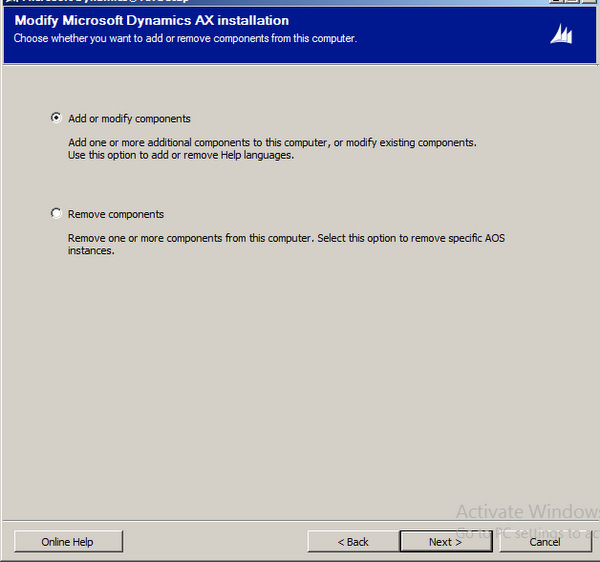
First step to run step up and then add or modify component option.

Add remove

Click on next button and select reporting extension  form

3-17-2015 11-19-54 AM

Click on next and from next window click on

3-17-2015 11-23-12 AM

3-17-2015 11-20-21 AM

Validate it, if any component is missing then download and install it.

When validate and click on next.

3-17-2015 11-21-22 AM


From next screen enter Business connector, as on my R&D virtual machine


From next screen select the required reporting server.

3-17-2015 11-21-06 AM

If you want to deploy report just after the installation, check the deploy reports.

Click next to run the installation process,

3-17-2015 11-24-14 AM

3-17-2015 11-26-34 AM


Now a power shell window opens report deployment is started.

3-17-2015 11-27-03 AM


Let it completed.


After let it complete, Open Dynamics Ax client by right click on its icon and run as administer.


Now go at Administrator module and click

3-17-2015 1-31-32 PM

And ad server name and click on validate button

3-17-2015 1-31-58 PM

Now report server configured successfully and all reports will successfully run.

Microsoft Dynamics Connector and installation and configuration step by Step

March 14, 2015 by alirazazaidi

Microsoft Dynamics Connector and installation and configuration step by Step.


I configured the Microsoft Dynamics Connector on my local configured virtual machine where standard Microsoft Dynamics Ax 2012 R3 installed.

Here are step by step and my notes


First step to run the setup form and choose add or modify component option

Add remove


Click on next and select the connector from very below end

Select the option

Next to validate, if validation failed then download required component to made it validate.

Validation


Click next button


From next step select the default server on which you are installed the connector.

Service Account

Enter the service account and click on next.

Domain user

Here is trick, Setup required a user, I created a separate user in my domain control with administrator rights. Like “dynamicworlds\AXIntUsr”.  Select the “create new account”.

If you want to use existing ax user then select “Use existing account” and enter its name against Ax user ID.

I used the create a new user ax option, It will added the domain user into Ax with following groups

Link


Click next and complete the step. And check the log file if there is failure else complete it.


Now run the Dynamicsrun connector with administrator rights


And select Dynamics Ax adapter.

Set its configuration with newly created user

mydomain


Click on configure Microsoft Dynamics Ax 2012 link to open second screen


Click on refresh services.

sss

And select the required service. And click on configure button

Success

Now close this window and click on click on test button. This will also result on success.

successMain

Task recorder tool Dynamics Ax 2012 R3

March 10, 2015 by alirazazaidi

Process Indicator in Dynamics Ax 2012

March 3, 2015 by alirazazaidi

During one of my customization, I have perform a lengthy operation, during this process there is requirement to show process indicator, Code snippets I have found from

https://msdn.microsoft.com/en-us/library/aa841990.aspx


For this method I have to create a process helper class and add following snippet its static method


static void operationProgress_progressBars(Args _args)

{

#AviFiles

SysOperationProgress progress = new SysOperationProgress();

int i;


;


progress.setCaption(“File Transfer with Payment entries are in progess…”);

progress.setAnimation(#AviUpdate);

progress.setTotal(50000);

for (i = 1; i <= 50000; i++)

{

progress.setText(strfmt(“The value of i is %1”, i));

progress.setCount(i, 1);

}

}


For testing purpose I add a new form and on its button click, I added from following line code.


void clicked()

{

Args arg = new Args();

super();


startLengthyOperation();


ABCDHelper::operationProgress_progressBars(arg);

sleep(10000);

endLengthyOperation();


}


This progress operation must be run between two build in functions, that helps to cover the lengthy process in Dynamics Ax 2012.

3-3-2015 1-22-46 PM

« Previous Page
Next Page »

Primary Sidebar

About

I am Dynamics AX/365 Finance and Operations consultant with years of implementation experience. I has helped several businesses implement and succeed with Dynamics AX/365 Finance and Operations. The goal of this website is to share insights, tips, and tricks to help end users and IT professionals.

Legal

Content published on this website are opinions, insights, tips, and tricks we have gained from years of Dynamics consulting and may not represent the opinions or views of any current or past employer. Any changes to an ERP system should be thoroughly tested before implementation.

Categories

  • Accounts Payable (2)
  • Advance Warehouse (2)
  • AI (3)
  • Asset Management (3)
  • Azure Functions (1)
  • Books (6)
  • Certification Guide (3)
  • ChatGPT (3)
  • Claude (1)
  • Customization Tips for D365 for Finance and Operations (64)
  • D365OF (60)
  • Data Management (1)
  • database restore (1)
  • Dynamics 365 (59)
  • Dynamics 365 for finance and operations (139)
  • Dynamics 365 for Operations (175)
  • Dynamics AX (AX 7) (134)
  • Dynamics AX 2012 (274)
  • Dynamics Ax 2012 Forms (13)
  • Dynamics Ax 2012 functional side (16)
  • Dynamics Ax 2012 Reporting SSRS Reports. (31)
  • Dynamics Ax 2012 Technical Side (52)
  • Dynamics Ax 7 (65)
  • Exam MB-330: Microsoft Dynamics 365 Supply Chain Management (7)
  • Excel Addin (1)
  • Favorites (12)
  • Financial Modules (6)
  • Functional (8)
  • General Journal (1)
  • Implementations (1)
  • Ledger (1)
  • Lifecycle Services (1)
  • Logseq (4)
  • Management Reporter (1)
  • Microsoft Excel (4)
  • MS Dynamics Ax 7 (64)
  • MVP summit (1)
  • MVP summit 2016 (1)
  • New Dynamics Ax (19)
  • Non Defined (9)
  • Note taking Apps (2)
  • Obsidian (4)
  • Personal Knowledge Management (3)
  • PKM (16)
  • Power Platform (6)
  • Procurement (5)
  • procurement and sourcing (6)
  • Product Information Management (4)
  • Product Management (6)
  • Production Control D365 for Finance and Operations (10)
  • Sale Order Process (10)
  • Sale Order Processing (10)
  • Sales and Distribution (5)
  • Soft Skill (1)
  • Supply Chain Management D365 F&O (5)
  • Tips and tricks (278)
  • Uncategorized (165)
  • Upgrade (1)
  • Web Cast (7)
  • White papers (4)
  • X++ (10)

Wiki

  • SCM

Copyright © 2026 · Magazine Pro On Genesis Framework · WordPress · Log in