• Skip to main content
  • Skip to primary sidebar
  • Home
  • About
  • Recommended Readings
    • 2022 Book Reading
    • 2023 Recommended Readings
    • Book Reading 2024
    • Book Reading 2025
  • Supply Chain Management Guide
  • PKM
  • Microsoft Excel
  • Microsoft Copilot in Office 365
  • Public Wiki Page

Ali Raza Zaidi

A practitioner’s musings on Dynamics 365 Finance and Operations

Dynamics Ax 2012 Reporting SSRS Reports.

Dynamic Ax 2012: Complete guide to Dynamics Ax 2012 Reporting

January 28, 2013 by alirazazaidi

Hi folks, Today i am searching for sample to write a blog entry for Ax deport development, i found very informative link at msdn which covers all portions of report development in Ax 2012.


http://msdn.microsoft.com/en-us/library/cc653472.aspx


Regards

Ali Raza Zaidi
Dynamics Ax 2012 : Exploring the Radio buttons as a report parameter

January 27, 2013 by alirazazaidi

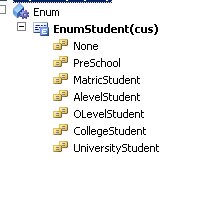
It is common scenario in report development to use check boxes or radio button as parameter.  Any Boolean variable define at data contract class become check boxes at report dialog. But how we make radio button on report dialog. When we require radio button then it means we have more than two values and one value is required to select. For this purpose we have to create a new enum at AOT.   Let see we create a new base enum with Name Enum student.

BaseEnum


Right click on EnumStudent and open property window and set Style property as Radio button

EnumProperty


Now you have to create a new data contract class where we define parameter that will contain the selected value for enum.


[DataContractAttribute]

public class StudentDataContacts

{

EnumStudent enumStudent;

}

[ DataMemberAttribute('Student By'),SysOperationLabelAttribute('Student By')

]
public EnumStudent parmStudent(EnumStudent _EnumStudent =

enumStudent )

{

enumStudent = _EnumStudent;

return enumStudent;

}

When we deploy the report and run from menu Item, Report dialog will be appear like as follow screenshot.
Report Dialog

Now questions is that how we used this radio button parameter.

At report level, we can use this radio button parameter for grouping or such other operations. It return string value. For example I used here to just display what value of radio button selected in report Expression as

Expression

We can use this parameter inside the Process report method of Data Provider class as

public void processreport()
{
EnumStudent _EnumStudent;
str _StudentType;
StudentDataContact _DataContact;

_DataContact = this.parmDataContract();

_EnumStudent= _DataContact.parmStudent();

_StudentType=enum2str(_EnumStudent);

_TempStudentList.Firstname ="Ali";
_TempStudentList.LastName="Raza";
_TempStudentList.StudentType=_StudentType;
_TempStudentList.insert();

_TempStudentList.Firstname ="Raza";
_TempStudentList.LastName="Ali";

_TempStudentList.StudentType=_StudentType;
_TempStudentList.insert();

}

Hope this helps.

Dynamics Ax 2012: Exploring the Dynamics Grouping in Dynamics Ax SSRS reports.

January 25, 2013 by alirazazaidi

Dynamics Ax provide complex and interactive reports because they help gain valuable insights. One common report requirement is dynamic grouping which allows the users to choose which fields to group their data around.

In SSRS, dynamic grouping can be set up using the following steps.

Define the grouping parameters

To enable a dynamic grouping on a set of fields, create a parameter. List the fields you want to use for grouping and add labels. If you want grouping to be optional, also include null as a value (with a label like “None”).

  1. Click on Parameters, and then Add Parameter. In the Report Parameter Properties window, set the parameter properties.add-parameter

Select Available Values in the Report Parameter Properties window and add label and value pairs for all groups. Some times Report level parameter is not work, then you have to define this parameter at Data contract class. And used it as report level parameter.
set-available-values

Repeat these steps for each group of fields that you wish to enable dynamic grouping.
Create the report with grouping
Create a table report with the dynamic groups you set up. Groups like month, year and category are very common.

set-available-values

Set the group expression
Open the Group Properties window and Add the desired group expression.
Here is an sample expression where we perform some basic checks on our Month, Year and Category grouping and set the default display.
iif (Parameters!Group1.Value is Nothing,1,Fields(iif(Parameters!Group1.Value is Nothing, “Year”,Parameters!Group1.Value)).Value)
The outer iif checks for empty parameters and displays the entire group if this condition is met.
Otherwise, the second iif checks if the parameter value is Nothing which means none is selected from the drop-down and then it will return the value of the Year field without using it for any sorting or grouping.

group-properties1

Change the grouping display value (label) on basis of selected report parameter
The final step is to change the group label depending on the display value.
In this example, we are setting the Null value to display “Year” as the label in order to match the behaviour in the previous expression.
=Fields(if(Parameters!Group1.Value is Nothing “Year”, Parameters!Group1Value)).Value
group-display

Dynamics Ax 2012 : Exploring the SSRS as reporting tool in Dynamics Ax 2012

January 25, 2013 by alirazazaidi

This latest dynamics Ax version uses SQL Server Reporting Services (SSRS) as the primary platform for reporting. Developing in SSRS is much faster than X++ making custom reports easier to implement.

In addition to the use of SQL Server tools, there is an integration of the report development environment with Visual Studio 2010 making report development a lot more simple and straight-forward.

Most of the out-of-the-box reports are converted to SSRS platform.

There are two ways to design SSRS reports in AX.

  • Precision Design: created using SQL Report Designer when a precise layout is required.
  • Auto Design: automatically generated with the help of drag and drop action and selecting elements by using Model Editor.

AX 2012 also comes with the drillthrough reporting. This is a popular feature helps developers to link general reports to more specific ones and help the end users find insightful data.

« Previous Page

Primary Sidebar

About

I am Dynamics AX/365 Finance and Operations consultant with years of implementation experience. I has helped several businesses implement and succeed with Dynamics AX/365 Finance and Operations. The goal of this website is to share insights, tips, and tricks to help end users and IT professionals.

Legal

Content published on this website are opinions, insights, tips, and tricks we have gained from years of Dynamics consulting and may not represent the opinions or views of any current or past employer. Any changes to an ERP system should be thoroughly tested before implementation.

Categories

  • Accounts Payable (2)
  • Advance Warehouse (2)
  • AI (1)
  • Asset Management (3)
  • Azure Functions (1)
  • Books (6)
  • Certification Guide (3)
  • ChatGPT (2)
  • Claude (1)
  • Customization Tips for D365 for Finance and Operations (62)
  • D365OF (60)
  • Data Management (1)
  • database restore (1)
  • Dynamics 365 (59)
  • Dynamics 365 for finance and operations (139)
  • Dynamics 365 for Operations (174)
  • Dynamics AX (AX 7) (134)
  • Dynamics AX 2012 (274)
  • Dynamics Ax 2012 Forms (13)
  • Dynamics Ax 2012 functional side (16)
  • Dynamics Ax 2012 Reporting SSRS Reports. (31)
  • Dynamics Ax 2012 Technical Side (52)
  • Dynamics Ax 7 (65)
  • Exam MB-330: Microsoft Dynamics 365 Supply Chain Management (7)
  • Excel Addin (1)
  • Favorites (12)
  • Financial Modules (6)
  • Functional (8)
  • General Journal (1)
  • Implementations (1)
  • Ledger (1)
  • Lifecycle Services (1)
  • Logseq (4)
  • Management Reporter (1)
  • Microsoft Excel (4)
  • MS Dynamics Ax 7 (64)
  • MVP summit (1)
  • MVP summit 2016 (1)
  • New Dynamics Ax (19)
  • Non Defined (9)
  • Note taking Apps (2)
  • Obsidian (4)
  • Personal Knowledge Management (3)
  • PKM (16)
  • Power Platform (6)
  • Procurement (5)
  • procurement and sourcing (6)
  • Product Information Management (4)
  • Product Management (6)
  • Production Control D365 for Finance and Operations (10)
  • Sale Order Process (10)
  • Sale Order Processing (10)
  • Sales and Distribution (5)
  • Soft Skill (1)
  • Supply Chain Management D365 F&O (5)
  • Tips and tricks (278)
  • Uncategorized (165)
  • Upgrade (1)
  • Web Cast (7)
  • White papers (4)
  • X++ (10)

Wiki

  • SCM

Copyright © 2026 · Magazine Pro On Genesis Framework · WordPress · Log in