Dynamics 365 for finance and operations
Daily vs Periodic Ledger Journal Names in D365 Finance
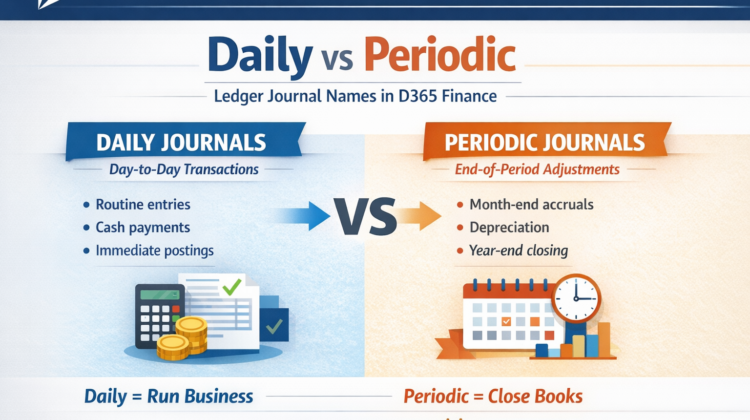
While working with ledger transactions in the General Journal in Microsoft Dynamics 365 Finance, two types of Ledger Journal Names are most commonly used: Daily and Periodic. Other journal names exist, but they are usually specific to certain business scenarios.
There are no strict or hard-and-fast rules for using Daily or Periodic journal names. However, in practice, they are typically used in the following way:
- Daily journals are used for day-to-day transactional postings, such as routine adjustments or operational entries that occur regularly during the accounting period.
- Periodic journals are used at the end of an accounting period for adjustments and closing activities, such as accruals, allocations, depreciation, and other period-end corrections.
In simple terms:
Daily journals support regular business operations,
Periodic journals ensure financial accuracy at period close.
This practical distinction helps organizations keep operational postings separate from period-end accounting activities, making audits, reviews, and month-end closing processes easier to manage.
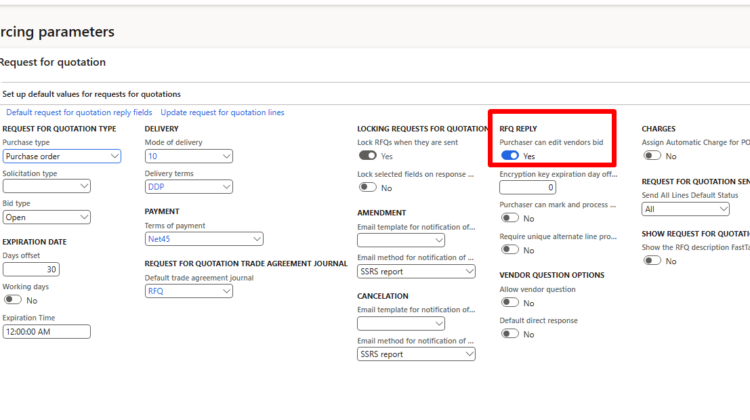
Purchase RFQ response is not allow to Edit
While working with Demo data in Dynamics 365, I recently encountered an issue where I was unable to add or edit a reply to an RFQ (Request for Quotation).
At first glance, everything looked correct—the RFQ was created properly, vendors were added, and the workflow seemed fine. However, the reply option was disabled, making it impossible to proceed.
After investigating the setup, I found the root cause was a missing parameter configuration.
Root Cause: RFQ Edit Permission Disabled
In Dynamics 365 Procurement and Sourcing, RFQ behavior is controlled by system parameters. In Demo data, one critical parameter is disabled by default, which blocks RFQ replies.
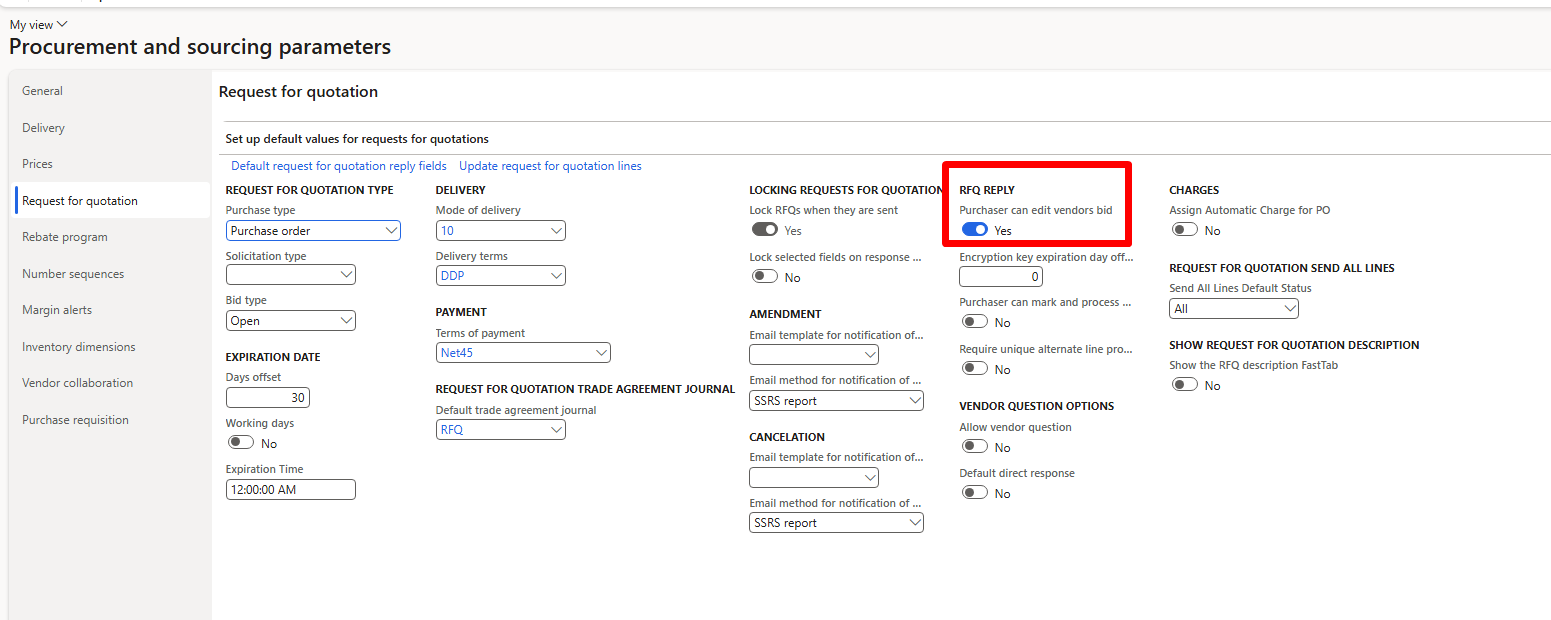
✅ Solution: Enable RFQ Editing for Purchasers
To resolve the issue, follow these steps:
- Navigate to
Procurement and Sourcing > Setup > Procurement and Sourcing Parameters - Open the Request for Quotation tab
- Set the following parameter to True:
“Purchaser can edit” - Save the changes

Consolidation of Purchase requisition lines in D365 Finance and Operations
In this video, I explain the consolidation of purchase requisition lines in Dynamics 365 Finance & Operations.
In many real-world scenarios, different departments may create purchase requisitions for the same item. Instead of processing these requests separately and negotiating with vendors for each individual line, D365 F&O allows us to consolidate purchase requisition lines into a single consolidation.
This helps streamline vendor negotiation, enables better control over price, discounts, and vendor selection, and allows you to convert the consolidated requisition into a single purchase order efficiently.
I hope you find this video helpful. If you do, please like, share, and subscribe for more D365 F&O content.
Consider courses on udemy
The requested Performance Counter is not a custom counter, it has to be initialized as ReadOnly. D365
On new vm, I found following error, when ever, i try to create a new PR or purchase order.
Following script helped me
$AOSDirectory = ‘c:\AOSService\PackagesLocalDirectory’
$AOSBinDirectory = $AOSDirectory + ‘\bin’
[Reflection.Assembly]::LoadFrom(“$AOSBinDirectory\Microsoft.Diagnostics.Tracing.EventSource.dll”)
$sharedDLL = ‘Microsoft.Dynamics.AX.Xpp.AxShared.dll’
$subledgerDLL = ‘Microsoft.Dynamics.Subledger.Instrumentation.dll’
$taxDLL = ‘Microsoft.Dynamics.Tax.Instrumentation.dll’
$prodCfgDLL = ‘Microsoft.Dynamics.ProductConfiguration.Instrumentation.dll’
$sourceDocDLL = ‘Microsoft.Dynamics.SourceDocumentation.Instrumentation.dll’
Copy-Item $(Join-Path $AOSDirectory -ChildPath “Subledger\bin” | Join-Path -ChildPath $subledgerDLL) -Destination $AOSBinDirectory
[Reflection.Assembly]::LoadFrom($(Join-Path $AOSBinDirectory -ChildPath $subledgerDLL))
[Microsoft.Dynamics.Subledger.Instrumentation.PerformanceCounterCatalog]::Setup()
Copy-Item $(Join-Path $AOSDirectory -ChildPath “Tax\bin” | Join-Path -ChildPath $taxDLL) -Destination $AOSBinDirectory
[Reflection.Assembly]::LoadFrom($(Join-Path $AOSBinDirectory -ChildPath $taxDLL))
[Microsoft.Dynamics.Tax.Instrumentation.PerformanceCounterCatalog]::Setup()
Copy-Item $(Join-Path $AOSDirectory -ChildPath “SourceDocumentation\bin” | Join-Path -ChildPath $sourceDocDLL) -Destination $AOSBinDirectory
[Reflection.Assembly]::LoadFrom($(Join-Path $AOSBinDirectory -ChildPath $sourceDocDLL))
[Microsoft.Dynamics.SourceDocumentation.Instrumentation.PerformanceCounterCatalog]::Setup()
Copy-Item $(Join-Path $AOSDirectory -ChildPath “ApplicationSuite\bin” | Join-Path -ChildPath $prodCfgDLL) -Destination $AOSBinDirectory
[Reflection.Assembly]::LoadFrom($(Join-Path $AOSBinDirectory -ChildPath $prodCfgDLL))
[Microsoft.Dynamics.ProductConfiguration.Instrumentation.PerformanceCounterCatalog]::Setup()
[Reflection.Assembly]::LoadFrom($(Join-Path $AOSBinDirectory -ChildPath $sharedDLL))
[Microsoft.Dynamics.Ax.Xpp.AxShared.AxPerformanceCounters]::InitializePerformanceCounterCategories()
How avoid schedule jobs running in specific time slots
Recently, I discovered an interesting and useful feature in D365 Finance and Operations.
Most of the time, there are peak hours when the system is heavily loaded. During these periods, we may not want certain batch jobs to run in order to avoid performance issues.
D365 Finance and Operations (now rebranded as ERP AI) provides a feature to control this behavior.
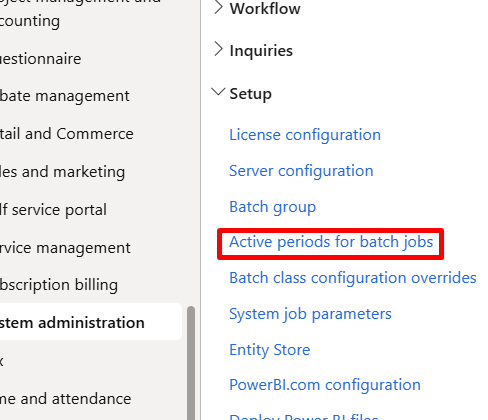
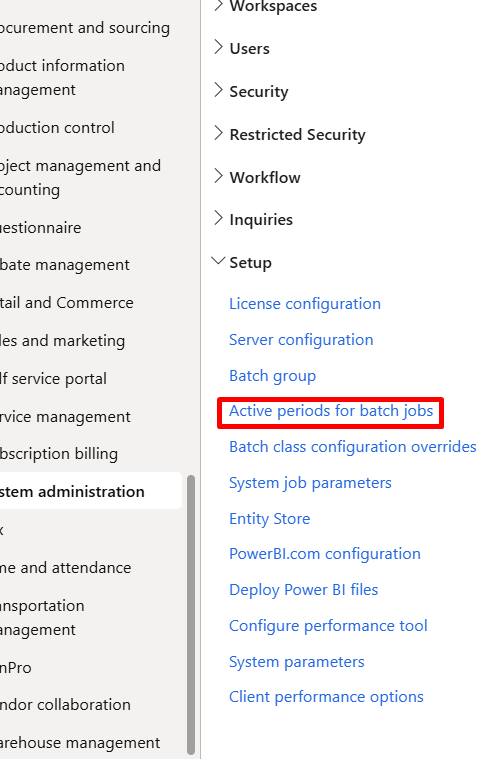
You can find it here:
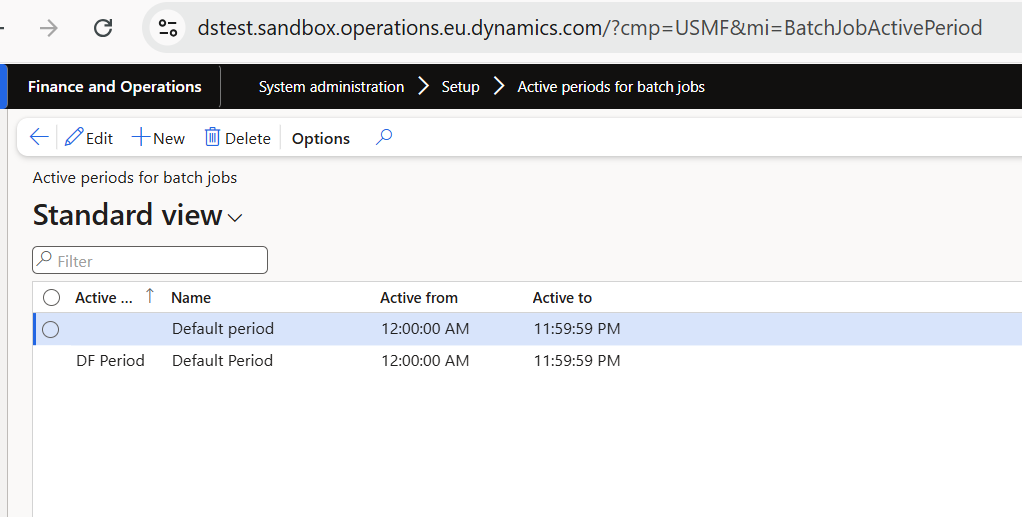
System administration > Setup > Active periods for batch jobs
Using this setup, you can define active periods and assign batch groups to them. Within each batch group, you can add batch jobs with their normal recurrence settings.
The key benefit is that batch jobs assigned to these groups will not execute during the defined inactive hours. This allows you to prevent batch jobs from running during peak system usage times and ensures better system performance.


Free Text Invoice Posting and accounts allocation in D365 Finance and Operations
In this video, I shared you how accounts hit when you post free text Invoice in D365 Finance and Operations.
Error importing database Could not load package from .bacpac. File contains corrupted data.
So importing the latest backup on Dev machine, I found this error
It is very strange, because I installed from

And when I run the setup from this link Error appear.
Error importing database:Could not load package from ‘C:\temp-UATbackup.bacpac’.
File contains corrupted data.
Instead to download and install DacFramework.
Download and install latest .net version and extract it to your required folder
Download and Install SqlPackage – SQL Server | Microsoft Learn

From there, instead of using the Sqlpackage.exe under C:\Program Files (x86), please use the Sqlpackage.exe in C:\Temp\Sqlpackage-dotnetBoomb
Your import query will look like below
C:\Temp>SqlPackage.exe /a:import /sf:D:\Temp\UTup.bacpac /tsn:localhost /tdn:AxDB_fromProd1 /p:CommandTimeout=0
Error Log level – Error | Infolog diagnostic message: ‘Cannot create a record in Entity (DMFEntity) – D365 Finance and operations
During development, I initially used the arbitrary name for the custom data entity. Later, during the review session, I updated the Label property of the data entity to align with proper naming conventions.
🔍 Best practice: Always use the label for the data entity display name, not hardcoded strings.
Since this was a small customization, I had directly written string values in some places, bypassing the label. However, when I triggered database synchronization, I encountered the following error:
❌ Error Message:
Error Log level - Error | Infolog diagnostic message:
'Cannot create a record in Entity (DMFEntity).
Entity: ProductCreationValidationEntityV2, DSTProductCreationValidationStaging.'
🧪 Root Cause:
Upon investigation, I found that the DMFEntity table contained multiple entries with conflicting labels for the same data entity names. This typically occurs when:
- You change the label or name of a data entity without cleaning up old records
- The model or metadata has inconsistencies after refactoring
✅ Solution:
You need to identify and delete the duplicate or orphaned records from the DMFEntity table.
🔍 Sample Queries:
Run the following queries in SQL Server Management Studio (SSMS) against your AXDB database:
-- View existing records for the custom entities
SELECT * FROM DMFENTITY WHERE ENTITYNAME = 'ProductCreationValidationEntityV2';
SELECT * FROM DMFENTITY WHERE ENTITYNAME = 'ProductCreationValidationEntityV2Lines';
SELECT * FROM DMFENTITY WHERE ENTITYNAME = 'DSTProductCreationValidationEntity';
-- Delete the orphan/conflicting records
DELETE FROM DMFENTITY WHERE ENTITYNAME = 'ProductCreationValidationEntityV2';
DELETE FROM DMFENTITY WHERE ENTITYNAME = 'ProductCreationValidationEntityV2Lines';
DELETE FROM DMFENTITY WHERE ENTITYNAME = 'DSTProductCreationValidationEntity';
⚠️ Warning: Always take a database backup before running any DELETE operation.
🧰 Next Steps:
- Perform a full build of your model
- Run database synchronization again
- Re-deploy the data entities, if required
Sales price and discount is not added to sales line X++
I encountered this issue and, during troubleshooting, I discovered that the system performs an update on the sales line to retrieve sales prices and discounts. This process has a performance impact. In fact, the prices are copied from the trade agreement in Dynamics 365 for Finance and Operations
For manual price use following code snippet
salesLine.initFromInventTable(InventTable::find(salesLine.ItemId));
salesLine.InventDimId = inventDim.inventDimId;
salesLine.SalesQty = listObject.parmSalesQty();
salesLine.SalesPrice = listObject.parmOriginalPrice();
salesLine.SalesUnit = _InventItemBarcode.UnitID;
salesLine.PriceUnit = 1.00;
if ( (listObject.parmOriginalPrice() >= listObject.parmOfferPrice()) && !(listObject.parmOfferPrice() <0) && !(listObject.parmOriginalPrice() <=0))
{
if (listObject.parmOfferPrice()!=0)
{
real _Discount =listObject.parmOriginalPrice() -listObject.parmOfferPrice();
salesLine.LineDisc = _Discount;
}
else
{
salesLine.LineDisc = 0;
}
}
salesLine.DefaultDimension =LedgerDimensionDefaultFacade::serviceMergeDefaultDimensions(salesTable.DefaultDimension,InventTable::find(salesLine.ItemId).DefaultDimension);
salesLine.setPriceDiscChangePolicy(PriceDiscSystemSource::ManualEntry, fieldNum(salesLine, SalesPrice));
salesLine.setPriceDiscChangePolicy(PriceDiscSystemSource::ManualEntry, fieldNum(salesLine, LineDisc));
// salesLine.setPriceDiscChangePolicy(PriceDiscSystemSource::ManualEntry, fieldNum(salesLine, LinePercent));
salesLine.setPriceDiscChangePolicy(PriceDiscSystemSource::ManualEntry, fieldNum(salesLine, PriceUnit));
Try
{
ttsbegin;
salesLine.CreateLine(NoYes::Yes,NoYes::Yes);
ttscommit;
}
catch
{}