• Skip to main content
  • Skip to primary sidebar
  • Home
  • About
  • Recommended Readings
    • 2022 Book Reading
    • 2023 Recommended Readings
    • Book Reading 2024
    • Book Reading 2025
  • Supply Chain Management Guide
  • PKM
  • Microsoft Excel
  • Microsoft Copilot in Office 365
  • Public Wiki Page

Ali Raza Zaidi

A practitioner’s musings on Dynamics 365 Finance and Operations

Dynamics Ax

The new Dynamics AX (aka AX 7) RTW vm component now available for download

February 28, 2016 by alirazazaidi

Hi, All I found new Dynamics AX RTW download link on Microsoft connect.  Microsoft update that link at 24/2/2016. After download you have to follow following two links to configure it on your machine.


https://ax.help.dynamics.com/en/wiki/access-microsoft-dynamics-ax-7-instances-2/

Running Dynamics Ax 7 CT8 Vm on Windows 8.1

Try catch and finally in new Dynamics Ax (aka AX7)

January 24, 2016 by alirazazaidi

Finally I found that in new Dynamics Ax finally statement introduce in exception handling statement.

try
{
}
catch
{
}
finally
{
}

It means, everything written in finally must be execute. For testing this functionality I just create a runnable class and written following code.

class HelloWorld

{

/// <summary>

/// Runs the class with the specified arguments.

/// </summary>

/// <param name = "_args">The specified arguments.</param>

public static void main(Args _args)

{

ColorDC dc = new ColorDC();

ColorSc Sc = new ColorSc();


try

{

dc.parmColorName("Red");

Sc.InsertColor(dc);

dc.parmColorName("Green");

Sc.InsertColor(dc);

} catch (Exception::Error)

{

info("error");

}

finally

{

info("finally");

}


}


}


When run the code.

I found Info box in browser as

2016-01-24_12-47-01

Runnable classes and table browser in Dynamics Ax (Dynamics AX 7).

January 2, 2016 by alirazazaidi

Purpose of This post to explore the runnable classes to test the logic, checking the traditional X++ (AX 2012) code and new table explorer in Dynamics Ax 7.  This post is based on Dynamics AX (Dynamics AX 7) CTP 8.


In new Dynamics Ax (Dynamics AX 7) there is no more AX Jobs.  For testing certain logic we have to use runnable classes.


Suppose we have to test the logic for some service, which has data contract and Service contract classes.

Right click inside solution explorer and add new object and select runnable class.

New Item

New Job


Add test logic as

class HelloWorld

{

/// <summary>

/// Runs the class with the specified arguments.

/// </summary>

/// <param name = “_args”>The specified arguments.</param>

public static void main(Args _args)

{

ColorDC dc = new ColorDC();

ColorSc Sc = new ColorSc();

dc.parmColorName(“Red”);

Sc.InsertColor(dc);

dc.parmColorName(“Green”);

Sc.InsertColor(dc);


}


}


Now expand the project properties and set my Hello world class a start up object

sss


To explore the debug feature I add a break point and press F5. With debug window a new diaglonsitic tool runs, which shows memory and space used by my code processing.


I just test the traditional X++ code, Its works the same way as it was in Morphix editor in tradition AX (2012).

public void InsertColor(ColorDC Colorobj)


{


MyColorTable _Color;


Name _Name;


_Name = Colorobj.parmColorName();


select * from _Color where _Color.ColorName== _Name;


if (_Color==null)


{


try


{


ttsBegin;


_Color.ColorName = _Name;


_Color.insert();


ttsCommit;


}


catch


{


ttsAbort;


}


}


}


Now right click on table and from properties popup menu click on table browser.

2016-01-02_21-43-18


The new table browser inside Visual studio show me the values just inserted during debugging of above mentioned code.

sss3333

Exploring the Dynamic Ax (AX 7) workspace.

December 29, 2015 by alirazazaidi

New Dynamics AX (AX 7) is web based. Its navigation layout is different than Dynamics Ax 2012.

Writing of this blog post, I am using Dynamics Ax 7 CTP8 beta version, so possible later version will have better navigation layout.

Lets explore what Current version offers us.


When we login into AX 7 web page. The first page or dashboard appears shows us multiple workspace. These workspace are depended on login user role.


Currently I am login with administrator user. So It will show all workspaces. Consider following screenshot.

Workspace.


Dashboards central area shows the multiple workspace links based on role of login user.

Workspace1

Left section contains a calendar, favorites and recently used pages. Calendar shows us current date. If click on any date, pop up message ask to change the session date.

Favorits and clander

On favorite tab, can be find all favorite page linked, which select as favorite, this feature helps user to go on specific page directly on which he most frequently works.

Next to it Recent, Here Dynamics Ax shows all forms you recently visited inside Dynamics Ax. It is some kind of history.

From right side or right section user can find all links to records which are assigned to him or her as result of workflow submission.

Assign to me


If we see top menu bar It will contains legal entry change, universal search and module menu. In below screenshot I attached different points to described in more detail.

navigation panePoint 1: If we click Dynamics Ax button, this will lead us on dashboard page or home page.

Point 2: Click on Icon pointed in 2. This will shows us pop up menu, which take us different modules and there respected forms.

2015-12-29_23-35-24

Point 3: AX provide excellent search button, for example in point 3 I entered the word “Product” , a drop down shows all possible links where word product found.

Search

Point 4: On point 4 is place where we can change legal entity

Legal entitiesPoint 5: Next item is on click we found link for task record and other option.

Menu2


Now we explore on other Sales order processing and Inquiry workspace. For this we have to click on top menu and open

Sales Inquery page

On clicking that we find following workspace page open

Workspace detail

The workspace is clearly divided into three parts.

  1. Summary one is summary section.

This section shows the summary of number of issues, status, count of particular status. For example above summary section shows that currently two unconfirmed sales order, Zero confirmed sales orders and 0 partially shipped in current legal entity. This summary also contains quick links for All Sales Orders and All customers.

Summary Sections

If I click on Unconfirmed summary button this will leads to list page where unconfirmed sales orders are placed.

Sumarry details

You can also see the action pane in above screenshot, This form open as result of clicking on Unconfirmed Sales Order summary button.


  1. Second section is tab section.

Tabbed Area

Tab are shows the list, steps and do list. For example if I click on unconfirmed tab than tabbed area looks the like following screen shot.

Tabbed Details

  1. Third section in workspace is links. Where you find links for other pages which related current paged. Here you find inquiries, frequently access page links etc.

Links


Multiple windows.

While working we usually open multiple screens, for this purpose Dynamics Ax 7 , provide a button on Action pane. Click on this button you can open multiple web pages.

Open in new window


Reports:

 We can also run reports from pop up menu. Lets run sales orders per customer.

Reports menu

By clicking on “Sales Order per customer” following tab open at right side of workspace.

Report Daliog


Expand Records to Include and add filter for report

Report Dalilog details

Click on filter under “Record to Include”

Customer DEtails


Click ok and customer is selected

Customer Selection details


Click ok to run report.

Loading and loading wait for loading report for selected Sales order.

Report load

Taa taan Reports opens.

Report is runned


Running Dynamics Ax 7 CT8 Vm on Windows 8.1

December 17, 2015 by alirazazaidi

By writing of this post, I just download the AX7 CTP8 Vm and configure on my machine.

I successfully configure it on hyper V. Only one tricky point is external network adapter in Hyper V.


First step is download VHD and extract it to some place. If you are registered to AX 7 Feedback program, then you  must have vhd download link.

After the download, run the self-extract exe and extract the Vhd at specific location.

CTP8


2015-12-17_18-24-16

Step 2. Create a new external network adapter

Open hyper v console, and create new external network. As I am using wireless network, so I select it as bridge for using internet inside VM. You can use your Ethernet network as bridge.


2015-12-17_21-06-18


Step 3 Create a new Vm.

2015-12-17_21-01-54

Select generation 1 vm in next step

2015-12-17_21-04-01

2015-12-17_21-04-28


Set 8 GB ram to vm, recommend ram is 16 GB.

2015-12-17_21-04-56

Select network adapter we created in previous step.

2015-12-17_21-07-42

Select use existing hard drive and select the Vhd extracted in previous steps.

2015-12-17_21-08-33


Click on next and click on finished.


Run the VM and click on connect button. Login in with “Administrator” and Password is “pass@word1”


When VM is running you find new network connection ask your permission, Click on Yes button.

2015-12-17_21-15-34


Please check that network is working fine inside VM. Some times it will gives error “network has not assigned ip address”.  If external network adapter will not work then you have to create internal network and use that.

For this I create Internal network adapter in Hyper v. For currently I created a new internal adapter with name
“GateWayToInternet”.

internal

Now open the network and sharing center in windows. either using wifi or Ethernet. right click on it and from properties window select sharing tab.

Sharing

check the checked box for sharing internet and from drop down select the v Ethernet (which we create in one above step). stop the vm and use newly created internal network adapter in its network setting. When you start the vm. it will successfully access the internet and let you access ax 7 in browser.

For more detail for Internal networks setting please use following link, I used it for configuration.

http://wordsideasandthings.blogspot.com/2013/01/hyper-v-internal-virtual-network-and.html


Wait a few minutes and then open Internet Explorer and type following url


https://usnconeboxax1aos.cloud.onebox.dynamics.com


This will lead you at login page

2015-12-17_21-38-38


For login you need to use some office 365 account.  Currently I used my other account which i created for Microsoft Dynamics CRM trail. Possible if office 365 account did not work then register for CRM trail. 🙂

You may found “Provision tool” on the desktop of VM”.

2016-02-17_13-18-31

Right click on it and run it  as administrator.

enter your office 365 account  and click on submit.

2016-02-17_11-56-48

wait a few minutes. When  success message popup login with office 365 account.

2016-02-17_11-58-33


If your network Adapter is successfully configured, AX 7 welcome page will open, other wise you will find error page.


2015-12-17_21-42-56


Delete a legal entity in Dynamics Ax 2012

December 12, 2015 by alirazazaidi

Today I have to delete all legal entities from one of MS Dynamics Ax 2012 environment.

During this I got following error while deleting legal entities.

“Can not record , The corresponding AOS  validation failed”.

This error clearly shows that Transnational data exists in that legal entity.

I follow these steps to clear all legal entities.

  • First of open AOT with development rights.
  • Change the legal entity from DAT to required legal entity.
  • From AOT, expand the Class node, type SysdatabaseTransDelete. When find, right click on it click it open / run. It will delete all transactional history of required legal entity.
  • Now open the new workspace and open Organization Administrator ion => setup=>organization => legal entities.
  • Select on required legal entity and click on delete from top menu.

Some but on some legal entities delete button is still disabled. Because there is no important data as well I want to delete all legal entities, I manually delete the data in RCHYRELATIONSHIP table.

Otherwise I have to delete the organization hierarchy data carefully.


Following two links help me to solve this issue.

http://daxture.blogspot.com/2014/09/delete-legal-entities-in-ax-2012.html

https://community.dynamics.com/ax/f/33/t/139605

Microsoft Dynamics ‘AX 7’ and the Cloud: an analyst’s (pre)view

August 11, 2015 by alirazazaidi

About Ax 7 and Cloud I found very nice paper at Inside Microsoft Dyanmics Ax Blog. They wrote about the paper

In the paper, Mr. Greenbaum explains how the next release of Microsoft Dynamics AX, running on the Microsoft Azure, positions cloud computing for a dramatic and meaningful shift. With a starting discussion of the long-standing customer promises and pain points with regard to ERP, Greenbaum explains the basics of our cloud offering and then describes the benefits to both partners and customers.

AX 7

Paper link is as follow http://blogs.msdn.com/cfs-file.ashx/__key/communityserver-components-postattachments/00-10-62-70-38/Redefing-the-potential-of-enterprise-cloud-computing-WP-final.pdf


and original post  is as follow

http://blogs.msdn.com/b/dax/archive/2015/07/10/read-analyst-joshua-greenbaum-s-perspective-on-microsoft-dynamics-ax-7.aspx

Picture above taking from paper mentioned above link.

How to generate Entity relation diagram for specific tables in Dynamics Ax 2012

April 1, 2015 by alirazazaidi

Recently I have to generate a ER-diagram for specific list of tables in Dynamics Ax.  Dynamics Ax has built in feature.

Prerequisite of this article has Microsoft Visio.


Create a project for all tables which require in ER-diagram.

For this article I  created a new project with Name customer Address and drop CustTable and DirpartyTable in it.

Customer

In AOT or development workspace. Click on tools and reverse engineer menu .


4-1-2015 12-11-00 AM


Following form will open, Select location where file with ERX will be generated. Select your private or public projects.

4-1-2015 12-12-013

Click ok to generate it.


When file is generated, go on windows start up menu and open MS visio. Select database modeling Diagram Template.

4-1-2015 12-14-013


When Database Model diagram is open, From database menu=> Import=> Import Erwin ERX file…

load erx file generated in previous step. This menu is only available when you select Database diagram as template in Visio.

4-1-2015 12-15-44 AM

click on Browse.. button and load erx file.4-1-2015 12-17-52 AM


Click ok

A small dialog shows the import status

4-1-2015 12-18-19 AM

Next step you have to enable view for Tables, So you can select tables for ER-Diagram

Database=>View=> Tables and views

4-1-2015 12-18-57 AM

You will found following pane at left side of screen.

4-1-2015 12-19-20 AM

Click on required table to add it on page and it will show required tables with relationship.

4-1-2015 12-22-046


You can re-size these diagrams.


Exploring The SalesSalesOrderservice AIF Document Service In Dynamics Ax 2012 R3

October 10, 2014 by alirazazaidi


For my session for Integration with Dynamics Ax 2012. I have to consume SalesSalesOrderSerivce. In this article I am configure and consume Sales Order service and share c# code for calling a Sales service and consume.


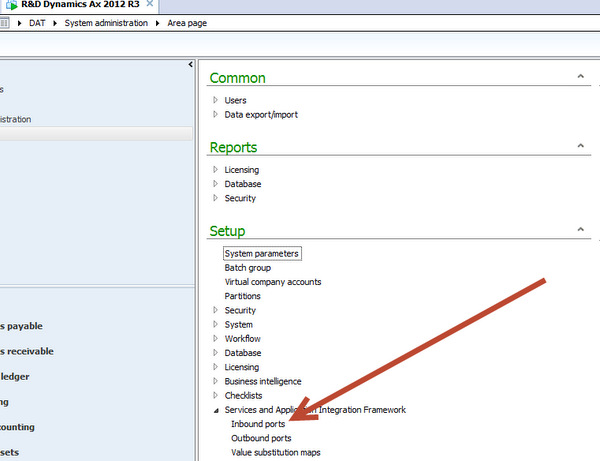
Enable the methods and configure the inbound port. For this you have to go at following link and open AIf Inbound

Aif Link


Right click on AIF menu and create a New

set the Name there “ for example I create the port with Name “MySalesOrderService”.

10-10-2014 7-58-10 PM

Click on Service Operations add following one

Selection

Click on arrow button and add these method to service

Selected

Now click on Close button to close it.

Now click to check box to enable data policy button document. Click on it.

enable the Data policy


New screen open for all possible fields, Click on Element to sort the list, Enable following fields which are minimum required for Sales Order creation.

Mendatory Selection


Now save it. From port screen enable logging and Click on activate, Wait it will take time to deploy the service on port.

Activate

Info log appear to tell that port is successfully active.

InfoLog


Now copy the WSDL url

Wsdl


Create a new Console application in Visual studio, I am more familiar with C# so I created a console application in C#.

Add new Service reference and set its name “SalesOrderService” and get methods from WSDL.

SalesOrder Service Reference


Now Click on Ok button.


Calling the Create Method.


var line = new SalesOrderService.AxdEntity_SalesLine()

{

ItemId = “D0001”,

SalesQty = 42,

SalesUnit = “ea”

SalesOrderService.AxdEntity_InventDim inventDim = new SalesOrderService.AxdEntity_InventDim();
inventDim.InventSiteId = “JS”;

InventDim = new SalesOrderService.AxdEntity_InventDim[] {inventDim};


};


var order = new SalesOrderService.AxdEntity_SalesTable()

{

CustAccount = “US-003”,

PurchOrderFormNum = “ffg”,

ReceiptDateRequested = DateTime.Now.Date,


SalesLine = new SalesOrderService.AxdEntity_SalesLine[] { line }

};


//   SalesOrderService. _salesOrder= new SalesOrderService.AxdSalesOrder();


var orderList = new SalesOrderService.AxdEntity_SalesTable[] { order };

var callContext = new SalesOrderService.CallContext() { Company = “USMF” };

SalesOrderService.SalesOrderServiceClient client = new SalesOrderService.SalesOrderServiceClient();


//   _salesOrder.SalesTable=orderList;

try

{

client.create(callContext, orderList);


//  client.create(callContext, orderList);

client.Close();

}

catch

{

client.Abort();

throw;

}


Read Method Code

try

{

SalesOrderService.KeyField keyField = new SalesOrderService.KeyField() { Field = “SalesId”, Value = “000767” };


// Create an entity key instance and put in the key field data


SalesOrderService.EntityKey entityKey = new SalesOrderService.EntityKey();


entityKey.KeyData = new SalesOrderService.KeyField[1] { keyField };


// Create an array of entity keys and put in the previously


SalesOrderService.EntityKey[] entityKeys = new SalesOrderService.EntityKey[1] { entityKey };


SalesOrderService.SalesOrderServiceClient _Client = new SalesOrderService.SalesOrderServiceClient();


SalesOrderService.CallContext _callContext = new SalesOrderService.CallContext();


_callContext.Company = “USMF”;


SalesOrderService.AxdEntity_SalesTable[] _SalesOrder= _Client.read(_callContext, entityKeys);


SalesOrderService.AxdEntity_SalesTable _SalesTable = _SalesOrder[0];

SalesOrderService.AxdEntity_SalesLine _SalesLineTable = _SalesTable.SalesLine[0];

Console.WriteLine(“Account Num : ” + _SalesTable.CustAccount.ToString());

Console.WriteLine(“Order date  : ” + _SalesTable.ReceiptDateRequested.ToString());

Console.WriteLine(“ItemId  : ” + _SalesLineTable.ItemId.ToString());

Console.WriteLine(“QTy  : ” + _SalesLineTable.SalesQty.ToString());

Console.WriteLine(“Sales Unit  : ” + _SalesLineTable.SalesUnit.ToString());

_Client.Close();

Console.ReadKey();

}

catch

{

//     client.Abort();

throw;

}


Update Method Call code


SalesOrderService.KeyField keyField = new SalesOrderService.KeyField() { Field = "SalesId", Value = "000756" };


// Create an entity key instance and put in the key field data


SalesOrderService.EntityKey entityKey = new SalesOrderService.EntityKey();


entityKey.KeyData = new SalesOrderService.KeyField[1] { keyField };


// Create an array of entity keys and put in the previously


SalesOrderService.EntityKey[] entityKeys = new SalesOrderService.EntityKey[1] { entityKey };


SalesOrderService.SalesOrderServiceClient _Client = new SalesOrderService.SalesOrderServiceClient();


SalesOrderService.CallContext _callContext = new SalesOrderService.CallContext();


_callContext.Company = “USMF”;


SalesOrderService.AxdEntity_SalesTable[] _SalesOrderList = _Client.read(_callContext, entityKeys);


SalesOrderService.AxdEntity_SalesTable _SalesOrderTable = _SalesOrderList.First();

SalesOrderService.AxdEntity_SalesLine SalesLine = _SalesOrderTable.SalesLine.First();

decimal salesQty = 50;

SalesLine.SalesQty = salesQty;


_Client.update(_callContext, entityKeys, _SalesOrderList);


Delete method code


SalesOrderService.KeyField keyField = new SalesOrderService.KeyField() { Field = "SalesId", Value = "000757" };


// Create an entity key instance and put in the key field data


SalesOrderService.EntityKey entityKey = new SalesOrderService.EntityKey();


entityKey.KeyData = new SalesOrderService.KeyField[1] { keyField };


// Create an array of entity keys and put in the previously


SalesOrderService.EntityKey[] entityKeys = new SalesOrderService.EntityKey[1] { entityKey };


SalesOrderService.SalesOrderServiceClient _Client = new SalesOrderService.SalesOrderServiceClient();


SalesOrderService.CallContext _callContext = new SalesOrderService.CallContext();


_callContext.Company = “USMF”;


_Client.delete(_callContext, entityKeys);


Trouble shooting AIF service.

There are many possible failure of sales service call, You can trouble shoot it from  System Administration section as

Exceptions

During writing code and I got many failures, All exceptions recorded here.


ExceptionsForm


List of functions used in Dynamics AX 2012 SSRS Reports Expressions

October 10, 2014 by alirazazaidi

During working in SSRS reports I have to handle division by Zero error for calculating accumulated cost by dividing Amount by Quantity.


This expression works for me.


IIf(Sum(Fields!xyz.Value) = 0, “N/A”, Sum(Fields!abc.Value) / IIf(Sum(Fields!abc.Value) = 0, 1,Sum(Fields!xvz.Value)))

I did little research on Expressions and function used in these SSRS expressions


Expressions:

Expressions are used for manipulate or update the value, for example, cost show by dividing amount by Quantity. Rounding of decimal. Similarly Expression can be used to highlight the filed if condition meets. Style font can be changed, even you can uses switch statement, to change the display value of report.


Types of Expressions

Globals
Operators – Arithmetic, Comparison, Logical
Common Functions – Text, Date & Time, Math, Inspection, Program Flow, Aggregate, Financial, Conversion, Miscellaneous

We can see each and every one very detail in following.


Globals

Global expressions executes/works in Page Header and Footer parts only.

ExecutionTime shows date and time at when report executes
PageNumber shows page number of each and every page but allowed only in page header and footer
ReportName displays name of the active report what name we have assigned to the active report
UserId shows current user name like company/alirazazaidi
Language displays language like US-English…

Operators

Arithmetic
^ power of
* multiplication
/ divides two numbers and returns a floating point result
\ divides two numbers and returns a integer result
Mod divides two numbers and returns remainder only
+ adds two numbers and concatenation for two strings
– subtraction and indicates negative value for numeric values
Comparison
Known operators : < <= > >= <> 
Like compares two strings and return true if matched or else returns False. Ex: =Fields!Title.Value Like Fields!LoginID.Value
Is compare two object reference variables Ex: = Fields!Title.Value Is Null
Concatenation
+ and & symbols uses for concatenation
Logical
Known: And, Not, Or 
Xor SELECT * FROM users where firstname = ‘Larry’ XOR lastname = ‘Smith’
AndAlso First condition will check first and if it is true only, goes to next or else it won’t need to check. Because our execution time is saving in a logical operation in which more conditions is combined using AndAlso function.
OrElse same like above

Common Functions

Text

Asc, AscW returns an integer value represents character code corresponding to a character

Chr, chrw returns the character associated with the specified character code

Filter =Filter(Fields!Title.Value,”Pr”,true,0

Format
=Format(Fields!Price.Value, “#,##0.00”), Format(Fields!Date.Value, “yyyy-MM-dd”)

FormatCurrency =formatcurrency(Fields!SickLeaveHours.Value,3)

FormatDateTime =FormatDateTime(Fields!BirthDate.Value,Integer)
Examples:
0 returns 10/10/2014
1 returns Friday, October 10, 2014
2 returns 6/3/2014
3 returns 12:00:00AM
4 returns 00:00

FormatNumber =FormatNumber(Fields!EmployeeID.Value,2)
Examples: 4.00

FormatPercent =”Percentage : ” & formatpercent(Fields!SickLeaveHours.Value)

GetChar =GetChar(Fields!Title.Value,5)

InStr =InStr(Fields!Title.Value,”a

InStrRev =Instrrev(Fields!Title.Value,”a

LCase Change strings into lower case
=Lcase(Fields!Title.Value)

Left Returns left side characters from a string
=Left(Fields!Title.Value,4)

Len Finds length of a string
=Len(Fields!Title.Value)

LSet Returns some length of a string from left
=Lset(Fields!Title.Value,5)

LTrim Trim left side of a string
=Ltrim(” “&Fields!Title.Value)

Mid Returns characters from the mentioned starting position
=Mid(Fields!Title.Value,InSTrRev(Fields!Title.Value,”T

Replace Replaces one string with another
=Replace(Fields!Title.Value,”a”,”A

Right Returns right side characters from a string
=Right(Fields!Title.Value,10)

RSet Returns some length of a string from left
=Rset(Fields!Title.Value,5)

RTrim Trim left side of a string
=Rtrim(Fields!Title.Value & ” “)

Space Specifies some spaces within strings
=Fields!Title.Value & Space(5) & Fields!Title.Value

StrComp Returns a value indicating the result of a string comparison

vbBinaryCompare 0 Perform a binary comparison.
vbTextCompare 1 Perform a textual comparison.
string1 is less than string2 -1
string1 is equal to string2 0
string1 is greater than string2 1
string1 or string2 is Null Null

StrConv
=Strconv(Fields!Title.Value,vbProperCase)
=Strconv(Fields!Title.Value,vbLowerCase)
=Strconv(Fields!Title.Value,vbUpperCase)

StrDup Returns a string or object consisting of the specified character repeated the specified number of times.
=StrDup(3,”M”)

StrReverse =StrReverse(Fields!Title.Value)

Trim =Trim(” “& Fields!Title.Value & ” “)

UCase =Ucase(Fields!Title.Value)

Date & Time

CDate Converts a object into date format
=Format(CDate(Fields!BirthDate.Value),”MMMM”)

DateAdd Returns a datetime that is the result of adding the specified number of time interval units to the original datetime.

=dateadd(“m”,12,Fields!BirthDate.Value)

DateDiff Find number of days, months and years between two dates
=datediff(“d”,Fields!BirthDate.Value,Now)

DatePart DatePart(DateInterval.Weekday, CDate(“2009/11/13”), FirstDayOfWeek.Monday) returns 5 (Friday)

DateSerial for first day of the month
=DateSerial(Year(Now), Month(Now), 1)
for the last day of the month
=DateSerial(Year(Now), Month(Now)+1, 0)

DateString Returns string value of system date
=datestring()

DateValue Returns current date

Day Returns day value from date
=day(Fields!BirthDate.Value)

FormatDateTime =FormatDateTime(Fields!BirthDate.Value,Integer)
Examples:
0 returns 6/3/2014
1 returns Friday, June 03, 2014
2 returns 6/3/2014
3 returns 12:00:00AM
4 returns 00:00

Hour =Hour(Fields!BirthDate.Value)

Minute =Minute(Fields!BirthDate.Value)

Month =Month(Fields!BirthDate.Value)

MonthName =MonthName(Month(Fields!BirthDate.Value))

Now Indicates current month
=Now() or =Now

Second =Second(Fields!BirthDate.Value)

TimeOfDay =TimeOfDay()
Returns a date value containing the current time of day according to your system

Timer =Timer()
Returns number of seconds elapsed since midnight

TimeSerial =TimeSerial(24,60,60)
Returns a date value representing a specified hour, minute and second

TimeString =TimeString()
Returns string value representing the current time of day according to your system

TimeValue Returns a date value set to jan 1 of year 1
=TimeValue(Fields!BirthDate.Value)

Today Returns Current date

Weekday Returns an integer value representing day of week
=WeekDay(Fields!BirthDate.Value)

WeekdayName =WeekdayName(Weekday(Fields!BirthDate.Value))
Returns name of the day of week

Year =year(Fields!BirthDate.Value)
Returns year of specified date

Math

Abs Returns the absolute value
=Abs(-2.36)

BigMul Returns multiplication value of two specified numbers
=BigMul(2,3)

Ceiling Returns next highest value
=Ceiling(2.67)

Cos
=Cos(2.33)
Returns cos value for specified number

Cosh
Returns hyperbolic cos value
=Cosh(2.33)

DivRem
=DivRem(23,2,5)

Fix
=Fix(23.89)
Returns integer portion

Floor
=Floor(24.54)
Returns largest integer

Int
=Int(24.78)
Returns integer portion of a number

Log
=Log(24.78)
Returns logarithm value

Log10
=Log10(24.78)
Returns the base 10 logaritm value

Max
=Max(Fields!EmployeeID.Value)
Returns larger value in the specified values

Min
=Min(Fields!EmployeeID.Value)
Returns smaller value in the specified values

Pow
=Pow(Fields!EmployeeID.Value,2)
Returns power of value for specified number

Rnd
=Rnd()
Returns a random number

Round
=Round(43.16)
Returns rounded value to the nearest integer

Sign
=Sign(-34534543)

Sin
=Sin(Fields!EmployeeID.Value)
Returns the sin value

Sinh
=Sinh(Fields!EmployeeID.Value)
Returns the hyperbolic sin value

Sqrt
=Sqrt(Fields!EmployeeID.Value)
Returns square root value

Tan
=Tan(Fields!EmployeeID.Value)
Returns the tan value

Tanh
=Tanh(Fields!EmployeeID.Value)
Returns the hyperbolic tan value

Inspection
IsArray
=IsArray(Fields!EmployeeID.Value)
Returns a boolean value indicating whether the specified object is array or not

IsDate
=IsDate(Fields!BirthDate.Value)
Returns a boolean value indicating whether the specified object is Date or not

IsNothing
=IsNothing(Fields!EmployeeID.Value)
Returns a boolean value depends on specified object is Nothing or not

IsNumeric
=IsNumeric(Fields!EmployeeID.Value)
Returns a boolean value depends on specified object is Numeric value or not

Program Flow

Choose
=CHOOSE(3, “Red”, “Yellow”, “Green”, “White”)
Returns a specific value using index in a list of arguments

IIf
=IIF(Fields!EmployeeID.Value>10,”Yes”,”No
Returns any one value depends on condition

Switch
=Switch(Fields!EmployeeID.Value<10,”Red
Fields!EmployeeID.Value>10,”Green
Evaluates list of expressions

Aggregate

Avg
=Avg(Fields!EmployeeID.Value)
Returns average value for all specified values

Count
=Count(Fields!EmployeeID.Value)
Returns count of all specified values

CountDistinct
=CountDistinct(Fields!EmployeeID.Value)
Returns count of all distinct values

CountRows
=CountRows()
Returns count of rows

First
=First(Fields!EmployeeID.Value)
Returns first for all specified values

Last
=Last(Fields!EmployeeID.Value)
Returns last for all specified values

Max
=Max(Fields!EmployeeID.Value)
Returns max for all specified values

Min
=Min(Fields!EmployeeID.Value)
Returns min for all specified values

StDev
=StDev(Fields!EmployeeID.Value)
Returns standard deviation value

StDevP
=StDevP(Fields!EmployeeID.Value)
Returns Population standard deviation value

Sum
=Sum(Fields!EmployeeID.Value)
Returns sum of all values

Var
=Var(Fields!EmployeeID.Value)
Returns variance of all values

VarP
=Var(Fields!EmployeeID.Value)
Returns population variance of all values

RunningValue
=RunningValue(Fields!EmployeeID.Value,sum,nothing)
Returns running aggregate of the specified
expression

Financial

DDB DDB (Double Declining Balance) method computes depreciation of an asset for a specified period.
Syntax: DDB (Cost, Salvage, life, period, factor)

FV FV (Future Value) of an investment based on periodic, constant payments and a constant interest rate.
Syntax: FV (rate, nper, pmt, pv, type)

IPmt IPmt (Interest Payment) for a given period for an investment based on periodic, constant payment and a constant interest rate
IPMT (rate, per, nper, pv, fv, type)

IRR IRR (Interest Rate of Return) for a series of cash flows represented by the numbers in values.
IRR(values,guess)

MIRR MIRR ( Modified internal rate of return ) for a series of periodic cash flows
MIRR(values,finance_rate,reinvest_rate)

NPer Returns the number of periods for an investment based on periodic, constant payments and a constant interest rate.
NPER (rate, pmt, pv, fv, type)

NPV Calculates the net present value of an investment by using a discount rate and a series of future payments (negative values) and income (positive values).
Syntax: NPV(rate,value1,value2, …)

Pmt Calculates the payment for a loan based on constant payments and a constant interest rate.
PMT(rate,nper,pv,fv,type)

PPmt Returns the payment on the principal for a given period for an investment based on periodic, constant payments and a constant interest rate.
PPMT(rate,per,nper,pv,fv,type)

PV Returns the present value of an investment. The present value is the total amount that a series of future payments is worth now. For example, when you borrow money, the loan amount is the present value to the lender.
PV(rate,nper,pmt,fv,type)

Rate Returns the interest rate per period of an annuity. RATE is calculated by iteration and can have zero or more solutions.
RATE(nper,pmt,pv,fv,type,guess)

SLN Returns the straight-line depreciation of an asset for one period.
SLN(cost,salvage,life)

SYD Returns the sum-of-years’ digits depreciation of an asset for a specified period.
SYD(cost,salvage,life,per)

Conversion

CBool Convert to boolean
=CBool(fields!EmployeeID.Value)
CByte Convert to byte
CChar Convert to char
CDate Convert to date
CDbl Convert to double
CDec Convert to decimal
CInt Convert to integer
CLng Convert to long
CObj Convert to object
CShort Convert to short
CSng Convert to single
CStr Convert to string
Fix =Fix(32.342143)
Returns integer portion of a number
Hex =Hex(Fields!EmployeeID.Value)
Returns a hexadecimal value of a number
Int =Int(43.44)
Returns integer portion of a number
Oct =Oct(Fields!EmployeeID.Value)
Returns a octal value of a number
Str =Str(Fields!EmployeeID.Value)
Returns string value of a number
Val =Val(“32.43”)
Returns numeric value in string format

Miscellaneous

Previous =Previous(Fields!EmployeeID.Value)
Returns the previous value


Reference : http://krishhdax.blogspot.com/2012/10/expressions-or-functions-used-in-ax.html

« Previous Page
Next Page »

Primary Sidebar

About

I am Dynamics AX/365 Finance and Operations consultant with years of implementation experience. I has helped several businesses implement and succeed with Dynamics AX/365 Finance and Operations. The goal of this website is to share insights, tips, and tricks to help end users and IT professionals.

Legal

Content published on this website are opinions, insights, tips, and tricks we have gained from years of Dynamics consulting and may not represent the opinions or views of any current or past employer. Any changes to an ERP system should be thoroughly tested before implementation.

Categories

  • Accounts Payable (2)
  • Advance Warehouse (2)
  • Asset Management (3)
  • Azure Functions (1)
  • Books (6)
  • Certification Guide (3)
  • Customization Tips for D365 for Finance and Operations (62)
  • D365OF (60)
  • Data Management (1)
  • database restore (1)
  • Dynamics 365 (59)
  • Dynamics 365 for finance and operations (138)
  • Dynamics 365 for Operations (174)
  • Dynamics AX (AX 7) (134)
  • Dynamics AX 2012 (274)
  • Dynamics Ax 2012 Forms (13)
  • Dynamics Ax 2012 functional side (16)
  • Dynamics Ax 2012 Reporting SSRS Reports. (31)
  • Dynamics Ax 2012 Technical Side (52)
  • Dynamics Ax 7 (65)
  • Exam MB-330: Microsoft Dynamics 365 Supply Chain Management (7)
  • Excel Addin (1)
  • Favorites (12)
  • Financial Modules (6)
  • Functional (8)
  • General Journal (1)
  • Implementations (1)
  • Ledger (1)
  • Lifecycle Services (1)
  • Logseq (4)
  • Management Reporter (1)
  • Microsoft Excel (4)
  • MS Dynamics Ax 7 (64)
  • MVP summit (1)
  • MVP summit 2016 (1)
  • New Dynamics Ax (19)
  • Non Defined (9)
  • Note taking Apps (2)
  • Obsidian (4)
  • Personal Knowledge Management (3)
  • PKM (16)
  • Power Platform (6)
  • Procurement (5)
  • procurement and sourcing (6)
  • Product Information Management (4)
  • Product Management (6)
  • Production Control D365 for Finance and Operations (10)
  • Sale Order Process (10)
  • Sale Order Processing (10)
  • Sales and Distribution (5)
  • Soft Skill (1)
  • Supply Chain Management D365 F&O (4)
  • Tips and tricks (278)
  • Uncategorized (165)
  • Upgrade (1)
  • Web Cast (7)
  • White papers (4)
  • X++ (10)

Wiki

  • SCM

Copyright © 2026 · Magazine Pro On Genesis Framework · WordPress · Log in