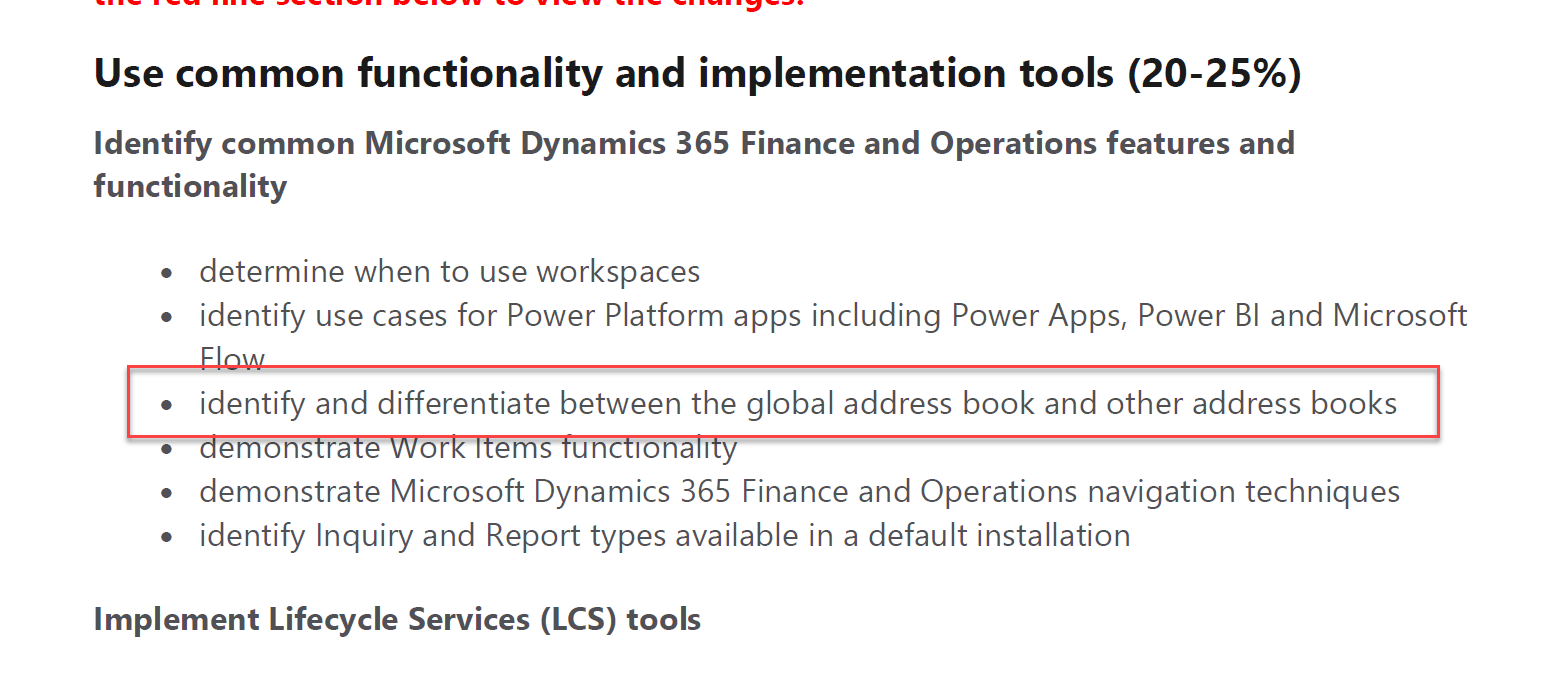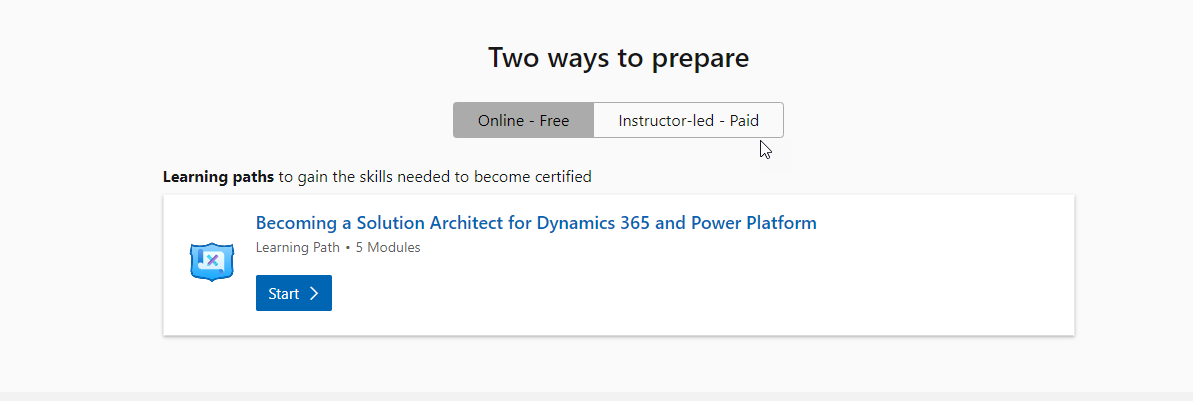

Microsoft just update the certification link. The courses are just quick start, rest is up to you.
https://docs.microsoft.com/en-us/learn/modules/discover-customer-needs/index
https://docs.microsoft.com/en-us/learn/modules/fit-gap-analysis/index
A practitioner’s musings on Dynamics 365 Finance and Operations
Microsoft just update the certification link. The courses are just quick start, rest is up to you.
https://docs.microsoft.com/en-us/learn/modules/discover-customer-needs/index
https://docs.microsoft.com/en-us/learn/modules/fit-gap-analysis/index
We are here

Global Address book is common or single repository in Dynamics 365 for finance and Operations. The basic idea is that, everything is Party either it is Person, Organization, Customer, Vendor, Employee, worker, competitor or Contact.
Data is associated with Party, That have, Address, phone number, email.
It is possible that one Party is Customer in one legal entity and Vendor in other legal entity. Change in any place reflect any places.
Party detail can be vary based on either party is organization or person.
Customer, vend, Contacts, Employee, worker, Applicate all identified as Party Role
The link between Global Address book and all other object can be explained clearly by Microsoft documentation

Party Roles are considered to be as follow.
Customer is person or organization, who purchase goods or services from one or more legal entities.
Vendor is person or organization from organization purchase goods or services.
Contact. Is person that representor from vendor who communicate with organization.
Competitor– Person or organization, who provide the similar services or goods.
Applicant. A person, who applied to Job posted in your organization.
Points need to care before Configure Global Address book in your organization.
Reference :
https://docs.microsoft.com/en-us/learn/modules/plan-config-global-address-book-finance-operations/
80884BE: Scrap, Waste, and Measurements in Microsoft Dynamics 365 for Finance and Operations
1020AE: Configure and Process Kanbans in Microsoft Dynamics 365 for Operations
81113BE: Production Costing in Microsoft Dynamics 365 for Finance and Operations
81088AE: An Introduction to Process Manufacturing in Microsoft Dynamics 365 for Operations
81089AE: Formula Management for Process Manufacturing in Microsoft Dynamics 365 for Operations
81091AE: Batch Orders for Process Manufacturing in Microsoft Dynamics 365 for Operations
81092AE: Master Planning for Process Manufacturing in Microsoft Dynamics 365 for Operations
81093AE: Batch Control for Process Manufacturing in Microsoft Dynamics 365 for Operations
81094AE: Batch Attributes for Process Manufacturing in Microsoft Dynamics 365 for Operations
81095AE: Lot Inheritance for Process Manufacturing in Microsoft Dynamics 365 for Operations
81096AE: Potency Management with Process Manufacturing in Microsoft Dynamics 365 for Operations
81097AE: Containerized Packaging for Process Manufacturing in Microsoft Dynamics 365 for Operations
81098AE: Catch Weight with Process Manufacturing in Microsoft Dynamics 365 for Operations
81099AE: Approved Vendors for Process Manufacturing in Microsoft Dynamics 365 for Operations
81100AE: Commodity Pricing for Process Manufacturing in Microsoft Dynamics 365 for Operations
81101AE: Product Compliance with Process Manufacturing in Microsoft Dynamics 365 for Operations
81102AE: Rebates for Process Manufacturing in Microsoft Dynamics 365 for Operations
81103AE: Advanced Warehousing with Process Manufacturing in Microsoft Dynamics 365 for Operations
Purpose of this post to share the procedure I learned yesterday for adding custom Financial dimension in Dynamics 365 for Finance and Operations aka (AX 7). So I added a fictional Financial dimension.
Suppose we have to create a financial dimension with “Jaggah Tax”. This financial dimension required in Sales order, Sales Line, Purchase Order, Purchase line.
New Custom financial can be added and activate by following steps.
First of all open Ax in browser and change its legal entity to USMF.

Now click on General Ledger ==> Charts of Accounts ==> Dimensions => Financial Dimensions.

From financial dimensions page Click on New button. As a result detail page open in new / create mode.

You will find here three editable controls. From Used value drop down, select custom dimension, in second text box type name of dimension and in third text box type Report column Name.

Now click on Activate button from top menu.

On pressing Activating menu button, on right hand side a popup dialog opens. You can select different options from here. I want to activate this financial dimension so I selected activate now option.

So progress dialog show activation is under progress.

Finally we created a new financial dimension.
Now next step is to add values for dimension. Suppose our organization pay two types of jaggah tax.
-Noori Naath
-Mola Jatt.
So for this click on Dimension values menu button after selecting dimension open in detail section.

Click on New and enter values as much as requires. With each value also add activation date.

We successfully create custom financial dimension. But until we add financial dimension in accounting structure it will not available for selection.
For this again open General Ledger => Setup => Ledger

From Ledger detail form, select Manufacturing P&L. either double click on it or after selection click on edit button.

Account Structure is open, Also click on add segment.

On right side a pop up opens with all financial dimensions. You can select required dimension.
From right side a pop up opens from there you can select required Dimension.

After selection Accounting structure look a like below screenshot.

Now on update financial dimensions values below text boxes in grid to “”;*. By default it will be *. Which means value is required. “”;*. Means empty value or null values also allow in dimension.
Now update top value and activate it.

Activation in progress.

Now open Purchase order and from Header view, select newly added financial dimension.

Values are available here.

Our newly add financial dimension successfully added
There is again small tips. Let me share you again scenario. Suppose you have to show customer Sale With customer group level. And group footer want to sum of Sales of that group. Now requirement is that customer with certain sub classification will skip in group sum. For example those customer who are on hold or blocked will not shown in report group sum, but shown in report detail
I was developing RDP based reports. So I add a int field in table. So I can mark specific record need to skip at group level sum.
I update the following SSRS expression to skip certain records at group level.
=Sum(iif(Fields!Flag.Value= 0, Cdbl(Fields!Value.Value), 0.0),”Group Name”)
Yesterday I got very interesting issue. So When put filter on color, config, style and size. A strange error occur. Filter works for 99% of records but on 1 percent time out occurs. When we dig deep into issue, we found that End user, used the special character ‘(‘ in style. And when we execute the filter on dim of special character reports goes toward timeout. It means some infinite loop occurs.

Our code snippet was
findOrCreateRange_W(query.dataSourceTable(tableNum(InventDim)), fieldNum(InventDim, InventStyleId)).value(InventDimParm.InventStyleId);
Later we found that queryValue is missing in our statement. That was the reason statement was goes into infinite loop.
The correct statement is below as.
findOrCreateRange_W(query.dataSourceTable(tableNum(InventDim)), fieldNum(InventDim, InventStyleId)).value(queryValue(InventDimParm.InventStyleId));
Time change, Things change but experience always counts. Today I decide to write a post to build very simple custom Report Data provider based report. It is similar report I developed back in May or April 2012.
My current development environment is Dynamics 365 for operations Update 2 vm on my personal Laptop vm.
Prerequisite of this post is understanding the AOT in Visual studio and basic programming language like C#.
In very simple basic level RDP report three objects are required.
Data contract, Data Contract class ties with extended data types. This class contain properties with getter setters. At run time these properties act as report parameters.
Data Provider Class. This class act as container for report logic. Here we get Report Query or parameters of Data contract class and perform queries on required tables. This class is extended with framework class.
Temperory table
Temperory table is used as bridge for data between report designer (DataSet) and Report logic. We populate temporary table with required logic in data provider class.
Report Requirement:
Client wants a report where End user select Customer and Report shows, Customer Name, Sale order Number, Item Id, Item group. Sales order Quantity, expected delivery date of Sale order and Unit Sales price. The report must be print in A4 paper size.
Mapping:
So our first step is to create mapping. This mapping contain following things.
So build following table with our requirement and generates mapping.
| Report Column | Description | Dynamics 365 for operation Mapping | Extended data Type / Base Enum |
| Order Number | Sales Order Number | SalesLine.SalesId | SalesIdBase |
| Item Number | Item Number | SalesLine.ItemId | ItemIdSmall |
| Item group | Item Group | InventItemGroupItem.ItemGroupId | ItemGroupId |
| Sales Price | Sales Price | SalesLine.UnitPrice | SalesPrice |
| Open Qty | Order Line Quantity | SalesLine.QtyOrdered | InventQty |
| CustAccount | Cust Account | Salesline.CustAccount | CustAccount |
| CustName | CustName | CustTable.Name() | Name |
| Date Requested | Ship date requested | SalesLine.ShippingDateRequested | SalesShippingDateRequested |
| Order Status | Sales Order Line Status | SalesLine.SalesStatus | SalesStatus |
Now create temp table in Visual studio

Now double click on table in solution explorer and open it designer mode in center of screen.
Update its Table Type property to InMemory.

Now create each field and update its extended data type as we created in previous step.

Now next step is report parameters. For this purpose we use Data contract class. In current report we required only one parameter base on Extended Data Type CustAccount. At simplest our data contract class will be look like as follow.
[

DataContractAttribute

]

public class AlSaleOrderDC

{

CustAccount custAccount;


[

DataMemberAttribute('CustomerAccount')

]

public CustAccount ParmCustAccount(CustAccount _custAccount=custAccount)

{

custAccount = _custAccount;

return custAccount;


}


}
Now we required to write some logic which you above mention class as its data contract and populate the custom temp table we build in pervious step.
[

SRSReportParameterAttribute(classStr(AlSaleOrderDC))

]

public class AlSaleOrderPD extends SRSReportDataProviderBase

{

AlSaleOrderDC dc;

ALSalesOrderTemp salesOrderTemp;


[

SRSReportDataSetAttribute('tempSalesOrderDS')

]

public ALSalesOrderTemp gettempSalesOrderDS()

{

select * from salesOrderTemp;

return salesOrderTemp;

}


/// </summary>

public void processReport()

{

CustAccount _CustAccount;

SalesLine _SalesLine;

dc =this.parmDataContract();


_CustAccount = dc.ParmCustAccount();


while select * from _SalesLine where _SalesLine.CustAccount == _CustAccount

{

salesOrderTemp.SalesId = _SalesLine.SalesId;

salesOrderTemp.CustAccount = _SalesLine.CustAccount;

salesOrderTemp.CustName = CustTable::find(   _SalesLine.CustAccount).name();

salesOrderTemp.SalesPrice = _SalesLine.PriceUnit;

salesOrderTemp.ItemId = _SalesLine.ItemId;

salesOrderTemp.ItemGroupId = InventItemGroupItem::findByItemIdLegalEntity( _SalesLine.ItemId).ItemGroupId;

salesOrderTemp.OpenQty = _SalesLine.QtyOrdered;

salesOrderTemp.DateRequested = _SalesLine.ShippingDateRequested;

salesOrderTemp.SalesStatus = _SalesLine.SalesStatus;

salesOrderTemp.insert();


}


}


}
At this step build the solution, never forget to check the project Sychronized database on build set to true.

Now Add new report in project

Double click on Report in solution and open in designer screen. And right click on datasets and create new Data Set.

From new data set update the following properties. Data Source Type to Report Data provider. Change Name to DSSales Order

Click on Query and from dialog select the data provider class we create some above screen.

After Selecting Class, click on next button. From next dialog select field for usage in report.

Now right click on designer node of report and click on precision design.

In precision design, we can create report designer by our need.
New designer will be added, rename it and double click to open it. from left pane, toolbar to drag to table to add in designer.

From Report Data drop dataset fields on table columns. Add new column in table.

When all fields are added in report. Right click outside the report body and click on report property.

And select report print layout. Our target is A4 page. so set it from report properties.

Now right click on report body and check its with. Its width must be under 6 because at run time 1 inch on both side must be skip.
After that right click on report in solution explorer and click on deploy

After the add new display menu Item update the its following properties

Here there is one advancement, In 2012 there is very difficult to debug report. But in Dynamics 365 for operation is its very simple. Just put break point and set report as starting object and run the project.

Now new browser window you find similar form.

Now Customer appear because by default it opens in “DAT” legal entity. Now update the url as follow.
select parameter from customer. click on ok
And my break open hit

So it is very here to debug report.

So our report logic fine, but one step is pending Which is report should be run from Client with particular module.
So I decide to add this report in sales and marketing module and under sale order report . For this purpose we have to create a new menu extension.

New menu extension added in solution explorer.

Expand menu extension in designer and drag display menu in required menu

From property update “Display In Content Area” to true to create show crumb bar.

Now save and compile again the project.
And open client url in Browser

Login and goes in Sales module For identification purpose, I set the label of display menu as “Ali Sale Order”.

Click on it find report parameter dialog
So our report is running successfully.

During project build process following operations are performing. All these operations are one by one after each other.
Microsoft Flow: Getting Started
https://www.youtube.com/watch?v=iMteXfAvDSE
Microsoft Flow Quick Look (0-1)
https://www.youtube.com/watch?v=2zN4hCVzXDU
Building Blocks of Microsoft Flow (0-2)
https://www.youtube.com/watch?v=KgINg0LiRf8
Microsoft Flow: Watch your flows in action
https://www.youtube.com/watch?v=3wPoUCGm7Yg
Microsoft Flow: Create a Flow from Scratch
https://www.youtube.com/watch?v=Gt3CMhLAQqE
Microsoft Flow: wait for Approval
https://www.youtube.com/watch?v=W6oxcYRtW-8
Introducing Microsoft Flow Webinar`
https://www.youtube.com/watch?v=EO-bGWIXjQY