• Skip to main content
  • Skip to primary sidebar
  • Home
  • About
  • Recommended Readings
    • 2022 Book Reading
    • 2023 Recommended Readings
    • Book Reading 2024
    • Book Reading 2025
  • Supply Chain Management Guide
  • PKM
  • Microsoft Excel
  • Microsoft Copilot in Office 365
  • Public Wiki Page

Ali Raza Zaidi

A practitioner’s musings on Dynamics 365 Finance and Operations

Customization in Dynamics 365

How to assign workflow instance to other then document originator Dynamics 365 for finance and operations

November 22, 2018 by alirazazaidi

In this webcast, I explain how to use Custom workflow participant provider. I got requirement that In HR Portal self service provider. HR can submit request on the behalf of some worker. But when HR submit the document in Workflow for approval. The first user will be the behalf-ed user, so he can review and confirm the requirement. And certainly that User / worker will be different then document originator. I achieved that with the help of Custom Workflow Participant Provider.

 

Notes about Labels D365 for Finance and operations.

March 14, 2018 by alirazazaidi


Suppose we are doing customization or new development from scratch. We need labels for our control, forms, fields for display caption or titles.


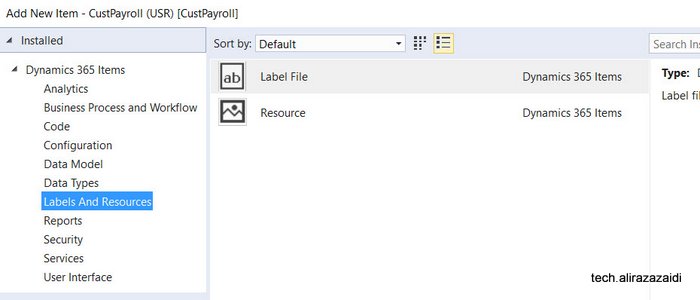
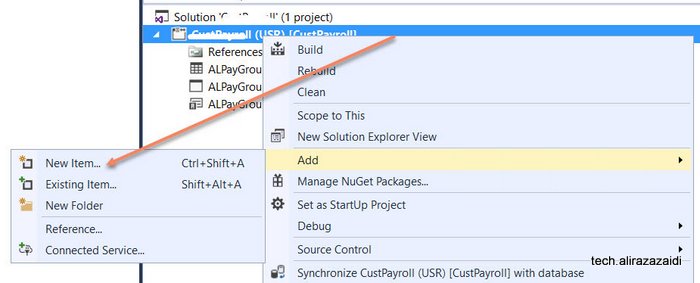
So first step is to create it by adding new item in Visual studio.


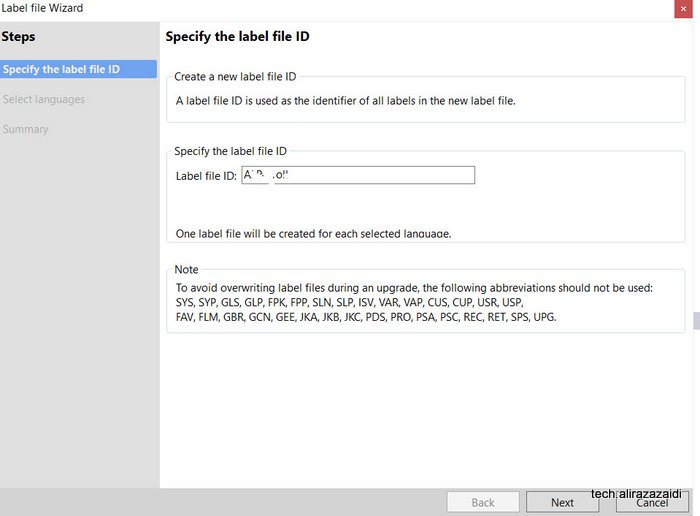
Name it as required,


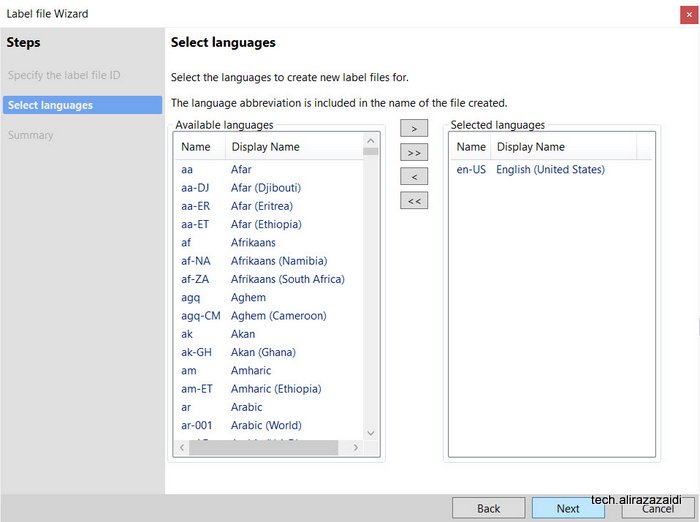
Select language. I select the English “US”


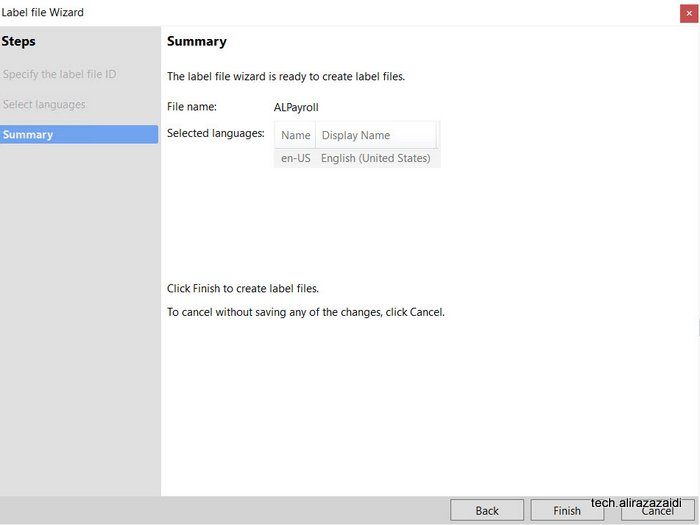
Make it finish


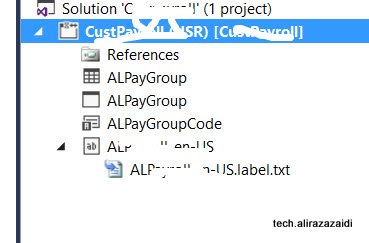
As a result new  label file is created in visual studio solution


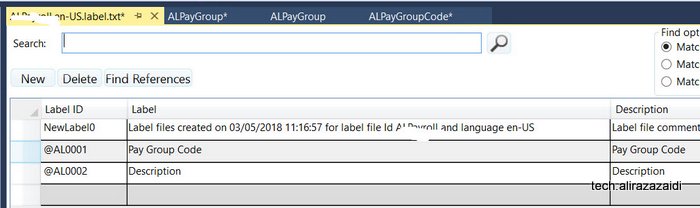
Click on file and add values through editors.


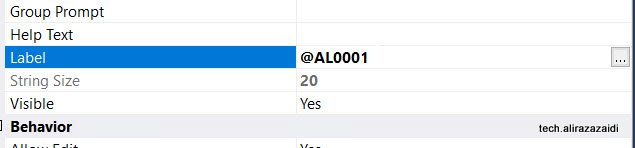
Labels created here can be search at control, field, EDT and Enum can be searched and used


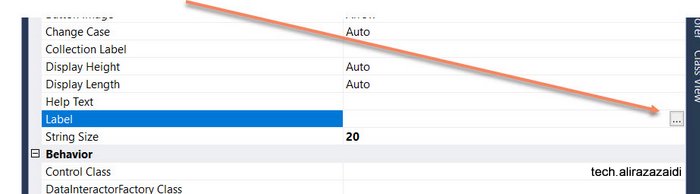
After creating labels file in project you find button in labels.


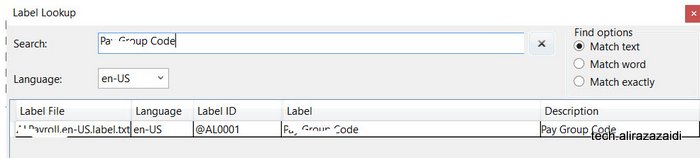
Search and selected required label

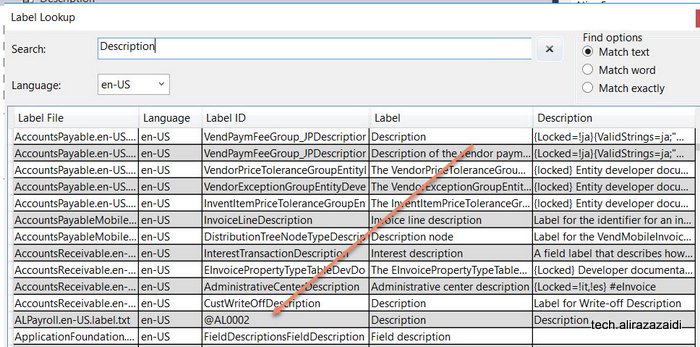
It is not recommend to create a new label for every field instead search and use label. For example for “Description” search and use existing one.


Something similar appear when I searched “Description”.

It shows all possible labels


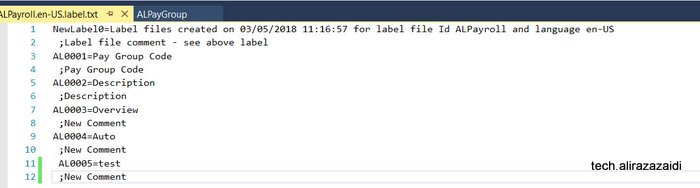
You can add labels in label file using text editor.  For example I write AL0005 in text editor.


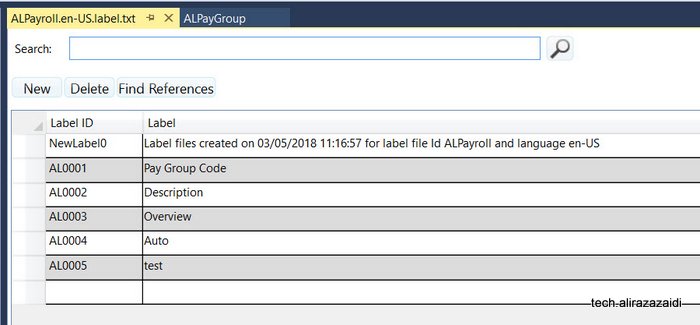
On saving, On opening label editor I found something similar.


Process Busy Indicator D365 for finance and operations

January 25, 2018 by alirazazaidi

Hi All, today I have small tip, During development, I have to process a lot of records. During this , I need Busy screen process indicator.


I used following code snippet to create progress busy indicator.


For this I have to do following changes in my Class method (Business logic).

  1. Convert required method to Static
  2. Parameter is changed to Container and then required parameter extract from container inside the method.


So my required method become something like


Class myProcess

{


Public static void RunmyProcess(Container _C)

{

Str _Value = conpeek(_C,1);


}


}


class RunBtnProcess

{

/// <summary>

///

/// </summary>

public void clicked()

{


container _Xyz=[TableName.FieldValue];

super();

SysOperationSandbox::callStaticMethod(classNum(myProcess),
staticMethodStr(myProcess,RunmyProcess),_Xyz, 
'Ledger Record in process', 'Operation completed');


}


}

Reference : Internet.

Data manipulation tip 2 Dynamics ax 2012 and D365 of Operations Table initialization method.

April 12, 2017 by alirazazaidi

If we consider the following code snippet.
CustSalesQty _temp1,_temp2;
_temp1.IntQty=100;

_temp1.CustAccount =”Cust00001″;

_temp1.insert();

_temp1.IntQty=200;

_temp1.insert();


_temp1.IntQty=300;

_temp1.CustAccount =”Cust00003″;

_temp1.insert();

while select * from _temp1

{

_temp2.data(_temp1);

_temp2.insert();


}


while select * from  _temp2

{

info( ” _temp2 with ” + _temp2.CustAccount + ” ” + int2Str(_temp2.IntQty));


}


}

You can check that when we insert the temp1.inQTY=200, We did not set Customer account. At result record new record will insert with customer Cust00001 . You can see output of above code


Point is simple, We need to initialize the table before populate for next values.  I found this scenario in custom Inventory reports. When we populate data in different fields based on issue status.

You can set initialized values after ate in side query execution loop. But that piece of code belongs to specific location.

Microsoft provide the out of the box base initValue method. You can add this method by following way.

Best practices says you have to initialize value in this method. And call this method with table reference. This way initialization is table dependent not class dependent.


So we can over write the code as follow

public class CustSalesQty extends common

{

/// <summary>

///

/// </summary>

public void initValue()

{

super();

this.IntQty =0;

this.CustAccount =””;

}


}

Now above code snippet will works as

class Job123

{

/// <summary>

/// Runs the class with the specified arguments.

/// </summary>

/// <param name = “_args”>The specified arguments.</param>

public static void main(Args _args)

{

CustSalesQty _temp1,_temp2;

_temp1.initValue();

_temp1.IntQty=100;

_temp1.CustAccount =”Cust00001″;

_temp1.insert();

_temp1.initValue();

_temp1.IntQty=200;

//  _temp1.CustAccount =”Cust00002″;

_temp1.insert();

_temp1.initValue();

_temp1.IntQty=300;

_temp1.CustAccount =”Cust00003″;

_temp1.insert();

while select * from _temp1

{

_temp2.initValue();

_temp2.data(_temp1);

_temp2.insert();


}


while select * from  _temp2

{

info( ” _temp2 with ” + _temp2.CustAccount + ” ” + int2Str(_temp2.IntQty));


}


}


}

Data manipulation tip 1 In Dynamics ax 2012 and D365 Of Operations Data copy method.

April 9, 2017 by alirazazaidi


Currently I am doing Report development project, I got some tips for Data manipulation , these tips I recently learned.


Copy data from one table buffer to other of same type.


During report development, We usually populate  temp table with result of Query execution. Usually we need copy of same data for aggregate functions.


Instead map each field of buffer with each other. We can copy the whole data by using .data method.


Suppose we have custom temp table CustSaleQtyTmp which we need to copy from one buffer to other.

class DataManipulationJob
{
/// <summary>
/// Runs the class with the specified arguments.
/// </summary>
/// <param name = "_args">The specified arguments.</param>
public static void main(Args _args)
{

CustSaleQtytmp _temp1,_temp2;
_temp1.IntQty=100;
_temp1.CustAccount =”Cust00001″;
_temp1.insert();
_temp1.IntQty=200;
_temp1.CustAccount =”Cust00002″;
_temp1.insert();

_temp1.IntQty=300;
_temp1.CustAccount =”Cust00003″;
_temp1.insert();
while select * from _temp1
{
// Instead copy like this we can use Data method
// _temp1.CustAccount = _temp2.CustAccount;
// _temp1.IntQty = _temp2.IntQty;

_temp2.data(_temp1);
_temp2.insert();

}

while select * from _temp2
{
info( ” _temp2 with ” + _temp2.CustAccount + ” ” + int2Str(_temp2.IntQty));

}
}

}

output like

Customization in Dynamics 365 for operation (Dynamics AX, AX 7) – Part 7 Custom SSRS based on Report Data provider.

February 3, 2017 by alirazazaidi

Time change, Things change but experience always counts. Today I decide to write a post to build very simple custom Report Data provider based report. It is similar report I  developed back in May or April 2012.

My current development environment is Dynamics 365 for operations Update 2 vm on my personal Laptop vm.

Prerequisite of this post  is understanding the AOT in Visual studio and basic programming language like C#.


In very simple basic level RDP report three objects are required.

Data contract,  Data Contract class  ties with extended data types. This class contain properties with getter setters. At run time these properties act as report parameters.

Data Provider Class. This class act as container for report logic.  Here we get Report Query or parameters of Data contract class and perform queries on required tables. This class is extended with framework class.

Temperory table

Temperory table is used as bridge for data between report designer (DataSet) and Report logic. We populate temporary table with required logic in data provider class.


Report Requirement:


Client wants a report where End user select Customer and Report shows, Customer Name, Sale order Number, Item Id, Item group. Sales order Quantity, expected delivery date of Sale order and Unit Sales price. The report must be print in A4 paper size.

Mapping:


So our first step is to create mapping. This mapping contain following things.

  • Expected field Name
  • Description / explaination / expected values
  • Orignal table field, which we read and map to temporary field.
  • Extended data type. You can get it from original table field. This is optional, but good in the case of create links and length of fields in table.


So build following table with our requirement and generates mapping.

Report Column Description Dynamics 365 for operation Mapping Extended data Type /  Base Enum
Order Number Sales Order Number SalesLine.SalesId SalesIdBase
Item Number Item Number SalesLine.ItemId ItemIdSmall
Item group Item Group InventItemGroupItem.ItemGroupId ItemGroupId
Sales Price Sales Price SalesLine.UnitPrice SalesPrice
Open Qty Order Line Quantity SalesLine.QtyOrdered InventQty
CustAccount Cust Account Salesline.CustAccount CustAccount
CustName CustName CustTable.Name() Name
Date Requested Ship date requested SalesLine.ShippingDateRequested SalesShippingDateRequested
Order Status Sales Order Line Status SalesLine.SalesStatus SalesStatus


Now create temp table in Visual studio


Now double click on table in solution explorer and open it designer mode in center of screen.

Update its Table Type property to InMemory.

Now create each field and update its extended data type as we created in previous step.


Now next step is report parameters. For this purpose we use Data contract class. In current report we required only one parameter base on Extended Data Type CustAccount. At simplest our data contract class will be look like as follow.


[

DataContractAttribute

]

public class AlSaleOrderDC

{

CustAccount custAccount;


[

DataMemberAttribute('CustomerAccount')

]

public CustAccount ParmCustAccount(CustAccount _custAccount=custAccount)

{

custAccount = _custAccount;

return custAccount;


}


}


Now we required to write some logic which you above mention class as its data contract and populate the custom temp table we build in pervious step.

[

SRSReportParameterAttribute(classStr(AlSaleOrderDC))

]

public class AlSaleOrderPD extends SRSReportDataProviderBase

{

AlSaleOrderDC dc;

ALSalesOrderTemp salesOrderTemp;


[

SRSReportDataSetAttribute('tempSalesOrderDS')

]

public ALSalesOrderTemp gettempSalesOrderDS()

{

select * from salesOrderTemp;

return salesOrderTemp;

}


/// </summary>

public void processReport()

{

CustAccount _CustAccount;

SalesLine _SalesLine;

dc =this.parmDataContract();


_CustAccount = dc.ParmCustAccount();


while select * from _SalesLine where _SalesLine.CustAccount == _CustAccount

{

salesOrderTemp.SalesId = _SalesLine.SalesId;

salesOrderTemp.CustAccount = _SalesLine.CustAccount;

salesOrderTemp.CustName = CustTable::find(   _SalesLine.CustAccount).name();

salesOrderTemp.SalesPrice = _SalesLine.PriceUnit;

salesOrderTemp.ItemId = _SalesLine.ItemId;

salesOrderTemp.ItemGroupId = InventItemGroupItem::findByItemIdLegalEntity( _SalesLine.ItemId).ItemGroupId;

salesOrderTemp.OpenQty = _SalesLine.QtyOrdered;

salesOrderTemp.DateRequested = _SalesLine.ShippingDateRequested;

salesOrderTemp.SalesStatus = _SalesLine.SalesStatus;

salesOrderTemp.insert();


}


}


}

At this step build the solution, never forget to check the project Sychronized database on build set to true.

Now Add new report in project

Double click on Report in solution and open in designer screen. And right click on datasets and create new Data Set.

From new data set update the following properties. Data Source Type to Report Data provider. Change Name to DSSales Order

Click on Query and from dialog select the data provider class we create some above screen.


After Selecting Class, click on next button. From next dialog select field for usage in report.


Now right click on designer node of report and click on precision design.

In precision design, we can create report designer by our need.


New designer will be added, rename it and double click to open it. from left pane, toolbar to drag to table to add in designer.


From Report Data drop dataset fields on table columns. Add new column in table.

When all fields are added in report. Right click outside the report body and click on report property.


And select report print layout. Our target is A4 page. so set it from report properties.


Now right click on report body and check its with. Its width must be under 6 because at run time 1 inch on both side must be skip.

After that right click on report in solution explorer and click on deploy

After the add new display menu Item update the its following properties


Here there is one advancement, In 2012 there is very difficult to debug report. But in Dynamics 365 for operation is its very simple. Just put break point and set report as starting object and run the project.


Now new browser window you find similar form.

Now Customer appear because by default it opens in “DAT” legal entity. Now update the url as follow.

https://usnconeboxax1aos.cloud.onebox.dynamics.com/?mi=AlSaleOrderMenu&prt=initial&debug=vs%2CconfirmExit&activityid=041d0eaf-7d60-0000-162d-1d04607dd201&cmp=usmf


select parameter from customer. click on ok

And my break open hit

So it is very here to debug report.


So our report logic fine, but one step is pending Which is report should be run from Client with particular module.

So I decide to add this report in sales and marketing module and under sale order report . For this purpose we have to create a new menu extension.


New menu extension added in solution explorer.

Expand menu extension in designer and drag display menu in required menu

From property update “Display In Content Area” to true to create show crumb bar.

Now save and compile again the project.

And open client url in Browser

Login and goes in Sales module For identification purpose, I set the label of display menu as “Ali Sale Order”.

Click on it find report parameter dialog


So our report is running successfully.

Customization in New Dynamics Ax (Aka AX 7)- Part 6 Custom Workflow

October 19, 2016 by alirazazaidi

Customization in New Dynamics Ax (Aka AX 7)- Part 6 Custom Workflow


Hi, every one, Let’s explore the custom workflows in new Dynamics Ax commonly known as AX 7.

This blog post is part of series.

In this post, I build a custom workflow based on table and form build in pervious posts.

Below links leads you to older posts.


http://tech.alirazazaidi.com/customization-in-new-dynamics-ax-ax-7-part-1-creating-new-model/


http://tech.alirazazaidi.com/customization-in-new-dynamics-ax-aka-7-create-new-module/


http://tech.alirazazaidi.com/customization-in-new-dynamics-ax-ak-7-part-3-form-and-table-extensions/


http://tech.alirazazaidi.com/customization-in-new-dynamics-ax-ak-7-part-4-custom-tables/


http://tech.alirazazaidi.com/customization-in-new-dynamics-ax-aka-ax-7-part-5-custom-forms-simple-list-page/


As per Microsoft Documentation Custom workflow development is very similar to Dynamics Ax 2012.


Let’s do this in in following steps.

Custom Enum type.


We need Custom enum type for defining the States or status of Workflow. In Current Example I am using Al as naming convention for development.


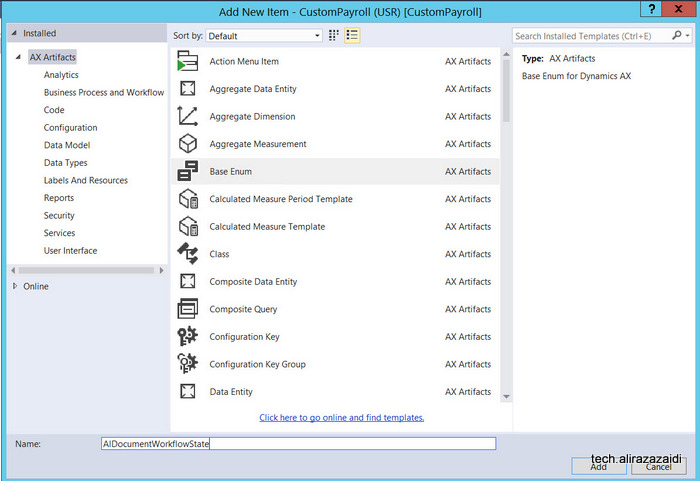
Right click on Solution explorer and then add a new from ax artifacts. Name it AlDocumentWorkflowState.

new-enumtype

When new AlDocumentWorkflowState enum is added in Solution explorer then double click on it to open it in designer mode. And then Add following Elements in it.

Add following elements in Enum

2016-09-20_22-56-56


Now drag this enum to required table and it will create a new field other wise you have to create a new field in table and set extended data type / base enum. For current example I used the AlEarningCodeGroup table which I created in my previous post.

workflowdrag


Table methods:

We need two methods in Table, first method is CanSubmitToWorkFlow.  This table help us to enable workflow based on specific condition, For example if table row has workflow state draft or not submitted, then workflow will processing will enable.

canworkflow


A new class is added in and update with logic, The condition on which Workflow enabled in class

public boolean canSubmitToWorkflow(str _workflowType = '')

{

boolean ret;

ret = super(_workflowType);

if (this.AlDocumentWorkflowState  == AlDocumentWorkflowState::NotSubmitted)

{

ret = boolean::true;

}

else

{

ret = boolean::false;

}

return ret;

}


Now add one more method in class We pass recId of current row and update its workflow state.

Public static void UpdateWorkFlow(RefRecId _RecId,AlDocumentWorkflowState _Status)

{

AlEarningCodeGroup _Group;

select forupdate * _Group where _Group.RecId == _RecId;

ttsbegin;

_Group.AlDocumentWorkflowState = _Status;

_Group.update();

ttscommit;


}


Custom Query:

Workflow uses the query to define the tables and fields that will be used by the workflow to define the data set available.

Again right click on solution explorer and add new Item and then select Query.

Now create a Query so we can build Document on that Query.

newquery


Name it AlEarningCodeGroupQuery .

Double click on Query and open it into Design mode and drag table in Data source. Save

querydetail

Now right click on Table and press Now F4 or open property window and set dynamics Field

fields

You find fields details.

query-building


Workflow Category:

A workflow category is used to determine the module in which the workflow will be available

Right click on project in solution explorer and add new Item.  From dialog window select workflow category.

workflowcategorydailog


Double click on workflow category created in previous step and open in designer view, press F4   to property window. set Module Property to HumanResource and Label to “AlEarningcodeGroupWFCategory” and save it.

categoryproperty


Workflow type.

Now to go to Solution explorer and add new item and from new Item dialog select

earncodetypewf


Name it AlEarningGrpWFType. A wizard will start and there you have to select Query , Workflow category and the link from which required form will be open. We build all these three things in previous steps.

ddde

When Wizard finish, number of classes, Workflow type and classes will be generated and added in Visual studio, you can find them in solution explorer.

menuee


Update label of workflow type open them in designer window and set its label.

earning-code-type

Similarly update labels of menu items to something good.

cancel


Similarly update the label of submit button.


Now expand the Submit Manager Class “AlEarnGrpWFTypeSubmitManager”  and update event handlers as follow.

/// <summary>

/// The AlEarnGrpWFTypeSubmitManager menu item action event handler.

/// </summary>

public class AlEarnGrpWFTypeSubmitManager

{

public static void main(Args _args)

{

AlEarningCodeGroup                           EarningCodeGroup;

AlEarnGrpWFTypeSubmitManager     submitManger;

recId _recId =                      _args.record().RecId;

WorkflowCorrelationId               _workflowCorrelationId;


workflowTypeName                    _workflowTypeName = workFlowTypeStr(“AlEarnGrpWFType”);

WorkflowComment                     note = “”;

WorkflowSubmitDialog                workflowSubmitDialog;

submitManger =                      new AlEarnGrpWFTypeSubmitManager();


//Opens the submit to workflow dialog.

workflowSubmitDialog = WorkflowSubmitDialog::construct(_args.caller().getActiveWorkflowConfiguration());

workflowSubmitDialog.run();


if (workflowSubmitDialog.parmIsClosedOK())

{

EarningCodeGroup = _args.record();

// Get comments from the submit to workflow dialog.

note = workflowSubmitDialog.parmWorkflowComment();


try

{

ttsbegin;

// Activate the workflow.

_workflowCorrelationId = Workflow::activateFromWorkflowType(_workflowTypeName, EarningCodeGroup.RecId, note, NoYes::No);


EarningCodeGroup.AlDocumentWorkflowState = AlDocumentWorkflowState::Submitted;

EarningCodeGroup.update();

ttscommit;


// Send an Infolog message.

info(“Submitted to workflow.”);

}

catch (Exception::Error)

{

error(“Error on workflow activation.”);

}

}


_args.caller().updateWorkFlowControls();

}


}


Now double click on event class “AlEarnGrpWFTypeEventHandler”  in solution explorer edit its events with table method call, We create this static method in one of above step.

/// <summary>

/// The AlEarnGrpWFTypeEventHandler workflow event handler.

/// </summary>

public class  AlEarnGrpWFTypeEventHandler implements WorkflowCanceledEventHandler,

WorkflowCompletedEventHandler,

WorkflowStartedEventHandler

{

public void started(WorkflowEventArgs _workflowEventArgs)

{

AlEarningCodeGroup::UpdateWorkFlow(_workflowEventArgs.parmWorkflowContext().parmRecId(),AlDocumentWorkflowState::Submitted);

}


public void canceled(WorkflowEventArgs _workflowEventArgs)

{

AlEarningCodeGroup::UpdateWorkFlow(_workflowEventArgs.parmWorkflowContext().parmRecId(),AlDocumentWorkflowState::PendingConcellation);

}


public void completed(WorkflowEventArgs _workflowEventArgs)

{

AlEarningCodeGroup::UpdateWorkFlow(_workflowEventArgs.parmWorkflowContext().parmRecId(),AlDocumentWorkflowState::Completed);

}


}


Workflow Approval:


Add new item and select Workflow Approval like in previous steps

approval


In wizard select Workflow document this will be generated by Workflow element step. Also select the field group from table on which we are building workflow. Also select form menu item which will open when user click on notification.


earaninggroupcodeapprovalwizard


earninggroupapprovalwizarddetails


In Solution explorer new menu items and classes are added.

new-items


Now double click and open the approval class and update it as AlEarningGroupWFApprEventHandler

And update workflow dates

/// <summary>

/// The AlEarningGroupWFApprEventHandler workflow outcome event handler.

/// </summary>

public final class AlEarningGroupWFApprEventHandler implements WorkflowElementCanceledEventHandler,

WorkflowElemChangeRequestedEventHandler,

WorkflowElementCompletedEventHandler,

WorkflowElementReturnedEventHandler,

WorkflowElementStartedEventHandler,

WorkflowElementDeniedEventHandler,

WorkflowWorkItemsCreatedEventHandler

{

public void started(WorkflowElementEventArgs _workflowElementEventArgs)

{


}


public void canceled(WorkflowElementEventArgs _workflowElementEventArgs)

{

AlEarningCodeGroup::UpdateWorkFlow(_workflowElementEventArgs.parmWorkflowContext().parmRecId(), AlDocumentWorkflowState::PendingConcellation);

}


public void completed(WorkflowElementEventArgs _workflowElementEventArgs)

{

AlEarningCodeGroup::UpdateWorkFlow(_workflowElementEventArgs.parmWorkflowContext().parmRecId(), AlDocumentWorkflowState::Approved);

}


public void denied(WorkflowElementEventArgs _workflowElementEventArgs)

{

AlEarningCodeGroup::UpdateWorkFlow(_workflowElementEventArgs.parmWorkflowContext().parmRecId(), AlDocumentWorkflowState::Reject);

}


public void changeRequested(WorkflowElementEventArgs _workflowElementEventArgs)

{

AlEarningCodeGroup::UpdateWorkFlow(_workflowElementEventArgs.parmWorkflowContext().parmRecId(), AlDocumentWorkflowState::ChangeRequest);

}


public void returned(WorkflowElementEventArgs _workflowElementEventArgs)

{

AlEarningCodeGroup::UpdateWorkFlow(_workflowElementEventArgs.parmWorkflowContext().parmRecId(), AlDocumentWorkflowState::Returned);

}


public void created(WorkflowWorkItemsEventArgs _workflowWorkItemsEventArgs)

{

// TODO:  Write code to execute once work items are created.

}


}


Now double click on workflow type and open in designer

workflow-type


workflowapproval


Update it workflow approval with name

approva

Form Properties to enable Workflow.


Now expand the form, double click on designer and set following properties.


Workflow data source, enable for workflow and workflow Type.

worktypedetial

Now save Compile And Run with Ctrl F5 to run without debugging to open Dynamics Ax web client

workflow-setup


Now we have to configure workflow.

We set workflow category is Human Resource Management, and you will find Human resource workflows

setupworkflow


Create a new workflow and select the workflow type we created in above step.

login


Enter credentials.


From designer window select and configure workflow.

setup


Save and activate.


Now when you open the client in browser. You will find workflow menu item you can run the workflow from here.


workflow-setss


Primary Sidebar

About

I am Dynamics AX/365 Finance and Operations consultant with years of implementation experience. I has helped several businesses implement and succeed with Dynamics AX/365 Finance and Operations. The goal of this website is to share insights, tips, and tricks to help end users and IT professionals.

Legal

Content published on this website are opinions, insights, tips, and tricks we have gained from years of Dynamics consulting and may not represent the opinions or views of any current or past employer. Any changes to an ERP system should be thoroughly tested before implementation.

Categories

  • Accounts Payable (2)
  • Advance Warehouse (2)
  • Asset Management (3)
  • Azure Functions (1)
  • Books (6)
  • Certification Guide (3)
  • Customization Tips for D365 for Finance and Operations (62)
  • D365OF (60)
  • Data Management (1)
  • database restore (1)
  • Dynamics 365 (59)
  • Dynamics 365 for finance and operations (138)
  • Dynamics 365 for Operations (174)
  • Dynamics AX (AX 7) (134)
  • Dynamics AX 2012 (274)
  • Dynamics Ax 2012 Forms (13)
  • Dynamics Ax 2012 functional side (16)
  • Dynamics Ax 2012 Reporting SSRS Reports. (31)
  • Dynamics Ax 2012 Technical Side (52)
  • Dynamics Ax 7 (65)
  • Exam MB-330: Microsoft Dynamics 365 Supply Chain Management (7)
  • Excel Addin (1)
  • Favorites (12)
  • Financial Modules (6)
  • Functional (8)
  • General Journal (1)
  • Implementations (1)
  • Ledger (1)
  • Lifecycle Services (1)
  • Logseq (4)
  • Management Reporter (1)
  • Microsoft Excel (4)
  • MS Dynamics Ax 7 (64)
  • MVP summit (1)
  • MVP summit 2016 (1)
  • New Dynamics Ax (19)
  • Non Defined (9)
  • Note taking Apps (2)
  • Obsidian (4)
  • Personal Knowledge Management (3)
  • PKM (16)
  • Power Platform (6)
  • Procurement (5)
  • procurement and sourcing (6)
  • Product Information Management (4)
  • Product Management (6)
  • Production Control D365 for Finance and Operations (10)
  • Sale Order Process (10)
  • Sale Order Processing (10)
  • Sales and Distribution (5)
  • Soft Skill (1)
  • Supply Chain Management D365 F&O (4)
  • Tips and tricks (278)
  • Uncategorized (165)
  • Upgrade (1)
  • Web Cast (7)
  • White papers (4)
  • X++ (10)

Wiki

  • SCM

Copyright © 2026 · Magazine Pro On Genesis Framework · WordPress · Log in