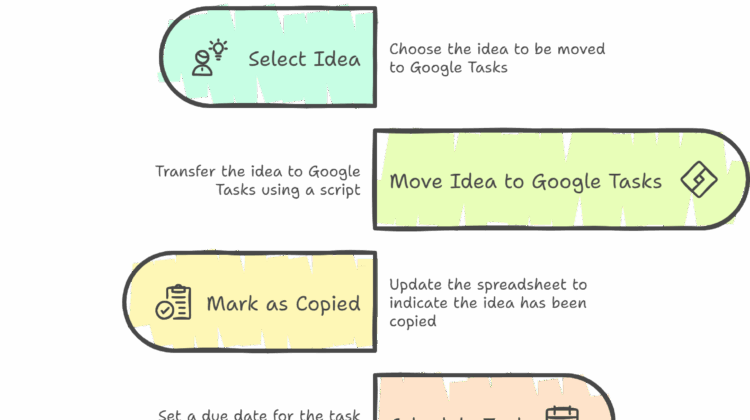
Different people use different productivity systems. Some prefer Notion with its integrated calendar, while others use Todoist, which offers a powerful calendar feature—especially in the paid version. Based on my experience, if you want to implement a proper task management system or follow the Getting Things Done (GTD) methodology, Todoist is one of the best options available for just $5/month. However, it’s important to note that calendar integration is only available in the paid version.
One common limitation with both Notion and Todoist is that they rely on Google Calendar as a reference point. Whatever events you mark on Google Calendar will appear in Notion or Todoist. But when you open Google Calendar itself, it’s often blank—since these tools don’t actually write back to the calendar, they just display it. So the only real advantage is that tasks you manually add to Google Calendar will show up across these apps.
Recently, I’ve been working with the Saudi calendar setup, which uses Google Workspace—Google Meet, Sheets, Chat, and Group Chat. I’m becoming more comfortable using Google Workspace overall. At work, we track tasks and issues using Google Sheets as a tracker. Even for personal use, Google Sheets and Google Tasks are great because they’re free.
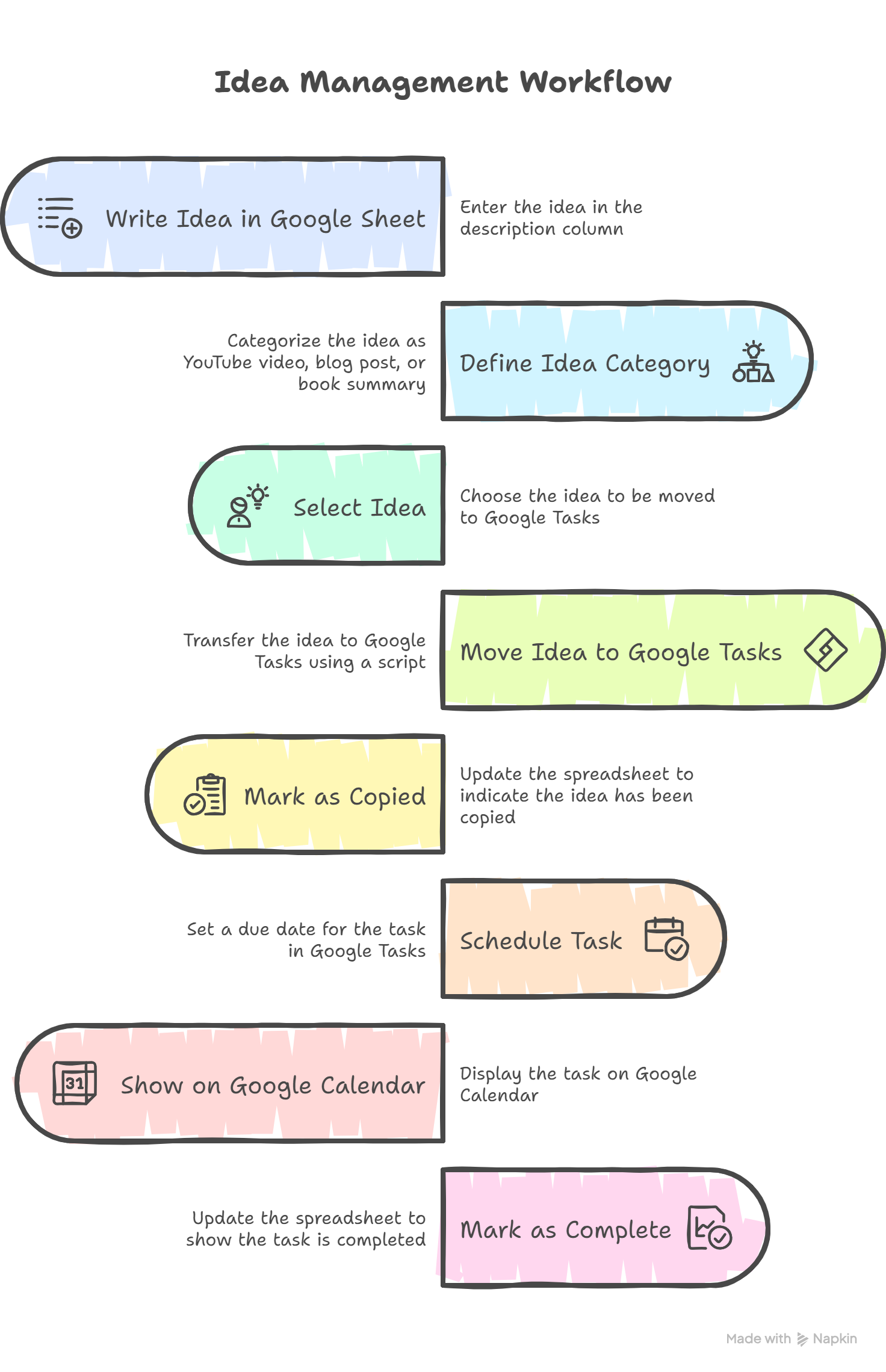
My actual goal was to have assigned tasks appear on Google Calendar. So, I decided to use Google Sheets as an idea tracker, Google Tasks for task management, and rely on deadlines in Google Tasks to display on Google Calendar.
The challenge is that while you can easily create tasks in Google Tasks from Gmail, there’s no native way to create them directly from Google Sheets. That’s why I’m working on a workflow to bridge this gap—using Google Sheets for planning and Google Tasks for execution, with deadlines syncing to the calendar.
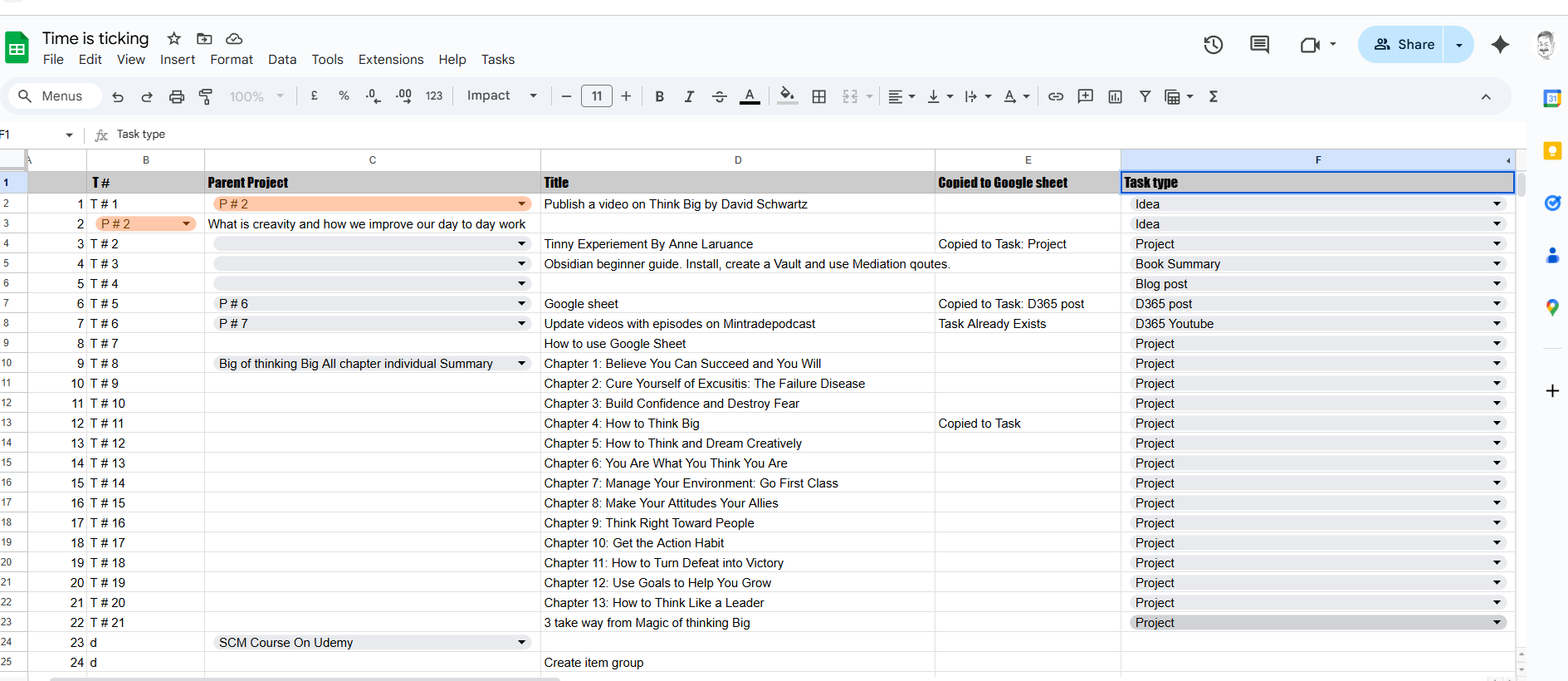
So, I created specific columns in Google Sheets to build my own active content planner.
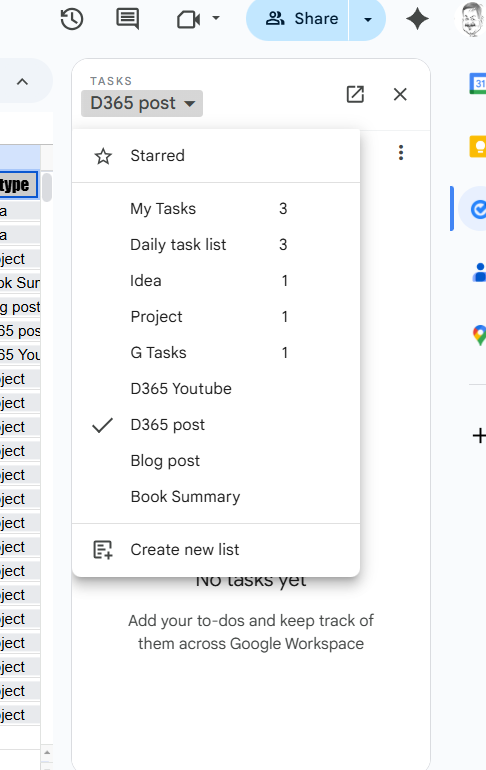
My goal is that when I click on a task title, it should automatically be added to Google Tasks under a specific task list. In the 5th column, I define the task type—such as “Idea,” “Blog Post,” or “YouTube Video”—and I’ve created matching task lists in Google Tasks to keep everything organized.
This is only possible automation. Google provide the Javascript based script writing. It is not much difficult.
You can add them by click on top
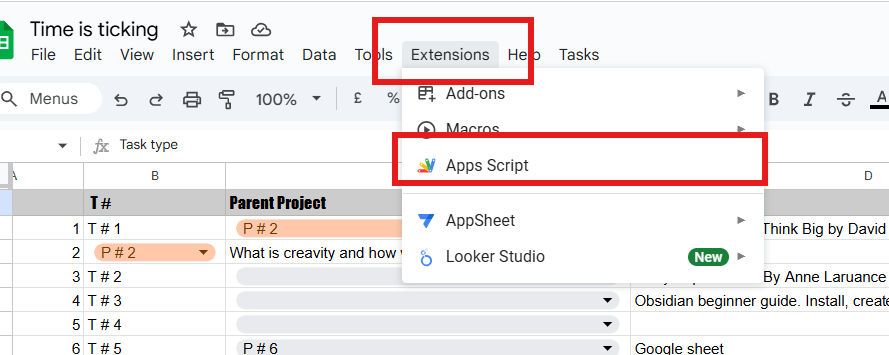
For simple and helpful guide for google script use following Blog link
https://www.benlcollins.com/apps-script/google-apps-script-beginner-guide/
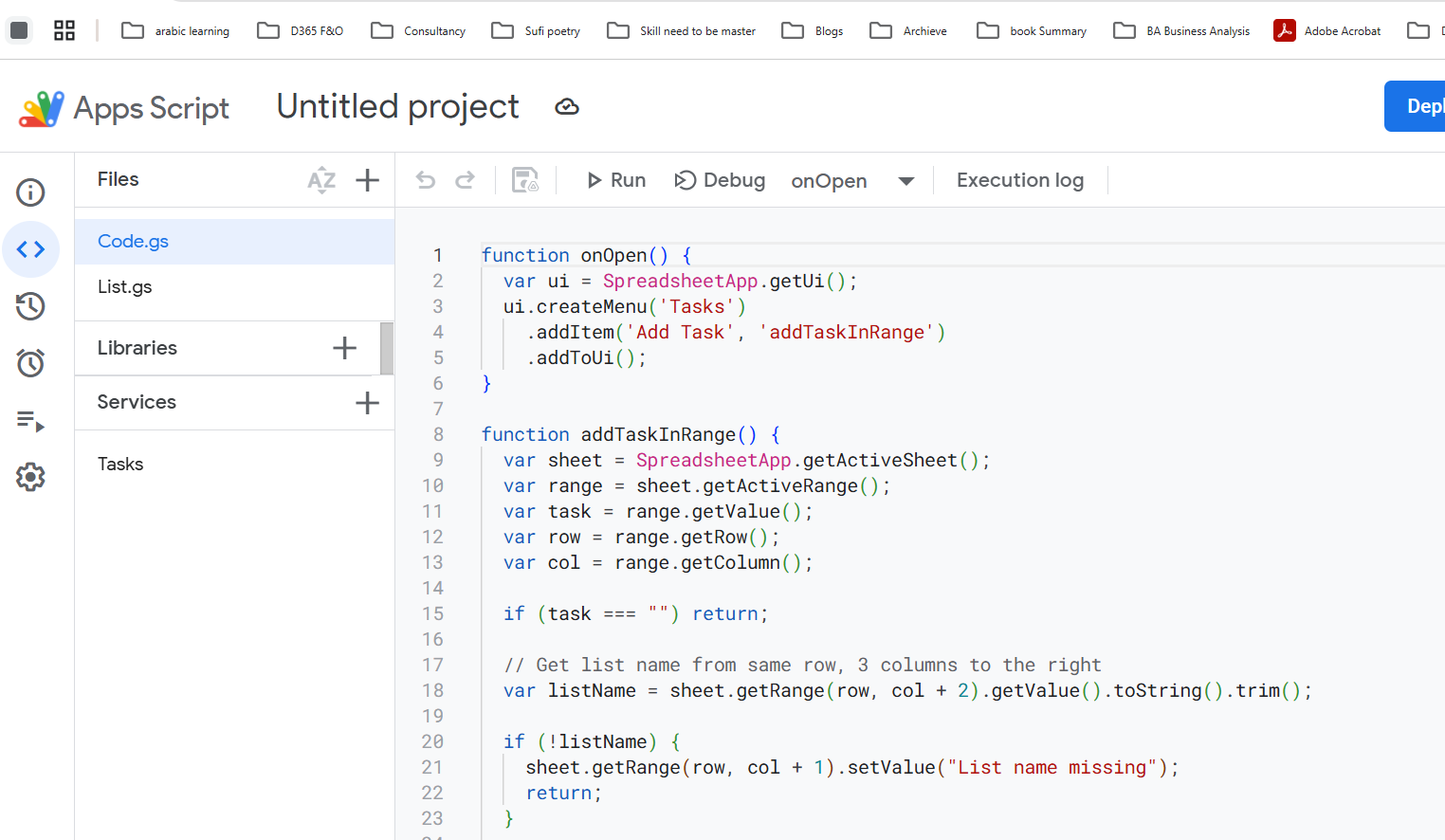
So from google script I used following script to create button and when you click on button. Task will copied to task management and from next column, in google sheet it add the message.
The list name it will get from column where I mentioned list name as task type or category
function onOpen() {

  var ui = SpreadsheetApp.getUi();

  ui.createMenu('Tasks')

    .addItem('Add Task', 'addTaskInRange')

    .addToUi();

}


function addTaskInRange() {

  var sheet = SpreadsheetApp.getActiveSheet();

  var range = sheet.getActiveRange();

  var task = range.getValue();

  var row = range.getRow();

  var col = range.getColumn();


  if (task === "") return;


  // Get list name from same row, 3 columns to the right

  var listName = sheet.getRange(row, col + 2).getValue().toString().trim();


  if (!listName) {

    sheet.getRange(row, col + 1).setValue("List name missing");

    return;

  }


  // Fetch all available task lists

  var taskLists = Tasks.Tasklists.list().items;

  if (!taskLists || taskLists.length === 0) {

    sheet.getRange(row, col + 1).setValue("No task lists found");

    return;

  }


  // Find task list by title

  var matchedList = taskLists.find(list => list.title.toLowerCase() === listName.toLowerCase());


  if (!matchedList) {

    sheet.getRange(row, col + 1).setValue("List not found: " + listName);

    return;

  }


  var taskListId = matchedList.id;


  // Check if task already exists in the matched list

  var taskExists = checkIfTaskExistsInList(task, taskListId);


  if (!taskExists) {

    var taskToAdd = { title: task };

    Tasks.Tasks.insert(taskToAdd, taskListId);

    sheet.getRange(row, col + 1).setValue("Copied to Task: " + listName);

  } else {

    sheet.getRange(row, col + 1).setValue("Task Already Exists in " + listName);

  }

}


function checkIfTaskExistsInList(taskTitle, taskListId) {

  var tasks = Tasks.Tasks.list(taskListId);


  if (!tasks.items) return false;


  for (var i = 0; i < tasks.items.length; i++) {

    if (tasks.items[i].title === taskTitle) {

      return true;

    }

  }

  return false;

}
This partial script as per my workflow. But you can extend
I used the basic code snippet to Add task to google task from google sheet.
I feel it is more good that I can modify it.
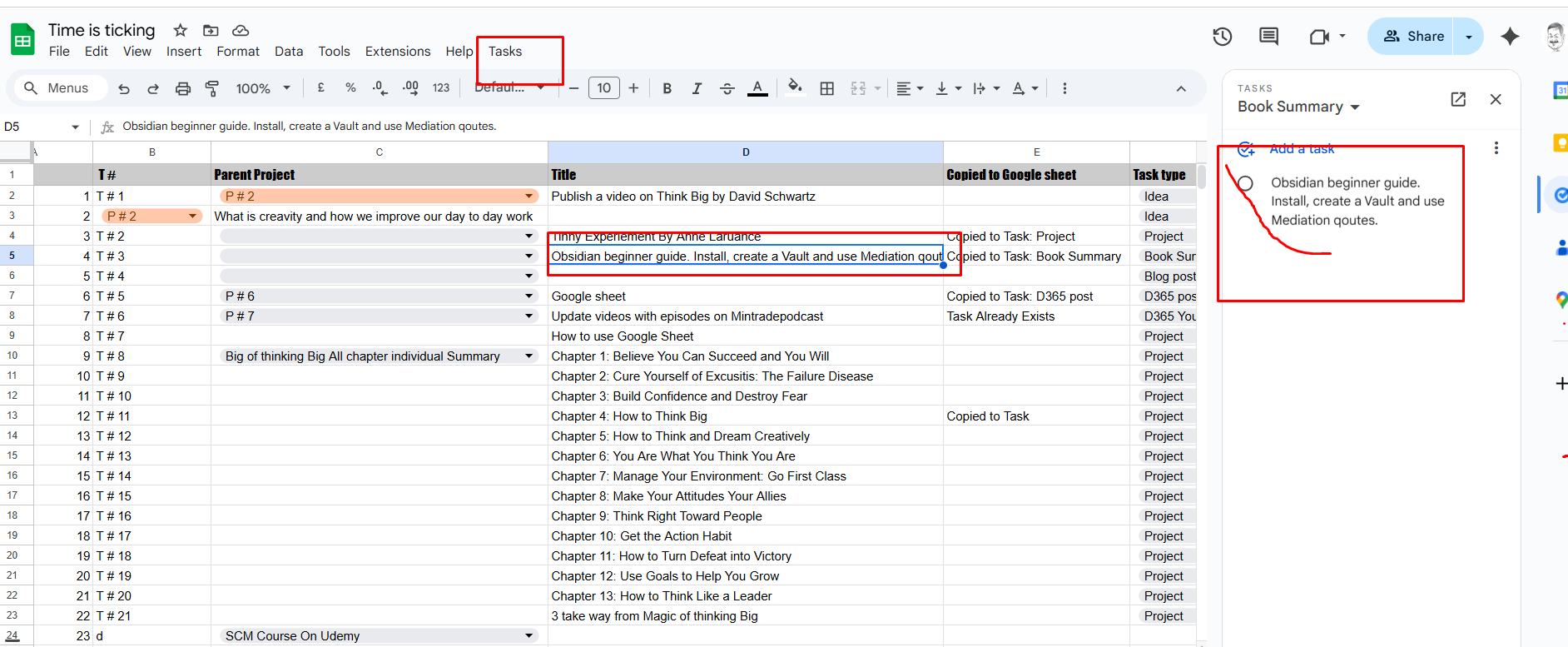
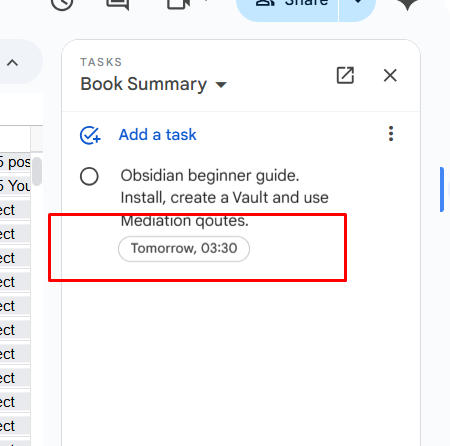
When I add deadline I see it in
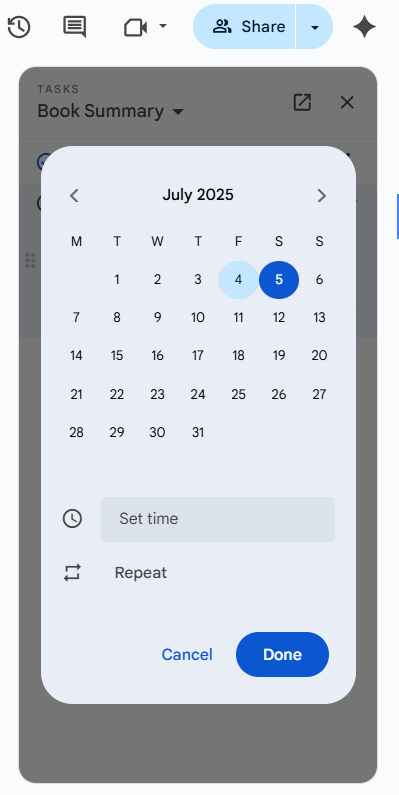
after setting date and time,
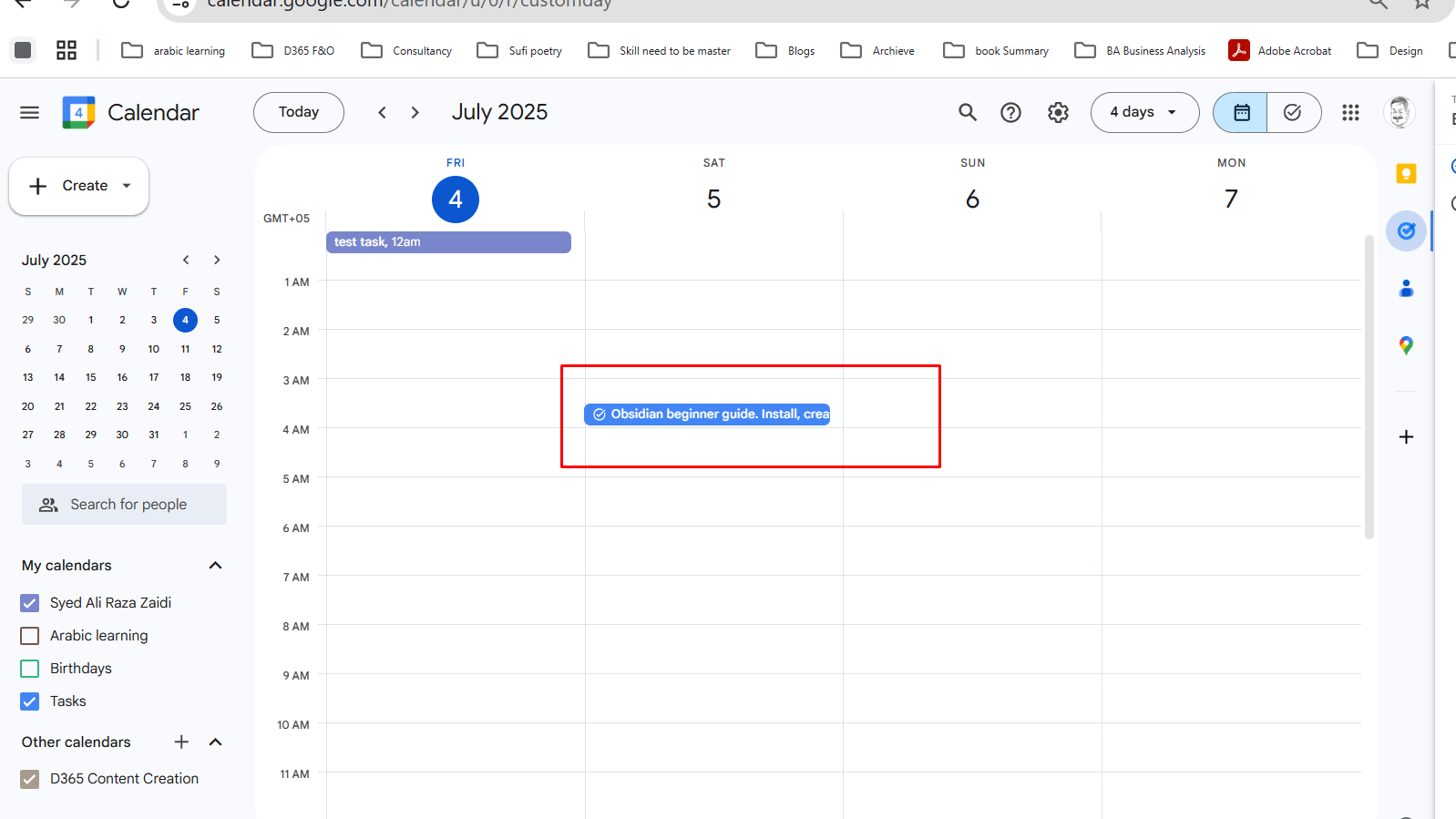
This task will start to appear in my google calendar
How you like this workflow. And if you want your own, you can use script as sample and make your own.